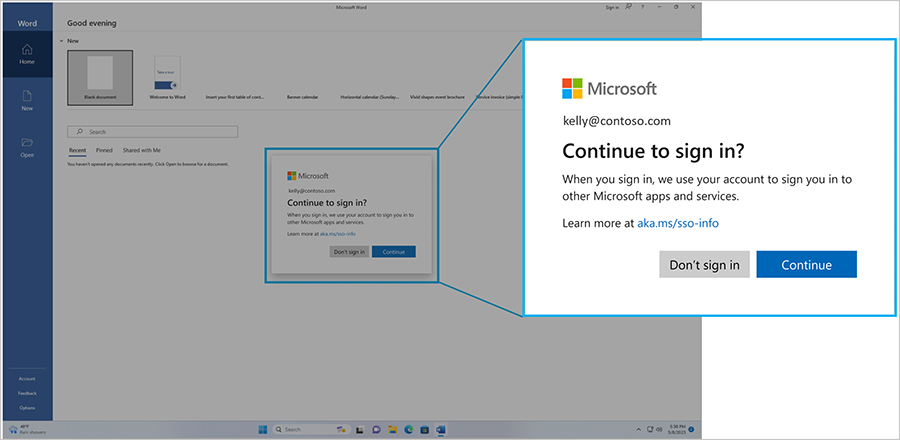
If you manage Windows devices in the European Economic Area, you have met this dialog: a user signs in, opens Word, and Windows asks whether it may share the signed-in work account with Microsoft apps - “Continue to sign in”. Microsoft added the prompt to comply with the Digital Markets Act, and on paper it gives users control over their credentials. In a managed environment it mostly gives them a new way to break single sign-on.
The prompt is at its worst right after Windows Autopilot. It doesn’t simply appear after the first sign-in - it only shows up when an app actually asks for the shared work account. Some apps trigger it reliably, the Company Portal for example. Word does not always: sometimes the prompt never comes up, Word just fails to get a token silently. Instead of a signed-in, licensed Office the user gets a username and password prompt - or an “unlicensed product” warning on an E5 license they very much have. The support tickets write themselves.
With the July 2026 update, Microsoft finally shipped an admin control for this: Now available: Admin control for SSO prompts in Windows. A single registry policy auto-accepts the SSO permission prompt on managed devices, so users never see it.
This article covers two ways to deploy it with Intune: a remediation for the existing fleet, and a Win32 app so the Enrollment Status Page can force it onto Autopilot devices before the first user ever signs in. Both are published in my Intune-Misc repository on GitHub.
The Registry Policy
| Path | HKLM\SOFTWARE\Policies\Microsoft\Windows\AAD |
| Value | AutoAcceptSsoPermission |
| Type | DWORD |
| Data | 1 (auto-accept the SSO permission prompt) |
Prerequisites and limits:
- Windows 11 24H2 (build 26100.8875+) or 25H2 (build 26200.8875+), i.e. the July 2026 update KB5101650 or later
- The device must be organization-managed (Intune/GPO) - the policy has no effect on personal PCs
- The account must be a Microsoft Entra work or school account
- It does NOT bypass MFA, Conditional Access, or app-specific consent - it only answers the SSO permission prompt
The value is safe to pre-deploy: on devices that don’t have KB5101650 yet, it sits in the registry doing nothing and takes effect as soon as the update lands. That’s why none of the scripts below check the OS build.
Why a Remediation Alone Isn’t Enough
A remediation is the obvious tool for a single registry value, and for devices already in production it’s exactly right. But remediations run on a schedule after enrollment is complete - on a fresh Autopilot device, the first user signs in long before the first remediation cycle. That first sign-in is precisely the moment the prompt does its damage.
The fix is to deliver the same registry value as a required Win32 app and add it to the Enrollment Status Page as a blocking app. The ESP then installs it during the device setup phase, before the user ever reaches the desktop. Remediation for the fleet, Win32 app for Autopilot - together they cover both ends.
Option 1: The Remediation
Two small scripts. Detection checks the value, remediation writes it.
detection.ps1:
$ErrorActionPreference = "SilentlyContinue"

$RegPath   = "HKLM:\SOFTWARE\Policies\Microsoft\Windows\AAD"
$ValueName = "AutoAcceptSsoPermission"
$Expected  = 1

try {
    $current = Get-ItemProperty -Path $RegPath -Name $ValueName -ErrorAction Stop |
               Select-Object -ExpandProperty $ValueName

    if ($current -eq $Expected) {
        Write-Output "Compliant: $ValueName = $current"
        exit 0
    }

    Write-Output "NonCompliant: $ValueName = $current (expected $Expected)"
    exit 1
} catch {
    Write-Output "NonCompliant: $ValueName not configured under $RegPath"
    exit 1
}
remediation.ps1:
$ErrorActionPreference = "Stop"

$RegPath   = "HKLM:\SOFTWARE\Policies\Microsoft\Windows\AAD"
$ValueName = "AutoAcceptSsoPermission"
$Value     = 1

try {
    if (-not (Test-Path $RegPath)) {
        New-Item -Path $RegPath -Force | Out-Null
    }

    New-ItemProperty -Path $RegPath -Name $ValueName -Value $Value -PropertyType DWord -Force | Out-Null

    # Verify
    $current = (Get-ItemProperty -Path $RegPath -Name $ValueName).$ValueName
    if ($current -eq $Value) {
        Write-Output "Remediated: $ValueName set to $Value under $RegPath"
        exit 0
    }

    Write-Output "Failed: $ValueName is $current after write (expected $Value)"
    exit 1
} catch {
    Write-Output "Failed: $($_.Exception.Message)"
    exit 1
}
Create the package under Devices > Scripts and remediations > Create:
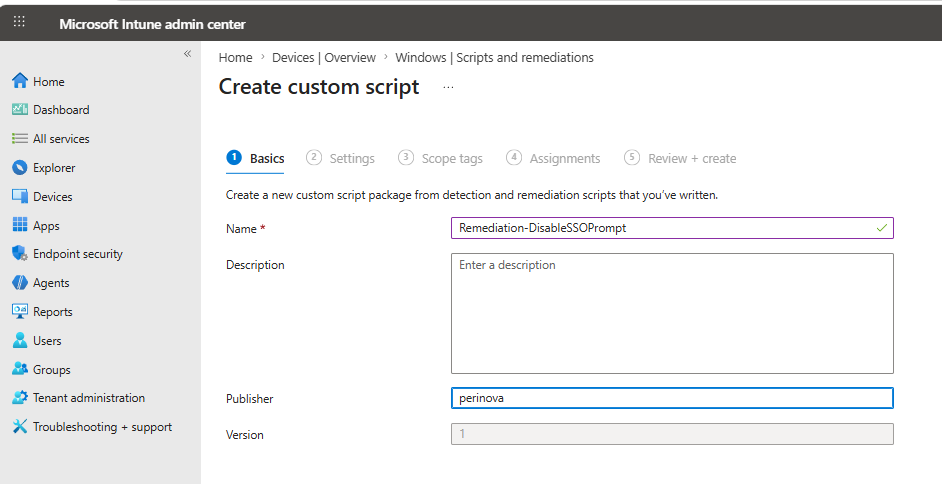
Upload both scripts on the Settings tab. The value lives in HKLM, so the script has to run as System, not as the logged-on user:
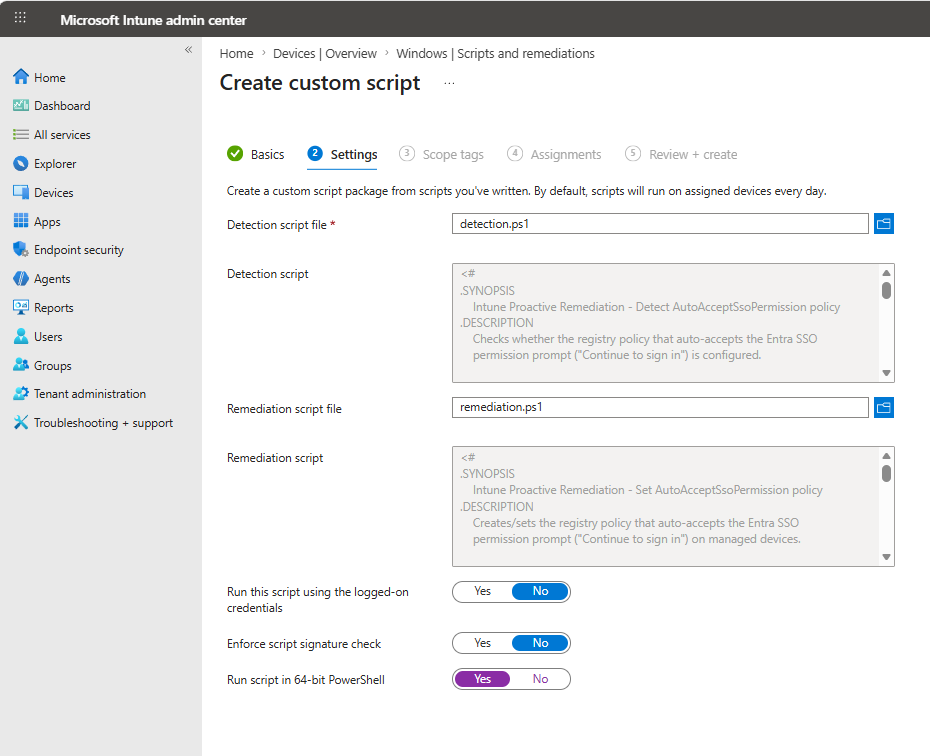
| Setting | Value |
|---|---|
| Detection script | detection.ps1 |
| Remediation script | remediation.ps1 |
| Run this script using the logged-on credentials | No |
| Enforce script signature check | No |
| Run script in 64-bit PowerShell | Yes |
Assign it to all managed Windows devices on the default daily schedule. Devices that already have the value report compliant and are left alone; everything else gets the value on the next cycle.
Option 2: The Win32 App for Autopilot
The ESP can only block on apps, so the same registry write goes into a Win32 app. Since Intune introduced the PowerShell script installer type for Win32 apps, this no longer means packaging the scripts into the .intunewin file itself: the install and uninstall scripts are uploaded directly in the portal, and the .intunewin content file is just a mandatory placeholder. Mine is literally called dummy.intunewin - a packaged empty file, also in the repo.
The three scripts (Install.ps1, Uninstall.ps1, Detect.ps1) do the same as the remediation, plus logging to the Intune Management Extension log folder so everything ends up in one diagnostics collection.
Install.ps1:
$ErrorActionPreference = "Stop"

$RegPath   = "HKLM:\SOFTWARE\Policies\Microsoft\Windows\AAD"
$ValueName = "AutoAcceptSsoPermission"
$Value     = 1

$LogDir = "$env:ProgramData\Microsoft\IntuneManagementExtension\Logs"
$Log    = Join-Path $LogDir "Set-AutoAcceptSsoPermission-Install.log"

function Write-Log ($Message) {
    $line = "{0} - {1}" -f (Get-Date -Format "yyyy-MM-dd HH:mm:ss"), $Message
    Add-Content -Path $Log -Value $line -ErrorAction SilentlyContinue
    Write-Output $line
}

try {
    if (-not (Test-Path $LogDir)) { New-Item -Path $LogDir -ItemType Directory -Force | Out-Null }

    if (-not (Test-Path $RegPath)) {
        New-Item -Path $RegPath -Force | Out-Null
        Write-Log "Created registry key $RegPath"
    }

    New-ItemProperty -Path $RegPath -Name $ValueName -Value $Value -PropertyType DWord -Force | Out-Null
    Write-Log "Set $ValueName = $Value"

    $current = (Get-ItemProperty -Path $RegPath -Name $ValueName).$ValueName
    if ($current -eq $Value) {
        Write-Log "Install successful - value verified"
        exit 0
    }

    Write-Log "Install failed - value is $current after write"
    exit 1
} catch {
    Write-Log "Install failed - $($_.Exception.Message)"
    exit 1
}
Uninstall.ps1:
$ErrorActionPreference = "Stop"

$RegPath   = "HKLM:\SOFTWARE\Policies\Microsoft\Windows\AAD"
$ValueName = "AutoAcceptSsoPermission"

$LogDir = "$env:ProgramData\Microsoft\IntuneManagementExtension\Logs"
$Log    = Join-Path $LogDir "Set-AutoAcceptSsoPermission-Uninstall.log"

function Write-Log ($Message) {
    $line = "{0} - {1}" -f (Get-Date -Format "yyyy-MM-dd HH:mm:ss"), $Message
    Add-Content -Path $Log -Value $line -ErrorAction SilentlyContinue
    Write-Output $line
}

try {
    if (Test-Path $RegPath) {
        $props = Get-ItemProperty -Path $RegPath -ErrorAction SilentlyContinue
        if ($null -ne $props.$ValueName) {
            Remove-ItemProperty -Path $RegPath -Name $ValueName -Force
            Write-Log "Removed $ValueName from $RegPath"
        } else {
            Write-Log "$ValueName not present - nothing to remove"
        }
    } else {
        Write-Log "$RegPath not present - nothing to remove"
    }
    exit 0
} catch {
    Write-Log "Uninstall failed - $($_.Exception.Message)"
    exit 1
}
Detect.ps1:
$ErrorActionPreference = "SilentlyContinue"

$RegPath   = "HKLM:\SOFTWARE\Policies\Microsoft\Windows\AAD"
$ValueName = "AutoAcceptSsoPermission"
$Expected  = 1

$current = (Get-ItemProperty -Path $RegPath -Name $ValueName -ErrorAction SilentlyContinue).$ValueName

if ($current -eq $Expected) {
    Write-Output "Installed: $ValueName = $current"
    exit 0
}

# Not detected - no output, non-zero exit
exit 1
Creating the App
Add a new Windows app (Win32) under Apps > Windows and select dummy.intunewin as the content file:
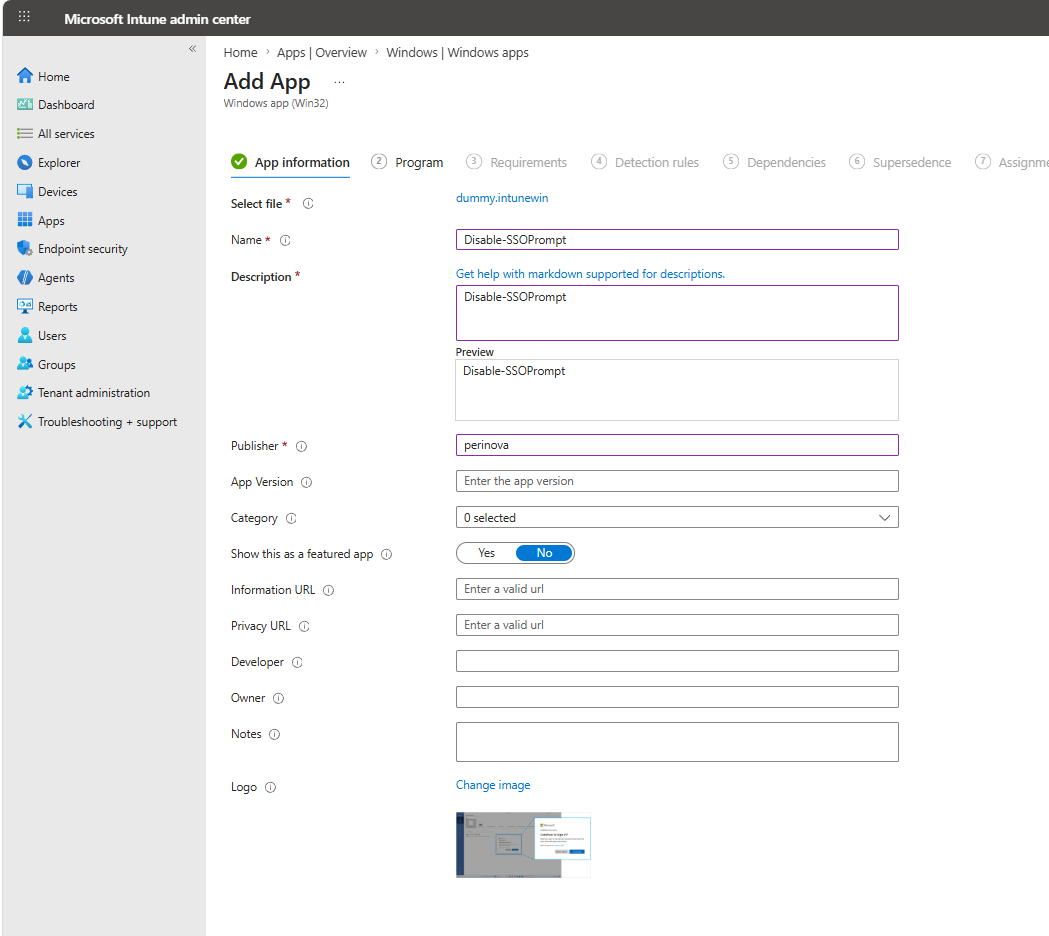
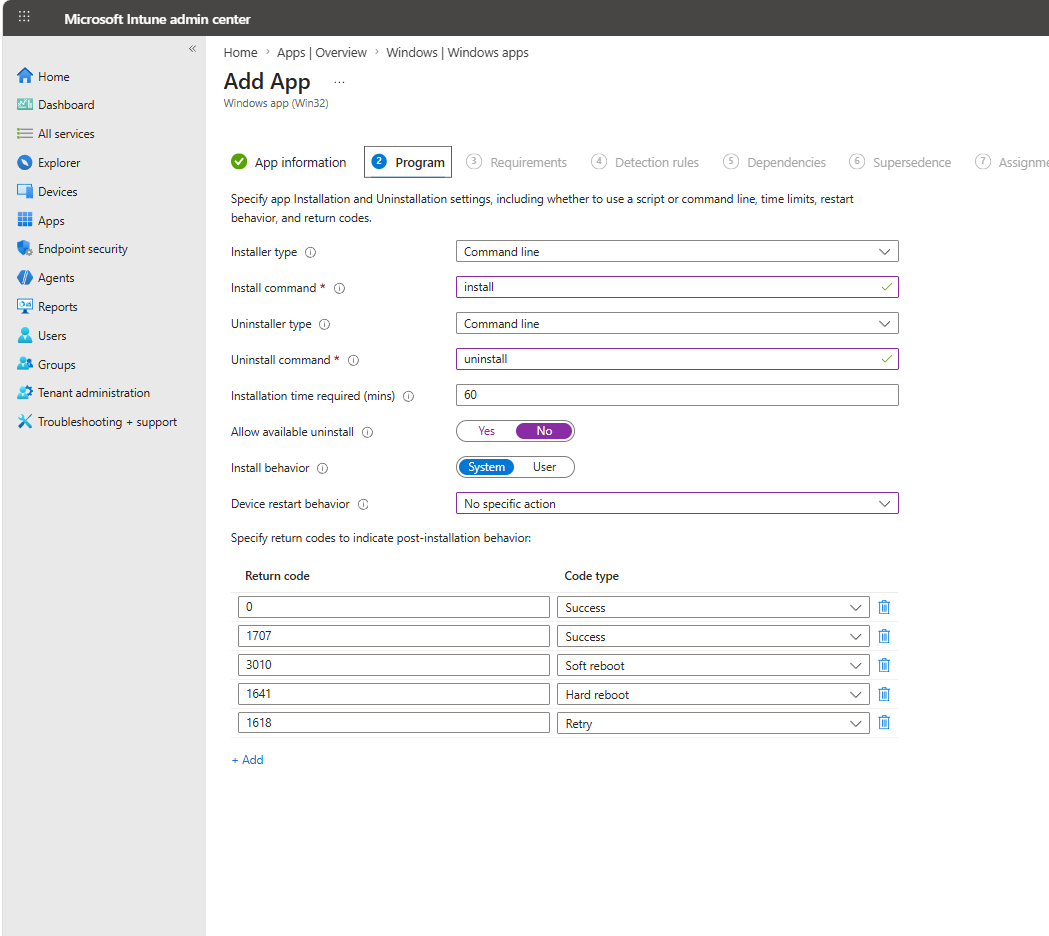
The PowerShell script installer type can’t be selected while creating the app - the wizard only offers Command line at this point. So the app is created with the classic Command line installer type first. The install and uninstall commands are mandatory, but they’ll be replaced in the next step, so placeholders do the job:
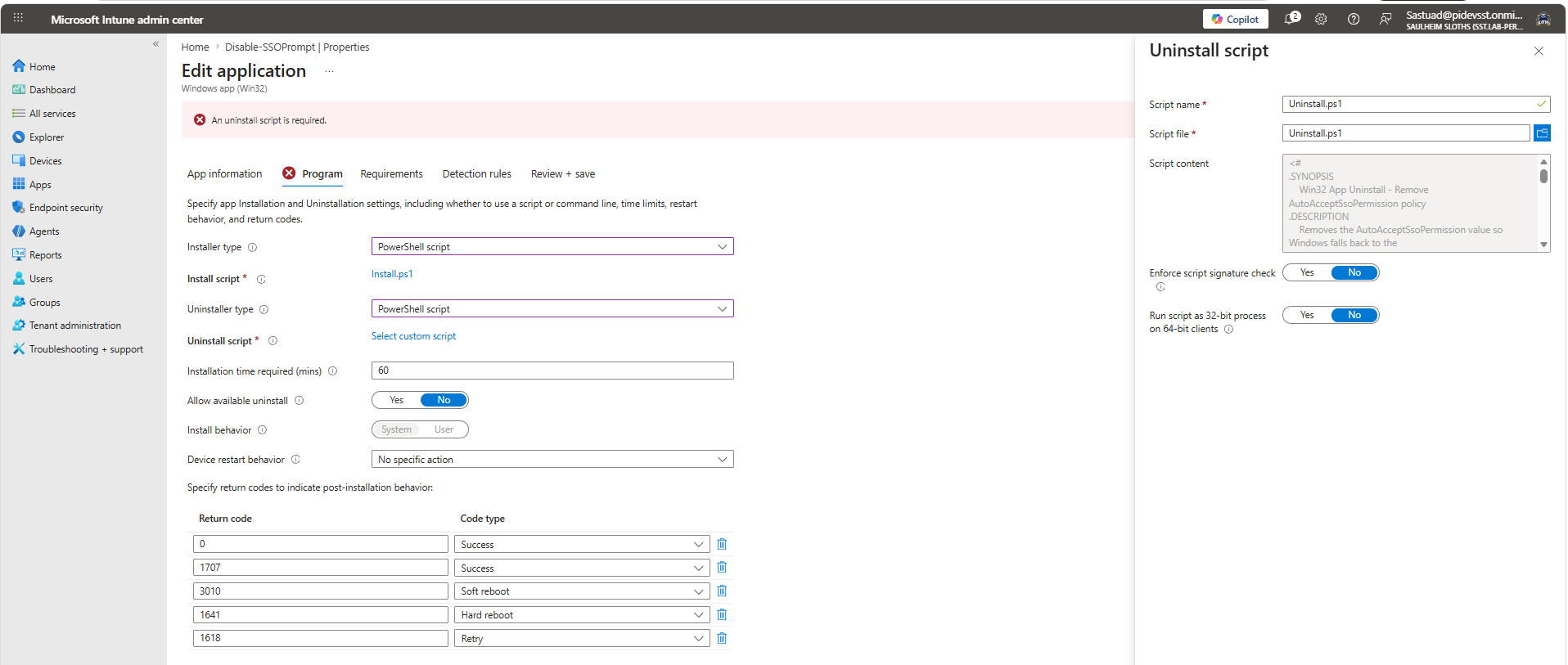
Once the app is created, edit it, switch the installer type to PowerShell script, and upload Install.ps1 and Uninstall.ps1 directly. Install behavior stays System - the value is in HKLM:
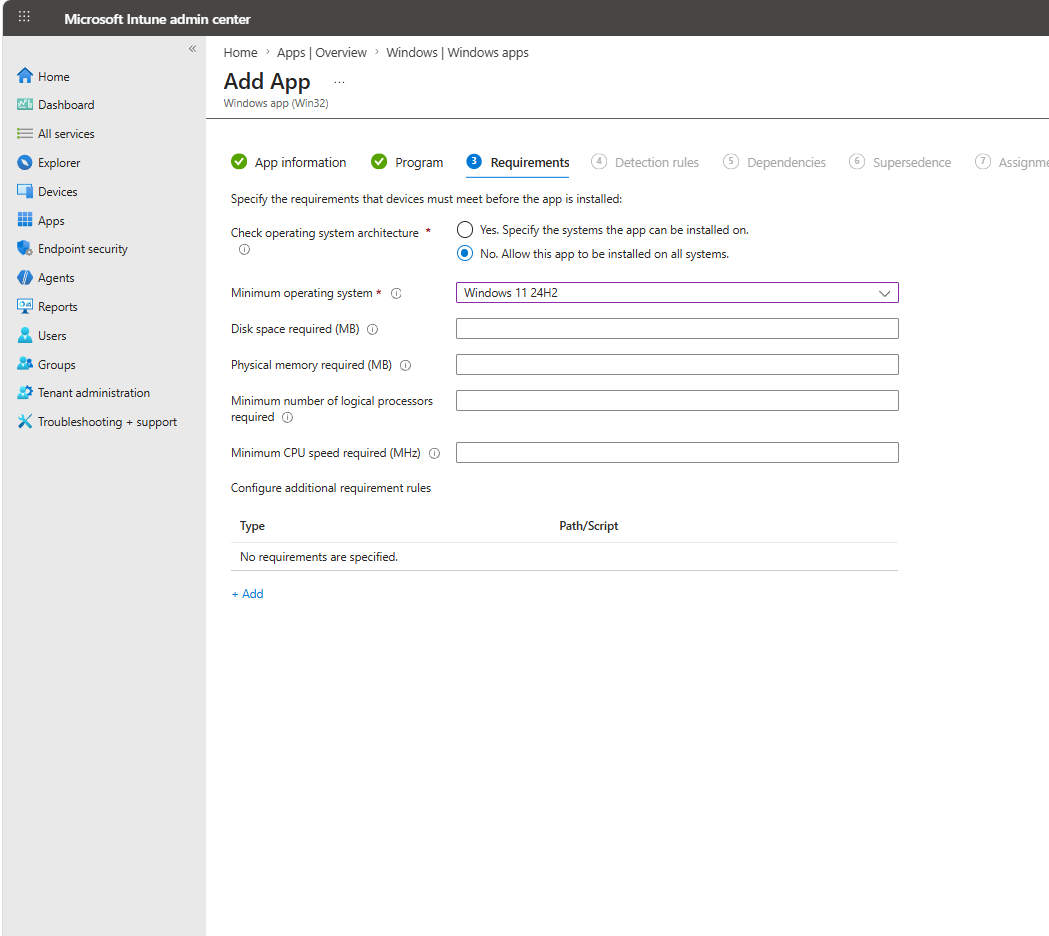
On the Requirements tab I set the minimum operating system to Windows 11 24H2. That’s the lowest build the policy can ever work on, and older devices are covered by the remediation anyway:
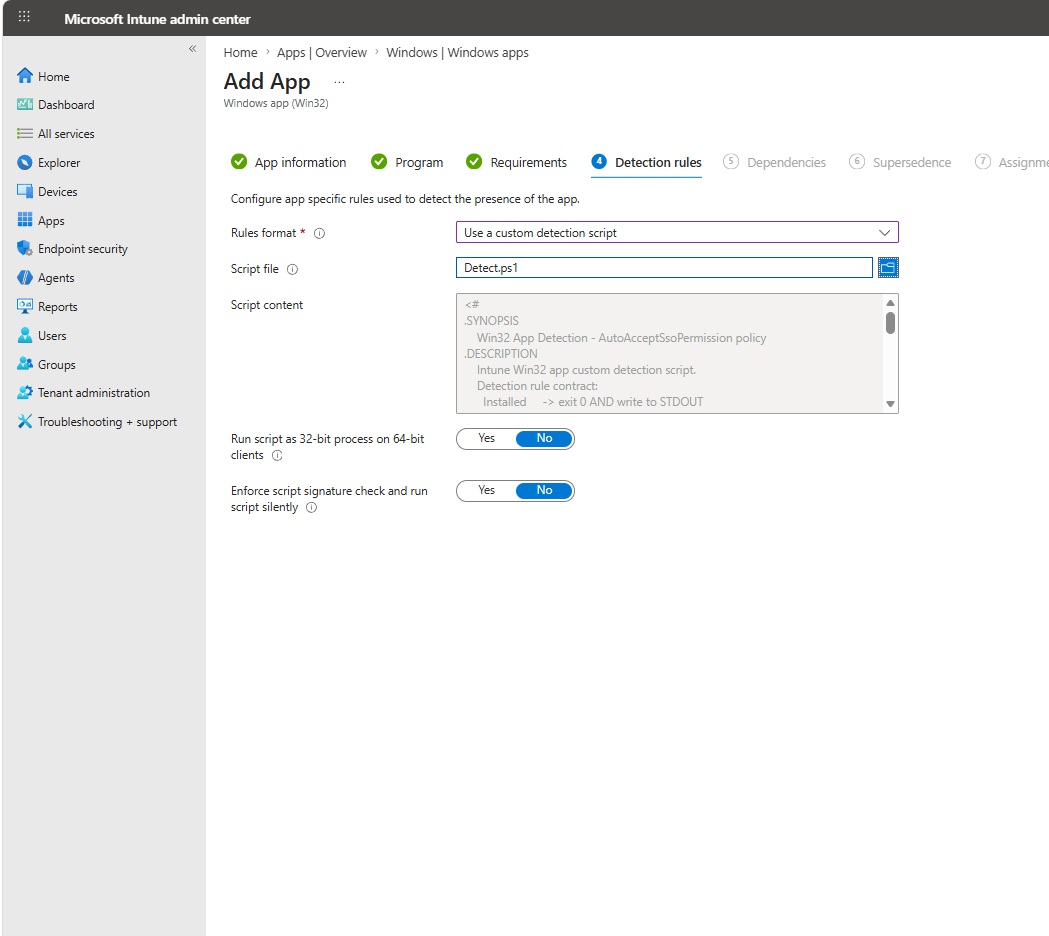
For detection, either a plain registry rule (key HKEY_LOCAL_MACHINE\SOFTWARE\Policies\Microsoft\Windows\AAD, value AutoAcceptSsoPermission, integer equals 1, not associated with a 32-bit app) or the custom Detect.ps1 script. I used the script:
Assignment and the Enrollment Status Page
Assign the app as Required to all devices, narrowed with an assignment filter to Autopilot-enrolled machines:
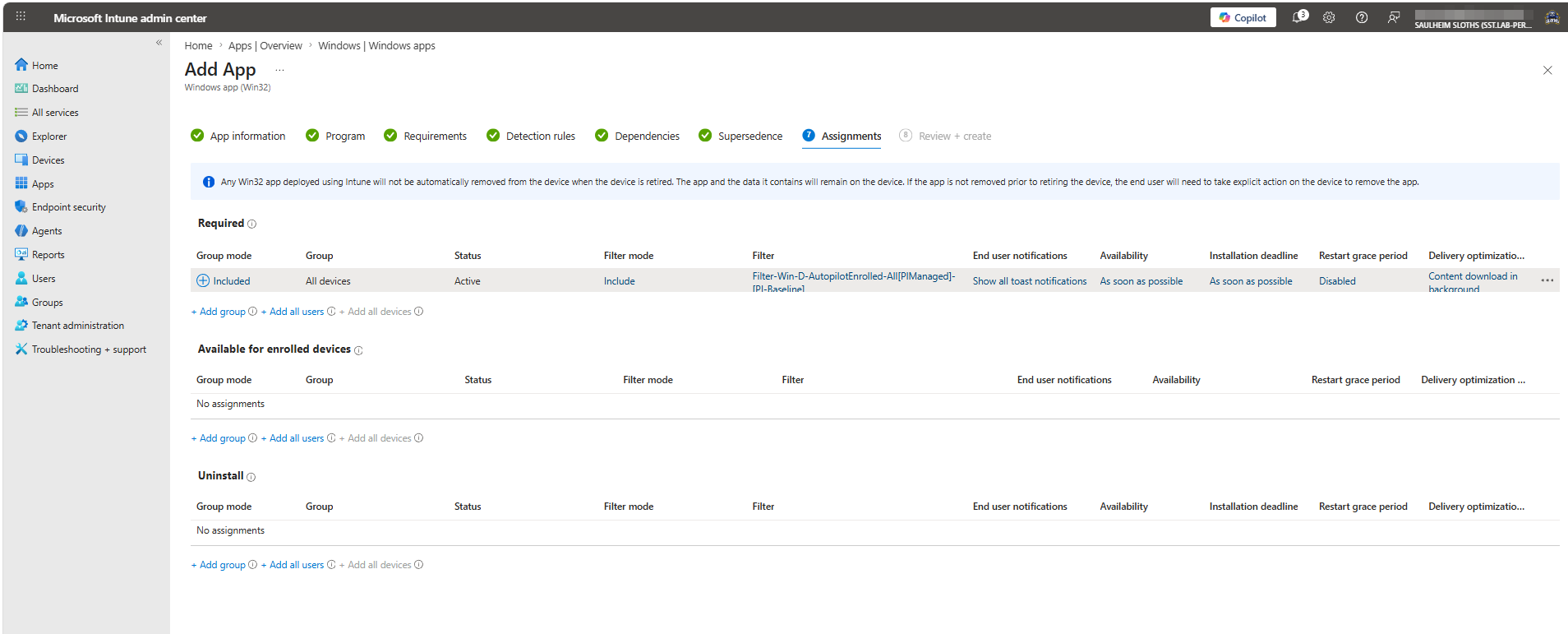
Then add it to the Enrollment Status Page as a blocking app. With Block device use until required apps are installed set to Selected, the ESP waits for exactly the apps in the list - and this one now installs during the device setup phase, before the user signs in for the first time:
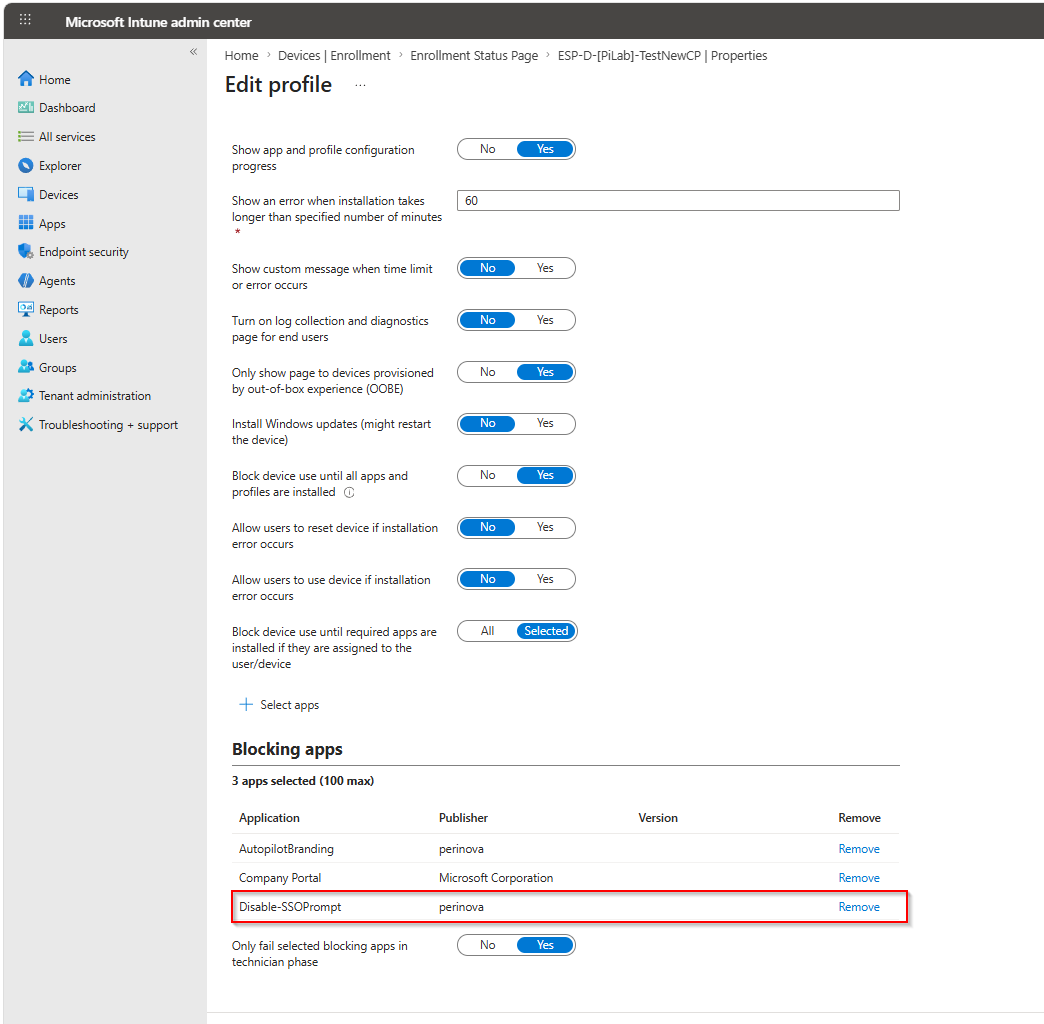
The result: by the time the first user reaches the desktop and opens Word, the policy is already in place, the prompt is auto-accepted, and Office signs in silently the way it always used to.
Rollback
The uninstall script removes the value, which restores the default behavior - the prompt is shown again. Either uninstall the Win32 app or run Uninstall.ps1 manually. Both install and uninstall write logs to %ProgramData%\Microsoft\IntuneManagementExtension\Logs\Set-AutoAcceptSsoPermission-*.log.
Notes
- The policy answers the SSO permission prompt and nothing else. MFA, Conditional Access, and app consent are untouched.
- It only applies to organization-managed devices with Entra work or school accounts. Personal Microsoft accounts keep the prompt.
- Pre-deploying the value to devices below build 26100.8875 is harmless - it activates once KB5101650 (or later) is installed.
- Remediation and Win32 app can coexist. They write the identical value, and each reports compliant/installed when the other got there first.
Summary
Microsoft’s DMA-driven “Continue to sign in” prompt broke silent SSO on EEA devices, and nowhere more visibly than in the first minutes after Autopilot. Since July 2026, AutoAcceptSsoPermission under HKLM\SOFTWARE\Policies\Microsoft\Windows\AAD turns the prompt off on managed devices. Deploy it twice: as a remediation for the existing fleet, and as an ESP-blocking Win32 app so new Autopilot devices never see the prompt at all. All scripts and the dummy package are in my Intune-Misc repository.