Every Intune environment changes constantly - policies are tweaked, profiles are added, assignments are adjusted. And every admin has had that moment: a policy was changed or deleted, nobody remembers what it looked like before, and there is no way back. Intune has no built-in backup or change history, so if you want one, you have to build it yourself.
Fortunately, the heavy lifting is already done. IntuneManagement by Micke-K is a fantastic tool that can export virtually every object type in your tenant to JSON. What was missing for me was automation: I wanted a daily, unattended backup with full change history, stored somewhere my team already works. GitHub gives you all of that for free - version history through commits, point-in-time snapshots through releases, and a scheduler through Actions.
So I wrapped IntuneManagement into a GitHub template repository: SasStu/Intune-Backup. Copy it, run one setup script, add three secrets, and you have a daily Intune backup with full history. This article walks through the setup.
Solution Architecture
The template repository contains everything needed for the automation:
- Setup script -
setup/New-IntuneBackupAppRegistration.ps1Creates the Entra ID app registration with read-only Graph permissions and generates the client secret. - Update workflow -
.github/workflows/Update-IntuneManagement.ymlDownloads the latest IntuneManagement release intoruntime/. Runs weekly (Mondays, 01:00 UTC) and on demand. - Backup workflow -
.github/workflows/Backup-And-Release.ymlRuns the silent bulk export, commits the result, and publishes a timestamped release zip. Runs daily (02:00 UTC) and on demand. - Export configuration -
config/BulkExport.jsonControls which object types are exported and how.
The flow is simple: the backup workflow checks out the repository, runs IntuneManagement in silent mode against your tenant using the app registration credentials, commits any changes to main, and creates a GitHub release with the complete export as a zip file. Because every export is a commit, the repository history is your change history - a git diff between two commits shows you exactly which setting changed in which policy, and when.
Step 1: Copy the Template Repository
Open SasStu/Intune-Backup and click Use this template > Create a new repository.
Two things are important here:
- Make the new repository private. This is non-negotiable. The export contains your complete tenant configuration - compliance rules, security baselines, scripts, assignment logic. None of that belongs in a public repository.
- Keep
mainas the default branch. Both workflows commit and push tomain.
Using the template (instead of a fork) is deliberate: a fork of a public repository cannot be made private, and you do not want an upstream link for a repository that will contain tenant data. The template copy starts with a clean history and no connection to the source.
After creating the repository, check that GitHub Actions are enabled under Settings > Actions > General (they are by default for new repositories).
Step 2: Create the App Registration
The backup runs unattended, so it authenticates with an Entra ID app registration using application permissions - no user, no interactive login. All permissions are read-only Graph application permissions covering device management, policies, apps, and organizational data. The backup can read everything and change nothing.
Instead of clicking through the portal and assigning a dozen permissions manually, run the included setup script from a PowerShell session:
.\setup\New-IntuneBackupAppRegistration.ps1
You need Application Administrator or Global Administrator privileges, since the script grants admin consent for the application permissions. The script:
- Creates the app registration (or finds an existing one with the same name)
- Ensures a service principal exists
- Grants admin consent for all required read-only Graph permissions
- Creates a client secret with 12 months validity
At the end, it prints the three values you need for the next step:
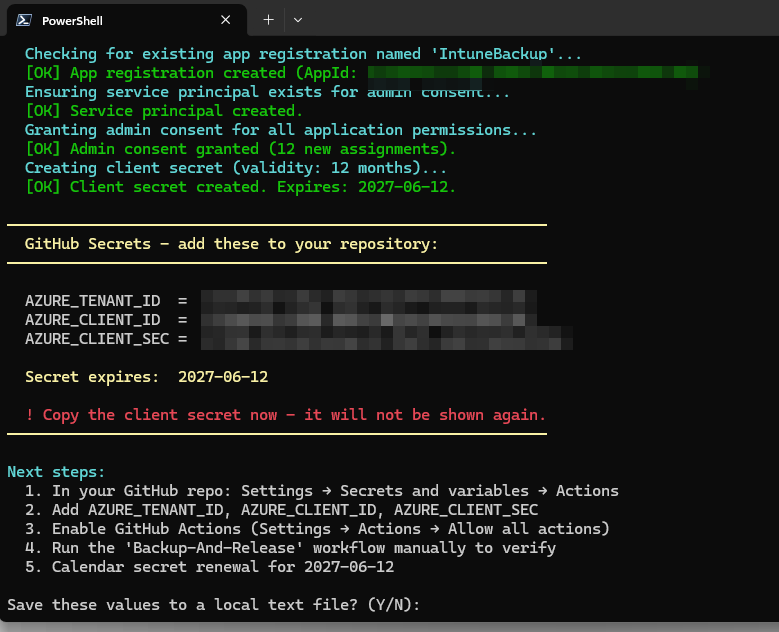
Copy the client secret immediately - it is shown only this once. And note the expiry date: in 12 months the secret dies and your backups silently stop. Put the renewal date in your calendar now.
Step 3: Add the GitHub Secrets
In your new repository, go to Settings > Secrets and variables > Actions and create three repository secrets with the values from the setup script output:
| Secret name | Value |
|---|---|
AZURE_TENANT_ID |
Your tenant ID (GUID) |
AZURE_CLIENT_ID |
The app registration’s client ID (GUID) |
AZURE_CLIENT_SEC |
The client secret value |
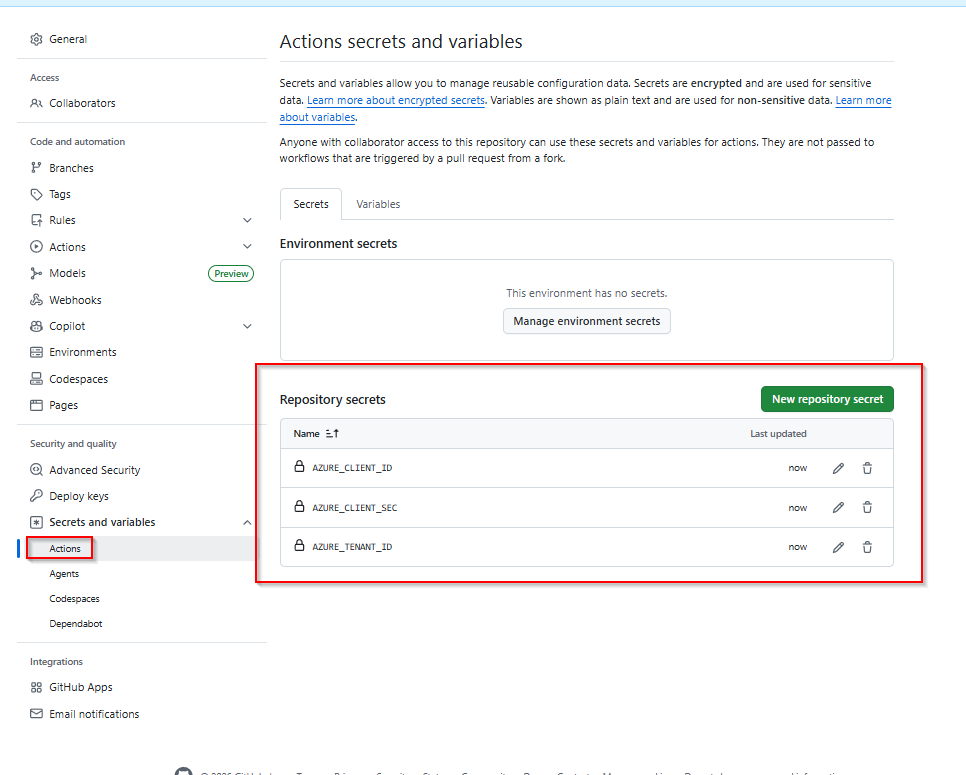
The names must match exactly - the backup workflow references them as secrets.AZURE_TENANT_ID, secrets.AZURE_CLIENT_ID, and secrets.AZURE_CLIENT_SEC.
Step 4 (Optional): Customize the Bulk Export Configuration
The repository ships with a config/BulkExport.json that exports all supported object types, including assignments and scripts. For most environments this default is exactly what you want, and you can skip this step.
If you want to customize the export scope - for example, to exclude certain object types - the cleanest way is to let IntuneManagement generate the configuration for you:
- Run IntuneManagement locally and open Bulk > Export
- Set the Export root to
.\release- this is the path the backup workflow expects - Adjust the options and the object type list to your needs
- Click Save - this writes the
BulkExport.json
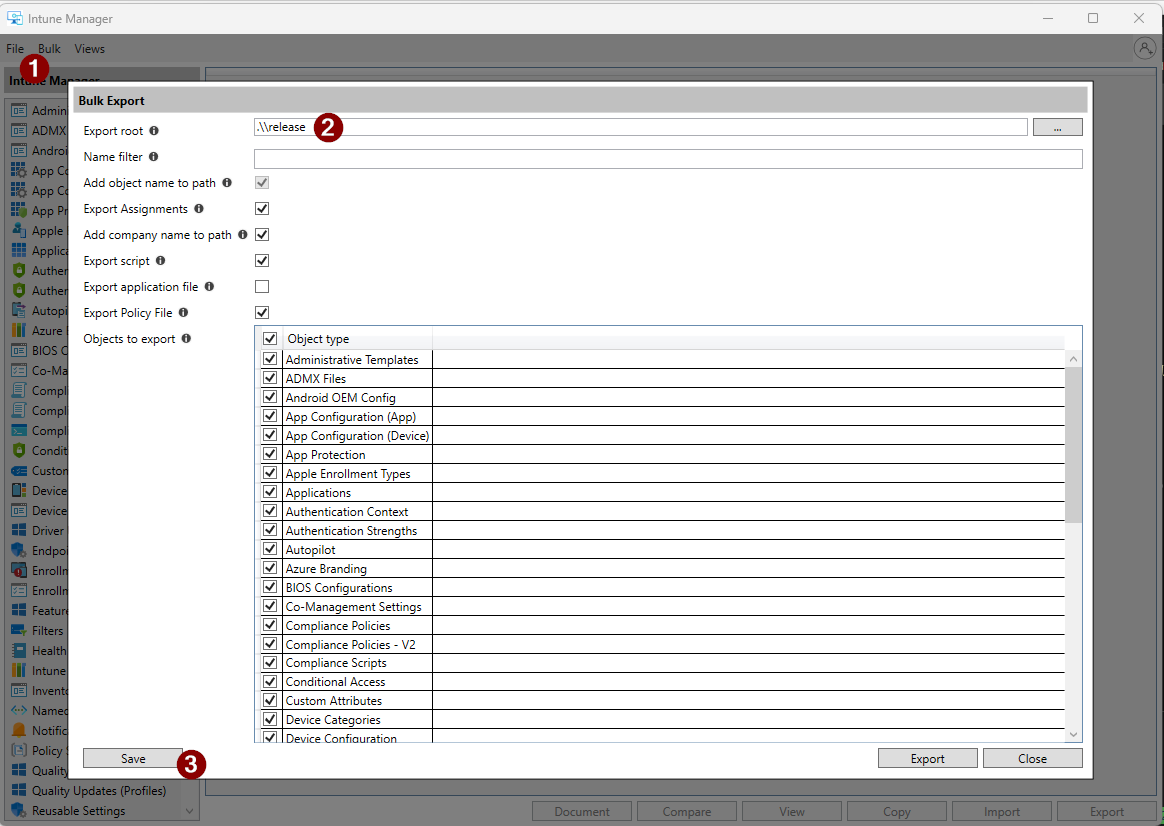
Replace config/BulkExport.json in your repository with the generated file.
One setting to leave alone: Export application file stays disabled. .intunewin packages are large binary files - they would bloat the repository quickly, and Git is the wrong place for them anyway (see Limitations below).
Step 5: Run the Update Pipeline
The IntuneManagement runtime itself is not part of the template - it is pulled in by the update workflow. Go to Actions > Update-IntuneManagement and click Run workflow.
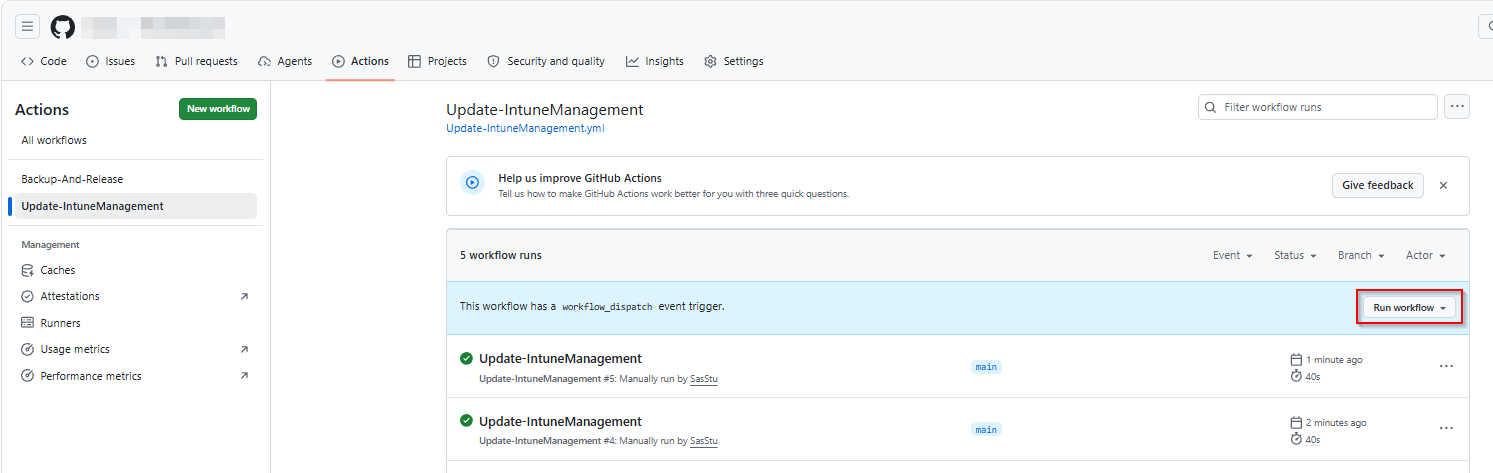
The workflow checks the latest IntuneManagement release on GitHub, downloads it into runtime/IntuneManagement, records the version in runtime/IntuneManagement.version, and commits the result. After about a minute you should see a new commit on main with the message [update] IntuneManagement <version>.
From now on the workflow runs every Monday and keeps the runtime current automatically - whenever Micke-K publishes a new release, your backup picks it up within a week.
Step 6: Run the Backup Pipeline
Time for the end-to-end test. Go to Actions > Backup-And-Release and click Run workflow.
The workflow runs in two jobs:
- Export - runs IntuneManagement in silent mode with your
BulkExport.jsonand the credentials from the repository secrets, then commits the exported JSON tomain - Create_Release - stamps the export with the run date, zips the release folder, and publishes a GitHub release tagged with the timestamp
When it finishes, your repository should show the exported configuration in the release folder and a new release in the sidebar:
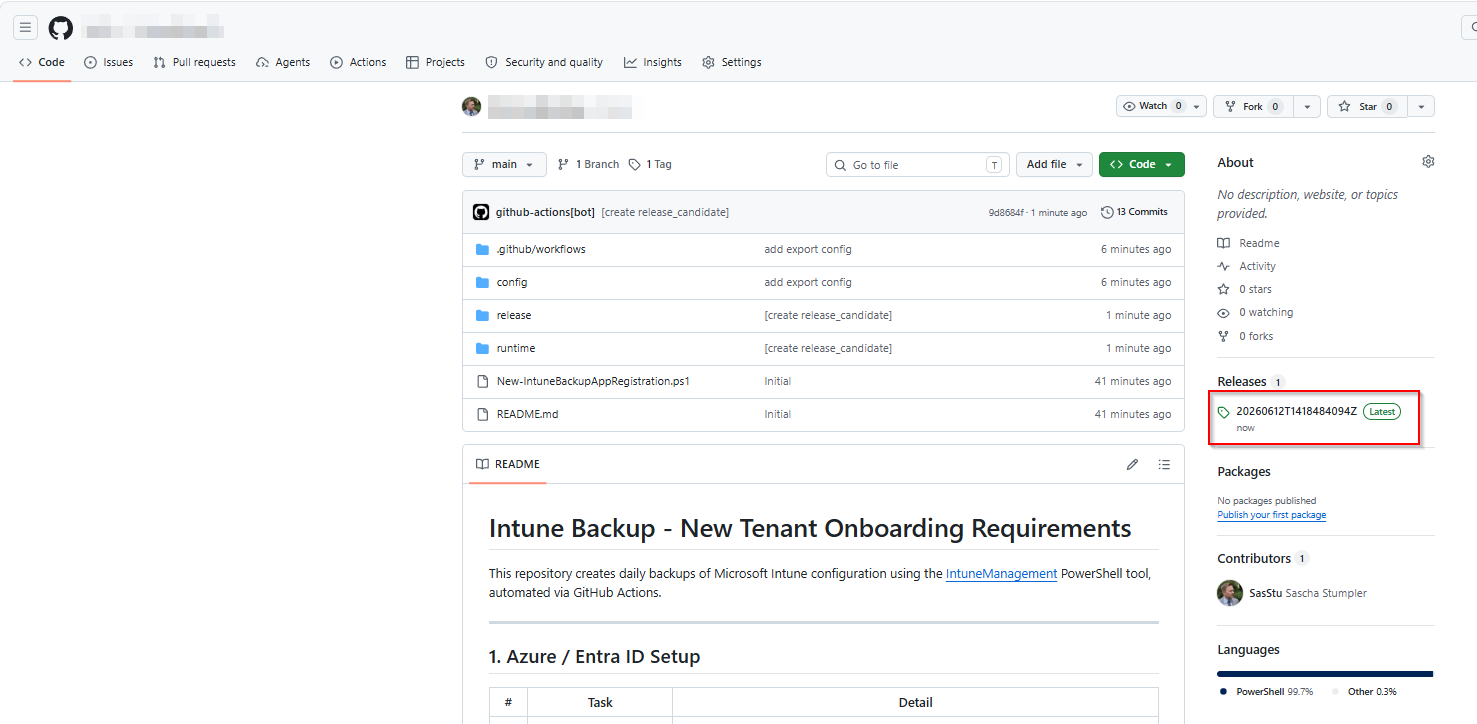
That’s it. From now on the backup runs every night at 02:00 UTC. Each run only commits actual changes, so the commit history reads like a change log of your tenant: no change in Intune, no commit. And if you ever need to know what a policy looked like three weeks ago, the answer is one git diff or one release download away.
Limitations
A few things this backup cannot capture, due to Graph API constraints:
- Application packages -
.intunewinfiles cannot be downloaded via the API. App metadata, detection rules, and assignments are exported, but not the installer payload itself. Keep your source packages elsewhere. - Terms of Use PDFs - the agreement objects are exported, the attached PDF documents are not.
- Custom ADMX/ADML files - imported administrative template files cannot be retrieved.
- Group names in assignments - assignments are exported with group object IDs, not display names. For a restore into the same tenant this is fine; for documentation purposes keep it in mind.
Also remember: this is an export, not a synchronized disaster recovery solution. IntuneManagement supports importing the exported JSON back into a tenant, which works well for individual objects and migrations - but a full-tenant restore is always a manual, reviewed process.
Notes
- The client secret expires after 12 months. The workflow will start failing silently when it does. Calendar the renewal date from the setup script output - re-running the script creates a fresh secret, and you only need to update the
AZURE_CLIENT_SECrepository secret. - Releases accumulate. A release per day adds up over time. Prune old releases occasionally, or keep them - they are cheap, and each one is a complete point-in-time snapshot of your tenant.
- Want a different schedule? Adjust the
cronexpressions in the two workflow files. Daily backups and weekly runtime updates have proven to be a sensible default.
What’s Next
In a follow-up article I will cover two improvements to this setup:
- Restoring from the backup - how to use IntuneManagement to import exported objects back into a tenant, whether to recover a single deleted policy or to migrate configuration between tenants.
- Moving away from the client secret - replacing the secret-based authentication with a certificate, which gives you a longer validity period and keeps the private key out of the workflow logs.