Creating Hyper-V VMs for Autopilot Testing with HyperV.VMFactory
If you’re working with Windows Autopilot in a lab environment, you know the drill: spin up a VM, configure it, enroll it, wipe it, repeat. That cycle gets old fast - especially when every new VM means another round of manual settings. I built a PowerShell script a few years back and added features when needed. With some help from my friend Claude we refactored it to a module and add some great new capabilities, I’m happy to share it as HyperV.VMFactory.
The Problem: VM Sprawl in Hyper-V Labs
The script that eventually became HyperV.VMFactory started long before Autopilot was part of the picture. The original need was simpler: standing up lab server VMs quickly without wasting disk space. Copying a full 20-40 GB base image for every new VM adds up fast, and differencing disks - where each VM only stores its own changes on top of a shared parent image - were the obvious solution. But wiring that up manually every time was tedious, so I automated it.
Autopilot testing brought a second wave of requirements on top of that. Testing Autopilot requires clean, fresh VMs - often many of them, and often in quick succession. Each VM needs the same baseline configuration: the right generation, a vTPM (required for Windows 11 and modern Autopilot profiles), Guest Services enabled, nested virtualization enabled, the correct network switch, and so on.
Doing this by hand in Hyper-V Manager is tedious. Doing it via scattered one-off PowerShell scripts is fragile. I wanted something repeatable, parameterized, and fast - and the differencing disk foundation was already there.
Enter HyperV.VMFactory
HyperV.VMFactory is a PowerShell module published to the PowerShell Gallery that wraps VM creation into a single, well-structured cmdlet with sane defaults for Windows/Autopilot scenarios.
The source is available on GitHub: SasStu/HyperV.VMFactory
Install it with:
Install-Module -Name HyperV.VMFactory
The Key Feature: Differencing Disks
The heart of this module is its differencing disk support. Instead of copying a full OS disk (which can be 20-40 GB) for every new VM, you maintain a single parent disk -a sysprepped base image created with something like Convert-WindowsImage -and each VM gets a small differencing disk that only stores what changes from that baseline.
parent.vhdx  (read-only base image, e.g. Windows 11 23H2)
  ├── VM01.vhdx  (differencing disk -only stores VM01's changes)
  ├── VM02.vhdx  (differencing disk -only stores VM02's changes)
  └── VM03.vhdx  (differencing disk -only stores VM03's changes)
The storage savings in a lab are significant. A single parent disk can serve dozens of child VMs, with each child adding only a few gigabytes of delta data.
If you have multiple disks you can also optimize read and write operations by moving parent and child VHDX to different disks.
To create a VM using a parent disk:
New-HyperVVM -VMName "AutopilotTest-01" -ParentDiskPath "D:\BaseImages\Win11-23H2.vhdx" -VMSwitch "LabSwitch"
That’s it. The module creates the differencing disk, wires it up, and configures everything.
ISO Attachment for OSDCloud and OS Deployments
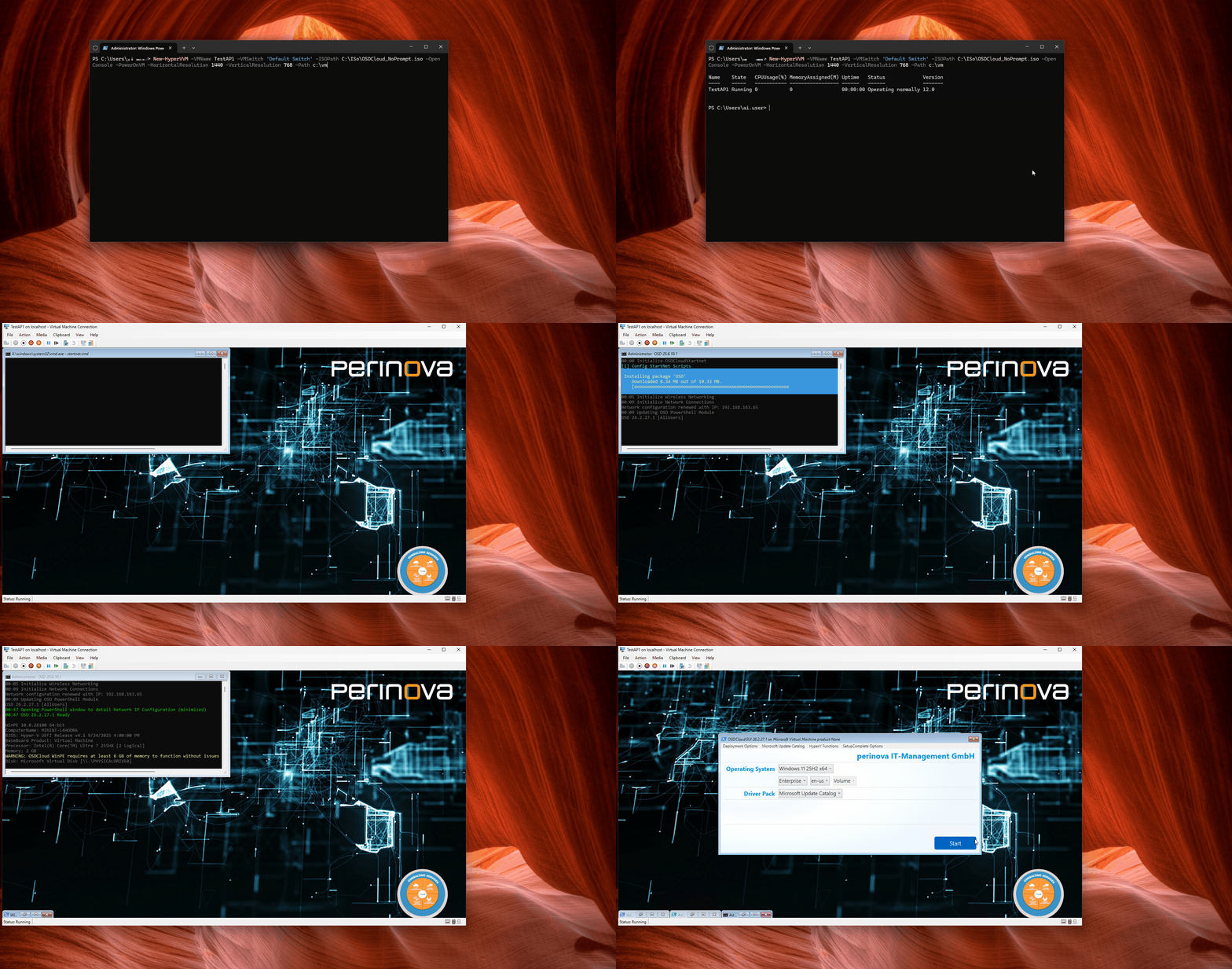
Sometimes you don’t want a differencing disk -you want to boot fresh from an ISO. The module supports attaching an ISO at creation time, which is perfect for OSDCloud deployments or any other WinPE/setup-based workflow:
New-HyperVVM -VMName "OSDCloud-Test" -ISOPath "D:\ISOs\OSDCloud.iso" -VMSwitch "LabSwitch"
The VM will be configured to boot from the ISO, so you can walk straight into your deployment workflow as soon as you start it.
Pre-Configured for Windows: The Settings That Matter
Every VM created by this module comes pre-configured with the settings Windows (and Autopilot) actually need:
| Setting | Default |
|---|---|
| VM Generation | Gen 2 |
| vTPM | Enabled |
| Guest Services | Enabled |
| Secure Boot | Enabled |
| Network Switch | Mandatory |
| Nested Virtualization | Enabled |
| Processor Count | Configurable |
| Memory | Configurable |
| Video Resolution | Configurable |
| Auto Start/Stop | Configurable |
No more forgetting to enable vTPM and wondering why your Windows 11 enrollment fails.
Bonus Features: Bulk and Remote VM Creation
When Claude helped me refactor and modernize this module, two major capabilities got added that turned it from a convenience script into something much more powerful.
Bulk VM Creation
Need ten identical VMs for a classroom, a load test, or an Autopilot batch enrollment? Use New-HyperVVMConfiguration to build typed configuration objects, then pipe them into New-HyperVVM:
1..10 | ForEach-Object {
    New-HyperVVMConfiguration -VMName "AutopilotTest-$_" -ParentDiskPath "D:\BaseImages\Win11-23H2.vhdx" -VMSwitch "LabSwitch"
} | New-HyperVVM
Or pass an array of names directly:
New-HyperVVM -VMName "AP-Test-01","AP-Test-02","AP-Test-03" -ParentDiskPath "D:\BaseImages\Win11-23H2.vhdx" -VMSwitch "LabSwitch"
Remote VM Creation
Running a multi-host lab? You can target remote Hyper-V hosts directly:
# By computer name
New-HyperVVM -VMName "RemoteVM-01" -ComputerName "HyperVHost02" -ParentDiskPath "\\HyperVHost02\BaseImages\Win11-23H2.vhdx" -VMSwitch "LabSwitch"

# With credentials
New-HyperVVM -VMName "RemoteVM-01" -ComputerName "HyperVHost02" -Credential (Get-Credential) -ParentDiskPath "\\HyperVHost02\BaseImages\Win11-23H2.vhdx" -VMSwitch "LabSwitch"

# Via existing CimSession
New-HyperVVM -VMName "RemoteVM-01" -CimSession $mySession -ParentDiskPath "\\HyperVHost02\BaseImages\Win11-23H2.vhdx" -VMSwitch "LabSwitch"
Remote creation uses Invoke-Command under the hood, so no additional tooling is required beyond standard PowerShell remoting.
WhatIf Support
Before committing to a bulk operation, preview what would happen:
New-HyperVVM -VMName "AP-Test-01","AP-Test-02" -ParentDiskPath "D:\BaseImages\Win11-23H2.vhdx" -VMSwitch "LabSwitch" -WhatIf
Standard PowerShell -WhatIf support means you can verify your parameters before anything touches the hypervisor.
Typical Autopilot Lab Workflow
Here’s how I actually use this in my lab:
- Build a base image using
Convert-WindowsImagefrom the PSGallery or a similar tool to create a clean, generalized Windows 11 VHDX. - Create a batch of test VMs with differencing disks from that parent:
1..5 | ForEach-Object {
    New-HyperVVMConfiguration -VMName "AP-Lab-$_" -ParentDiskPath "D:\BaseImages\Win11-24H2.vhdx" -VMSwitch "LabSwitch"
} | New-HyperVVM
- Start the VMs, let them come up, and enroll them in Autopilot.
- When testing is done, delete the VMs and their differencing disks -the parent image is untouched and ready for the next round.
The whole setup is fast, storage-efficient, and completely repeatable.
My Common Prompts
Here’s the command I reach for most often when spinning up a new Autopilot test VM. It reflects my local lab layout - adjust paths, switch name, and parent disk to match yours:
# Updated for HyperV.VMFactory (New-HyperVVM)
New-HyperVVM `
    -VMName 'LAB-APCLT11' `
    -VMPath 'd:\Hyper-V\Virtual Machines\' `
    -VMSwitch 'Autopilot' `
    -VMMemoryStartupBytes 4096MB `
    -VMHorizontalResolution 1656 `
    -VMVerticalResolution 1032 `
    -ParentDiskPath 'C:\Hyper-V\Virtual Hard Disks\win11-25H2-26000.xxxx.vhdx' `
    -StartVM `
    -OpenConsole
For OSDCloud deployments, I swap the parent disk for an ISO instead:
New-HyperVVM `
    -VMName 'LAB-APCLT13' `
    -VMPath 'd:\Hyper-V\Virtual Machines\' `
    -VMSwitch 'Autopilot' `
    -VMMemoryStartupBytes 4096MB `
    -VMHorizontalResolution 1656 `
    -VMVerticalResolution 1032 `
    -ISOPath 'C:\OSDCloud\OSDCloud_NoPrompt.iso' `
    -StartVM
    -OpenConsole
Get the Module
- PowerShell Gallery:
Install-Module -Name HyperV.VMFactory - GitHub: github.com/SasStu/HyperV.VMFactory
Issues, feature requests, and PRs are welcome. If you’re running Autopilot labs on Hyper-V, give it a try and let me know how it fits your workflow.