With Edge 154.0.4258.37, address bar search stopped working on devices that had the DefaultSearchProvider* settings deployed: type a search, press Enter, nothing happens. Florian Salzmann covered the cause and fix in Google Search Broken in Edge 154.0.4258.37 - Fix & Cause: Edge now validates OpenSearch URL templates more strictly and rejects trimmed-down Google search URLs. Besides fixing the URL template, I wanted to test moving from the DefaultSearchProvider* settings to the ManagedSearchEngines policy as a workaround. Remove the old settings, add the new one, done. In one tenant, that is exactly what happened. In the other, the old values never left the device, even though no assigned policy controlled them anymore.
Removed settings that stay on the device sounded familiar. I had been involved in Rudy Ooms’ investigation of another Intune tattooing issue, where a hidden, invalid assignment filter silently stopped Intune from sending any deletes. So I started by looking for a corrupt policy assignment in my tenant. I never found one.
The culprit turned out to be a setting I had never configured myself: MDMWinsOverGP, deployed by Windows Autopatch. This post walks through the troubleshooting, including the wrong turns, because the path to the answer is probably more useful than the answer itself.
Table of Contents
- Table of Contents
- TL;DR
- The Setup
- Wrong Turn 1: A Hidden Broken Assignment Filter
- Wrong Turn 2: Leftover User Policies in HKCU
- edge://policy Shows the Truth
- PolicyManager Only Shows Bookkeeping
- The Event Log Reveals the Mechanism
- MDMWinsOverGP and the MDMWins Blocking Records
- Where Did MDMWinsOverGP Come From?
- Leaving Autopatch Is Not One Click
- Why the Second Tenant Was Fine
- Should You Leave Autopatch Because of This?
- Key Takeaways
- References
TL;DR
MDMWinsOverGPdoes not just make MDM win over Group Policy. It backs up the existing registry value when MDM takes over and restores it when the MDM policy is removed.- On Entra-joined devices without any GPOs, that “backup” can be a value written by the very same Intune profile before
MDMWinsOverGPwas configured. Removing the setting brings the old value back. - Windows Autopatch sets
MDMWinsOverGPwhen it manages Microsoft 365 Apps or Edge updates. - In the Settings Catalog, the scope (HKLM vs. HKCU) is defined by the setting, not by the assignment.
- Fix: remove the device from Autopatch, delete
MDMWinsOverGP, re-apply the old setting once, then migrate again.
The Setup
- Edge settings deployed via Intune Settings Catalog profiles
- Profiles assigned to user groups with device filters
- Goal: replace the recommended (“Users can override”)
DefaultSearchProvider*settings with theManagedSearchEnginespolicy as a workaround for the Edge 154 address bar search issue - Affected device: Entra-joined, Windows build 10.0.26300, no GPOs, empty Local Group Policy (
gpresultreports “Standalone Workstation”) - The device was a member of an Entra group assigned to the Test ring of a Windows Autopatch group
The old profile configured six recommended settings: DefaultSearchProviderEnabled, DefaultSearchProviderName, DefaultSearchProviderSearchURL, DefaultSearchProviderSuggestURL, DefaultSearchProviderImageURL and DefaultSearchProviderImageURLPostParams, all pointing to Google.
For the test, I created a separate profile with Manage Search Engines (Device) in the Microsoft Edge - Default Settings (users can override) category:
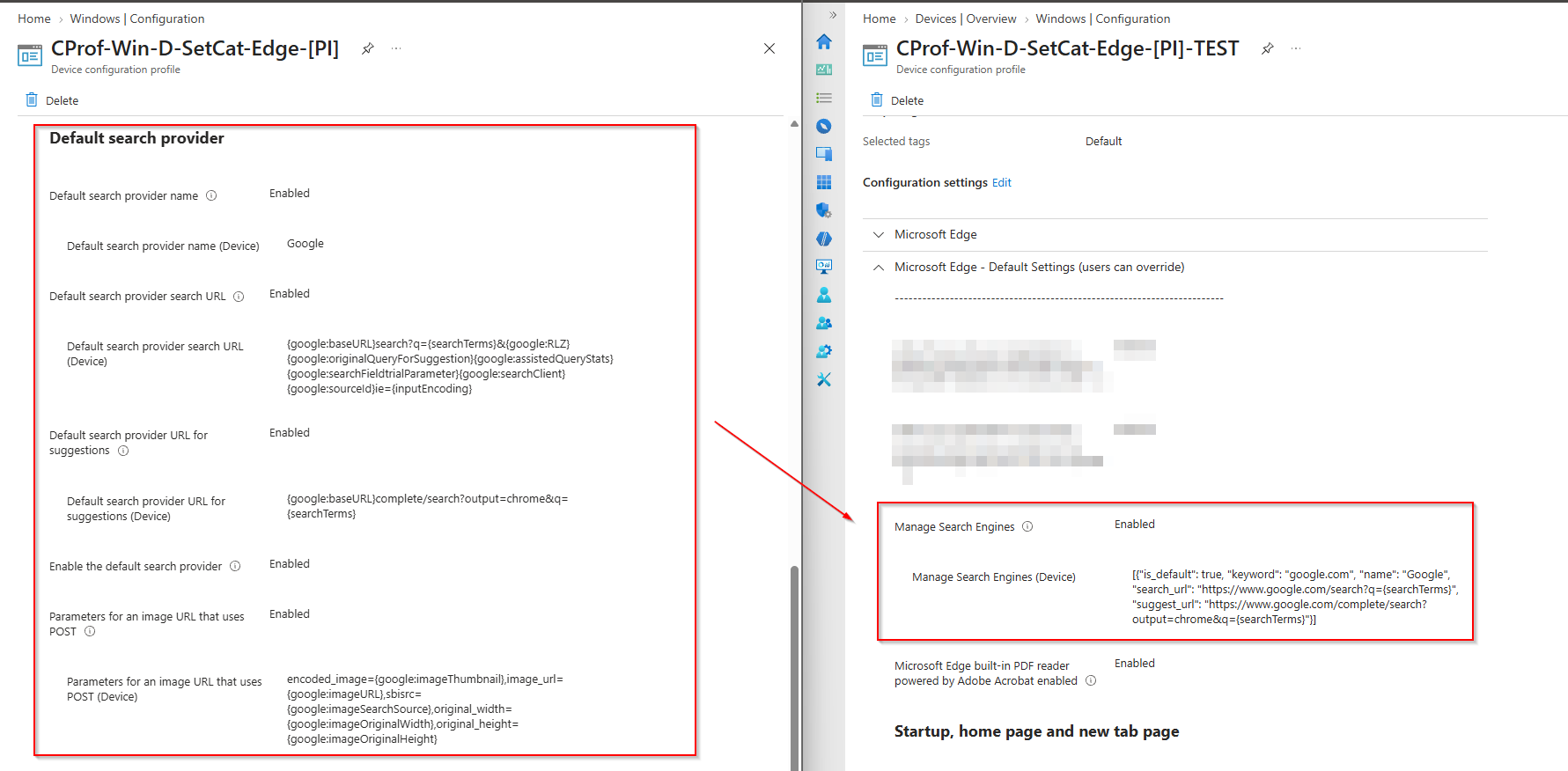
The value is a JSON array with one entry per search engine:
[{"is_default": true, "keyword": "google.com", "name": "Google", "search_url": "https://www.google.com/search?q={searchTerms}", "suggest_url": "https://www.google.com/complete/search?output=chrome&q={searchTerms}"}]
The test devices were excluded from the old profile and assigned to the new one. I did the same in two tenants:
| Tenant | edge://policy after the sync |
|---|---|
| Working tenant | Only ManagedSearchEngines |
| Affected tenant | ManagedSearchEngines and all six old DefaultSearchProvider* settings side by side |
This is what the working tenant looked like, exactly as expected:
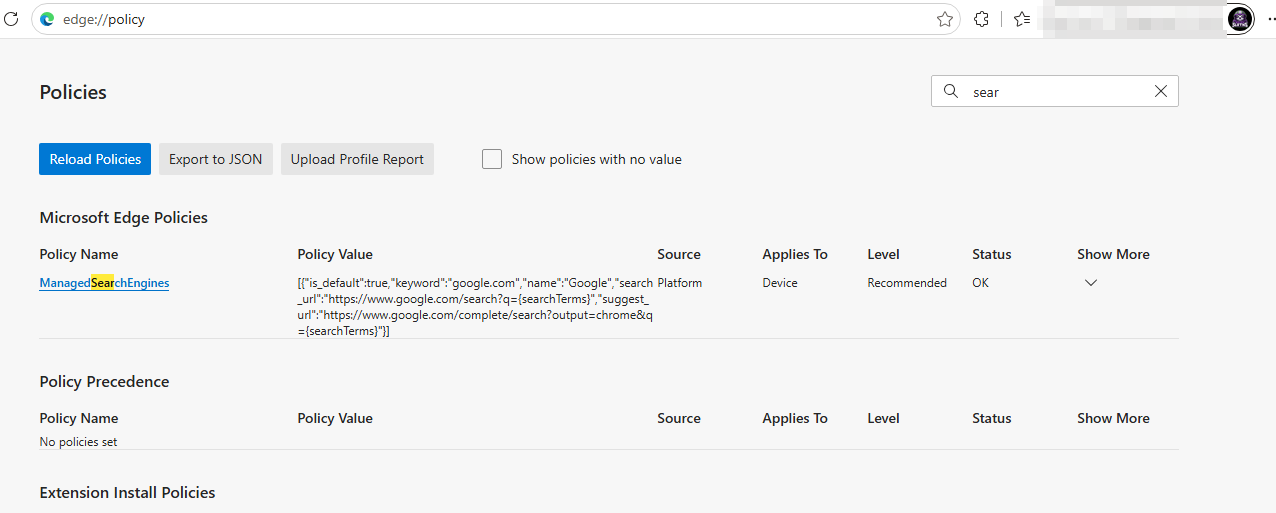
In the affected tenant, the device no longer received the old profile, but the old settings never went away.
Wrong Turn 1: A Hidden Broken Assignment Filter
A tenant-specific problem where removed settings stay on the device is exactly what Rudy described in Intune Policy Tattooing Issue: Removed Settings Stay Enforced. I was involved in the troubleshooting behind that article, so this was the first thing I suspected. In that case, an old policy was still assigned with an assignment filter that no longer existed, a leftover from a time when Intune allowed deleting filters that were still in use. The reference was invisible in the console, but it was enough to stop Intune from sending any Delete commands to devices. The settings stayed enforced.
So I went through the assignments of all profiles in the tenant in the Intune portal, looking for an invalid or orphaned filter reference. I also captured the SyncML traffic during a sync and searched it for errors. Everything was clean.
In hindsight, the event log would have ruled this out much faster, see below.
Wrong Turn 2: Leftover User Policies in HKCU
Next assumption: since the profile was assigned to user groups, the old values were tattooed somewhere under HKCU\Software\Policies\Microsoft\Edge and kept getting applied next to the new ManagedSearchEngines policy.
A scan of HKCU found nothing. No leftover values, no tattoo.
edge://policy Shows the Truth
Instead of guessing, I opened edge://policy on the device. All six DefaultSearchProvider* values were still there, long after the device had been excluded from the old profile:
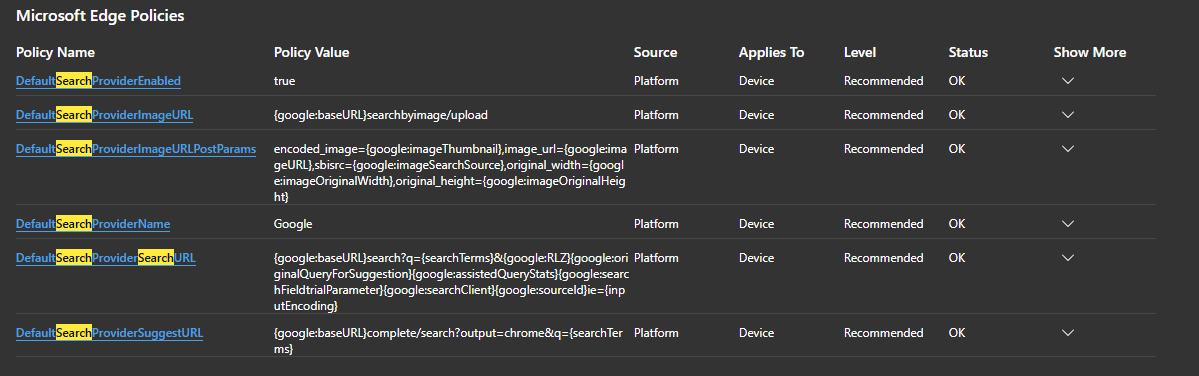
| Column | Value |
|---|---|
| Level | Recommended |
| Applies to | Device |
| Source | Platform |
| Status | OK |
From Edge’s point of view, nothing was wrong. These were valid, active policies. So the values lived in HKLM\SOFTWARE\Policies\Microsoft\Edge\Recommended, not in HKCU.
Lesson 1: In the Settings Catalog, the scope comes from the setting itself, not from the assignment. Edge offers device settings and “(User)” variants of most settings. A device setting assigned to a user group is still written to HKLM. The user group only decides which devices receive it.
Side note: At the same level (mandatory or recommended), Edge gives machine scope precedence over user scope. A user-scope recommended value cannot override a machine-scope recommended value.

PolicyManager Only Shows Bookkeeping
Next stop: the MDM side. Intune policies that are ADMX-backed (like Edge) are tracked under HKLM\SOFTWARE\Microsoft\PolicyManager. If MDM still managed the setting, I would expect actual values there.
This script lists the DefaultSearchProvider* entries in the merged view and per enrollment provider:
$roots = @()
if (Test-Path -Path 'HKLM:\SOFTWARE\Microsoft\PolicyManager\current\device') {
    $roots += [PSCustomObject]@{ Path = 'HKLM:\SOFTWARE\Microsoft\PolicyManager\current\device'; Provider = 'current (merged)' }
}
Get-ChildItem -Path 'HKLM:\SOFTWARE\Microsoft\PolicyManager\providers' -ErrorAction SilentlyContinue |
    ForEach-Object {
        $p = Join-Path -Path $_.PSPath -ChildPath 'default\device'
        if (Test-Path -Path $p) {
            $enr = "HKLM:\SOFTWARE\Microsoft\Enrollments\$($_.PSChildName)"
            $providerId = if (Test-Path -Path $enr) { (Get-ItemProperty -Path $enr -ErrorAction SilentlyContinue).ProviderID } else { 'unknown' }
            $roots += [PSCustomObject]@{ Path = $p; Provider = "$($_.PSChildName) ($providerId)" }
        }
    }
foreach ($root in $roots) {
    Get-ChildItem -Path $root.Path | Where-Object { $_.PSChildName -like 'microsoft_edge*' } |
        ForEach-Object {
            $key = Get-Item -Path $_.PSPath
            foreach ($name in ($key.GetValueNames() | Where-Object { $_ -like 'DefaultSearchProvider*' })) {
                [PSCustomObject]@{ Provider = $root.Provider; Area = $_.PSChildName; Name = $name; Value = $key.GetValue($name) }
            }
        }
}
The result: only *_LastWrite entries for the Edge DefaultSearchProvider areas. No actual values, no provider entries.
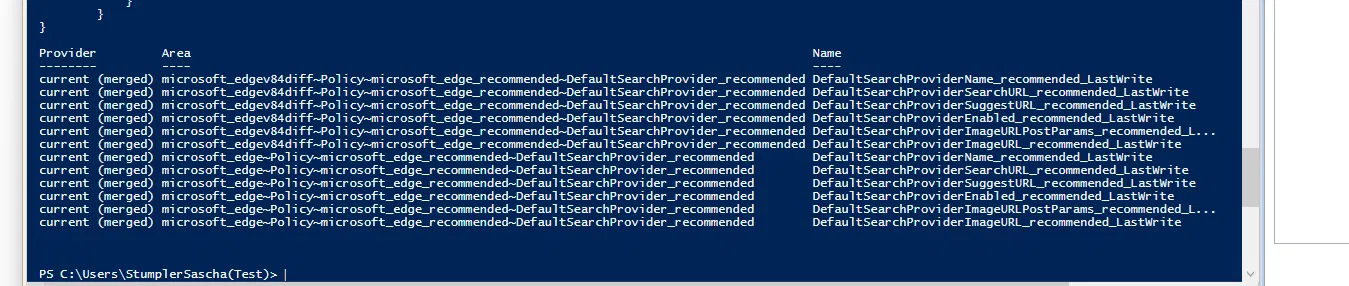
Interesting detail: the setting had been ingested under two ADMX namespaces:
microsoft_edgev84diff~Policy~microsoft_edge_recommended~DefaultSearchProvider_recommended
microsoft_edge~Policy~microsoft_edge_recommended~DefaultSearchProvider_recommended
My conclusion at that point: MDM considers the policy removed, the registry values are simply orphaned. Delete them and move on.
That conclusion was only half right.
The Event Log Reveals the Mechanism
The DeviceManagement-Enterprise-Diagnostics-Provider/Admin log tells you what the MDM stack actually did. Filtered for the setting:
Get-WinEvent -LogName 'Microsoft-Windows-DeviceManagement-Enterprise-Diagnostics-Provider/Admin' -MaxEvents 5000 |
    Where-Object { $_.Message -like '*DefaultSearchProvider*' } |
    Select-Object -Property TimeCreated, Id, LevelDisplayName, Message
For every DefaultSearchProvider* value, the same sequence showed up, all within the same second. Here for DefaultSearchProviderName:
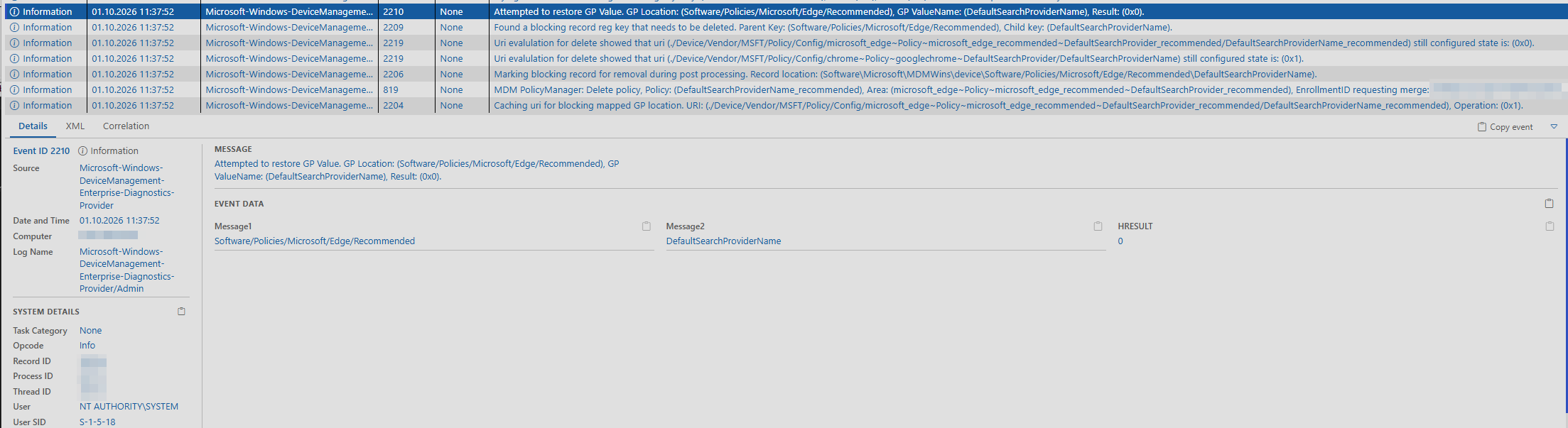
In chronological order:
| Event ID | Message (shortened) |
|---|---|
| 2204 | Caching URI for blocking mapped GP location: ./Device/Vendor/MSFT/Policy/Config/microsoft_edge~Policy~microsoft_edge_recommended~DefaultSearchProvider_recommended/DefaultSearchProviderName_recommended |
| 819 | MDM PolicyManager: Delete policy DefaultSearchProviderName_recommended, Area microsoft_edge~Policy~microsoft_edge_recommended~DefaultSearchProvider_recommended |
| 2206 | Marking blocking record for removal during post processing: Software\Microsoft\MDMWins\device\Software/Policies/Microsoft/Edge/Recommended\DefaultSearchProviderName |
| 2219 | URI evaluation for delete: is the Edge URI still configured? 0x0 = no |
| 2209 | Found a blocking record reg key that needs to be deleted. Parent key: Software/Policies/Microsoft/Edge/Recommended, child key: DefaultSearchProviderName |
| 2210 | Attempted to restore GP Value. GP Location: Software/Policies/Microsoft/Edge/Recommended, GP ValueName: DefaultSearchProviderName, Result: 0x0 |
Event 2210 is the key one. Result: 0x0 means success: Windows wrote the saved value back to HKLM\SOFTWARE\Policies\Microsoft\Edge\Recommended, right after Intune had deleted it.
So the delete worked. Then Windows restored a backed-up “GP value”. This was not a failed cleanup, it was a deliberate restore.
This is also the clearest difference from the broken filter issue. In Rudy’s case, event 819 never showed up because Intune never sent the Delete. Here, 819 is present for every value, so Intune and the MDM stack did their job. If you are chasing tattooed settings, check for 819 first: no 819 points to the service side, 819 followed by 2210 points to MDMWinsOverGP.
MDMWinsOverGP and the MDMWins Blocking Records
The MDMWins key belongs to the ControlPolicyConflict/MDMWinsOverGP policy. Checking its state and the stored records:
Get-ItemProperty -Path 'HKLM:\SOFTWARE\Microsoft\PolicyManager\current\device\ControlPolicyConflict' -ErrorAction SilentlyContinue |
    Select-Object -Property MDMWinsOverGP*

Get-ChildItem -Path 'HKLM:\SOFTWARE\Microsoft\MDMWins\device' -Recurse -ErrorAction SilentlyContinue |
    ForEach-Object {
        $key = Get-Item -Path $_.PSPath
        foreach ($name in $key.GetValueNames()) {
            [PSCustomObject]@{
                Record = $_.Name -replace '^.*\\MDMWins\\device\\', ''
                Name   = $name
                Value  = $key.GetValue($name)
            }
        }
    }
On the affected device:
MDMWinsOverGP = 1MDMWinsOverGP_ProviderSet = 1MDMWinsOverGP_WinningProvider= the Intune enrollmentMDMWins\deviceheld about 30 blocking records for Edge and EdgeUpdate settings

The blocking records mirror the policy registry path. Under MDMWins\device\Software/Policies/Microsoft/Edge/Recommended, there was one subkey for each of the six DefaultSearchProvider* settings:
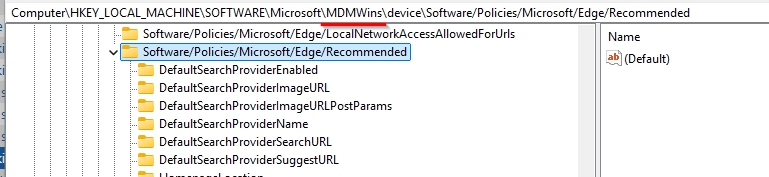
Each of these subkeys holds the value Windows saved when MDM took over, and that is exactly what event 2210 writes back. Here is the record for DefaultSearchProviderName:

| Value | Data | Meaning |
|---|---|---|
Value |
Google |
The saved “GP value” that gets restored |
Uri1 |
./Device/Vendor/MSFT/Policy/Config/microsoft_edge~Policy~microsoft_edge_recommended~DefaultSearchProvider_recommended/... |
The MDM policy that owns this location |
UriCounter |
1 |
Number of MDM URIs mapped to this record |
Scope, StorageType |
2, 1 |
Internal bookkeeping, not documented |
The saved value is Google, the exact value my own Edge profile had configured. Nothing on this device ever wrote it except Intune.
The tree also shows records for other Edge settings like HomepageLocation and NewPDFReaderEnabled. Each of them is the same trap, waiting for the day those settings are removed from a profile.
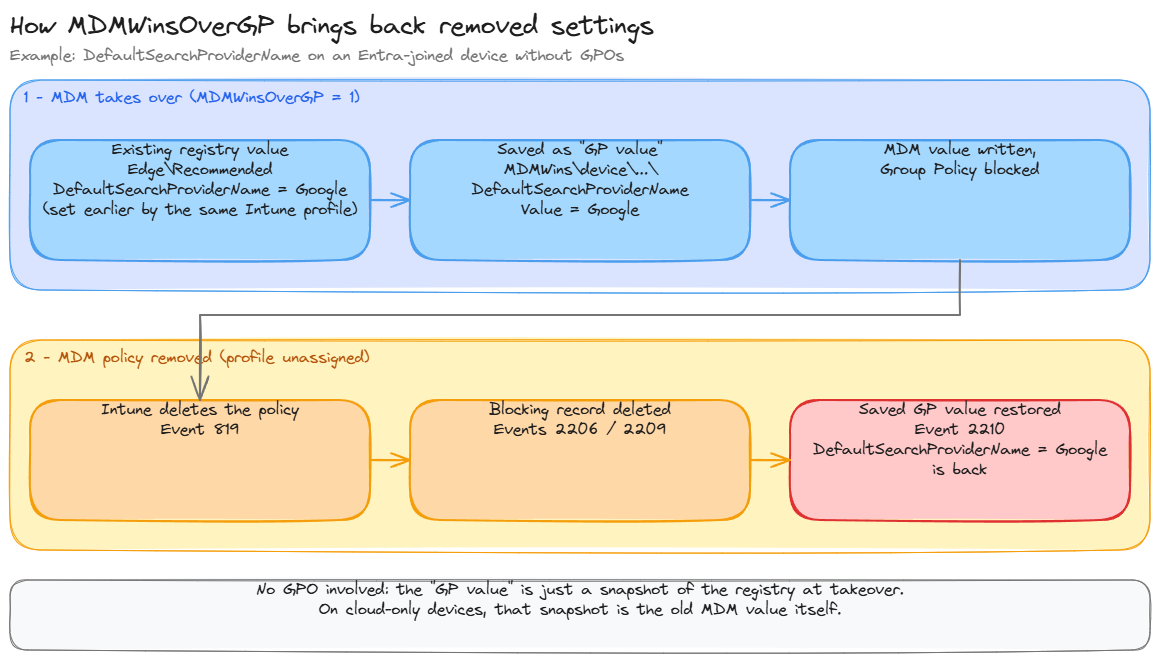
How MDMWinsOverGP works
When MDMWinsOverGP is enabled and MDM sets a policy that has a Group Policy equivalent, Windows:
- Saves the current registry value as a “GP value” in a blocking record under
HKLM\SOFTWARE\Microsoft\MDMWins - Writes the MDM value and blocks Group Policy from overwriting it
When the MDM policy is removed, Windows deletes the blocking record and restores the saved GP value. On a domain-joined device with real GPOs, that makes sense: removing the MDM setting hands control back to Group Policy.
Microsoft documents the restore in the Policy CSP - ControlPolicyConflict reference:
If set to 1 then any MDM policy that’s set that has an equivalent GP policy will result in GP service blocking the setting of the policy by GP MMC. Setting the value to 0 (zero) or deleting the policy will remove the GP policy blocks restore the saved GP policies.
The documentation describes the restore for the case where MDMWinsOverGP itself is removed. The event log above shows that the same happens per setting: when a single MDM policy is deleted while MDMWinsOverGP is still active, its saved GP value is restored as well.
On an Entra-joined device without any GPOs, there is no Group Policy to hand back to. The “GP value” is just whatever was in the registry at the moment MDM took over.
In my case, that was most likely the value the same Edge profile, deployed via Intune, had already written before MDMWinsOverGP was configured. The DefaultSearchProvider* settings had been on the device long before Autopatch came into play. Once MDMWinsOverGP was active and Intune applied the setting again, Windows found an existing value in HKLM\SOFTWARE\Policies\Microsoft\Edge\Recommended, could not tell that it came from MDM itself, and backed it up as a “GP value”. Removing the profile then brought back the profile’s own old value.
Where Did MDMWinsOverGP Come From?
I had never configured MDMWinsOverGP myself. To find the source, I searched all Settings Catalog policies, security baseline intents and custom OMA-URI profiles via Microsoft Graph:
#Requires -Modules Microsoft.Graph.Authentication
Connect-MgGraph -Scopes 'DeviceManagementConfiguration.Read.All' -NoWelcome
$pattern = 'MDMWinsOverGP|ControlPolicyConflict'

function Get-GraphAll {
    param([string]$Uri)
    while ($Uri) {
        $r = Invoke-MgGraphRequest -Method GET -Uri $Uri -OutputType PSObject
        if ($null -ne $r.value) { $r.value } else { $r }
        $Uri = $r.'@odata.nextLink'
    }
}

foreach ($pol in Get-GraphAll -Uri 'https://graph.microsoft.com/beta/deviceManagement/configurationPolicies?$select=id,name,templateReference') {
    $settings = Get-GraphAll -Uri "https://graph.microsoft.com/beta/deviceManagement/configurationPolicies/$($pol.id)/settings"
    if (($settings | ConvertTo-Json -Depth 30 -Compress) -match $pattern) {
        [PSCustomObject]@{ Type = 'Settings Catalog'; Name = $pol.name; Id = $pol.id }
    }
}
foreach ($intent in Get-GraphAll -Uri 'https://graph.microsoft.com/beta/deviceManagement/intents?$select=id,displayName') {
    $settings = Get-GraphAll -Uri "https://graph.microsoft.com/beta/deviceManagement/intents/$($intent.id)/settings"
    if (($settings | ConvertTo-Json -Depth 30 -Compress) -match $pattern) {
        [PSCustomObject]@{ Type = 'Baseline (intent)'; Name = $intent.displayName; Id = $intent.id }
    }
}
foreach ($cfg in Get-GraphAll -Uri 'https://graph.microsoft.com/beta/deviceManagement/deviceConfigurations?$select=id,displayName') {
    if ($cfg.'@odata.type' -ne '#microsoft.graph.windows10CustomConfiguration') { continue }
    $full = Invoke-MgGraphRequest -Method GET -OutputType PSObject -Uri "https://graph.microsoft.com/beta/deviceManagement/deviceConfigurations/$($cfg.id)"
    if (($full.omaSettings | ConvertTo-Json -Depth 10 -Compress) -match $pattern) {
        [PSCustomObject]@{ Type = 'Custom OMA-URI'; Name = $cfg.displayName; Id = $cfg.id }
    }
}
The only hits were Windows Autopatch policies, and not just one:

| Autopatch policy | Instances |
|---|---|
| Windows Autopatch Edge Update Policy | One per ring |
| Windows Autopatch Microsoft 365 Apps Update Policy | One per ring |
Both are Settings Catalog policies that Autopatch creates per ring when it manages Edge or Microsoft 365 Apps updates, and both set MDMWinsOverGP. So as soon as a device lands in a ring with Edge or Microsoft 365 Apps update management, MDMWinsOverGP is enabled on it.
Opening one of them in the Intune portal shows it plainly. Next to the Edge update settings, the policy configures Control Policy Conflict > MDM Wins Over GP: “The MDM policy is used and the GP policy is blocked.”
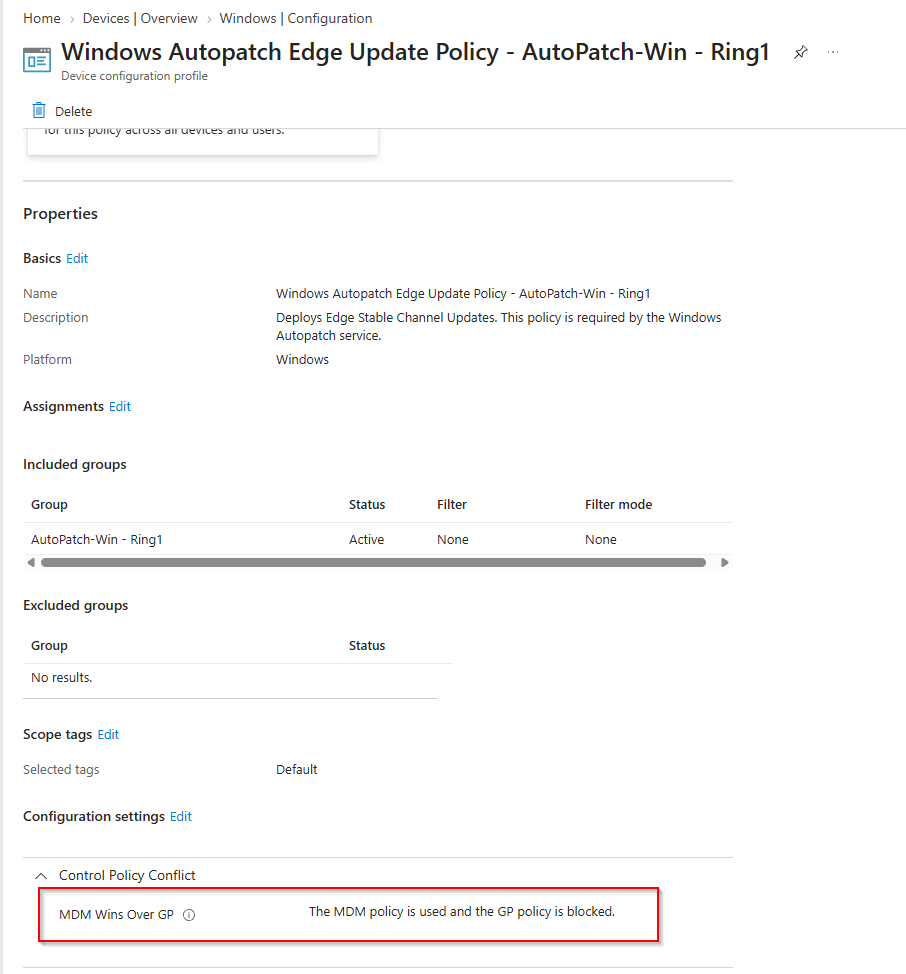
The description says it all: “This policy is required by the Windows Autopatch service.” You cannot simply remove the setting from the policy without touching an Autopatch-managed object.
I found no Autopatch documentation that mentions MDMWinsOverGP. Neither the Microsoft Edge nor the Microsoft 365 Apps for enterprise page of the Autopatch documentation says that these policies change how MDM and Group Policy conflicts are handled on the device.
Leaving Autopatch Is Not One Click
Removing the device in the Autopatch UI is not enough
I removed the device from the Autopatch group in the Autopatch UI. Nothing changed. The device was still a member of the Entra group MDM-RolloutStage_0_Day0Devices-D-Assigned that was assigned to the Test ring of the Autopatch group AutoPatch-Win, so it stayed registered. Only after removing it from that Entra group as well did the Autopatch policies go away.

Resolution
To get the device clean, I had to undo the whole chain and run the migration again:
- Remove the device from Autopatch. Remove it in the Autopatch UI and from the Entra group assigned to the ring, so the Autopatch policies are no longer applied.
- Delete the
MDMWinsOverGPregistry value. Remove it underHKLM\SOFTWARE\Microsoft\PolicyManager\current\device\ControlPolicyConflict, so MDM no longer creates blocking records with backups. Windows might remove it on its own once the Autopatch policies are gone, but I did not have the time to wait for that. - Apply the old policy again. Include the device in the old Edge profile again. Intune now writes the
DefaultSearchProvider*values withoutMDMWinsOverGP, so no “GP value” is backed up. - Redo the policy migration. Exclude the device from the old profile and assign the new
ManagedSearchEnginesprofile again. This time the delete is a plain delete: nothing is restored, andedge://policyshows onlyManagedSearchEngines.
The point of step 3 is to replace the polluted state with a clean one. As long as the backed-up value exists, every removal brings it back. Letting Intune write the setting once more without MDMWinsOverGP means the next removal has nothing to restore.
Afterwards, both parts of the mechanism were gone. The ControlPolicyConflict key no longer exists under PolicyManager\current\device. It would sit between Connectivity and CredentialProviders:
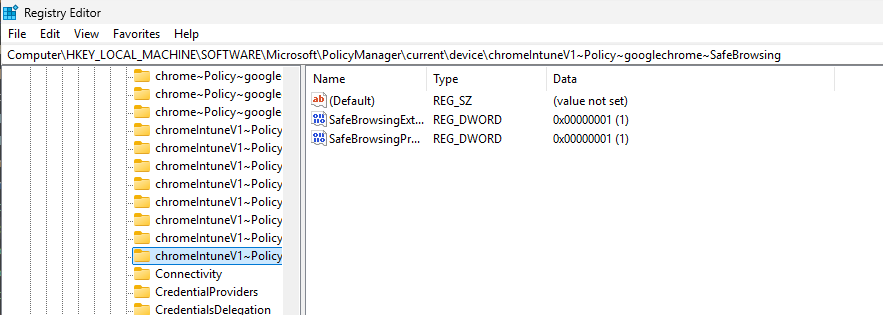
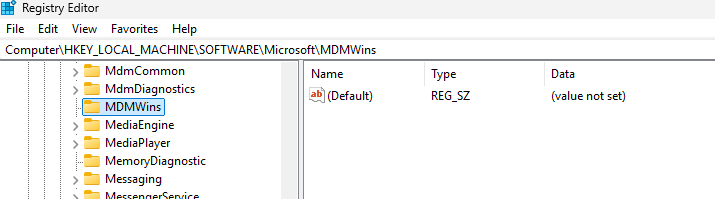
And the MDMWins key was empty: no device subkey, no blocking records, nothing left to restore. I did not delete the records myself. Windows removed them automatically once MDMWinsOverGP was gone.
After the second migration, edge://policy looked exactly like in the working tenant: only ManagedSearchEngines, no DefaultSearchProvider* rows left.
Why the Second Tenant Was Fine
In the second tenant, the exact same change (exclude from the old profile, assign the new one) removed the old settings cleanly, and edge://policy only showed ManagedSearchEngines.
Both tenants have the same policy set. The only difference: the second tenant does not use Autopatch. No Autopatch means no MDMWinsOverGP, no blocking records, and nothing to restore.
Should You Leave Autopatch Because of This?
For a test device, the steps above are fine. For the whole fleet, probably not. Leaving Autopatch removes all Autopatch policies from the device: update rings, feature update policies, Edge and Office update settings. On top of that, the EdgeUpdate MDMWins records can restore their stored values when those policies are removed, which can cause the same kind of surprise on another set of settings.
What I really hope is that Microsoft changes this on the Autopatch side. MDMWinsOverGP makes sense on domain-joined and hybrid-joined devices, where Group Policy and Intune can actually fight over a setting. On cloud-only devices there is no Group Policy to win against. The setting brings no benefit there, only the side effect described in this post. Autopatch should not set it on cloud-only devices by default.
Key Takeaways
- MDMWinsOverGP backs up and restores. It does not just make MDM win; when an MDM policy is removed, the value saved at takeover time comes back.
- No GPOs does not mean nothing to restore. On Entra-joined devices, the restored “GP value” can be the value your own Intune profile wrote before
MDMWinsOverGPwas configured. - Autopatch sets MDMWinsOverGP when it manages Microsoft 365 Apps or Edge updates. Every device in those rings is affected.
- Enabling MDMWinsOverGP on existing devices turns existing MDM values into backups. Every ADMX-backed setting already on the device when
MDMWinsOverGParrives can come back after you remove it. - Before removing a setting, check its MDMWins record. That is the value you will get back.
- Settings Catalog scope is defined by the setting, not by the assignment. A device setting assigned to a user group still lands in HKLM.
References
- Google Search Broken in Edge 154.0.4258.37 - Fix & Cause (Florian Salzmann)
- Intune Policy Tattooing Issue: Removed Settings Stay Enforced (Rudy Ooms)
- Policy CSP - ControlPolicyConflict
- Microsoft Edge - Policies
- Windows Autopatch - Microsoft Edge
- Windows Autopatch - Microsoft 365 Apps for enterprise
For more practical endpoint management tips, visit sastu-insights.com