I recently stumbled upon a warning message in the iOS enrollment profiles saying that new features will only be added to the new Enrollment policies, not to the classic enrollment profiles anymore. Interestingly, this change was only mentioned in passing in the What’s new section, in the announcement of enrollment-time grouping for new Apple ADE enrollment policies. There was no dedicated migration announcement, so if you missed that entry, the warning banner in the portal is probably the first time you hear about it.
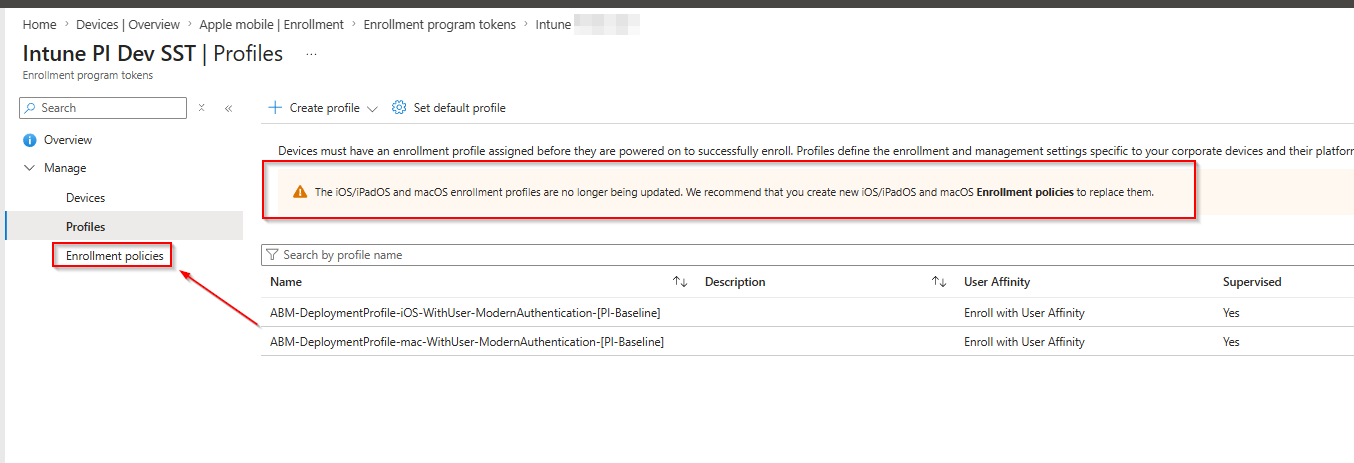
The iOS/iPadOS and macOS enrollment profiles are no longer being updated. We recommend that you create new iOS/iPadOS and macOS Enrollment policies to replace them.
Right next to the familiar Profiles blade there is now an Enrollment policies blade under every enrollment program token. And this is more than a new blade: under the hood, the enrollment profiles are moving to the settings catalog infrastructure. The new enrollment policies are settings catalog objects (deviceManagement/configurationPolicies in Graph), Intune’s unified policy platform, instead of the classic enrollmentProfiles objects - which is why new features only land there.
This article walks through creating a new policy, compares the policy options against the old profile options for iOS/iPadOS and macOS, and covers the migration steps for devices that are already rolled out - including a script for the part where the GUI leaves you hanging.
Creating a New Enrollment Policy
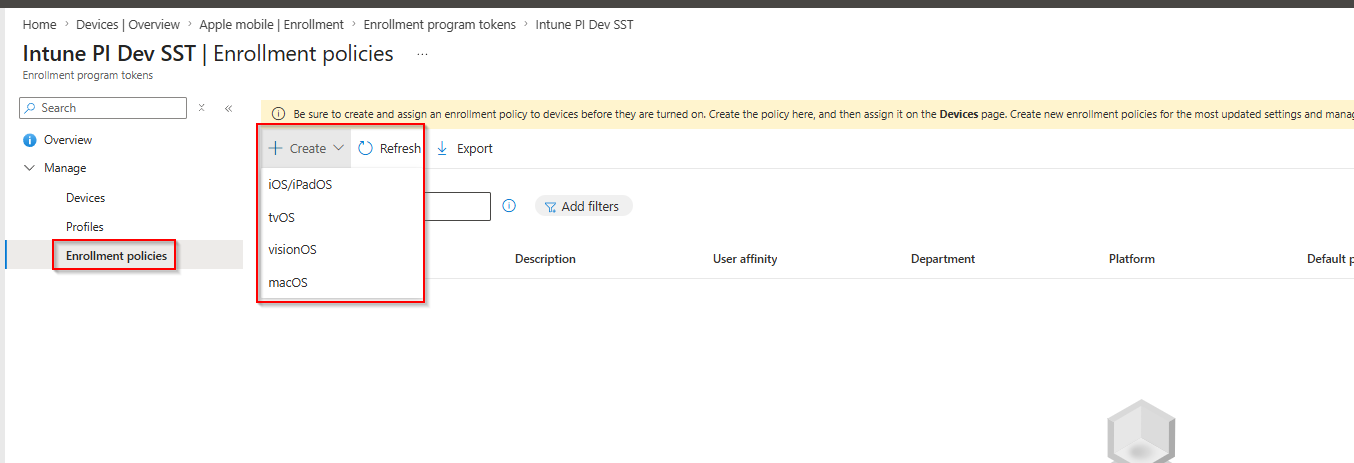
Navigate to Devices > Enrollment > Apple > Enrollment program tokens, select your token, and open the new Enrollment policies blade. The Create menu already shows one advantage of the new model: policies exist for iOS/iPadOS, tvOS, visionOS, and macOS - tvOS and visionOS were never available as classic profiles.
Basics
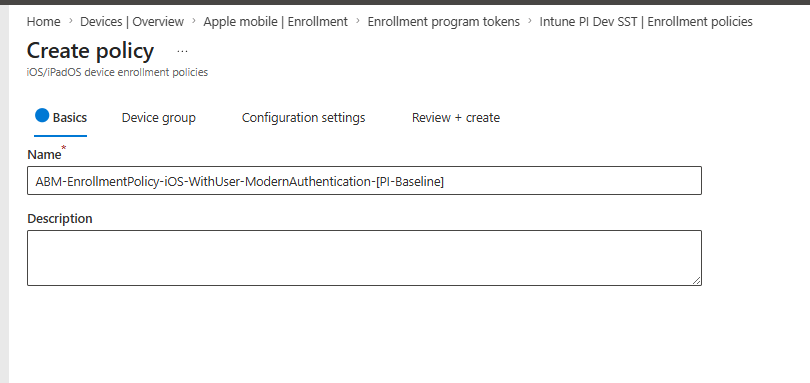
Give the policy a name. Following my own naming convention, the old profile ABM-DeploymentProfile-iOS-WithUser-ModernAuthentication-[PI-Baseline] becomes ABM-EnrollmentPolicy-iOS-WithUser-ModernAuthentication-[PI-Baseline].
Device group
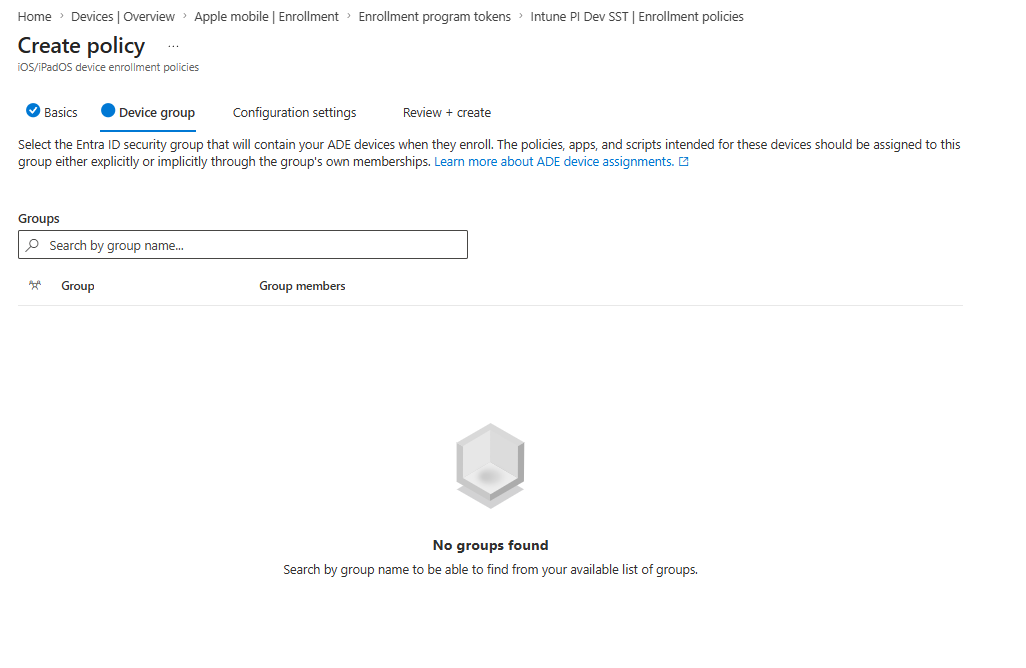
This tab is the headline feature that triggered the What’s new entry: enrollment-time grouping. You can select an Entra ID security group that will contain your ADE devices as soon as they enroll. Instead of waiting for dynamic group evaluation, the device is added to the group during enrollment, so the apps and policies assigned to that group apply immediately. Classic profiles have nothing comparable.
Configuration settings
The configuration settings will look familiar if you have built enrollment profiles before: user affinity, the Intune authentication method, await final configuration, locked enrollment, Apple Configurator certificates, device name template, cellular data, and the Setup Assistant screen toggles.
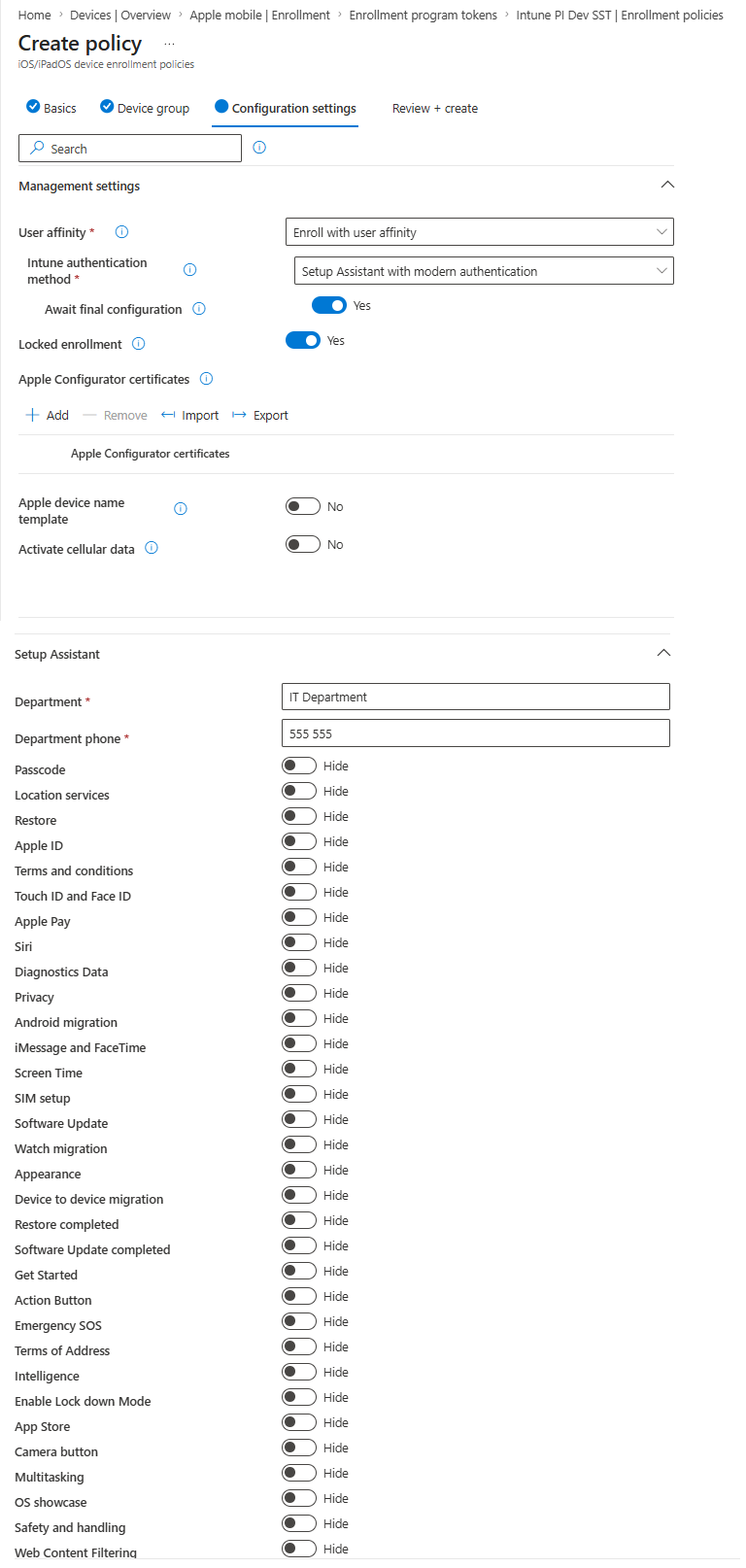
Policy vs. Profile - What Changed
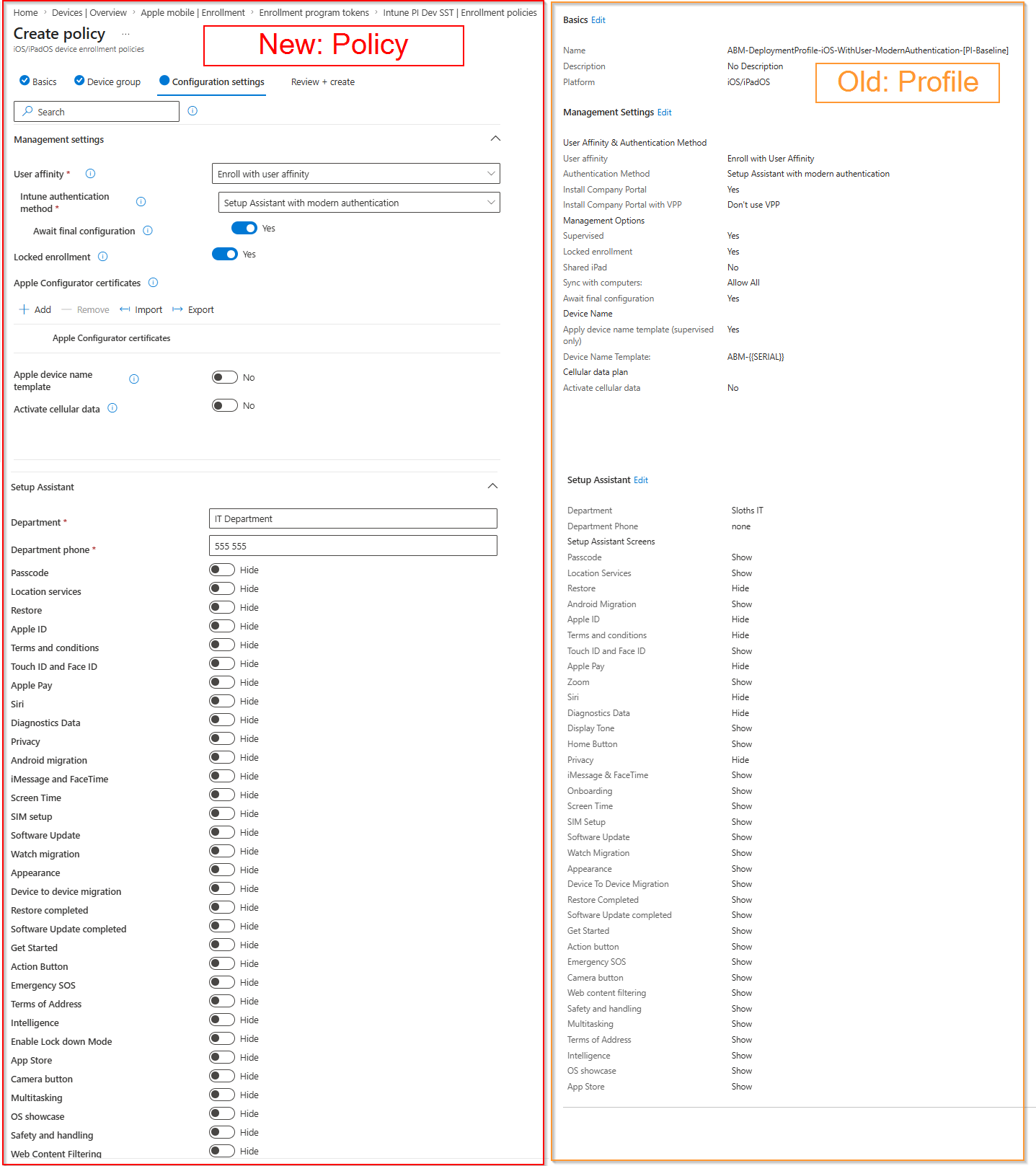
Side by side, the differences become visible. Here is the new iOS/iPadOS policy wizard next to the properties of my old iOS profile:
And the same comparison for macOS:
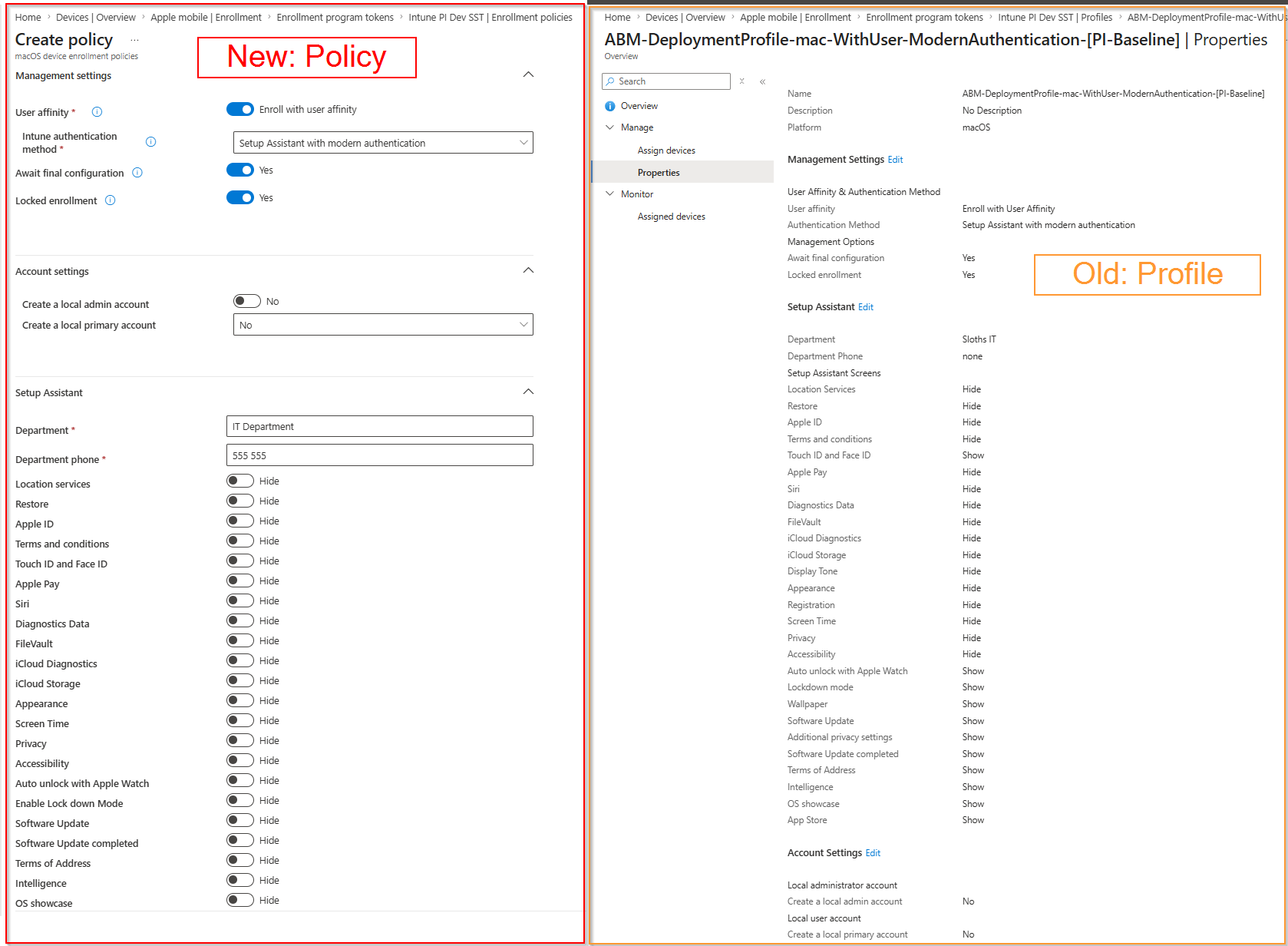
The notable differences:
| Area | Old profile | New policy |
|---|---|---|
| Device group | Not available | Enrollment-time grouping via an Entra ID security group |
| Supervised toggle (iOS) | Configurable | Gone - ADE devices are always supervised |
| Install Company Portal / VPP token (iOS) | Separate settings | Gone - handled automatically with modern authentication |
| Sync with computers (iOS) | Configurable | Not exposed in the wizard |
| Setup Assistant screens | Stops at older OS releases, still lists legacy screens (Zoom, Display Tone, Home Button, Onboarding, Registration, Wallpaper) | Updated list including current screens such as Action Button, Emergency SOS, Terms of Address, Intelligence, Enable Lock down Mode, Safety and handling, Web Content Filtering, and OS showcase |
| Account settings (macOS) | Local admin and local primary account | Still available, same options |
| Platforms | iOS/iPadOS and macOS only | iOS/iPadOS, tvOS, visionOS, and macOS |
This confirms the warning banner: the profile’s Setup Assistant list simply stopped receiving new screens, while the policy list is current. If you want to hide the new Apple Intelligence or Action Button screens during Setup Assistant, you need a policy.
Under the hood, the new policies are settings catalog objects under deviceManagement/configurationPolicies, with the enrollment technology, an ADE template reference, and a creationSource that ties them to their enrollment program token. For device assignment, Intune mirrors each policy into the classic deviceManagement/depOnboardingSettings/{id}/enrollmentProfiles collection, so a policy shows up in both places - but properties like isDefault are never populated on the mirrored entry. That detail becomes important for the migration script later.
Testing: Assign the Policy to a Single Device
Before switching everything over, test the new policy on a single device. In the token’s Devices blade, select a device and click Assign profile. The new policies show up in the same dropdown as the classic profiles, so you can move one test device over and run through an enrollment.
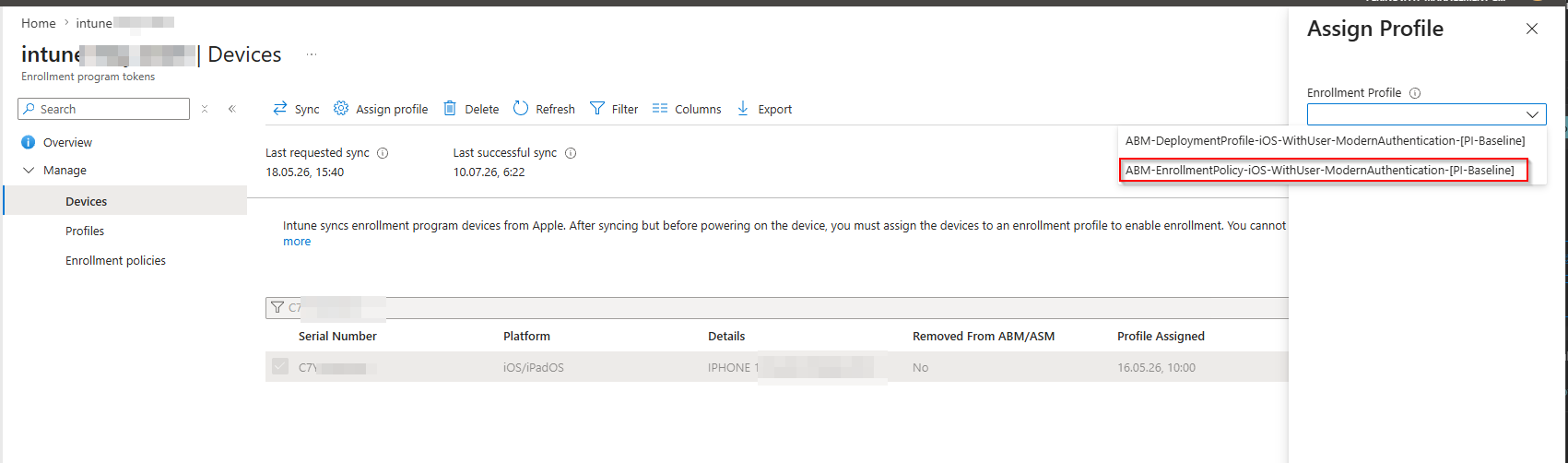
Wipe and re-enroll the device to verify that Setup Assistant, authentication, and your enrollment-time group behave as expected.
Setting the Policy as Default
Once the test device enrolls cleanly, make the policy the default for the token so that newly synced devices pick it up automatically. In the Enrollment policies blade, open the context menu of the policy and select Set as default policy.
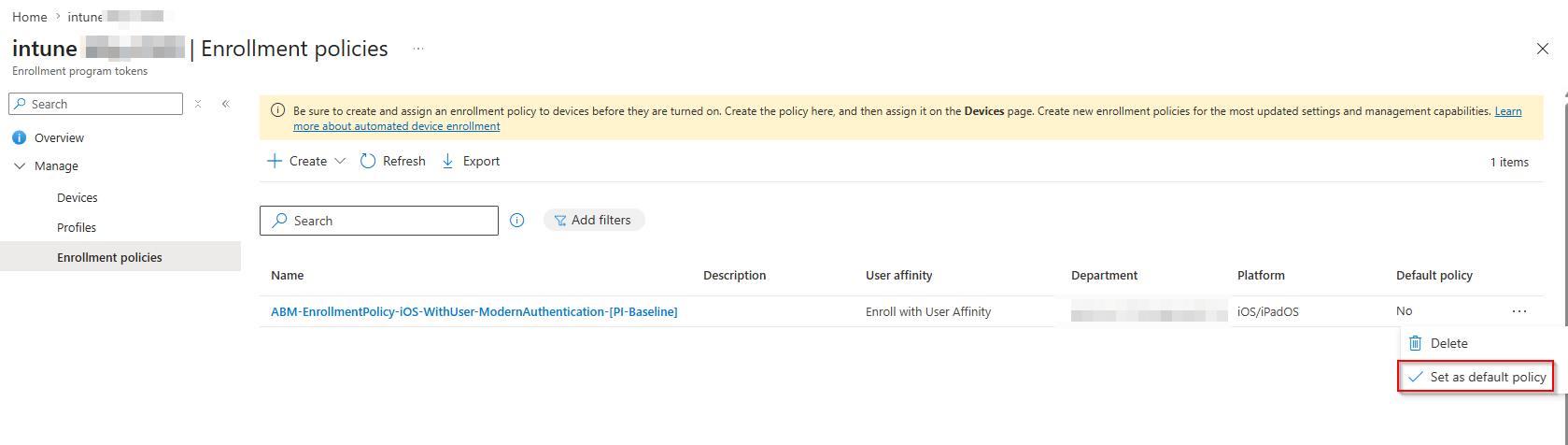
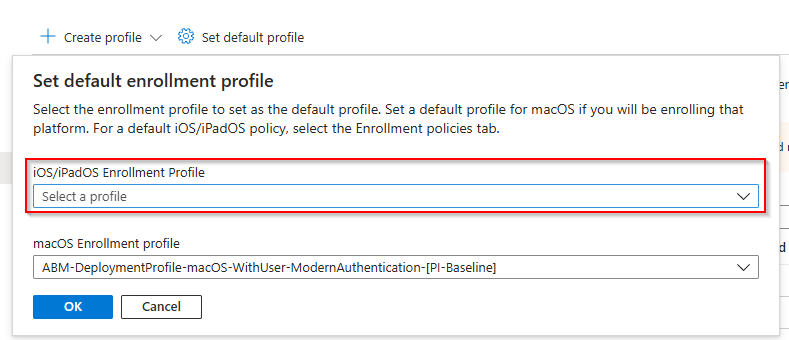
Intune keeps one default per platform across both blades. After setting the policy as default, the old Set default enrollment profile dialog in the Profiles blade no longer shows an iOS profile and points you to the Enrollment policies tab instead:
The Catch: Existing Devices Keep Their Old Profile
Here is the part that is easy to get wrong: setting the new default policy does nothing for devices that are already imported from ABM/ASM. The default only applies to devices that sync into the token afterwards. Every device that is already rolled out keeps its assigned enrollment profile until you actively reassign it.
You could reassign them in the GUI the same way as the test device - but the device list has no select-all option. You can only select devices page by page, which is fine for twenty devices and painful for two thousand.
So let’s script it. The relevant Graph action is updateDeviceProfileAssignment on the enrollment profile, which accepts a list of serial numbers. The script below:
- Connects to Microsoft Graph with the
DeviceManagementServiceConfig.ReadWrite.Allscope. - Reads all enrollment program tokens (or a single one via
-TokenName). - Finds the target policy - either by display name via
-PolicyName(the mirrored entry in the classic collection makes this work for profiles and policies alike), or, if you omit the parameter, the token’s default policy for the given platform. The default lookup checks the classicisDefaultflag first; if no classic profile is the default, it queries the settings catalog (configurationPolicies) for the token’s ADE policy and maps it back to the mirrored enrollment profile entry. - Collects all imported devices of the given platform that are not yet assigned to the target policy.
- Reassigns them in batches via
updateDeviceProfileAssignment.
Since we just set the new policy as default, the simplest call needs no policy name at all. The script supports -WhatIf, so you can dry-run it first:
.\Set-AdeDevicesToEnrollmentPolicy.ps1 -Platform ios -WhatIf
And run it for real once the output looks right:
.\Set-AdeDevicesToEnrollmentPolicy.ps1 -Platform ios
If you want to target a specific policy instead of the default, pass its name:
.\Set-AdeDevicesToEnrollmentPolicy.ps1 `
    -PolicyName 'ABM-EnrollmentPolicy-iOS-WithUser-ModernAuthentication-[PI-Baseline]'
And if you only want to move a handful of devices - for example a staged migration per department - limit the run with -SerialNumber:
.\Set-AdeDevicesToEnrollmentPolicy.ps1 -SerialNumber 'C7XXXXXXXXXX', 'F9XXXXXXXXXX'
Reassigning the enrollment profile does not touch already enrolled devices in daily use - the new policy is applied at the next enrollment (for example after a wipe or a device replacement). That is exactly why you want every device pointed at the policy now: whenever a device re-enrolls, it should get the current settings, not the frozen ones.
The Complete Script
#Requires -Version 7.2
#Requires -Modules Microsoft.Graph.Authentication

<#
.SYNOPSIS
    Assigns all Apple ADE devices of an enrollment program token to a given
    enrollment policy (or profile).

.DESCRIPTION
    The Intune GUI has no "select all" option when assigning an enrollment
    profile to devices, and setting a new default policy only affects devices
    that sync from ABM/ASM afterwards. This script reassigns every already
    imported device to the target policy in batches via Microsoft Graph.

.PARAMETER PolicyName
    Optional. Display name of the target enrollment policy (or profile).
    If omitted, the token's default policy for the given platform is used.

.PARAMETER TokenName
    Optional. Limit the run to a single enrollment program token. If omitted,
    every token that contains a policy with the given name is processed.

.PARAMETER SerialNumber
    Optional. One or more device serial numbers. If provided, only these
    devices are reassigned instead of all imported devices of the platform.

.PARAMETER Platform
    Platform of the devices to reassign. Defaults to ios.

.PARAMETER BatchSize
    Number of serial numbers sent per updateDeviceProfileAssignment call.
    Defaults to 100.

.EXAMPLE
    .\Set-AdeDevicesToEnrollmentPolicy.ps1 -PolicyName 'ABM-EnrollmentPolicy-iOS-WithUser-ModernAuthentication-[PI-Baseline]' -WhatIf

.EXAMPLE
    .\Set-AdeDevicesToEnrollmentPolicy.ps1 -PolicyName 'ABM-EnrollmentPolicy-iOS-WithUser-ModernAuthentication-[PI-Baseline]'

.EXAMPLE
    # Assign all iOS devices to whatever policy is currently the default
    .\Set-AdeDevicesToEnrollmentPolicy.ps1 -Platform ios

.EXAMPLE
    # Assign only two specific devices to the default policy
    .\Set-AdeDevicesToEnrollmentPolicy.ps1 -SerialNumber 'C7XXXXXXXXXX', 'F9XXXXXXXXXX'
#>

[CmdletBinding(SupportsShouldProcess)]
param(
    [string]$PolicyName,

    [string]$TokenName,

    [string[]]$SerialNumber,

    [ValidateSet('ios', 'macOS')]
    [string]$Platform = 'ios',

    [ValidateRange(1, 1000)]
    [int]$BatchSize = 100
)

Set-StrictMode -Version Latest
$ErrorActionPreference = 'Stop'

function Get-GraphAll {
    param([string]$Uri)
    $results = [System.Collections.Generic.List[object]]::new()
    do {
        $page = Invoke-MgGraphRequest -Method GET -Uri $Uri -OutputType PSObject
        foreach ($item in $page.value) { $results.Add($item) }
        $Uri = $page.PSObject.Properties['@odata.nextLink']?.Value
    } while ($Uri)
    return $results
}

function Get-DefaultProfile {
    # Classic profiles (depIOSEnrollmentProfile/depMacOSEnrollmentProfile)
    # track isDefault directly, so that's authoritative whenever it's set.
    #
    # Profiles created via Intune's newer unified "ADE Policy" enrollment
    # experience are Settings Catalog objects under
    # deviceManagement/configurationPolicies instead, and never populate
    # isDefault. Unlike isDefault, their assignment state doesn't reflect
    # default status live - a policy stays isAssigned:false forever whether
    # or not it's the *current* default, so this is only a fallback for when
    # no classic profile is marked default (i.e. an ADE Policy is/was it).
    param(
        [object[]]$Profiles,
        [string]$TokenId,
        [string]$Platform
    )

    $profileType = if ($Platform -eq 'ios') { '#microsoft.graph.depIOSEnrollmentProfile' }
                   else { '#microsoft.graph.depMacOSEnrollmentProfile' }
    $classicDefault = $Profiles | Where-Object { $_.'@odata.type' -eq $profileType -and $_.isDefault }
    if ($classicDefault) { return $classicDefault }

    $templateId    = if ($Platform -eq 'ios') { '27d20e9c-50c1-48f8-a44c-f37de4510051_1' }
                     else { '2e29557d-70fc-405a-8082-d1e5b6be2b8c_1' }
    $odataPlatform = if ($Platform -eq 'ios') { 'ios' } else { 'macOS' }

    $odataFilter = "(technologies has 'enrollment') and (platforms eq '$odataPlatform') and " +
                   "(TemplateReference/templateId eq '$templateId') and " +
                   "(creationSource eq 'DepTokenId_$TokenId') and (isAssigned eq false)"
    $uri = "beta/deviceManagement/configurationPolicies?`$filter=$([System.Uri]::EscapeDataString($odataFilter))&`$select=id,name"
    $unassigned = @(Get-GraphAll -Uri $uri)

    if ($unassigned.Count -gt 1) {
        Write-Warning "  Multiple unassigned $Platform ADE policies found - using '$($unassigned[0].name)' as the default."
    }
    if ($unassigned.Count -gt 0) {
        $match = $Profiles | Where-Object { $_.id -like "*_$($unassigned[0].id)" }
        if ($match) { return $match }
    }

    return $null
}

# Reuse an existing Graph connection if it already carries the required scope.
$requiredScope = 'DeviceManagementServiceConfig.ReadWrite.All'
$context = Get-MgContext
if (-not $context -or $context.Scopes -notcontains $requiredScope) {
    Connect-MgGraph -Scopes $requiredScope -NoWelcome
}

$tokens = Get-GraphAll -Uri 'beta/deviceManagement/depOnboardingSettings'
if ($TokenName) {
    $tokens = @($tokens | Where-Object { $_.tokenName -eq $TokenName })
    if ($tokens.Count -eq 0) { throw "Enrollment program token '$TokenName' not found." }
}

foreach ($token in $tokens) {
    Write-Output "--- Token: $($token.tokenName) ---"

    # The new enrollment policies live in the same Graph collection as the
    # classic profiles, so a plain displayName match finds either kind.
    $profiles = Get-GraphAll -Uri "beta/deviceManagement/depOnboardingSettings/$($token.id)/enrollmentProfiles"

    if ($PolicyName) {
        $target = $profiles | Where-Object { $_.displayName -eq $PolicyName }
    }
    else {
        # No name given: use the default policy of the requested platform.
        $target = Get-DefaultProfile -Profiles $profiles -TokenId $token.id -Platform $Platform
    }

    if (-not $target) {
        $wanted = if ($PolicyName) { "Policy '$PolicyName'" } else { "A default $Platform policy" }
        Write-Warning "  $wanted not found on this token - skipping."
        continue
    }

    Write-Output "  Target policy: $($target.displayName)"

    $devices = Get-GraphAll -Uri "beta/deviceManagement/depOnboardingSettings/$($token.id)/importedAppleDeviceIdentities"

    $toAssign = @($devices | Where-Object {
        $_.platform -eq $Platform -and
        -not $_.isDeleted -and
        -not [string]::IsNullOrWhiteSpace($_.serialNumber) -and
        $_.requestedEnrollmentProfileId -ne $target.id
    })

    if ($SerialNumber) {
        $toAssign = @($toAssign | Where-Object { $_.serialNumber -in $SerialNumber })

        $missing = @($SerialNumber | Where-Object { $_ -notin $devices.serialNumber })
        foreach ($serial in $missing) {
            Write-Warning "  Serial number '$serial' not found on this token."
        }
    }

    Write-Output "  Devices ($Platform): $($devices.Count) imported, $($toAssign.Count) to reassign"

    if ($toAssign.Count -eq 0) { continue }

    for ($i = 0; $i -lt $toAssign.Count; $i += $BatchSize) {
        $chunk   = @($toAssign[$i..([Math]::Min($i + $BatchSize, $toAssign.Count) - 1)])
        $serials = @($chunk | Select-Object -ExpandProperty serialNumber)

        if ($PSCmdlet.ShouldProcess("$($serials.Count) devices ($($serials[0]) ...)", "Assign policy '$($target.displayName)'")) {
            $body = @{ deviceIds = $serials } | ConvertTo-Json

            Invoke-MgGraphRequest `
                -Method POST `
                -Uri    "beta/deviceManagement/depOnboardingSettings/$($token.id)/enrollmentProfiles/$($target.id)/updateDeviceProfileAssignment" `
                -Body   $body | Out-Null

            Write-Output "  Assigned batch of $($serials.Count) devices"
        }
    }

    Write-Output '  Token completed'
}
A few notes on the script:
- The
depOnboardingSettingsendpoints only exist in the beta Graph API. That has been the case for years and the Intune console itself uses them, but keep it in mind for production automation. updateDeviceProfileAssignmentexpects serial numbers in thedeviceIdsarray, not object IDs.- The new policies never set
isDefaulton their mirrored enrollment profile entry, and their settings catalog object does not expose the default status either (isAssignedstaysfalseregardless). The script therefore treats the token’s unassigned ADE policy as the default and warns if it finds more than one candidate - if you have several policies per platform on a token, pass-PolicyNameexplicitly. - The old default profile stays in place as a regular (non-default) profile. Once the script has moved every device and you have verified a few re-enrollments, you can delete it.
The script is also available in my Intune-Misc GitHub repo.
Summary
- Create a new enrollment policy per platform and mirror your old profile settings - and take the chance to configure the new Setup Assistant screens and enrollment-time grouping.
- Test it by assigning the policy to a single device and re-enrolling.
- Set the policy as the default for the token.
- Remember that the default only affects newly synced devices - reassign all existing devices with the script above.
- Delete the old profiles once everything points at the policies.
The classic profiles still work today, but they are frozen. Every new Setup Assistant screen and every new enrollment feature lands in the policies only, so migrating sooner keeps your enrollment experience in your hands instead of Apple’s defaults.