A few years back I started digging into Microsoft365DSC to manage tenant configuration as code. It needs an App Registration to reach all those workloads, and right from the start I decided I did not want a client secret sitting in a config file for it - I wanted certificate authentication instead. What I assumed would be a five-minute New-SelfSignedCertificate one-liner quickly turned into a small side project: every time I thought I was done, I caught myself asking what “secure” actually meant for that private key. Could someone just export it again? Did it have to touch the disk at all? Should it be bound to the hardware? The script grew with each answer, and what you see below is where it eventually landed.
If you automate anything against Microsoft Graph or Azure from an unattended context - a scheduled task, an on-prem service, a remediation script - you need an App Registration to authenticate with. The quickest path is a client secret, but secrets are a liability: they land in plain text in config files, they get copied into chat messages, and they expire on a schedule you will inevitably forget. Certificate authentication is the better answer. Azure only ever stores the public key, the private key stays on your machine, and there is no shared string to leak.
But “the private key stays on your machine” is only half the story. By default, a software certificate’s private key can be exported back out to a .pfx by anyone with access - which means it is exactly as copyable as the secret you were trying to get away from. The real prize is a non-exportable certificate: the private key is generated on the Windows machine and can never be extracted from it, not by you, not by malware, and not by an attacker with disk access. The application can still use the key to sign token requests; it just cannot read it out.
This article walks through a PowerShell script whose whole default is that non-exportable certificate. It creates the key directly in the LocalMachine store as NonExportable, with the option to back it by the TPM for a hardware-enforced guarantee. An exportable .pfx is produced only as a deliberate, password-protected exception - for when you genuinely need to back the key up or deploy the same identity to a second machine. It also covers how to wire the result up to your App Registration.
The Concept
App Registration certificate authentication is asymmetric. You generate a key pair, hand Azure the public half (a .cer file uploaded under Certificates & secrets), and keep the private half locally. When your application authenticates, it signs a token request with the private key; Azure validates the signature against the public key it already holds. The private key never travels.
The security question that matters is not where the private key lives, but whether it can ever leave. That is the exportability of the key:
| Setup | How it is created | Can the key be extracted? |
|---|---|---|
| Non-exportable software key (default) | Generated directly in Cert:\LocalMachine\My |
No - the OS refuses to export it |
TPM-backed key (-KeyStorage Tpm) |
Generated inside the TPM | No - the key physically never leaves the chip |
Exportable software key (-Password) |
Exportable scratch key, exported to a .pfx |
Yes - but only via the password-protected .pfx you asked for |
The default and the recommendation is the non-exportable software key. It needs no special hardware, works on any Windows machine, and gives you a private key that cannot be copied off the box through normal means. If the machine has a TPM, -KeyStorage Tpm raises the bar further: the key is generated inside the chip and is non-exportable by hardware design, not just by OS policy.
You only step away from non-exportable when you explicitly need portability - a vaulted backup, or the same identity running on several machines. Supplying a -Password is the conscious switch that produces an exportable .pfx; without it, no extractable copy of the key is ever written.
How the Script Works
The default behavior - run it with nothing but a -CertName - is the non-exportable certificate. The other two paths are deliberate opt-ins via -KeyStorage Tpm and -Password.
The default: a non-exportable software certificate
With no -Password and the default -KeyStorage Software, the key is created directly in Cert:\LocalMachine\My as NonExportable, and only the public .cer is written to disk:
- Create a NonExportable RSA certificate straight in
Cert:\LocalMachine\My. - Export the public key to a
.cerfile - this is what you upload to Azure.
There is no scratch copy, no import, and nothing to clean up. The private key is generated in place and the OS will refuse any attempt to export it. This is the path you want for almost every unattended workload.
Hardening it further with the TPM
If the machine has a TPM, add -KeyStorage Tpm to move the key into hardware:
- Create a NonExportable RSA certificate directly in
Cert:\LocalMachine\My, backed by the Microsoft Platform Crypto Provider. - Export the public key to a
.cerfile.
Still no .pfx - there is no private key to export, because it lives inside the TPM and physically never leaves. This is the same non-exportable guarantee as the default, but enforced by hardware rather than OS policy, and tied to that one specific machine.
TPM is not selected automatically, on purpose: a hardware-bound key is machine-locked and unrecoverable, so that should be a conscious choice rather than something that silently depends on whether the machine has a chip. Instead, when you run in the default software mode on a machine with a ready TPM, the script prints a one-line hint suggesting -KeyStorage Tpm - secure by default, with a visible upgrade path.
The exception: an exportable .pfx on request
Only when you supply a -Password does the script produce an extractable copy of the key. To keep the installed certificate non-exportable even in this case, it routes through an exportable scratch copy:
- Create an exportable RSA certificate in
Cert:\CurrentUser\My. - Export the public key to a
.cerfile. - Export the private key to the password-protected
.pfx. - Import a NonExportable copy into
Cert:\LocalMachine\Myso services and scheduled tasks can use it, but cannot re-export it. - Clean up the temporary
CurrentUserentry.
The password-protected .pfx on disk is then the only portable copy of the key - and the certificate installed on the machine stays non-exportable, exactly like the default.
Prerequisites
| Requirement | Details |
|---|---|
| Windows PowerShell 5.1+ | The script uses New-SelfSignedCertificate and the PKI module |
| Administrator rights | Writing into Cert:\LocalMachine\My requires elevation |
| A TPM 2.0 | Only for -KeyStorage Tpm; a vTPM works on virtual machines |
| An Azure App Registration | Where the public .cer is uploaded |
The script enforces the first two with #Requires statements, so it fails fast with a clear message rather than halfway through.
Using the Script
The script is parameter-driven and supports -WhatIf/-Confirm, so you can preview exactly what it will do before it touches the certificate store.
| Parameter | Default | Purpose |
|---|---|---|
-CertName |
AppCert |
Certificate CN and base filename |
-OutputPath |
script dir | Where the .cer (and .pfx) are written |
-ValidityMonths |
24 |
Certificate lifetime |
-KeyStorage |
Software |
Software or Tpm |
-KeyLength |
2048 |
RSA key size: 2048, 3072, or 4096 |
-FriendlyName |
auto | Display name in certlm.msc |
-Password |
none | .pfx password; supplying it is what produces a .pfx (Software mode only) |
A LocalMachine software certificate, valid for two years - NonExportable, no .pfx, only the .cer:
.\script.ps1 -CertName "MyAutomation"
The same, but with a portable .pfx backup - supply a password:
$pwd = Read-Host "PFX password" -AsSecureString
.\script.ps1 -CertName "MyAutomation" -Password $pwd
A machine-bound TPM certificate with a 3072-bit key:
.\script.ps1 -CertName "MyAutomation" -KeyStorage Tpm -KeyLength 3072
Preview a TPM run without changing anything:
.\script.ps1 -CertName "MyAutomation" -KeyStorage Tpm -WhatIf
Each run returns an object describing what it created:
CertName   : MyAutomation
Thumbprint : 1A2B3C4D...
KeyStorage : Tpm
Provider   : Microsoft Platform Crypto Provider
CerPath    : C:\...\Cert\MyAutomation.cer
PfxPath    :
NotAfter   : 25.06.2028 16:00:00
Verifying the Key
The script tells you what it intended to create, but you can confirm the result independently with certutil. Pass the Thumbprint the script returned to certutil -verifystore my to inspect the certificate in the LocalMachine store:
certutil -verifystore my {Thumbprint}
The output confirms the two properties that matter. The Provider line tells you where the private key lives - Microsoft Platform Crypto Provider means it is backed by the TPM - and Private key is NOT exportable confirms the OS will refuse any attempt to extract it:
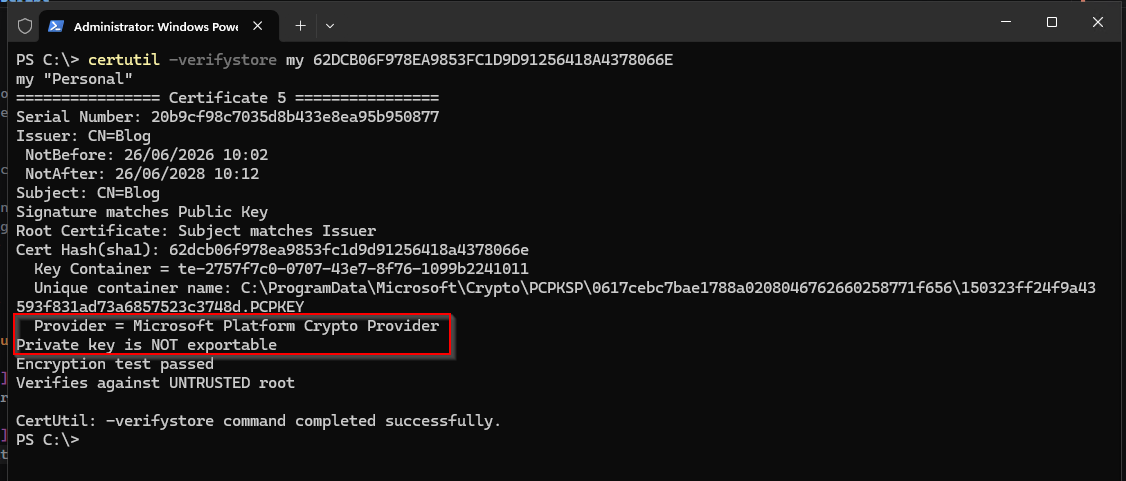
This is the proof that the key really is stored in the TPM and cannot be copied off the machine, rather than just trusting that the script asked for it.
Wiring It Up to the App Registration
Once the script has run, upload the public key and confirm the binding:
- In the Entra portal, open your App Registration and go to Certificates & secrets > Certificates.
- Click Upload certificate and select the generated
.cerfile. - Confirm the Thumbprint shown in the portal matches the
Thumbprintthe script returned.
From then on your code authenticates by thumbprint against the certificate in the LocalMachine store. For example, with the Microsoft Graph PowerShell SDK:
Connect-MgGraph -ClientId "<app-id>" -TenantId "<tenant-id>" -CertificateThumbprint "<thumbprint>"
The same thumbprint works whether the key is software-backed or TPM-backed - the calling code does not change. Only the security properties of the underlying key differ.
The Complete Script
#Requires -Version 5.1
#Requires -RunAsAdministrator

<#
.SYNOPSIS
    Creates a self-signed certificate for use with Azure App Registrations.

.DESCRIPTION
    Generates an RSA self-signed certificate for App Registration certificate
    authentication. Two key-storage strategies are supported via -KeyStorage:

    Software (default):
        Creates the certificate directly in Cert:\LocalMachine\My. By default the key
        is NonExportable and only the .cer (public key) is written to disk. If a
        -Password is supplied, a portable .pfx is also produced: an exportable scratch
        copy is created in the CurrentUser store, the .pfx is exported from it, and a
        NonExportable copy is imported into LocalMachine - so the installed key stays
        locked down while you still get a backup you can deploy to other machines.

    Tpm:
        Generates the key directly inside the TPM using the Microsoft Platform Crypto
        Provider. The private key is NonExportable and never leaves the TPM, so no .pfx
        is produced and the key cannot be backed up or moved to another machine. The
        certificate is created straight into Cert:\LocalMachine\My. Requires a working
        TPM 2.0 (or vTPM on virtual machines).

    In both cases the .cer file is intended to be uploaded to the Azure App Registration
    under "Certificates & secrets". Azure only ever holds the public key.

    In Software mode a .pfx is produced only when -Password is supplied. Without a
    password no .pfx is created at all - the key is generated directly in LocalMachine
    as NonExportable and only the .cer is kept.

    Re-running with the same -CertName does not replace an existing certificate; a new
    certificate (with a new thumbprint) is created and the script warns when a matching
    subject already exists in the store.

    Requires administrator privileges to write into Cert:\LocalMachine\My (enforced by
    the #Requires -RunAsAdministrator statement above).

.PARAMETER CertName
    The common name (CN) for the certificate and the base name for the exported files.
    Defaults to "AppCert".

.PARAMETER OutputPath
    Directory where the .cer (and optionally .pfx) files will be saved.
    Defaults to the script's own directory ($PSScriptRoot).

.PARAMETER ValidityMonths
    Number of months the certificate should be valid.
    Defaults to 24.

.PARAMETER KeyStorage
    Where the private key is stored. Valid values:
        Software - exportable software key with a .pfx export (default).
        Tpm      - key generated in the TPM, NonExportable, no .pfx produced.

.PARAMETER KeyLength
    RSA key size in bits. Valid values: 2048, 3072, 4096. Defaults to 2048.

.PARAMETER FriendlyName
    Friendly name shown for the certificate in the store (e.g. in certlm.msc).
    Defaults to "<CertName> - App Registration (<KeyStorage>)".

.PARAMETER Password
    SecureString password used to protect the .pfx file (Software mode only).
    Supplying it is what triggers .pfx creation; if omitted, no .pfx is produced and
    the key is created directly in LocalMachine as NonExportable.
    Ignored when -KeyStorage is Tpm (there is no .pfx to protect).

.EXAMPLE
    .\script.ps1

    Creates "AppCert" directly in LocalMachine with a NonExportable software key,
    valid for 24 months. No .pfx is produced; only the .cer is kept on disk.

.EXAMPLE
    $pwd = Read-Host "Enter PFX password" -AsSecureString
    .\script.ps1 -CertName "MyCorp" -ValidityMonths 12 -Password $pwd

    Creates "MyCorp" software-key certificate valid for 12 months, protected with the
    supplied password. Both .cer and .pfx are kept on disk.

.EXAMPLE
    .\script.ps1 -CertName "MyCorp" -KeyStorage Tpm -KeyLength 3072

    Creates "MyCorp" with a 3072-bit private key generated inside the TPM. The key is
    NonExportable and machine-bound; no .pfx is produced. Only the .cer is kept on disk.

.OUTPUTS
    PSCustomObject with properties:
        CertName      - Name of the certificate
        Thumbprint    - Certificate thumbprint
        KeyStorage    - "Software" or "Tpm"
        Provider      - The cryptographic provider that backs the private key
        CerPath       - Full path to the exported .cer file
        PfxPath       - Full path to the .pfx file, or $null if deleted / not applicable
        NotAfter      - Expiry date of the certificate
#>
[CmdletBinding(SupportsShouldProcess)]
param (
    [Parameter()]
    [string] $CertName = "AppCert",

    [Parameter()]
    [string] $OutputPath = $PSScriptRoot,

    [Parameter()]
    [int] $ValidityMonths = 24,

    [Parameter()]
    [ValidateSet("Software", "Tpm")]
    [string] $KeyStorage = "Software",

    [Parameter()]
    [ValidateSet(2048, 3072, 4096)]
    [int] $KeyLength = 2048,

    [Parameter()]
    [string] $FriendlyName,

    [Parameter()]
    [SecureString] $Password
)

# A failed cmdlet should stop the script immediately rather than letting execution
# continue with a half-built state (e.g. a null $cert flowing into Export-Certificate).
$ErrorActionPreference = 'Stop'

# Ensure the output directory exists
if (-not (Test-Path -Path $OutputPath)) {
    $null = New-Item -Path $OutputPath -ItemType Directory
    Write-Verbose "Created output directory: $OutputPath"
}

$cerPath = Join-Path $OutputPath "$CertName.cer"
$pfxPath = Join-Path $OutputPath "$CertName.pfx"
$expiry  = (Get-Date).AddMonths($ValidityMonths)

if (-not $FriendlyName) {
    $FriendlyName = "$CertName - App Registration ($KeyStorage)"
}

# Warn (don't block) if a certificate with the same subject already lives in the store -
# re-running always mints a brand new certificate with a fresh thumbprint.
$existing = Get-ChildItem -Path "Cert:\LocalMachine\My" | Where-Object { $_.Subject -eq "CN=$CertName" }
if ($existing) {
    Write-Warning "A certificate with subject 'CN=$CertName' already exists in Cert:\LocalMachine\My (thumbprint $($existing.Thumbprint -join ', ')). A new, separate certificate will be created."
}

# In Software mode, nudge towards the stronger hardware-backed option when a ready TPM
# is present. Purely informational - it never changes what the script does, and a
# detection failure (no TPM, no TPM cmdlets) is silently ignored.
if ($KeyStorage -eq "Software") {
    try {
        $tpm = Get-Tpm -ErrorAction Stop
        if ($tpm.TpmPresent -and $tpm.TpmReady) {
            Write-Information "A TPM is available on this machine. Consider -KeyStorage Tpm for a hardware-backed, non-exportable key." -InformationAction Continue
        }
    }
    catch {
        # No TPM or no TPM cmdlets available - nothing to suggest.
    }
}

# Honour -WhatIf / -Confirm for the state-changing operation
$shouldProcessTarget = "Cert:\LocalMachine\My"
$shouldProcessAction = "Create $KeyStorage-backed certificate 'CN=$CertName' ($KeyLength-bit, expires $expiry)"
if (-not $PSCmdlet.ShouldProcess($shouldProcessTarget, $shouldProcessAction)) {
    return
}

if ($KeyStorage -eq "Tpm") {
    # ---- TPM-backed key -------------------------------------------------
    # The key is generated inside the TPM and is NonExportable, so there is
    # no .pfx and the key cannot be moved off this machine.

    $tpmProvider = "Microsoft Platform Crypto Provider"

    if ($Password) {
        Write-Warning "The -Password parameter is ignored when -KeyStorage is Tpm (no .pfx is produced)."
    }

    # Note: -KeySpec is deliberately omitted. It is a legacy CSP concept (AT_SIGNATURE)
    # and is incompatible with CNG Key Storage Providers like the Platform Crypto
    # Provider - supplying it raises NTE_PROV_TYPE_NOT_DEF (0x80090017).
    Write-Verbose "Creating TPM-backed self-signed certificate '$CertName' (valid until $expiry)..."
    try {
        $cert = New-SelfSignedCertificate `
            -Subject            "CN=$CertName" `
            -FriendlyName       $FriendlyName `
            -CertStoreLocation  "Cert:\LocalMachine\My" `
            -KeyExportPolicy    NonExportable `
            -KeyLength          $KeyLength `
            -KeyAlgorithm       RSA `
            -HashAlgorithm      SHA256 `
            -Provider           $tpmProvider `
            -NotAfter           $expiry
    }
    catch {
        throw "Failed to create a TPM-backed key with '$tpmProvider'. A working TPM 2.0 (or vTPM on a virtual machine) is required for -KeyStorage Tpm. Underlying error: $($_.Exception.Message)"
    }

    # Export public key (.cer) - upload this to the Azure App Registration
    Export-Certificate -Cert $cert -FilePath $cerPath | Out-Null
    Write-Verbose "Exported public certificate: $cerPath"

    $pfxPath  = $null
    $provider = $tpmProvider
}
elseif ($Password) {
    # ---- Software key WITH a portable .pfx -------------------------------
    # A .pfx was requested. Create an exportable scratch copy in CurrentUser, export
    # the .pfx from it, then import a NonExportable copy into LocalMachine. This yields
    # a portable backup while keeping the installed key locked down. The imported copy
    # shares the same thumbprint, so $cert remains valid for the output object.

    $cert = $null
    try {
        Write-Verbose "Creating exportable scratch certificate '$CertName' in CurrentUser (valid until $expiry)..."
        $cert = New-SelfSignedCertificate `
            -Subject            "CN=$CertName" `
            -FriendlyName       $FriendlyName `
            -CertStoreLocation  "Cert:\CurrentUser\My" `
            -KeyExportPolicy    Exportable `
            -KeySpec            Signature `
            -KeyLength          $KeyLength `
            -KeyAlgorithm       RSA `
            -HashAlgorithm      SHA256 `
            -NotAfter           $expiry

        # Export public key (.cer) - upload this to the Azure App Registration
        Export-Certificate -Cert $cert -FilePath $cerPath | Out-Null
        Write-Verbose "Exported public certificate: $cerPath"

        # Export private key bundle (.pfx) - portable backup / deployment artifact
        Export-PfxCertificate -Cert $cert -FilePath $pfxPath -Password $Password | Out-Null
        Write-Verbose "Exported PFX: $pfxPath"

        # Import into LocalMachine as NonExportable (default) so the installed key
        # cannot be re-exported, while the .pfx on disk remains the only portable copy.
        Import-PfxCertificate -FilePath $pfxPath -Password $Password -CertStoreLocation "Cert:\LocalMachine\My" | Out-Null
        Write-Verbose "Imported certificate into Cert:\LocalMachine\My (NonExportable)"
    }
    finally {
        # Always remove the temporary CurrentUser entry, even if a later step failed -
        # the private key belongs in LocalMachine, not in the user store.
        if ($cert -and (Test-Path -Path "Cert:\CurrentUser\My\$($cert.Thumbprint)")) {
            Remove-Item -Path "Cert:\CurrentUser\My\$($cert.Thumbprint)" -Force
            Write-Verbose "Removed temporary entry from Cert:\CurrentUser\My"
        }
    }

    $provider = "Microsoft Software Key Storage Provider"
}
else {
    # ---- Software key, NO .pfx -------------------------------------------
    # No .pfx requested, so there is no need for the CurrentUser export path. Create
    # the certificate straight into LocalMachine as NonExportable - one step, nothing
    # to clean up, and the private key can never be extracted.

    Write-Verbose "Creating NonExportable software certificate '$CertName' directly in LocalMachine (valid until $expiry)..."
    $cert = New-SelfSignedCertificate `
        -Subject            "CN=$CertName" `
        -FriendlyName       $FriendlyName `
        -CertStoreLocation  "Cert:\LocalMachine\My" `
        -KeyExportPolicy    NonExportable `
        -KeySpec            Signature `
        -KeyLength          $KeyLength `
        -KeyAlgorithm       RSA `
        -HashAlgorithm      SHA256 `
        -NotAfter           $expiry

    # Export public key (.cer) - upload this to the Azure App Registration
    Export-Certificate -Cert $cert -FilePath $cerPath | Out-Null
    Write-Verbose "Exported public certificate: $cerPath"

    $pfxPath  = $null
    $provider = "Microsoft Software Key Storage Provider"
}

[PSCustomObject]@{
    CertName   = $CertName
    Thumbprint = $cert.Thumbprint
    KeyStorage = $KeyStorage
    Provider   = $provider
    CerPath    = $cerPath
    PfxPath    = $pfxPath
    NotAfter   = $cert.NotAfter
}
Things to Keep in Mind
A non-exportable key cannot be backed up - by design. That is the security property you asked for, but it cuts both ways: if the machine is lost or rebuilt, there is no copy to restore. You simply generate a fresh certificate and upload the new public key to the App Registration. If that recovery story is unacceptable for a given workload, that is precisely the case where you supply a -Password and keep the resulting .pfx somewhere safe (a vault, not a file share) - accepting that the key is now extractable in exchange for portability.
A TPM key cannot be backed up or migrated. This is the whole point, but it has consequences. If the machine is reimaged, the motherboard is replaced, or the VM is recreated without persisting its vTPM, the private key is gone for good. You do not recover it - you generate a fresh certificate and upload the new public key to the App Registration. Plan your rotation around that reality.
You cannot import an existing key into the TPM. A common question is whether you can take an existing .pfx and push its private key into the TPM. With the standard Windows tooling, you cannot - the Platform Crypto Provider does not expose an import path. The TPM’s security model assumes keys are born inside it and never leave. If you want a TPM-backed identity, generate it in TPM mode from the start.
Re-running creates a second certificate, it does not replace. Each run mints a certificate with a new thumbprint. The script warns you when a matching subject already exists, but it will not delete the old one. Clean up superseded certificates from Cert:\LocalMachine\My (and remove their public keys from the App Registration) as part of your rotation.
The grant must reach the private key. A service or scheduled task running as a non-admin identity needs read access to the certificate’s private key in the LocalMachine store. Use certlm.msc - All Tasks > Manage Private Keys - to grant the service account read permission, or do it from PowerShell as part of your deployment.
Self-signed is fine here. App Registration authentication validates the certificate by its registered public key and thumbprint, not by a chain of trust. A self-signed certificate is perfectly acceptable; you do not need a CA-issued one for this purpose.
The complete script is included above - copy it into a .ps1, run it elevated, and upload the resulting .cer to your App Registration. It is also available in my Intune-Misc GitHub repo.