If you manage Windows Autopatch or run staged Intune rollouts, you almost certainly have user rings - Entra groups that contain the users who belong to a given update or pilot tier. The problem is that many Intune assignment targets require device groups, not user groups. Configuration profiles targeting device scope, Windows Autopatch device rings, and many endpoint security policies all need devices in the assigned group, not users.
The naive fix is to maintain a parallel device group by hand: whenever someone joins or leaves the pilot ring, you also update the device group. That works fine for five users. It does not work when your rings have dozens of members and people rotate in and out regularly.
This article walks through an Azure Automation runbook that solves this automatically. Given one or more source/target group pairs, it reads the users from each source group, resolves their Intune-managed devices, and keeps the target device group in sync - adding devices that should be there and removing ones that should not. Authentication runs entirely through the Automation account’s system-assigned managed identity, so there are no app registrations, no client secrets, and no certificates to rotate.
The Concept
The idea is straightforward. For each ring you maintain two groups:
| Group | Example name | Contents |
|---|---|---|
| Source (user ring) | MDM-Win-Ring_Pilot-U-Assigned |
Users who are in the pilot ring |
| Target (device ring) | MDM-Win-Ring_Pilot-D-Assigned |
The managed devices of those users |
You manage the user group manually (or via HR automation). The runbook manages the device group for you. Every time it runs, it computes the correct set of devices and applies the delta - no stale members, no missing additions.
How the Runbook Works
The runbook processes each source/target pair in sequence:
- Read source group users - Fetches all direct user members of the source group using the Microsoft Graph API.
- Resolve managed devices - For each user, queries Intune (
/v1.0/users/{id}/managedDevices) to get their enrolled devices. - Resolve Entra directory object IDs - Intune returns an
azureADDeviceId(the Entra device identity property), which is different from the directory object ID that group membership uses. A second Graph query resolves each device to its directory object ID. - Compute the delta - Compares the desired device set against the current members of the target group.
- Apply changes - Adds missing devices and removes stale ones via the Graph group membership API.
- Error notification - If any pair throws an exception, a summary email is sent via Graph at the end of the run. Failures in one pair do not stop the other pairs from running.
All Graph calls are paginated through @odata.nextLink, so the runbook handles groups with thousands of members correctly.
Prerequisites
Before you deploy, make sure you have the following in place.
| Requirement | Details |
|---|---|
| Azure subscription | With permission to create an Automation account |
| PowerShell 7.2+ | For local deployment scripts |
Microsoft.Graph.Applications module |
Required for the permission-assignment script |
| A mailbox for notifications | Any licensed mailbox works as the sender |
The runbook itself runs inside Azure Automation and uses the account’s system-assigned managed identity to authenticate against Microsoft Graph. No secrets, no certificates, no app registrations to maintain.
Required Graph API permissions
Grant these application permissions to the managed identity:
| Permission | Why |
|---|---|
GroupMember.ReadWrite.All |
Read source group members and write to the target group |
DeviceManagementManagedDevices.Read.All |
Query Intune-managed devices per user |
Device.Read.All |
Resolve Entra device objects by deviceId |
Mail.Send |
Send error notification emails |
Deployment
Step 1 - Create the Automation Account
Create an Azure Automation account with a system-assigned managed identity. You can do this in the Azure portal or use the ARM template in the repository:
az deployment group create `
  --resource-group  <your-rg> `
  --template-file   deploy/automation-account.json `
  --parameters      deploy/automation-account.parameters.json
Note the principalId value from the deployment output - you need it in Step 2.
Step 2 - Assign Graph Permissions to the Managed Identity
Run the included script to grant the four required Graph application roles to the managed identity. This script is idempotent - safe to run again if you need to add permissions later.
Install-Module Microsoft.Graph.Applications -Scope CurrentUser

.\deploy\Assign-ManagedIdentityPermissions.ps1 -ManagedIdentityObjectId <principalId>
The script connects to Microsoft Graph as you (delegated AppRoleAssignment.ReadWrite.All) and assigns the four application roles listed above.
Step 3 - Configure Automation Variables
The runbook reads its configuration from three Automation variables. In the Automation account, go to Shared Resources > Variables and create each one.
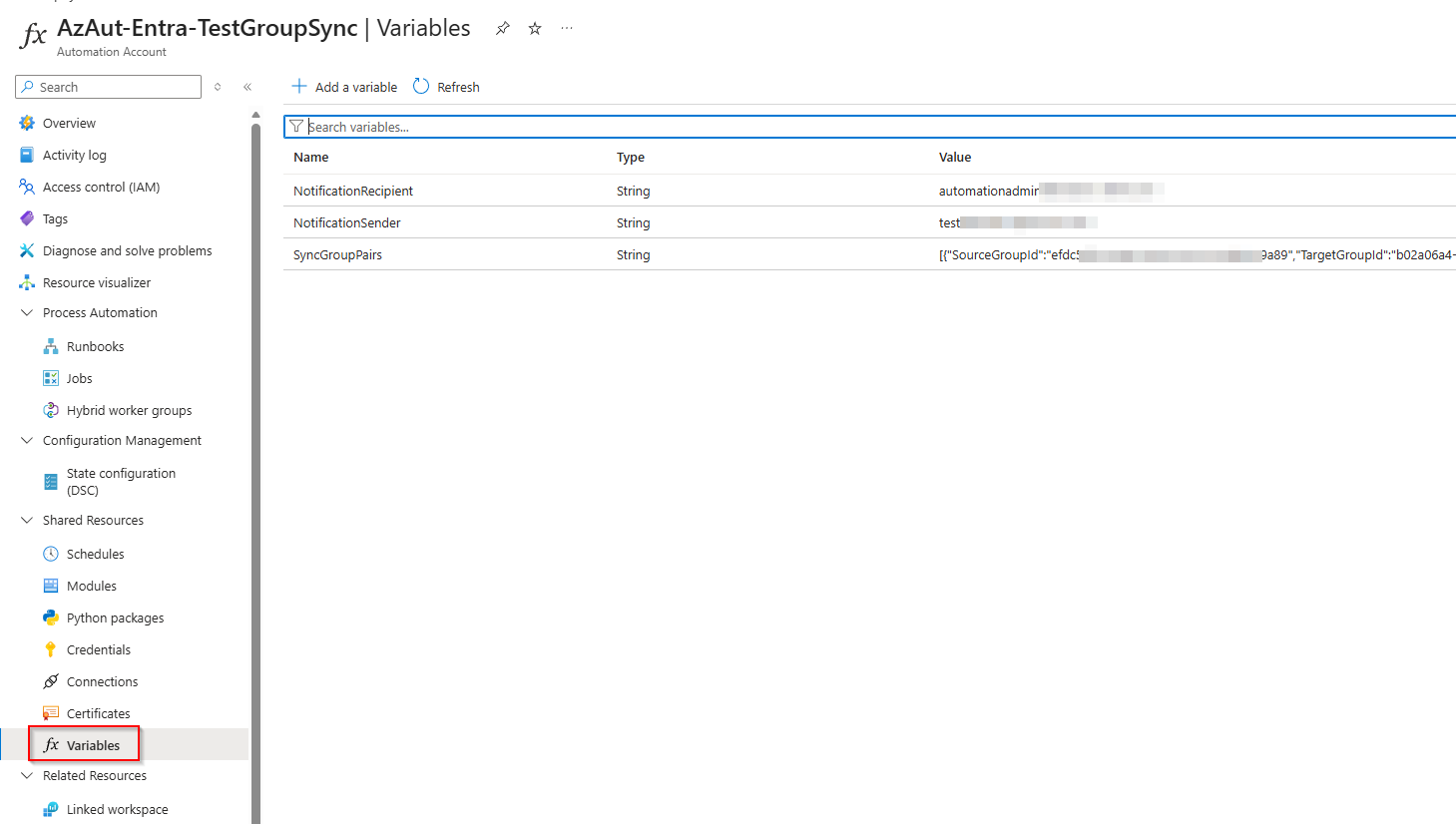
| Variable | Type | Description |
|---|---|---|
SyncGroupPairs |
String | JSON array of source/target group ID pairs |
NotificationSender |
String | UPN of the mailbox used to send error emails |
NotificationRecipient |
String | Email address that receives error notifications |
The SyncGroupPairs variable contains a JSON array. Each element maps one source group to one target group using their Entra object IDs:
[
  {
    "SourceGroupId": "aaaaaaaa-0000-0000-0000-000000000001",
    "TargetGroupId": "bbbbbbbb-0000-0000-0000-000000000001"
  },
  {
    "SourceGroupId": "aaaaaaaa-0000-0000-0000-000000000002",
    "TargetGroupId": "bbbbbbbb-0000-0000-0000-000000000002"
  }
]
You can include as many pairs as you need. A typical setup maps one entry per ring:
| Source group | Target group |
|---|---|
MDM-Win-Ring_Pilot-U-Assigned |
MDM-Win-Ring_Pilot-D-Assigned |
MDM-Win-Ring_EarlyAdopter-U-Assigned |
MDM-Win-Ring_EarlyAdopter-D-Assigned |
Step 4 - Import, Test, and Publish the Runbook
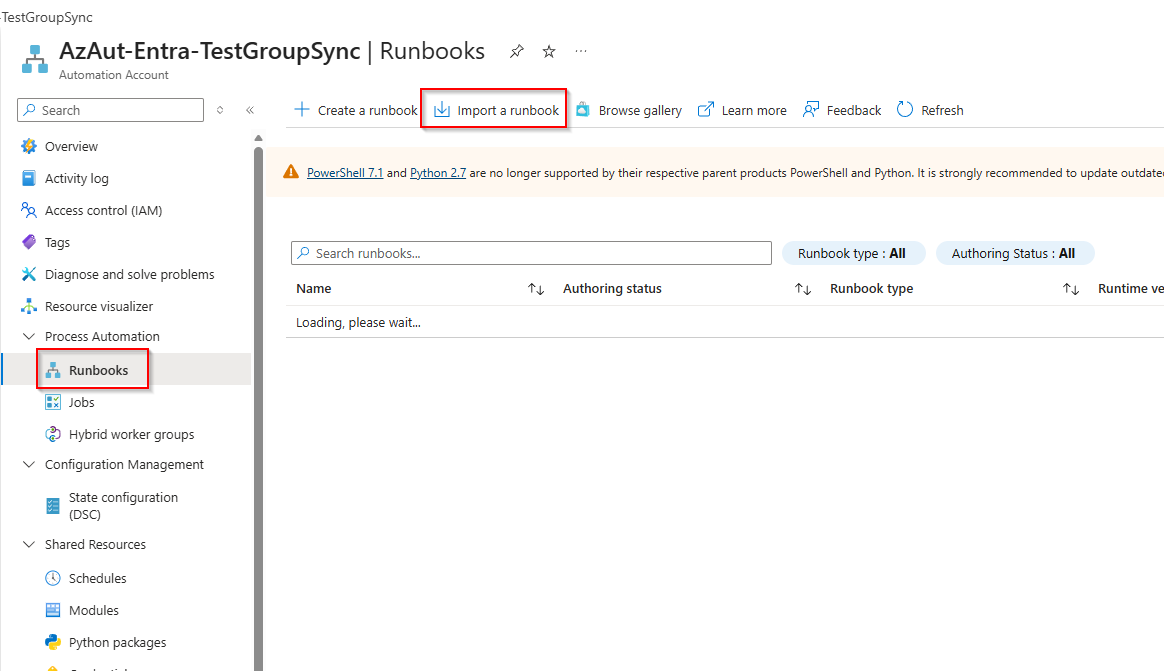
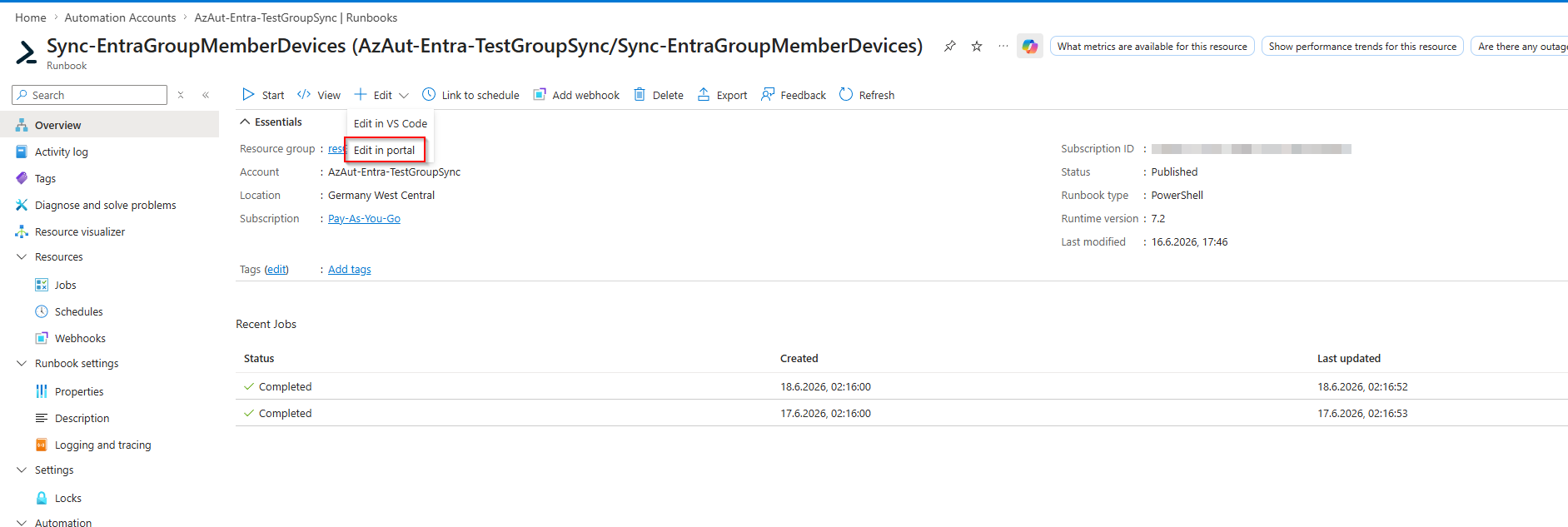
In the Azure portal, open your Automation account and navigate to Runbooks. Click Import a runbook.
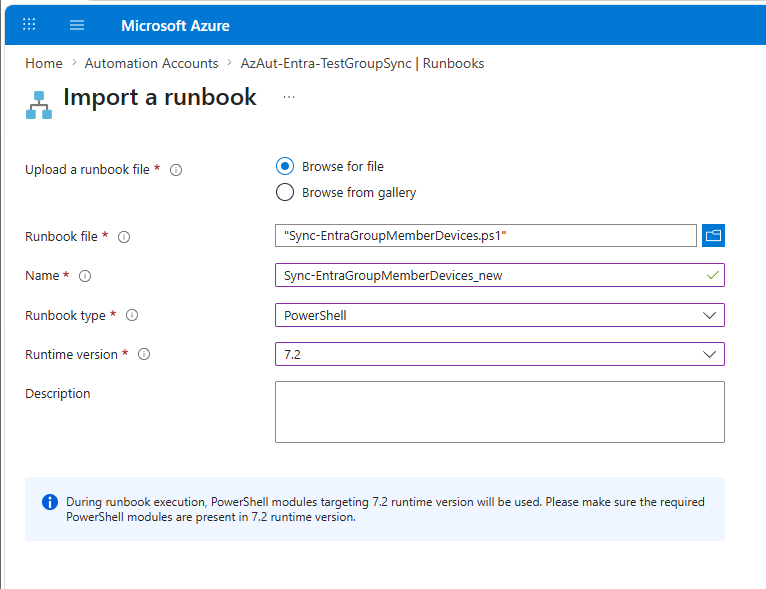
Select Sync-EntraGroupMemberDevices.ps1 and set the runtime version to PowerShell 7.2.
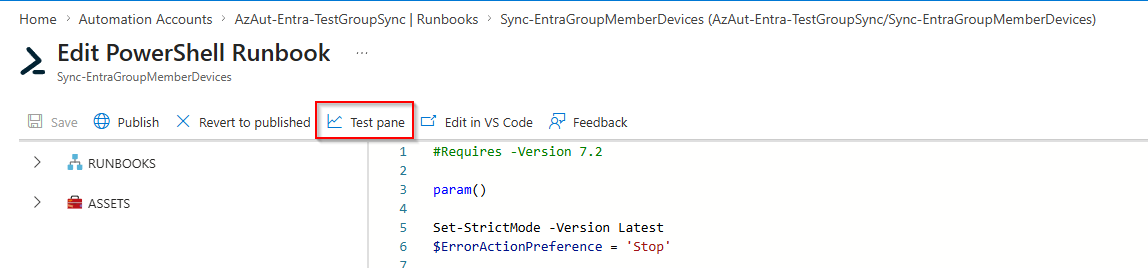
After import, the runbook opens in the editor. Before publishing, use the Test Pane to verify everything works with your actual group IDs and variables in place.
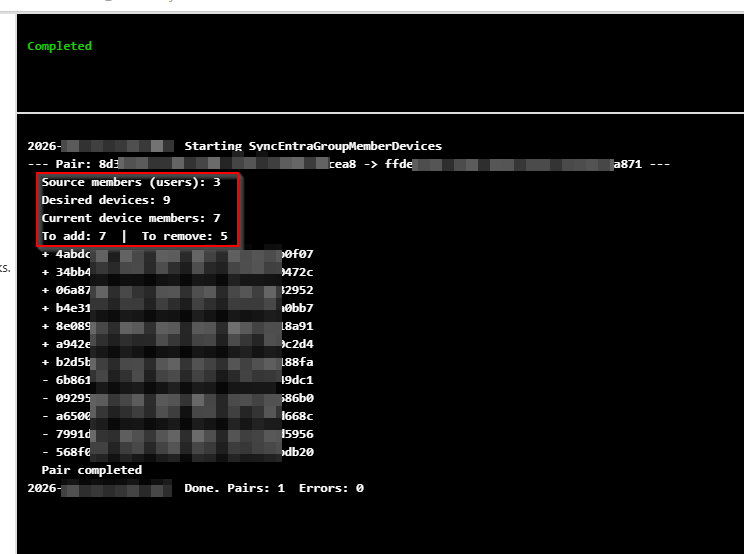
Click Test Pane, then Start, and watch the output stream. You should see one block per group pair, with counts for source members, desired devices, current devices, and the delta applied:
2025-06-18 08:12:04Z  Starting SyncEntraGroupMemberDevices
--- Pair: aaaaaaaa-... -> bbbbbbbb-... ---
  Source members (users): 8
  Desired devices: 12
  Current device members: 9
  To add: 3  |  To remove: 0
  + <device-id>
  + <device-id>
  + <device-id>
  Pair completed
2025-06-18 08:12:11Z  Done. Pairs: 1  Errors: 0
If a pair fails, the error message includes the Graph URL that caused the problem, which makes troubleshooting straightforward.
Tip: verify the error notification works. While you are in the Test Pane, add a pair with a
SourceGroupIdthat does not exist (or a clearly invalid GUID) toSyncGroupPairs. The runbook will fail on that pair, catch the exception, and send the summary email at the end of the run - so you get to confirm the notification path end to end before you rely on it. Just remember to remove the bogus pair before you publish.
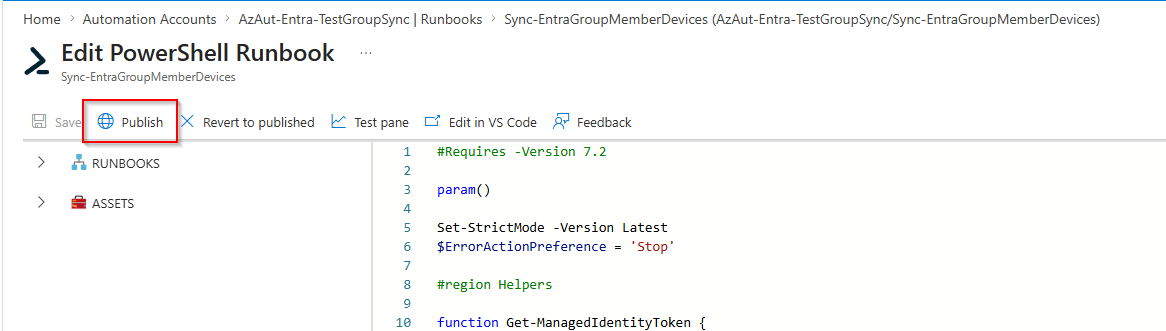
Once the test run looks good, click Publish.
Step 5 - Schedule the Runbook
Create a schedule that fits your update cadence. For most environments, once per hour or once per day is sufficient.
In the Automation account, go to Shared Resources > Schedules and create a new schedule.
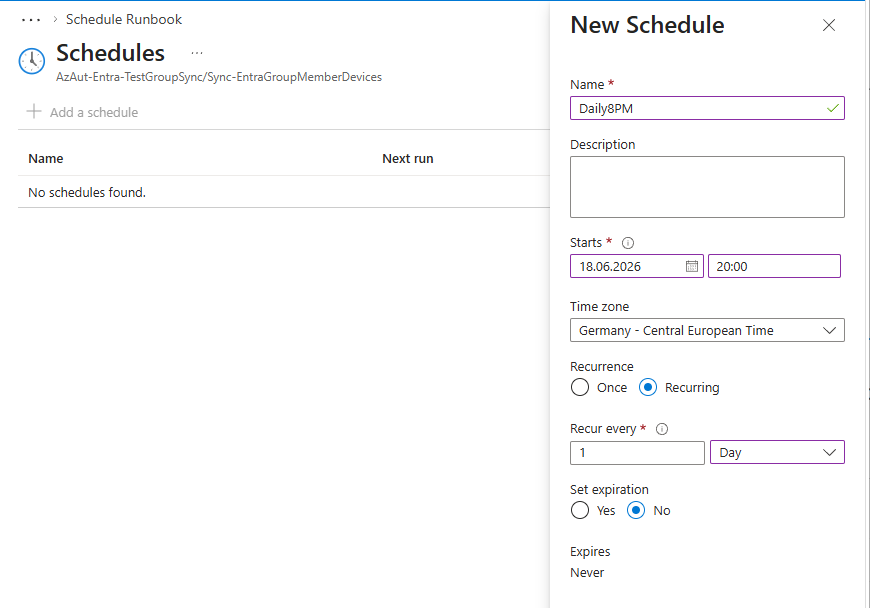
Then link the schedule to the runbook. Open the runbook, click Schedules, and add the schedule you just created.
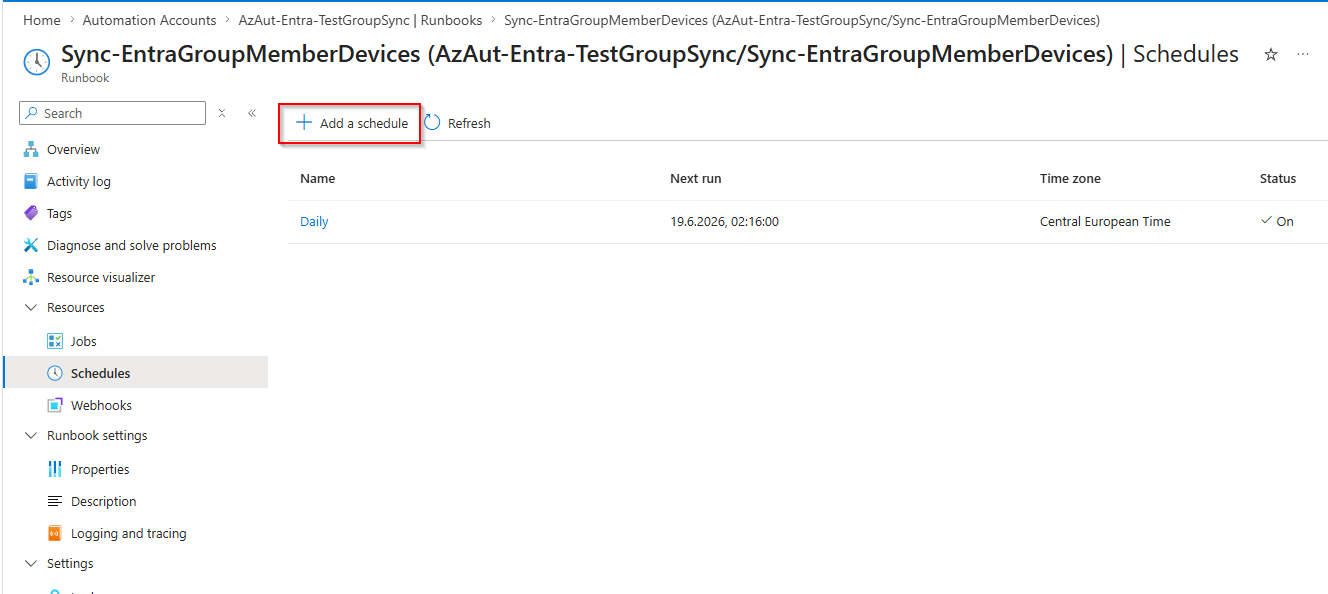
The Complete Script
#Requires -Version 7.2

param()

Set-StrictMode -Version Latest
$ErrorActionPreference = 'Stop'

#region Helpers

function Get-ManagedIdentityToken {
    Connect-AzAccount -Identity -ErrorAction Stop | Out-Null
    $tokenObj = Get-AzAccessToken -ResourceUrl 'https://graph.microsoft.com' -ErrorAction Stop
    # .Token is a SecureString in Az 9+; convert to plain text
    if ($tokenObj.Token -is [System.Security.SecureString]) {
        return [System.Net.NetworkCredential]::new('', $tokenObj.Token).Password
    }
    return $tokenObj.Token
}

function New-GraphHeaders {
    param([string]$Token)
    return @{
        Authorization  = "Bearer $Token"
        'Content-Type' = 'application/json'
    }
}

function Get-GraphAll {
    param(
        [string]   $Uri,
        [hashtable]$Headers
    )
    $results = [System.Collections.Generic.List[object]]::new()
    do {
        $page = Invoke-RestMethod -Uri $Uri -Headers $Headers -Method Get
        foreach ($item in $page.value) { $results.Add($item) }
        $Uri  = $page.PSObject.Properties['@odata.nextLink']?.Value
    } while ($Uri)
    return $results
}

function Send-ErrorEmail {
    param(
        [hashtable]$Headers,
        [string]   $Sender,
        [string]   $Recipient,
        [string[]] $Errors
    )
    $body = @{
        message = @{
            subject = 'SyncEntraGroupMemberDevices - Errors Detected'
            body    = @{
                contentType = 'Text'
                content     = "The following errors occurred during the sync run:`n`n" + ($Errors -join "`n`n")
            }
            toRecipients = @(
                @{ emailAddress = @{ address = $Recipient } }
            )
        }
        saveToSentItems = $false
    } | ConvertTo-Json -Depth 10

    $encodedSender = [uri]::EscapeDataString($Sender)
    Invoke-RestMethod `
        -Uri     "https://graph.microsoft.com/v1.0/users/$encodedSender/sendMail" `
        -Headers $Headers `
        -Method  Post `
        -Body    $body | Out-Null
}

#endregion

#region Main

Write-Output "$(Get-Date -Format 'u')  Starting SyncEntraGroupMemberDevices"

$groupPairsJson = Get-AutomationVariable -Name 'SyncGroupPairs'
$notifSender    = Get-AutomationVariable -Name 'NotificationSender'
$notifRecipient = Get-AutomationVariable -Name 'NotificationRecipient'

$groupPairs = $groupPairsJson | ConvertFrom-Json
$errors     = [System.Collections.Generic.List[string]]::new()

$token   = Get-ManagedIdentityToken
$headers = New-GraphHeaders -Token $token

foreach ($pair in $groupPairs) {
    $srcId = $pair.SourceGroupId
    $tgtId = $pair.TargetGroupId

    Write-Output "--- Pair: $srcId -> $tgtId ---"

    try {
        # 1. Source group direct members (users only)
        $members = Get-GraphAll `
            -Uri     "https://graph.microsoft.com/v1.0/groups/$srcId/members?`$select=id,userPrincipalName" `
            -Headers $headers

        $userIds = @($members |
            Where-Object { $_.'@odata.type' -eq '#microsoft.graph.user' } |
            Select-Object -ExpandProperty id)

        Write-Output "  Source members (users): $($userIds.Count)"

        # 2. Intune managed devices for each user
        $desiredIds = [System.Collections.Generic.HashSet[string]]::new([System.StringComparer]::OrdinalIgnoreCase)

        foreach ($userId in $userIds) {
            $devices = Get-GraphAll `
                -Uri     "https://graph.microsoft.com/v1.0/users/$userId/managedDevices?`$select=azureADDeviceId" `
                -Headers $headers

            foreach ($d in $devices) {
                if ([string]::IsNullOrWhiteSpace($d.azureADDeviceId)) { continue }

                # azureADDeviceId is the deviceId property on the Entra device object,
                # not its directory object ID - resolve to get the id used in group membership.
                $entraDevice = Get-GraphAll `
                    -Uri     "https://graph.microsoft.com/v1.0/devices?`$filter=deviceId eq '$($d.azureADDeviceId)'&`$select=id" `
                    -Headers $headers

                foreach ($ed in $entraDevice) {
                    $desiredIds.Add($ed.id) | Out-Null
                }
            }
        }

        Write-Output "  Desired devices: $($desiredIds.Count)"

        # 3. Current target group members (devices only)
        $currentMembers = Get-GraphAll `
            -Uri     "https://graph.microsoft.com/v1.0/groups/$tgtId/members?`$select=id" `
            -Headers $headers

        $currentDeviceIds = [System.Collections.Generic.HashSet[string]]::new(
            [string[]]@($currentMembers |
                Where-Object { $_.'@odata.type' -eq '#microsoft.graph.device' } |
                Select-Object -ExpandProperty id),
            [System.StringComparer]::OrdinalIgnoreCase
        )

        Write-Output "  Current device members: $($currentDeviceIds.Count)"

        # 4. Delta
        $toAdd    = @($desiredIds      | Where-Object { -not $currentDeviceIds.Contains($_) })
        $toRemove = @($currentDeviceIds | Where-Object { -not $desiredIds.Contains($_) })

        Write-Output "  To add: $($toAdd.Count)  |  To remove: $($toRemove.Count)"

        # 5. Add
        foreach ($deviceId in $toAdd) {
            $refBody = @{
                '@odata.id' = "https://graph.microsoft.com/v1.0/directoryObjects/$deviceId"
            } | ConvertTo-Json

            Invoke-RestMethod `
                -Uri     "https://graph.microsoft.com/v1.0/groups/$tgtId/members/`$ref" `
                -Headers $headers `
                -Method  Post `
                -Body    $refBody | Out-Null

            Write-Output "  + $deviceId"
        }

        # 6. Remove
        foreach ($deviceId in $toRemove) {
            Invoke-RestMethod `
                -Uri     "https://graph.microsoft.com/v1.0/groups/$tgtId/members/$deviceId/`$ref" `
                -Headers $headers `
                -Method  Delete | Out-Null

            Write-Output "  - $deviceId"
        }

        Write-Output "  Pair completed"
    }
    catch {
        $uri = $_.Exception.Response?.RequestMessage?.RequestUri?.AbsoluteUri
        $detail = if ($uri) { " [URL: $uri]" } else { '' }
        $msg = "Pair $srcId -> $tgtId : $($_.Exception.Message)$detail"
        Write-Warning $msg
        $errors.Add($msg)
    }
}

# 7. Notify on errors
if ($errors.Count -gt 0) {
    Write-Output "Sending error notification to $notifRecipient"
    try {
        Send-ErrorEmail -Headers $headers -Sender $notifSender -Recipient $notifRecipient -Errors $errors
        Write-Output "Notification sent"
    }
    catch {
        Write-Warning "Failed to send notification: $($_.Exception.Message)"
    }
}

Write-Output "$(Get-Date -Format 'u')  Done. Pairs: $($groupPairs.Count)  Errors: $($errors.Count)"

#endregion
Things to Keep in Mind
One device can appear in multiple target groups. If a user belongs to both a pilot ring and an app deployment group, their device ends up in both corresponding device groups. That is by design.
Only direct members of the source group are considered. If your source group contains nested groups, the users inside those nested groups are not traversed. If you need transitive membership, the Graph endpoint /groups/{id}/transitiveMembers is a drop-in replacement.
The runbook includes all enrolled devices for each user, not just the primary device. If a user has a corporate laptop and a corporate phone both enrolled in Intune, both end up in the target group. For rings that target Windows-only policies, combine the device group with a filter for operatingSystem in the Intune assignment to keep the policy scoped correctly.
Tokens expire after one hour. If a runbook job runs for longer than an hour (unlikely for typical group sizes), the Graph token will expire mid-run. For very large tenants, consider splitting your pairs across multiple runbook jobs on staggered schedules.
The source for this runbook - including the ARM template and the permission-assignment script - is available on GitHub.