I am currently supporting customers with the deployment of the Secure Boot certificate updates using Intune remediations, which requires rebooting some devices. Since a forced reboot was not an option while users were actively working on these machines, I looked for a more user-friendly approach. I ended up leveraging the graceful reboot capability of the Intune Win32 app framework. This article describes how to implement this approach using a single Intune Win32 app combined with a PowerShell helper script. The solution automates reboots in a controlled and user-aware manner: reboots occur only when required, are triggered through the standard Intune detection and remediation cycle, and leave the device in a clean, compliant state immediately afterward.
All scripts are available in the Intune-Graceful-Restart repository on GitHub.
Solution Architecture
The solution consists of one Win32 app and one helper script:
| Component | Script | Role |
|---|---|---|
| Win32 App | Install-Restart-Device.ps1 |
Sets up registry state and scheduled task. Signals Intune to restart the device by exiting 1641. |
| Helper Script | Trigger Reboot Notification.ps1 |
Sets the restart flag and clears Intune’s detection state for the Win32 app. Used in Intune remediations or other automation to trigger the reboot cycle on demand. |
Both components share a common registry path:
HKLM:\Software\_Custom
  RestartRequired   (String)  : "False" = no restart pending, anything else = restart pending
  RestartAppID      (String)  : the Intune App ID (GUID) of the Restart Device app
Win32 App: Restart Device (Install-Restart-Device.ps1)
This is the core app. Intune installs it once and then evaluates its detection rule on every cycle. The script does three things depending on what it finds:
- First run (no registry value yet): Creates the
RestartRequiredvalue set to"False", records theRestartAppID, and registers a startup scheduled task that clears the flag after a manual reboot. Exits0. Intune marks it installed without rebooting. - Subsequent runs, flag is
"False": Nothing to do, detection passes, no action taken. - Flag is anything other than
"False": Resets the value to"False"and exits1641, which is Intune’s signal to restart the device.
Script parameters
[cmdletbinding()]
param(
    [string]$RegPath             = 'HKLM:\Software\_Custom',
    [string]$RegValueName        = 'RestartRequired',
    [string]$RegValueValue       = 'False',
    [string]$RegValuePropertyType = 'String',
    [string]$ScheduledTaskName   = 'Disable scheduled restart',
    [string]$LogPath             = "$env:ProgramData\Microsoft\IntuneManagementExtension\Logs"
)
How the AppID is captured
The script derives the Intune App ID automatically from the folder name Intune uses when staging the package:
$AppID = (Get-Item (Split-Path -Parent -Path $MyInvocation.MyCommand.Definition)).BaseName.Split('_')[0]
Intune stages Win32 app scripts in a folder named <AppID>_<version>, so splitting on _ and taking the first part gives the GUID. This is stored in RestartAppID and used later by Trigger Reboot Notification.ps1.
Intune configuration
Intune does not allow uploading a PowerShell script installer during initial app creation - the script installer option only becomes available after the app has been saved once. The workflow is therefore two steps: create the app with placeholder commands, save it, then edit it to switch to script installers.
Step 1: Create the app with placeholder commands
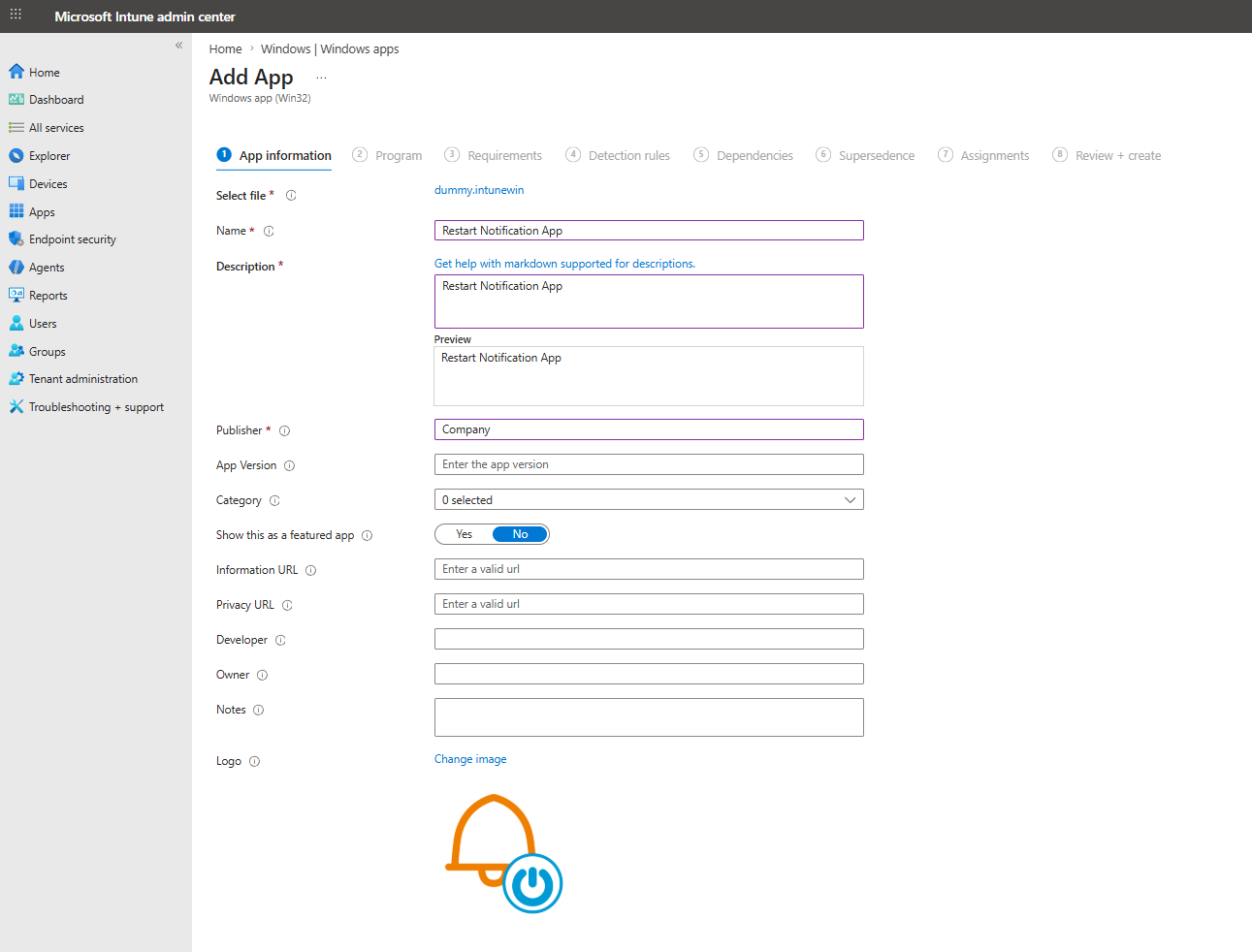
Build the .intunewin package from App\App\dummy.ps1 using App\makeapp.cmd and upload it as the app file. Fill in the app name and other metadata on the App information tab.
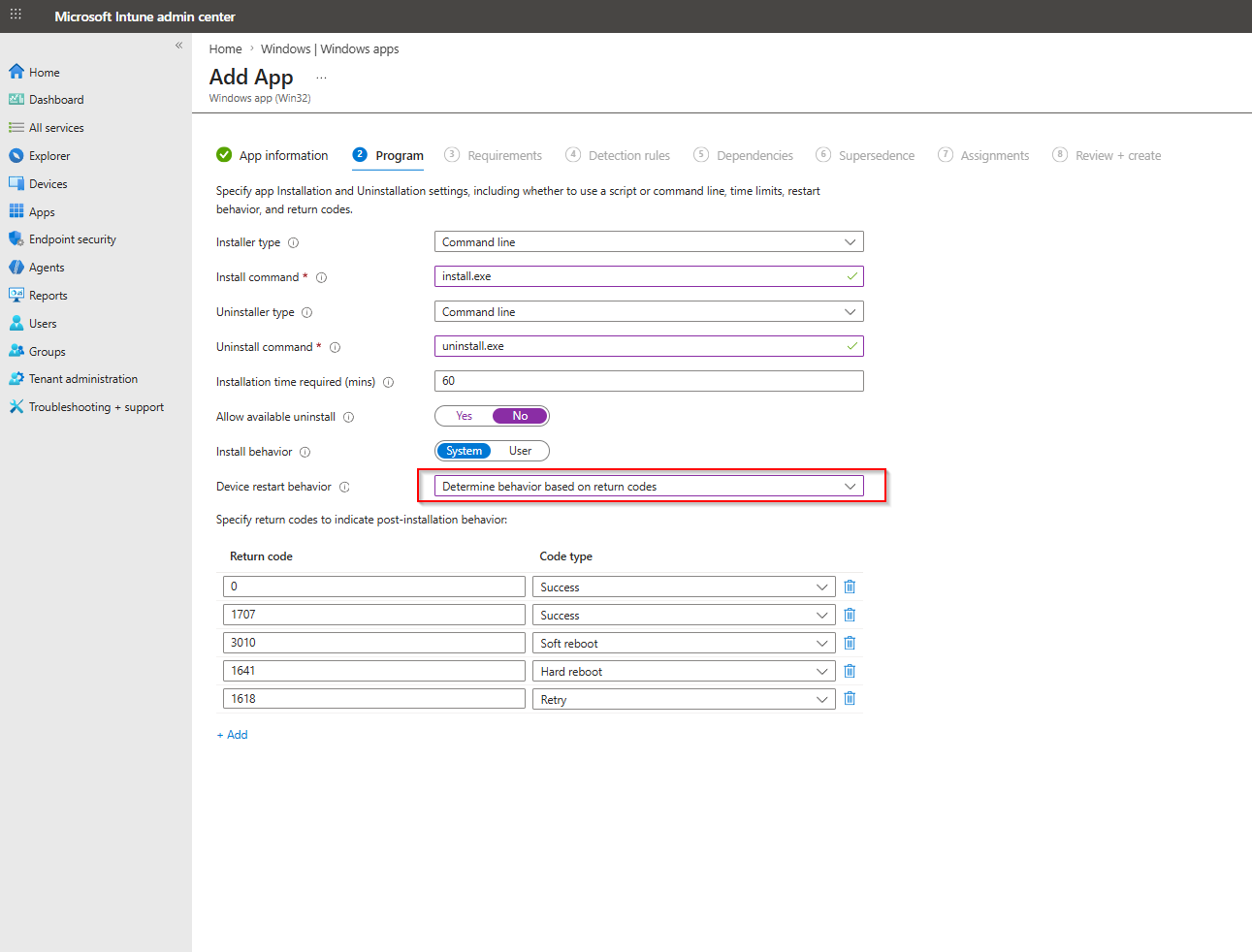
On the Program tab, leave the installer type as Command line and enter placeholder values (install.exe / uninstall.exe) so the wizard accepts the form. Set Device restart behavior to Determine behavior based on return codes - this is what makes exit code 1641 trigger a hard reboot.
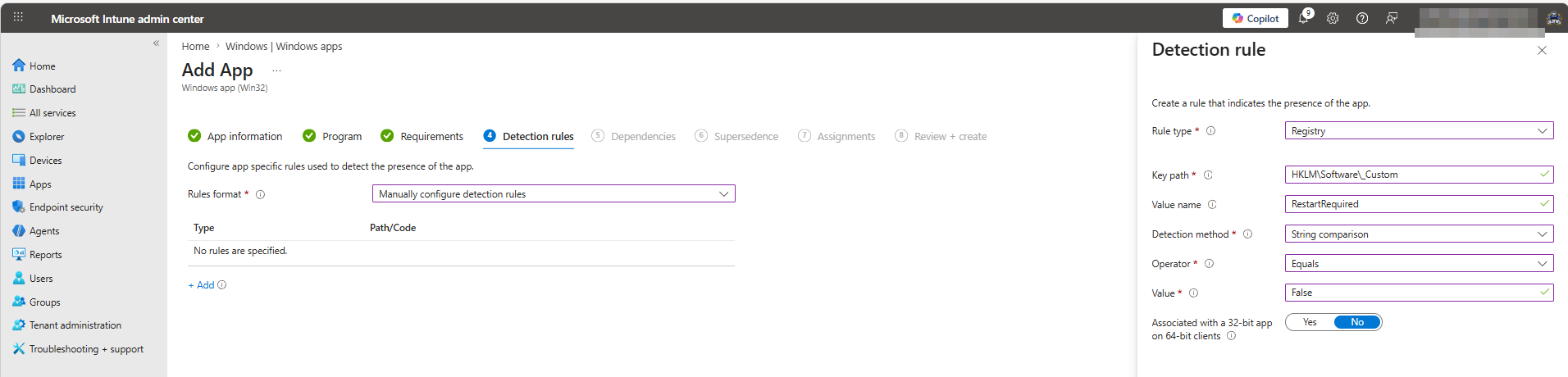
On the Detection rules tab, add the registry rule:
| Setting | Value |
|---|---|
| Rule type | Registry |
| Key path | HKLM\Software\_Custom |
| Value name | RestartRequired |
| Detection method | String comparison |
| Operator | Equals |
| Value | False |
Complete the wizard and save the app.
Step 2: Edit the saved app and upload the scripts
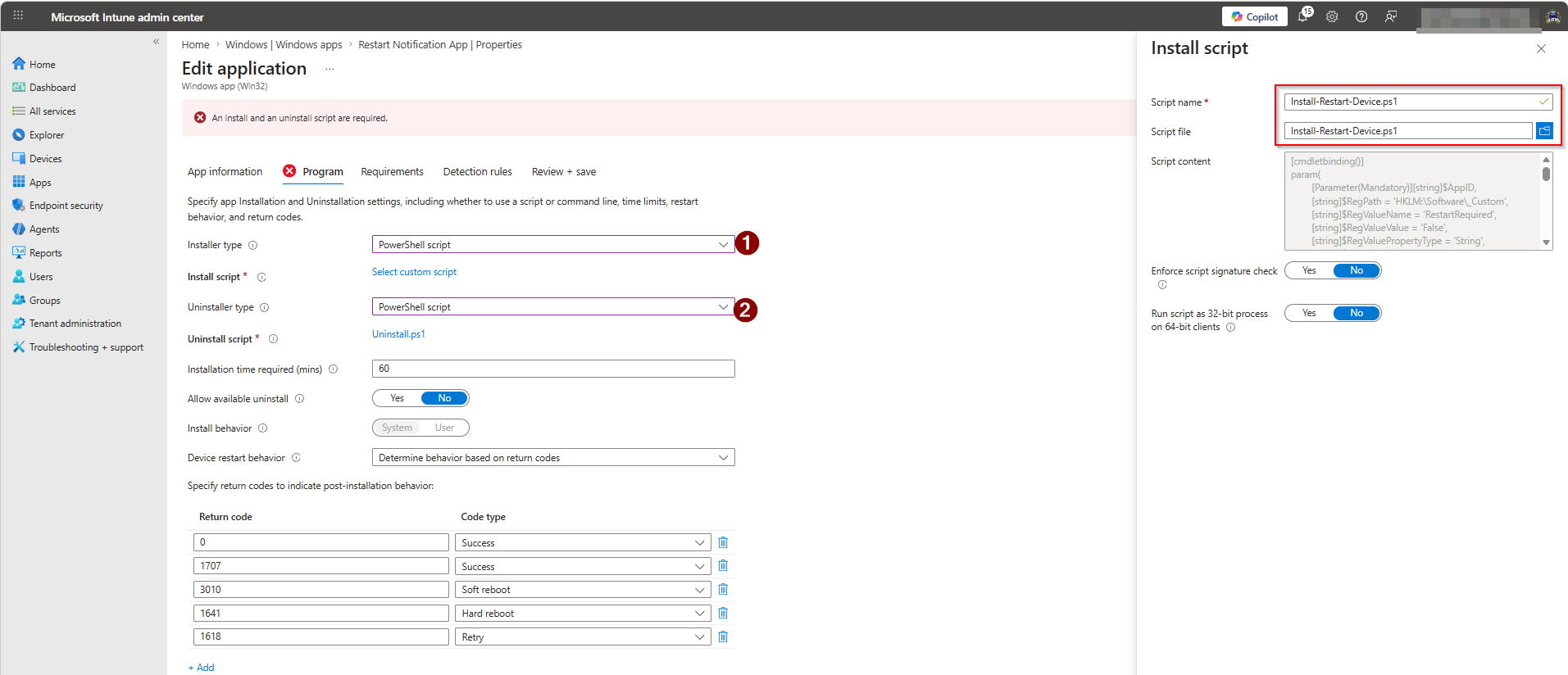
Open the saved app, go to Properties > Program, and change both installer types from Command line to PowerShell script. Upload Install-Restart-Device.ps1 as the install script and Uninstall.ps1 as the uninstall script.
Step 3: Configure assignments and restart grace period
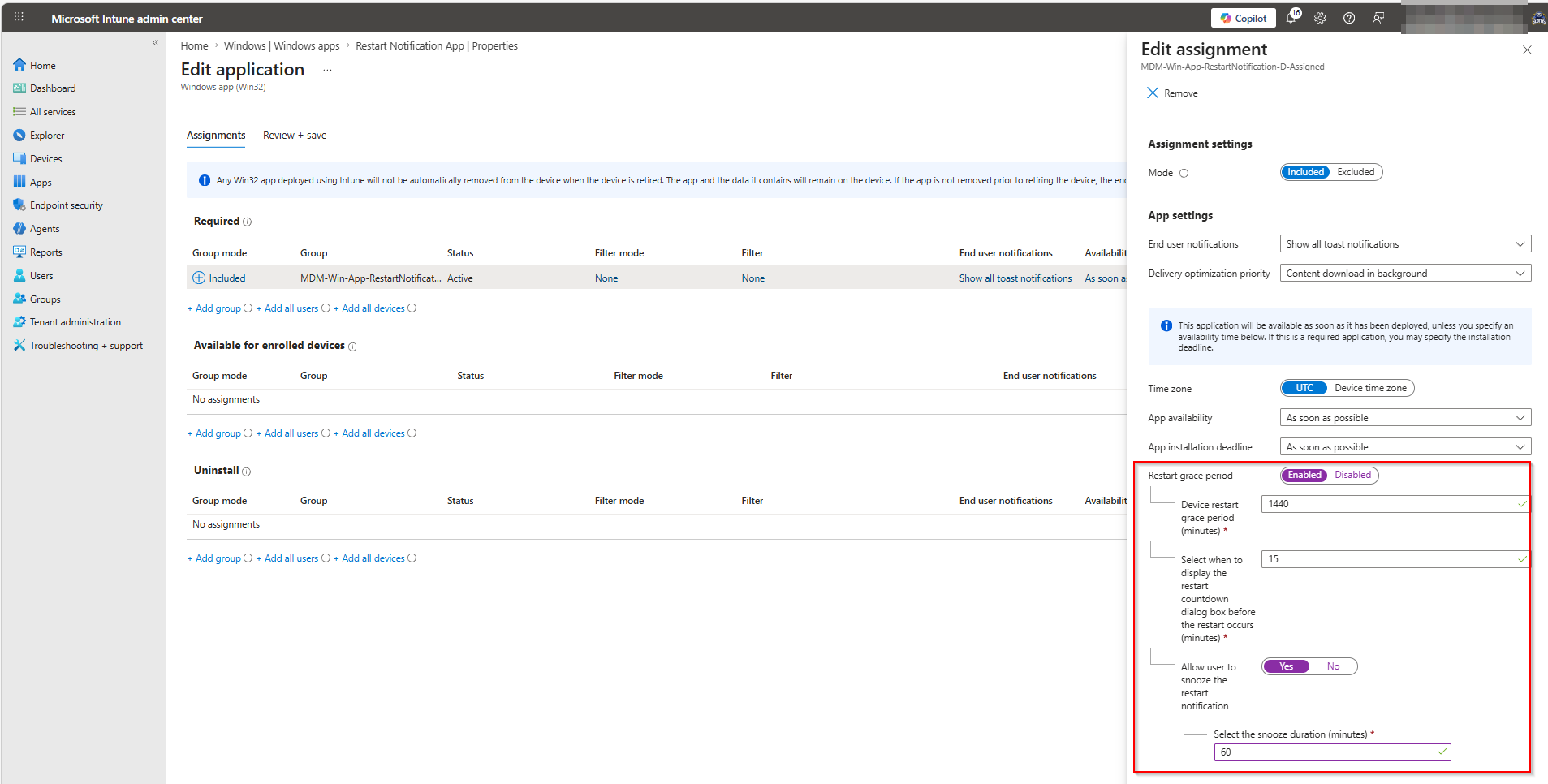
In the Assignments tab, add the target group and configure the Restart grace period to give users time to save their work before the device restarts. The example below uses a 1440-minute (24-hour) grace period, a 15-minute countdown dialog, and allows the user to snooze for up to 60 minutes.
Helper Script: Trigger Reboot Notification (Trigger Reboot Notification.ps1)
This script is the on-demand trigger and is typically run via an Intune remediation. It does two things:
- Sets
RestartRequiredtoTruein the registry. - Clears Intune’s internal detection state for the Restart Device app (registry keys under
HKLM:\SOFTWARE\Microsoft\IntuneManagementExtension\Win32Apps) and restarts the IME service.
After this, IME re-evaluates the Restart Device app, finds it “undetected” (state was wiped), runs Install-Restart-Device.ps1 again, sees RestartRequired is not "False", and exits 1641, prompting Intune to restart the device.
Core function: Restart-IntuneWin32AppDetection
Restart-IntuneWin32AppDetection `
    -AppID (Get-ItemPropertyValue -Path 'HKLM:\SOFTWARE\_Custom' -Name 'RestartAppID')
The function accepts:
| Parameter | Type | Description |
|---|---|---|
Path |
String | IME Win32Apps registry root. Defaults to the standard IME path. |
UserObjectID |
String | Scope cleanup to one Azure AD user object ID. Omit to process all users. |
AppID |
String | The GUID of the Restart Device app to wipe state for. |
SkipServiceRestart |
Switch | Suppresses the IME service restart. Used internally during recursive per-user processing so the service only restarts once. |
Full Workflow
Intune remediation runs Trigger Reboot Notification.ps1 on target device(s)
        │
        ▼
Trigger Reboot Notification.ps1 runs:
  1. Sets HKLM:\Software\_Custom\RestartRequired = "True"
  2. Clears IME Win32Apps registry state for the Restart Device app
  3. Restarts IME service
        │
        ▼
IME re-evaluates "Restart Device" app: detection fails (state wiped)
        │
        ▼
IME runs Install-Restart-Device.ps1:
  - Finds RestartRequired = "True" (not "False")
  - Resets RestartRequired = "False"
  - Exits 1641
        │
        ▼
Intune receives exit 1641 → triggers device restart
        │
        ▼
On next startup, scheduled task runs:
  - Sets RestartRequired = "False" (already done, idempotent)
        │
        ▼
IME re-evaluates: detection passes. Device is compliant.
User Experience
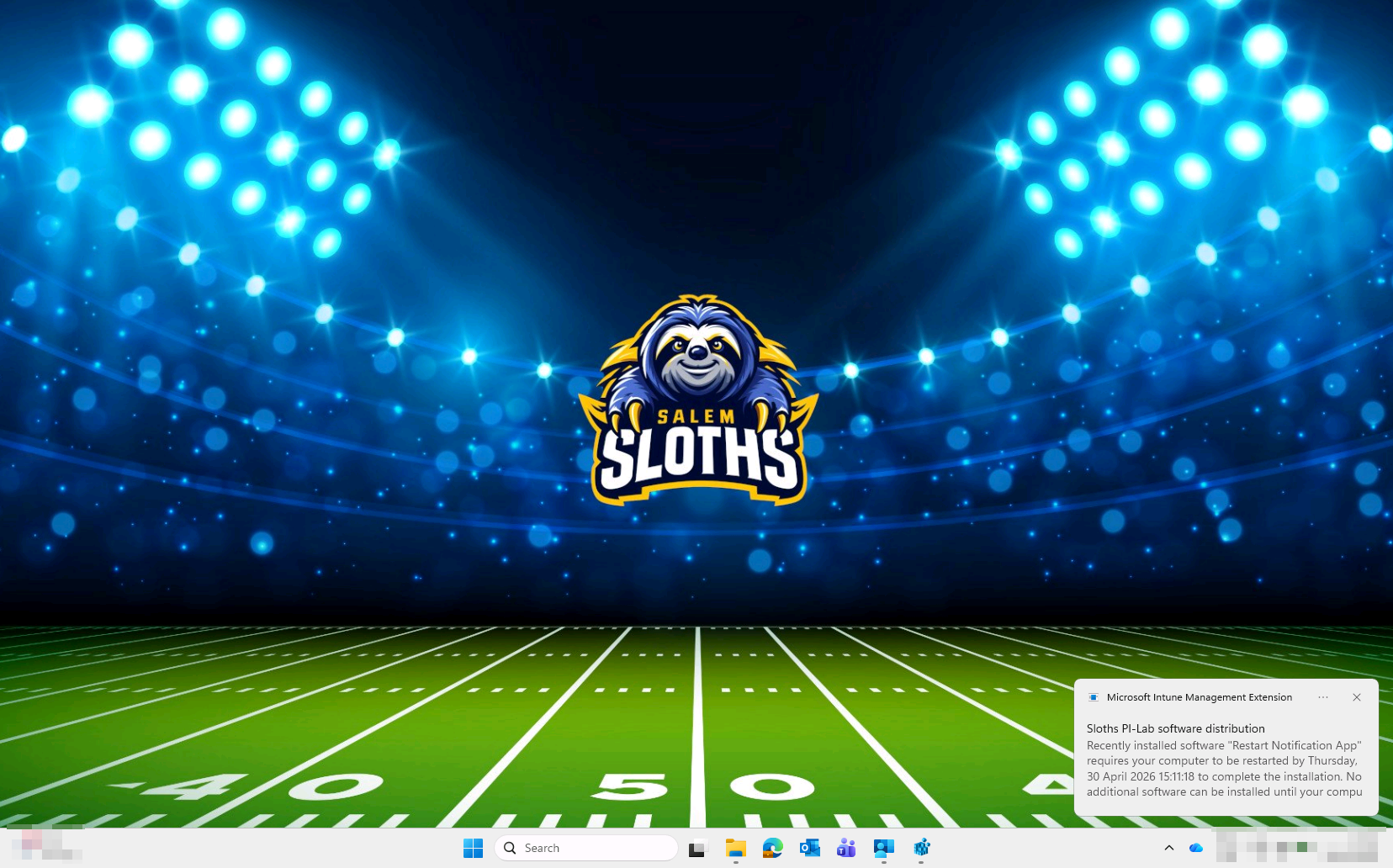
Once the restart cycle is triggered, Intune notifies the user via a toast notification from the Microsoft Intune Management Extension. The notification informs them that a restart is required and shows the deadline configured in the assignment grace period.
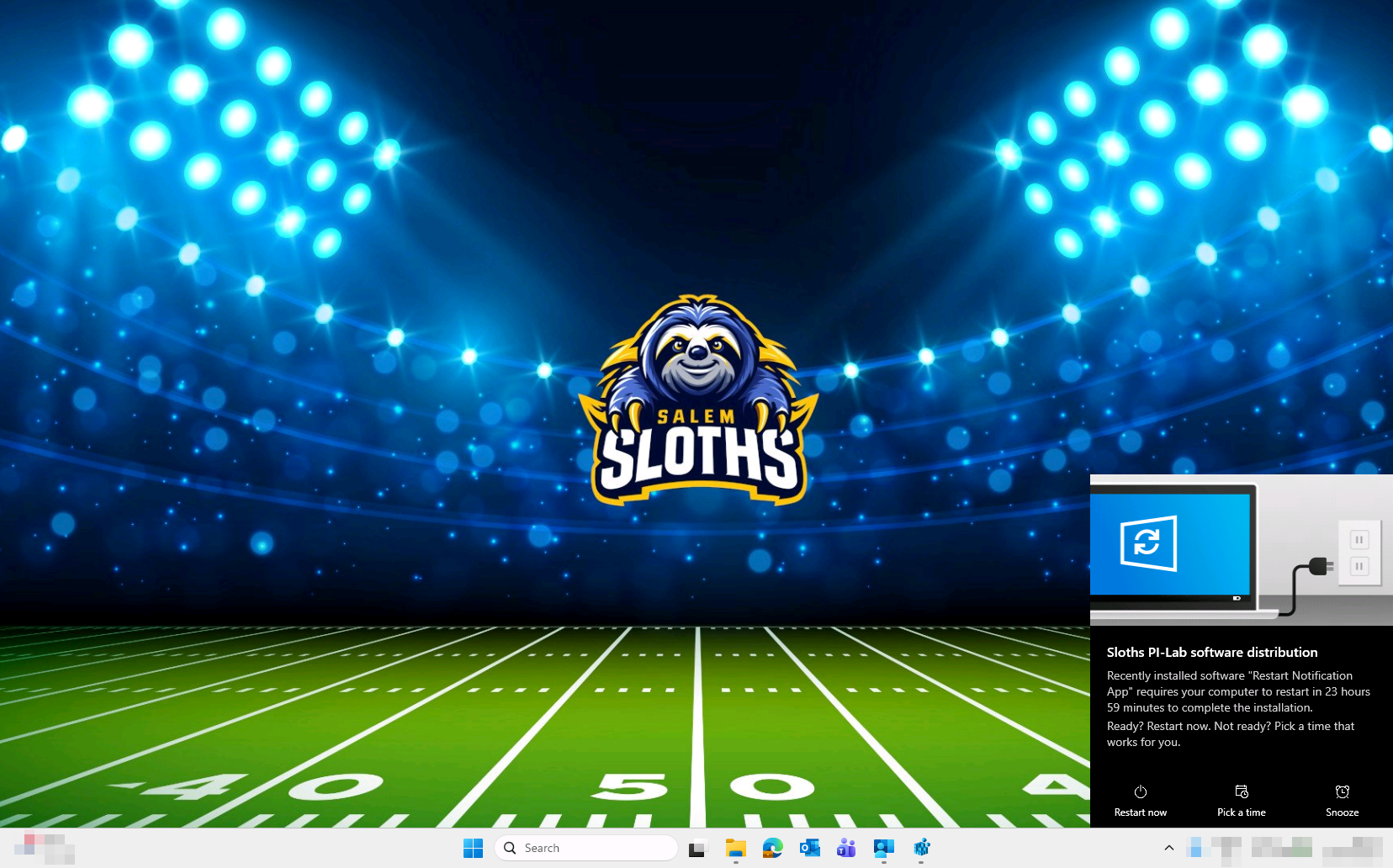
When the grace period countdown begins, the user sees a restart dialog with options to restart immediately, pick a specific time, or snooze. The snooze duration and whether it is allowed are controlled by the assignment settings configured in Step 3.
Uninstall
Uninstall.ps1 cleanly removes all state created by Install-Restart-Device.ps1:
- Unregisters the
Disable scheduled restartscheduled task. - Removes
RestartRequiredandRestartAppIDfromHKLM:\Software\_Custom.
Tips
- Test in a lab first. Exit code
1641triggers an immediate restart; there is no grace period from the script side. - Verbose logging. Both scripts support
-Verbose. Pass it to start a transcript in the IME log folder for easy troubleshooting. - Multiple users.
Restart-IntuneWin32AppDetectionwithout-UserObjectIDprocesses all Azure AD user object IDs found under the IME registry path and restarts the service once at the end. - Detection rule value is case-sensitive. The script writes
"False"(capital F). Match this exactly in the Intune detection rule.