There is a good chance your fleet already has Intel vPro. Enterprise customers have been buying vPro hardware for well over a decade, mostly because it is the default SKU in business laptop lines, and in most of those fleets it has never been switched on. Intel Active Management Technology (AMT), the out-of-band management part of vPro, sits in the firmware of every one of those devices: remote power control, KVM even when Windows does not boot, remote reboot into a recovery image. All of it already paid for, almost none of it used.
The reason was never the feature set. It was the onboarding. Provisioning AMT used to mean an on-premises management server, certificates from a public CA with a special OID, DHCP option 15 matching the certificate domain, a provisioning agent, and a lot of reading. For most Intune shops that had moved everything else to the cloud years ago, that was a project nobody wanted to own. So vPro stayed unprovisioned.
Table of Contents
- Unprovisioned Is Not the Same as Off
- What Changed: Intel vPro Fleet Services
- Thanks
- Before You Start: EU Hosting and GDPR
- What You Need
- Step 1: Create an Intel Account and Join the Waitlist
- Step 2: First Sign-In and the Passphrase
- Step 3: Prepare Entra ID Sign-In
- Step 4: Sign In with Entra ID
- Step 5: Entra ID Role-Based Access Control
- Step 6: Keep or Disable the Passphrase
- Wrap-Up
Unprovisioned Is Not the Same as Off
Leaving vPro unused felt harmless. It was not, and 2017 and 2018 made that very clear.
- May 2017 - CVE-2017-5689. A critical authentication bypass in the AMT web interface (INTEL-SA-00075, NVD, CVSS 9.8) let an attacker log in to AMT with an empty digest response. Every device with provisioned AMT and firmware 6.x to 11.6 was exposed until the OEM firmware update was installed. The same advisory also described a local vector: an unprivileged local attacker could provision the manageability features themselves.
- June 2017 - PLATINUM. Microsoft reported that the PLATINUM activity group used the AMT Serial-over-LAN channel as a file-transfer tool (PLATINUM continues to evolve, find ways to maintain invisibility). No vulnerability was involved, and because that channel runs below the operating system, Windows Firewall and host-based monitoring never saw the traffic. Microsoft could not tell whether PLATINUM used AMT that was already provisioned or provisioned it themselves. Its write-up explicitly describes the second scenario: with admin rights on a device where AMT was never provisioned, an attacker can provision it from within Windows and choose their own AMT credentials.
- January 2018 - the 30 second backdoor. F-Secure showed that anyone with a few seconds of physical access could press
Ctrl+Pduring boot, open the Intel Management Engine BIOS Extension (MEBx), log in with the default passwordadmin, set their own password, enable remote access and set user opt-in to None (CERT-EU Security Advisory 2018-002, The Register). The BIOS password, BitLocker and the TPM PIN did not stop it. From that moment, the attacker could manage the device remotely from the same network segment, and the company that owned it had no idea, because it had never provisioned AMT in the first place.
PLATINUM and the F-Secure research carry the important lesson for this series. Devices with AMT that the company never claimed were easy targets, because nobody had set the MEBx password and nobody was watching the management plane. An attacker, whether with admin rights in Windows or with half a minute alone with the laptop, could provision vPro on your hardware before you did, and get a foothold below the operating system that the host firewall and monitoring tools could not see.
The usual advice back then was: either provision AMT properly and own it, or disable it in the BIOS. In my experience, most organizations picked the second option, or did nothing.
What Changed: Intel vPro Fleet Services
Intel vPro Fleet Services is a cloud service, hosted by Intel, that does the provisioning and the management for you. No on-premises server and no provisioning certificate to buy. You get a web portal at vprofleet.intel.com and an agent that you deploy to your clients. For Intune shops, the important part is that it is listed as a partner portal in the Intune admin center, next to Dell, HP, Lenovo and Surface, and that it supports Entra ID sign-in. According to Intel, the service is available at no extra cost, so there is no additional license cost on top of the vPro hardware you already own.
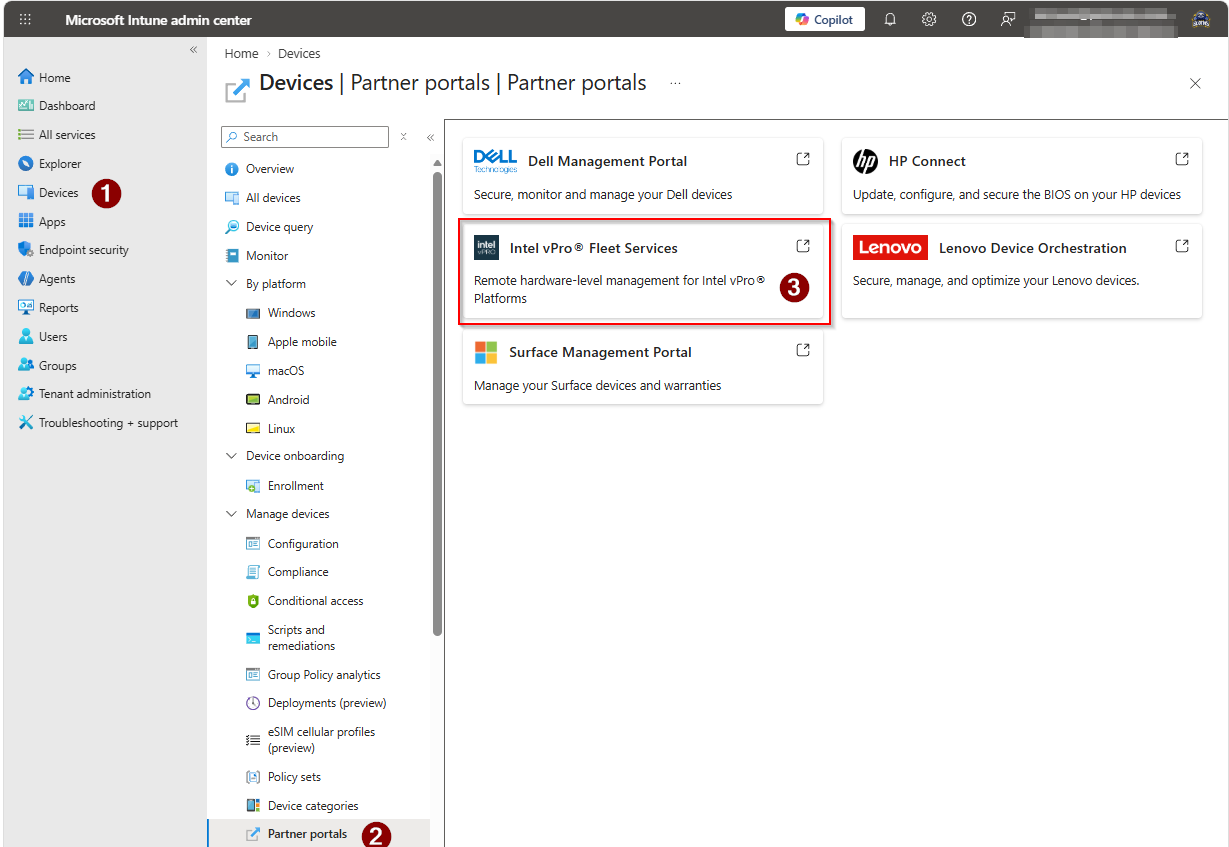
You find it under Devices > Partner portals > Intel vPro Fleet Services in the Intune admin center. The tile is only a link to the Intel portal, so you still need to onboard a tenant on the Intel side, which is what this part covers.
The Series
| Part | Topic |
|---|---|
| Part 1 (this article) | Onboarding the tenant, passphrase handling, connecting Entra ID SSO and RBAC |
| Part 2 | Identifying vPro devices with a remediation, the Intune integration, and onboarding clients by building and deploying the agent as an Intune app package |
| Part 3 | Managing endpoints with vPro: power actions, KVM, remote recovery |
Thanks
Lots of thanks to the Intel vPro Fleet Services team.
In my lab, I worked with a test tenant they provided.
So many questions, all patiently answered.
All opinions and any mistakes here are my own.
Before You Start: EU Hosting and GDPR
If you are in the EU, read this before you spend time on the rest. At the time of writing, there is no EU region for Fleet Services. The terms you accept in Step 1 state that personal data is stored in the United States, with Amazon Web Services as sub-processor, and that Intel will notify customers when European hosting locations are added.
That alone does not rule the service out. GDPR does not require EU hosting, but it does require a valid transfer mechanism for personal data that leaves the EU, such as the EU-US Data Privacy Framework or standard contractual clauses. What your data protection officer will want to know:
- Which personal data ends up at Intel: the email addresses and roles of your Fleet Services users, the audit log, and device data such as names, status and hardware details.
- The Graph permissions: with Entra ID RBAC enabled (Step 5), Intel’s backend has application permissions to read all users, groups and group memberships of your tenant, not just the people who use the portal.
- The passphrase decision: if you disable the passphrase (Step 6), the key for your AMT credentials is also held by Intel.
- The contractual basis: the data processing terms and the transfer mechanism Intel relies on for the service.
None of this is unusual for a US-hosted SaaS service, and most Intune shops have been through the same discussion for other tools. But it is much easier to have it before the agent is on every device than after.
What You Need
Everything this part needs, in one list, so you can check it before you start:
- A long-term mailbox for the default administrator, ideally an admin or shared mailbox, not a personal one (Step 1)
- A password vault for the passphrases of every Fleet Services user (Step 2)
- Your Entra tenant ID and all verified domains for the setup request (Step 3)
- An Entra ID role for the consent: Global Administrator, Cloud Application Administrator or Application Administrator for the tenant-wide consent at the first sign-in (Step 4), and Global Administrator or Privileged Role Administrator for the Microsoft Graph application permissions in Step 5
- Permission to create security groups and manage enterprise applications in Entra ID for the RBAC groups and the sign-in restriction (Step 5)
- Microsoft Entra ID P1 to assign groups to the enterprise application (Step 5)
The vPro devices themselves are not needed yet. How to find them in your fleet is part of Part 2.
Step 1: Create an Intel Account and Join the Waitlist
Everything starts at vprofleet.intel.com. Enter the email address you want to use as the first administrator. This will become the default administrator of your Fleet Services tenant, so use an admin or shared mailbox you control long term, not a personal one.
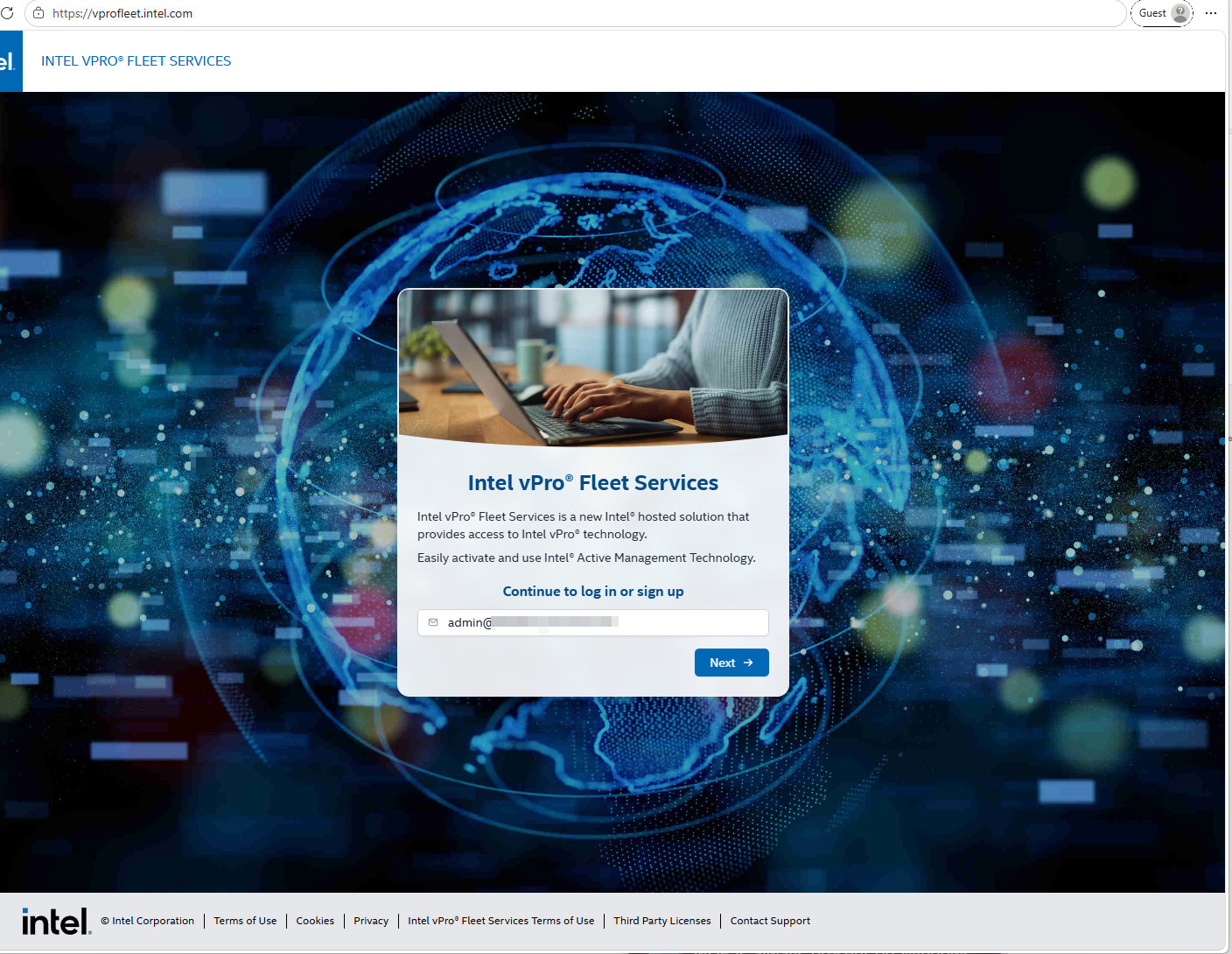
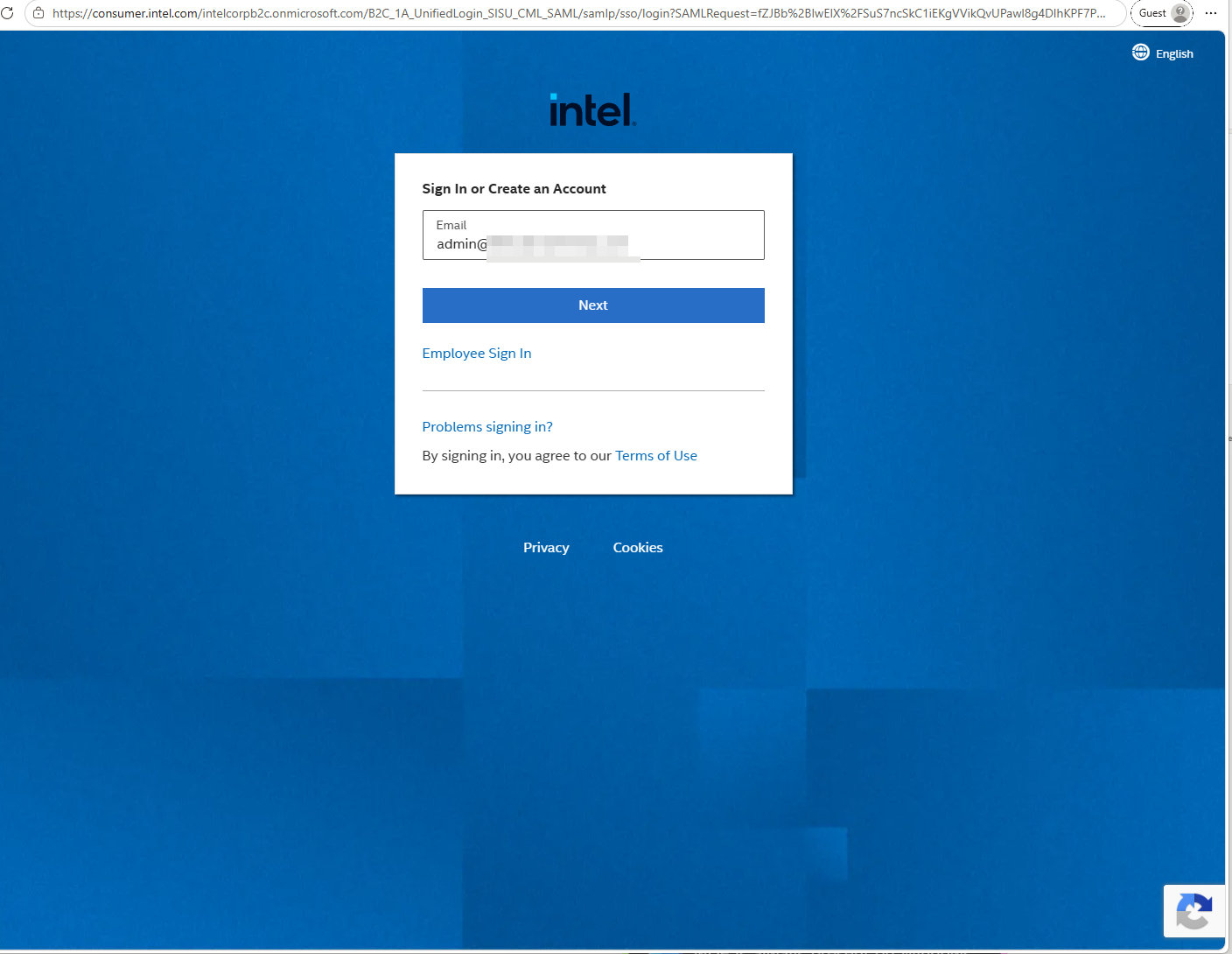
You are redirected to the Intel account sign-in. If you already have an Intel account with that address, sign in. Otherwise, create one.
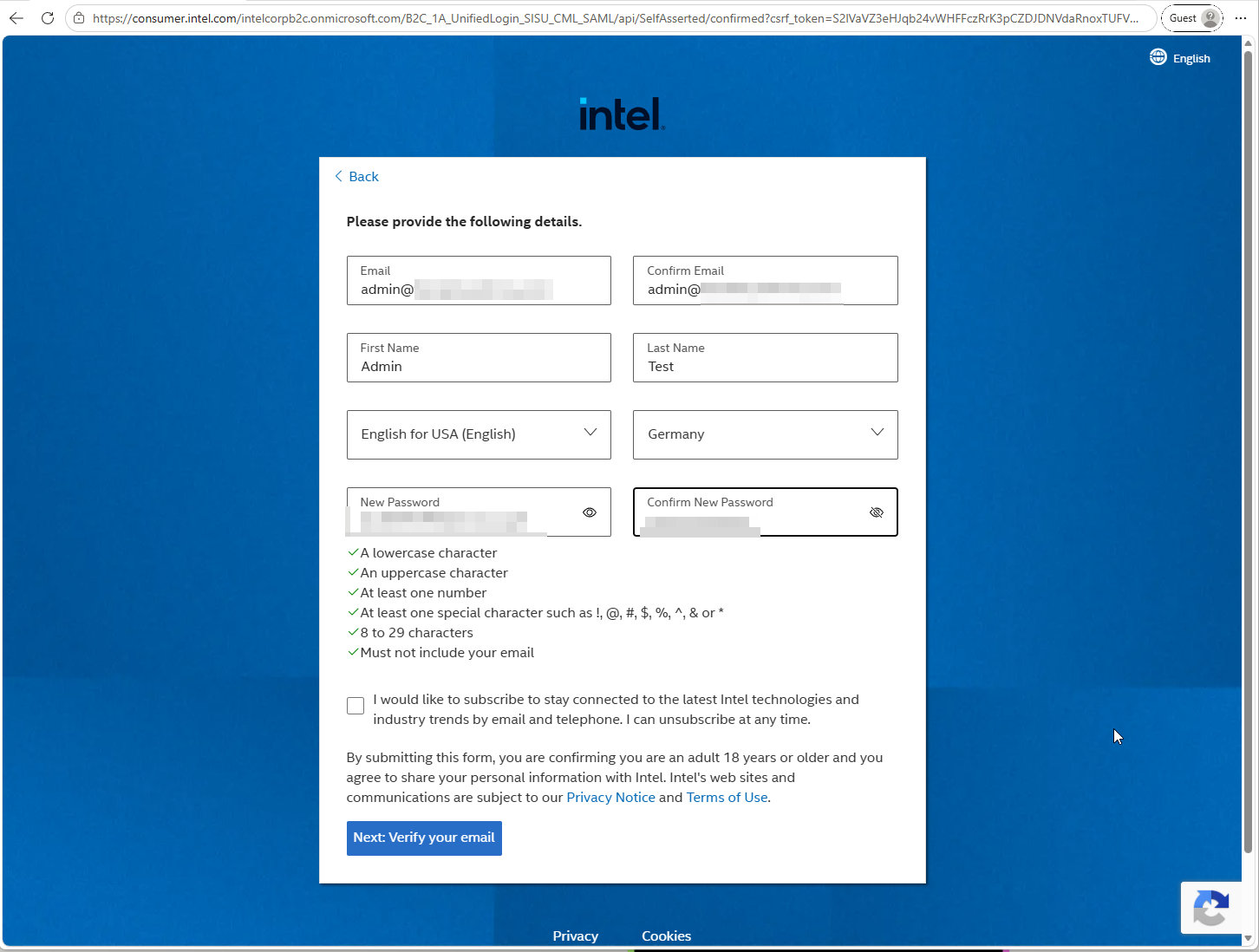
Creating the account asks for the usual details and an account password. This password is for your Intel account only. It is not the passphrase you will need later, more on that in Step 2.
After the email verification, you land back on the Fleet Services portal and have to accept the terms and conditions.
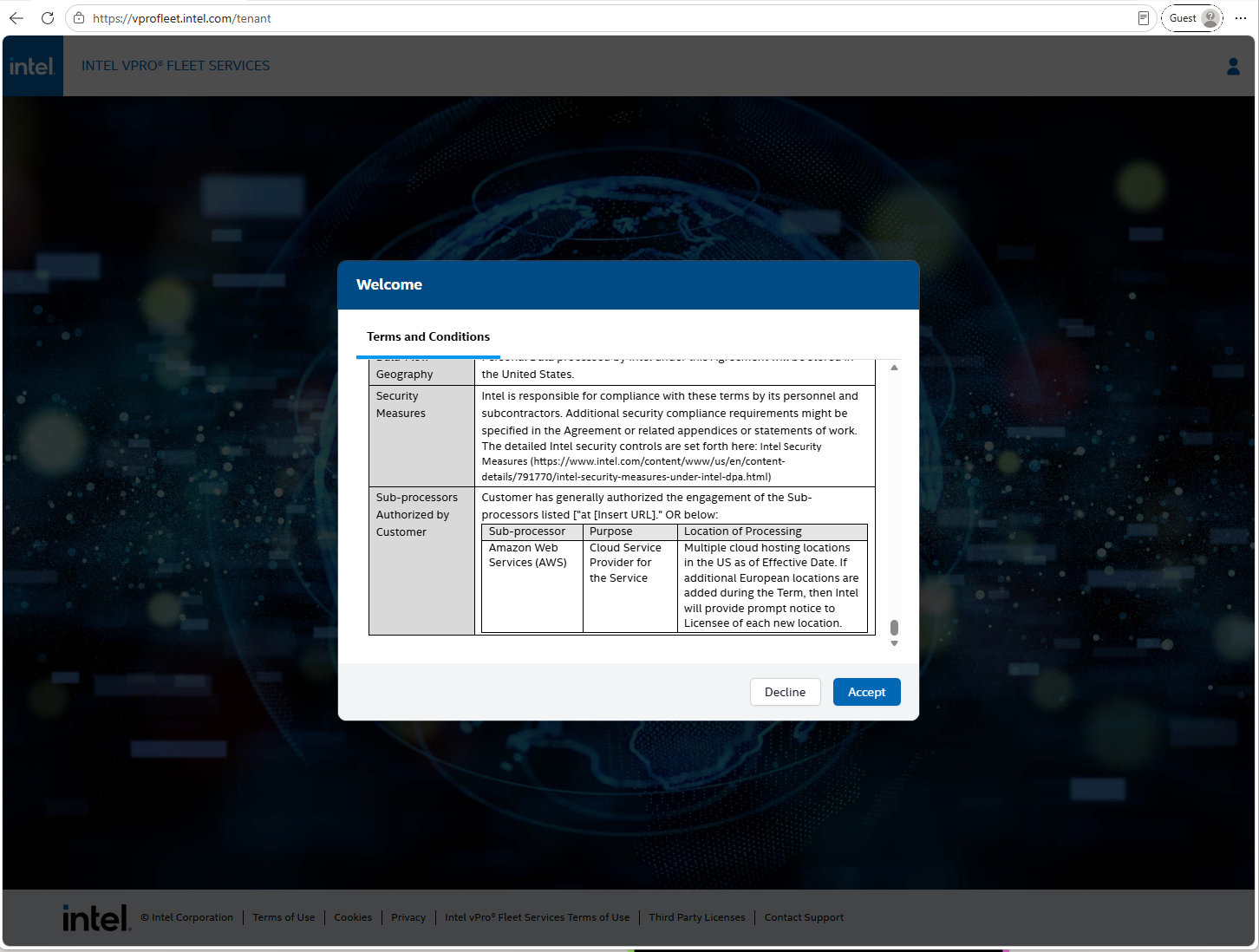
Read the data processing section. This is where the US hosting and the AWS sub-processor from Before You Start are stated.
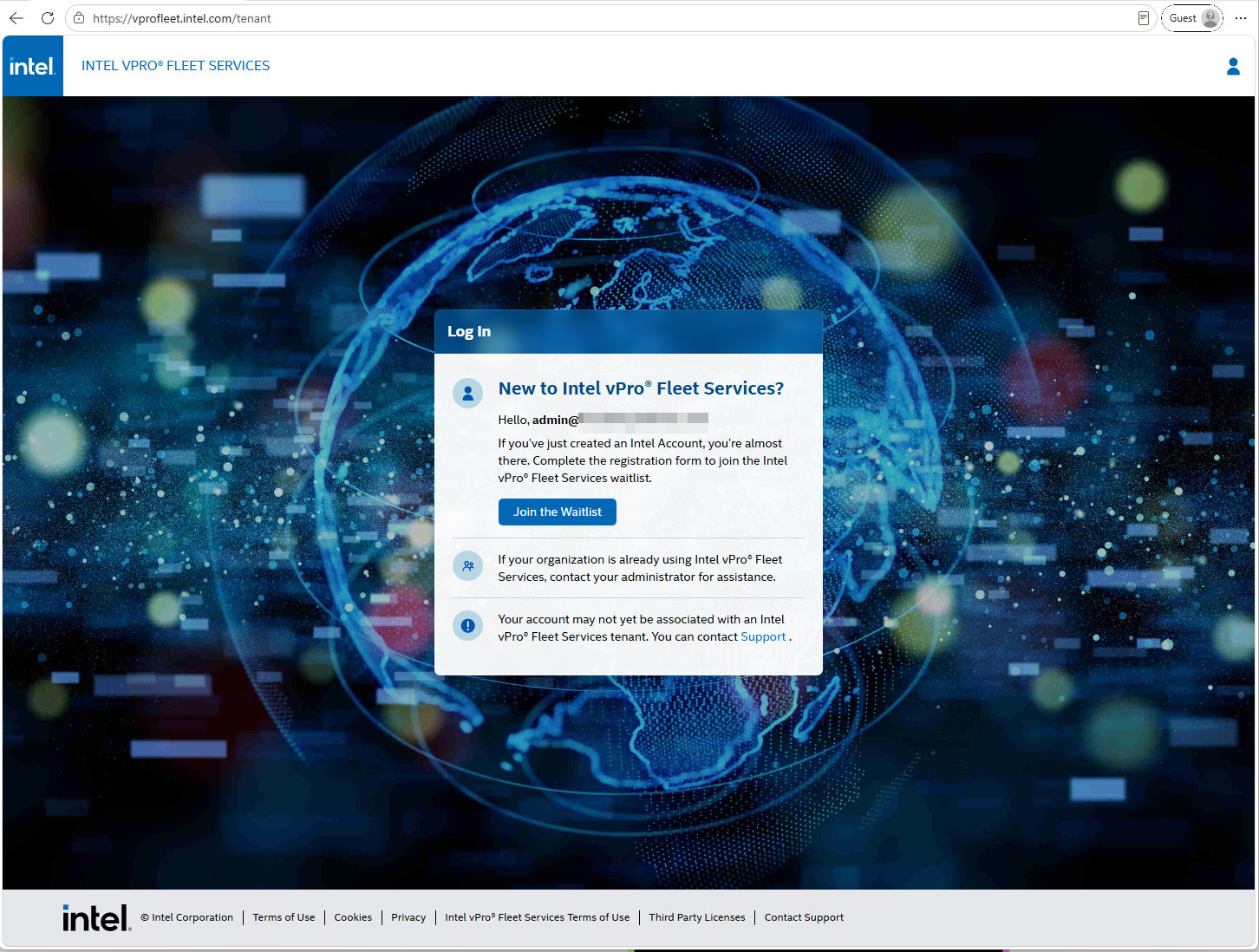
With a fresh Intel account and no tenant yet, the portal tells you that you are not associated with a Fleet Services tenant and offers to Join the Waitlist.
The waitlist form asks for your name, company, email address, whether you have an Intel sales representative and whether you are willing to provide feedback.
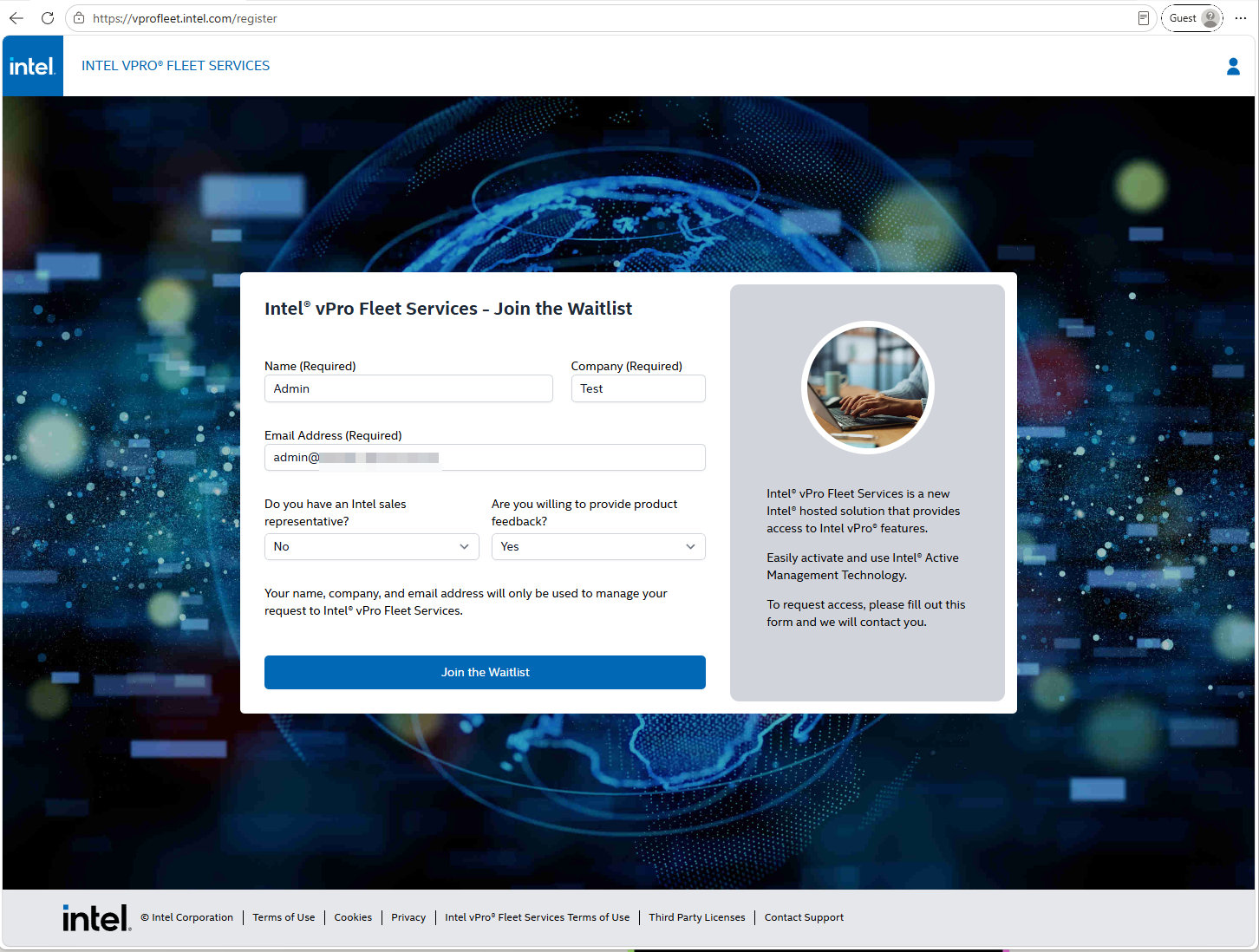
Then you wait until Intel creates your tenant. If you have an Intel sales contact, letting them know you joined the waitlist does not hurt.
Step 2: First Sign-In and the Passphrase
When your tenant is ready, you receive an email titled Intel vPro Fleet Services Access Credentials. It contains the sign-in steps, links to the getting started guide and the initial passphrase.
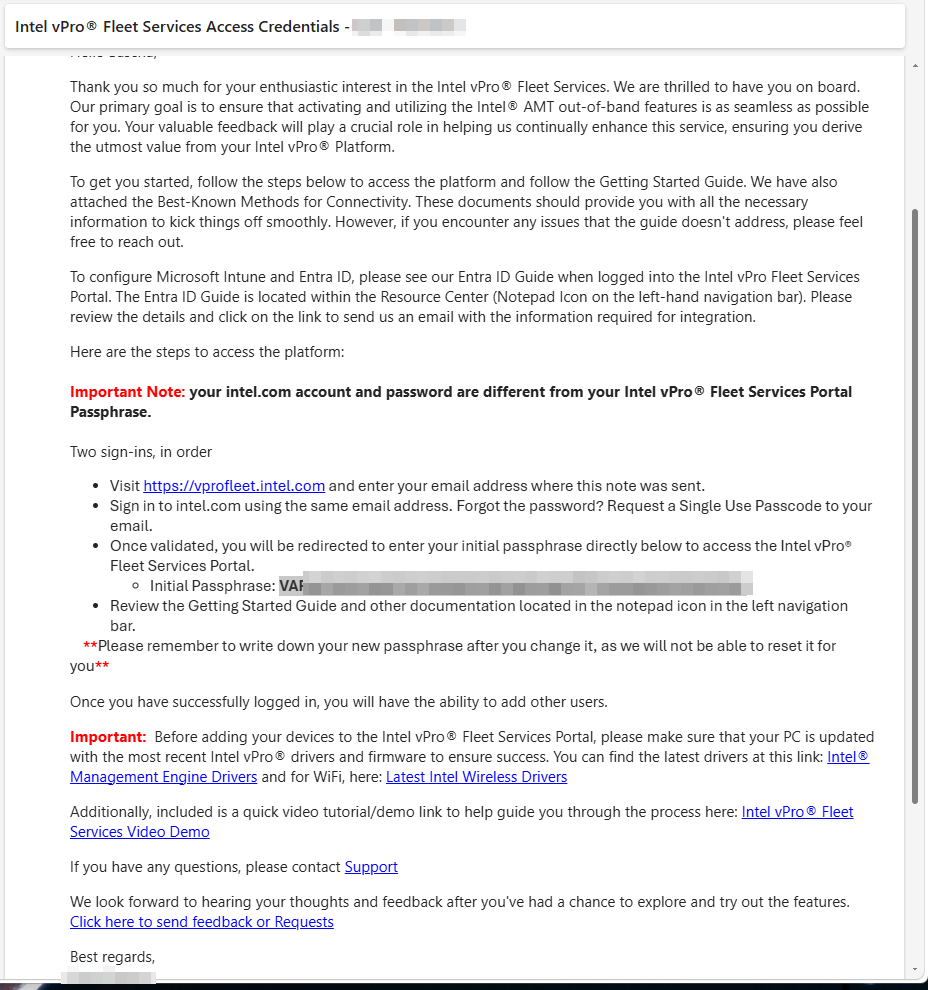
The email is explicit about one thing, and it deserves to be repeated: your Intel account password and your Fleet Services passphrase are two different secrets.
| Secret | What it protects | Who can reset it |
|---|---|---|
| Intel account password (later: your Entra ID sign-in) | Signing in to the portal | You, through the normal password reset |
| Fleet Services passphrase | Encrypting the AMT credentials of your devices | Nobody can recover it, not even Intel. A tenant administrator can only issue a new one |
The passphrase is the part that makes this service trustworthy. The AMT credentials of your devices are encrypted with it before they are stored or transmitted, so Intel cannot decrypt them. The flip side is just as clear: if you lose it, it is gone.
The email also reminds you to update the Intel Management Engine and wireless drivers and firmware on your clients before onboarding them. Keep that in mind for Part 2.
Sign in at vprofleet.intel.com with your Intel account. The portal immediately asks for the passphrase. Paste the initial passphrase from the email.
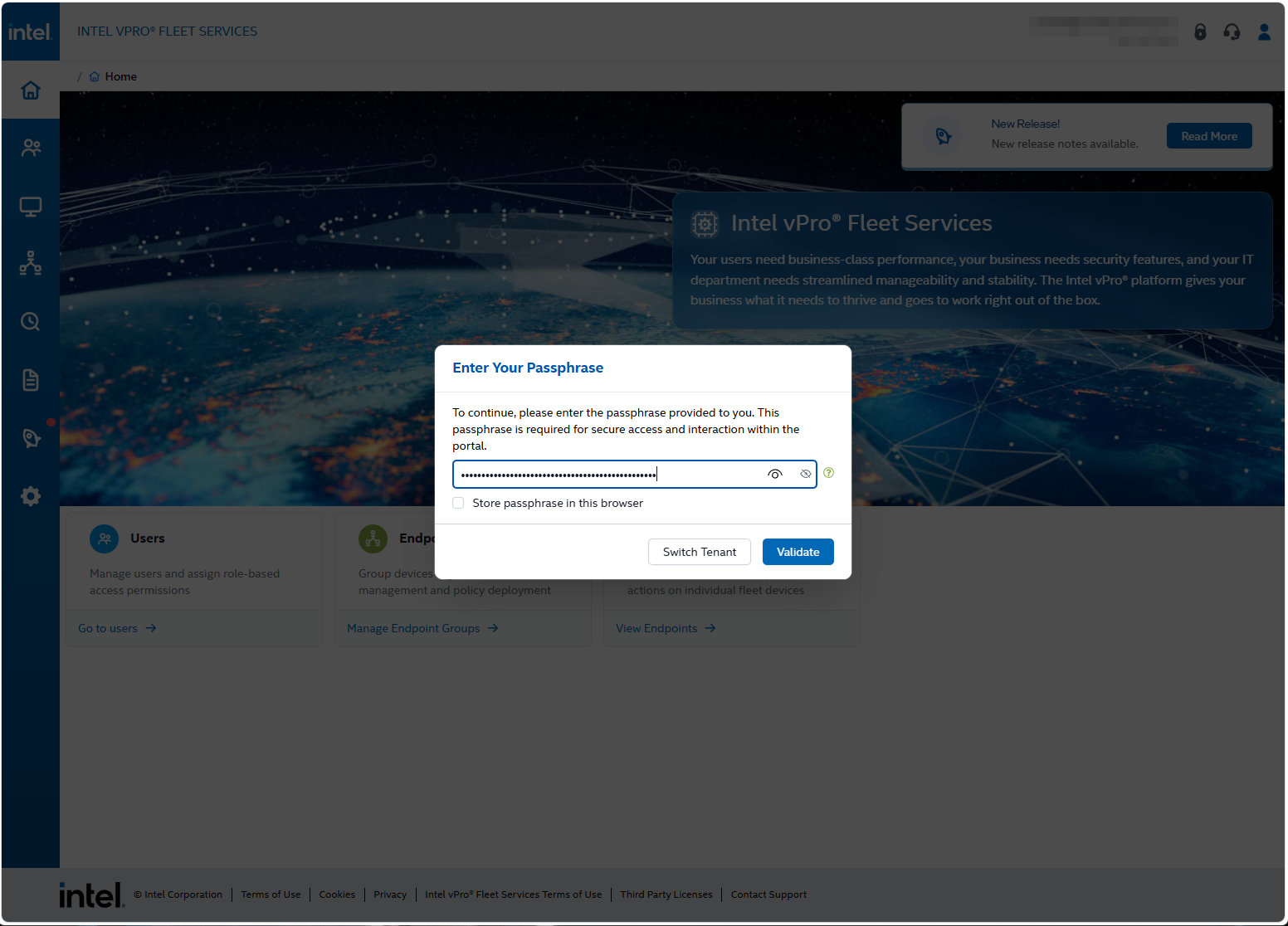
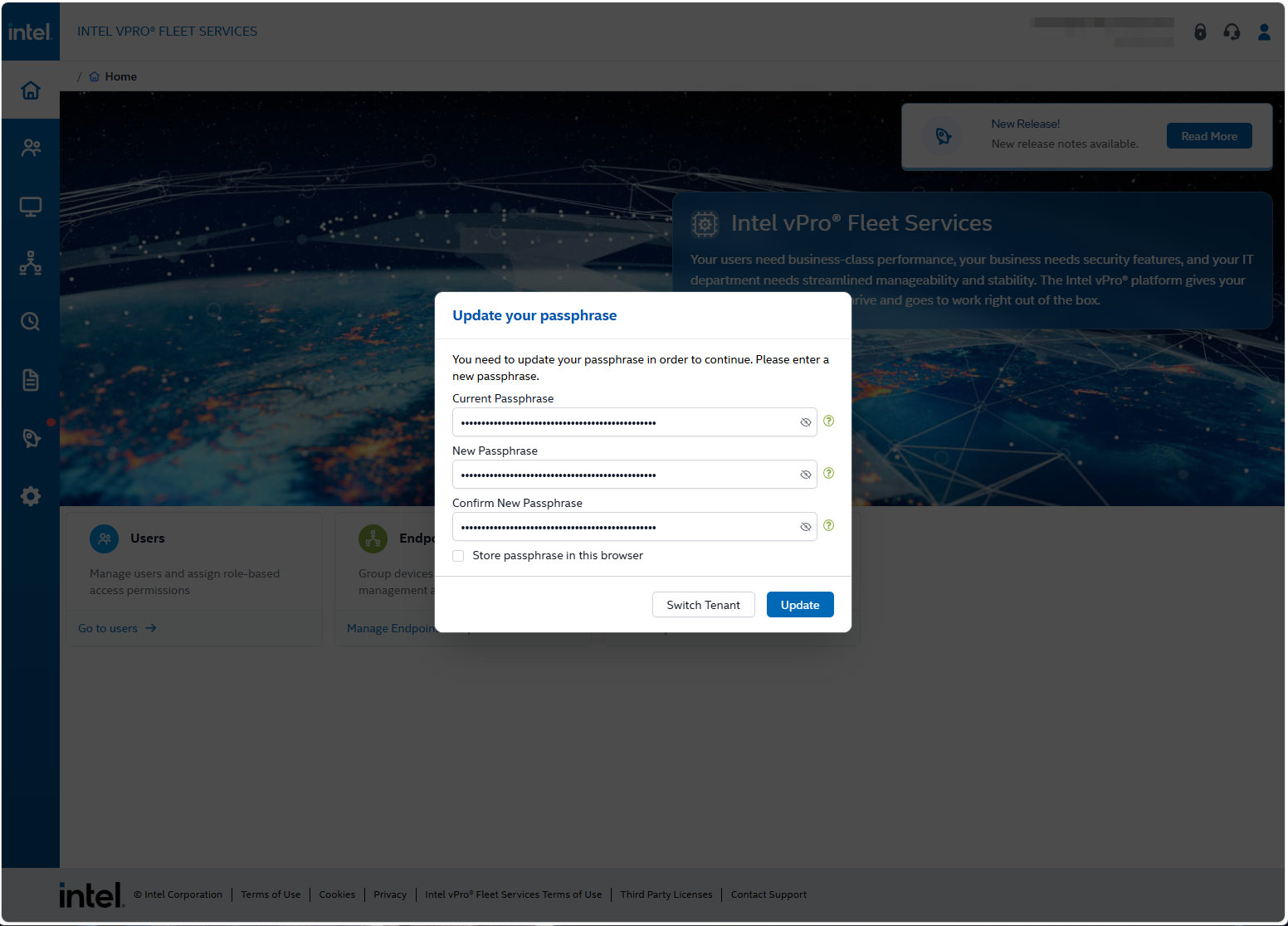
You are forced to replace it with a new passphrase right away.
After the update, the portal shows the new passphrase once, with options to copy or download it. You have to confirm that you saved it before you can close the dialog.
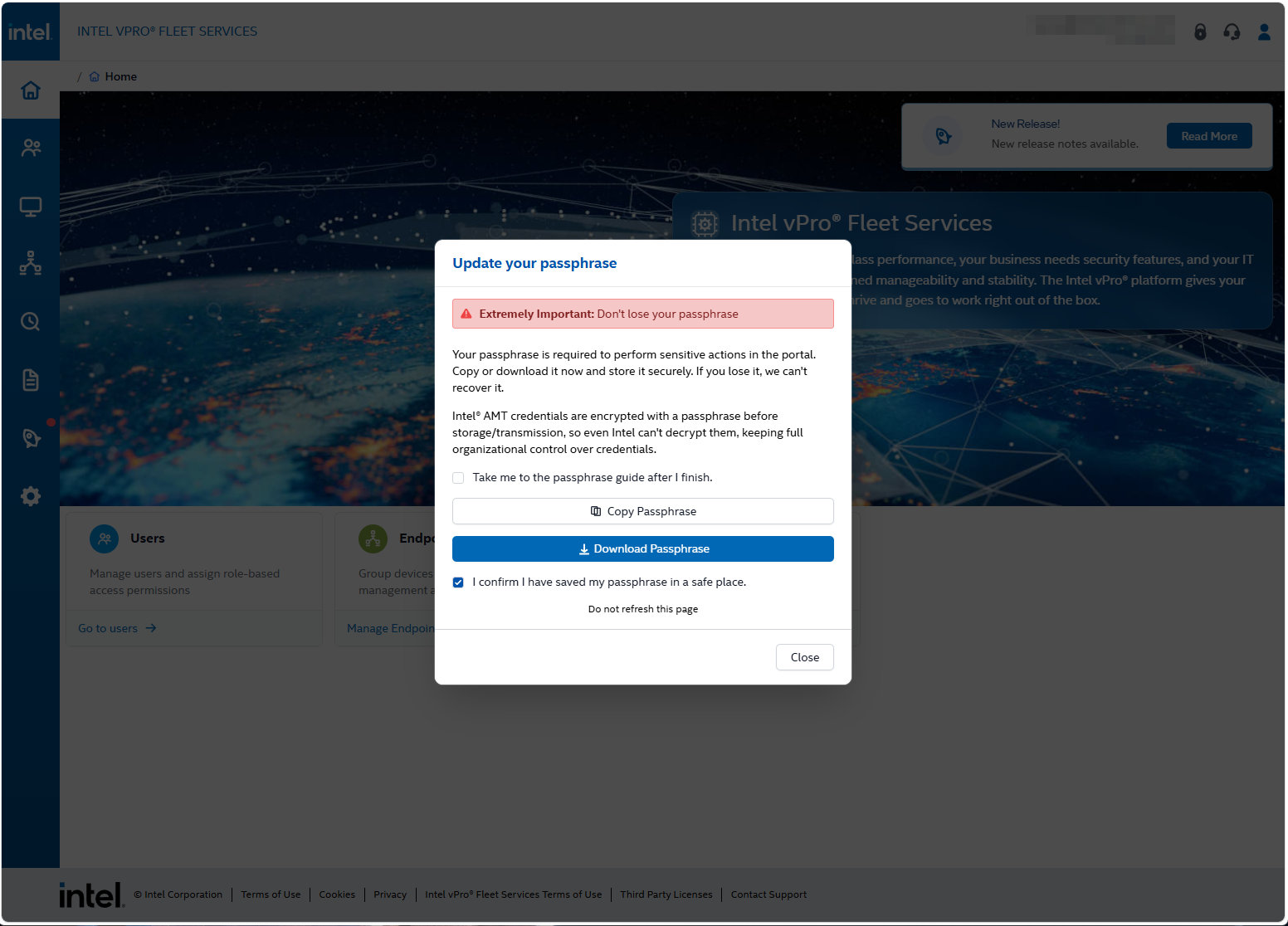
Store the passphrase in your password vault right now, not in the browser and not in a text file on your desktop. Treat it like a recovery key for the management plane of your entire fleet. The checkbox Store passphrase in this browser is convenient, but I would not use it on an admin workstation that more than one person uses.
You are now in the portal.
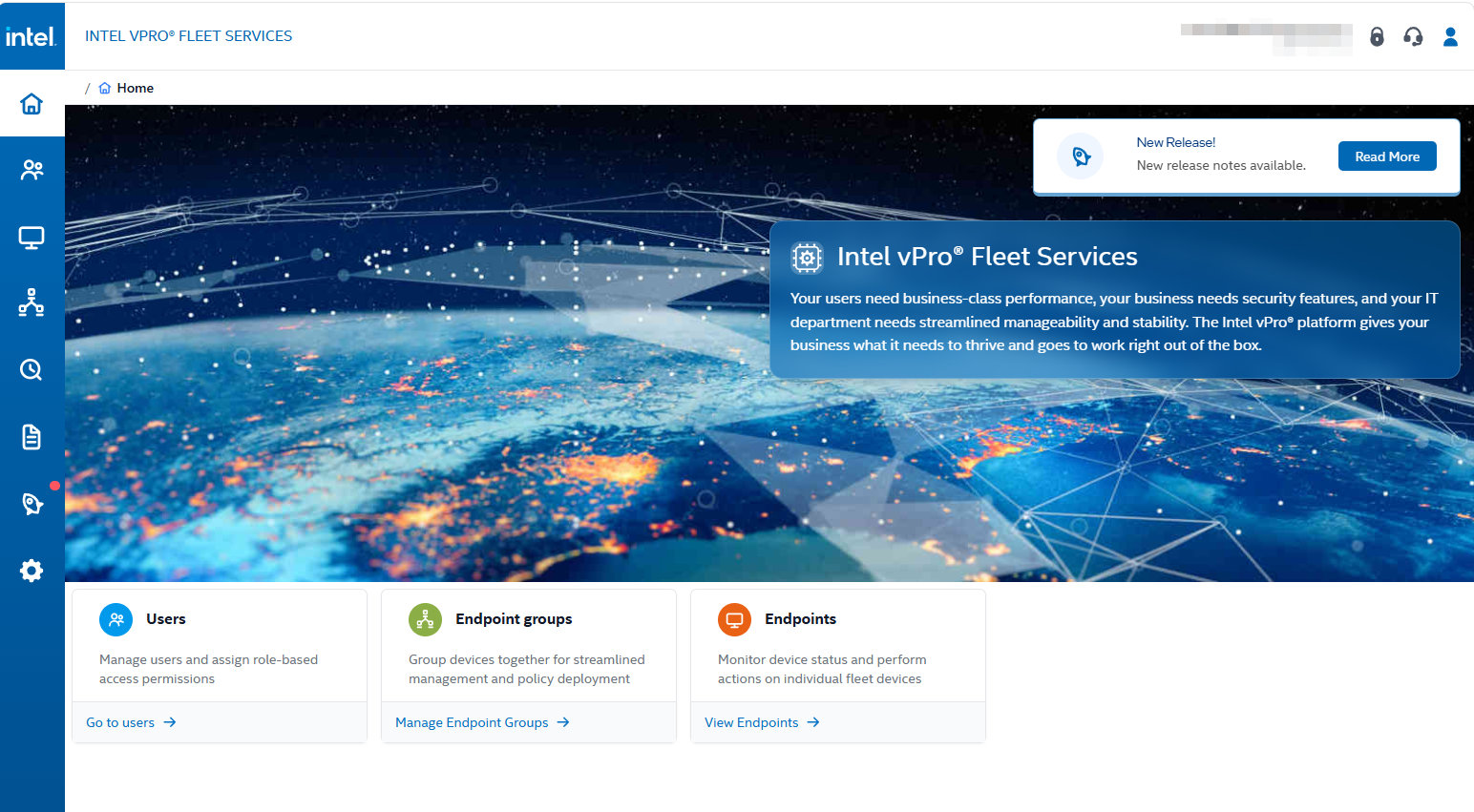
The navigation on the left gives you Users, Endpoints, Endpoint groups, the audit log (the clock icon), the Resource Center (the notepad icon), release notes and settings. Endpoints and endpoint groups stay empty until Part 2.
Step 3: Prepare Entra ID Sign-In
Fleet Services starts with Intel’s own identity provider for the initial setup. Entra ID is added afterwards, and unlike most SaaS apps, it is not a self-service enterprise app you add from the gallery. You send Intel the details of your tenant, and Intel enables it for you.
The instructions are in the portal under Resource Center > Microsoft Entra ID Guide.
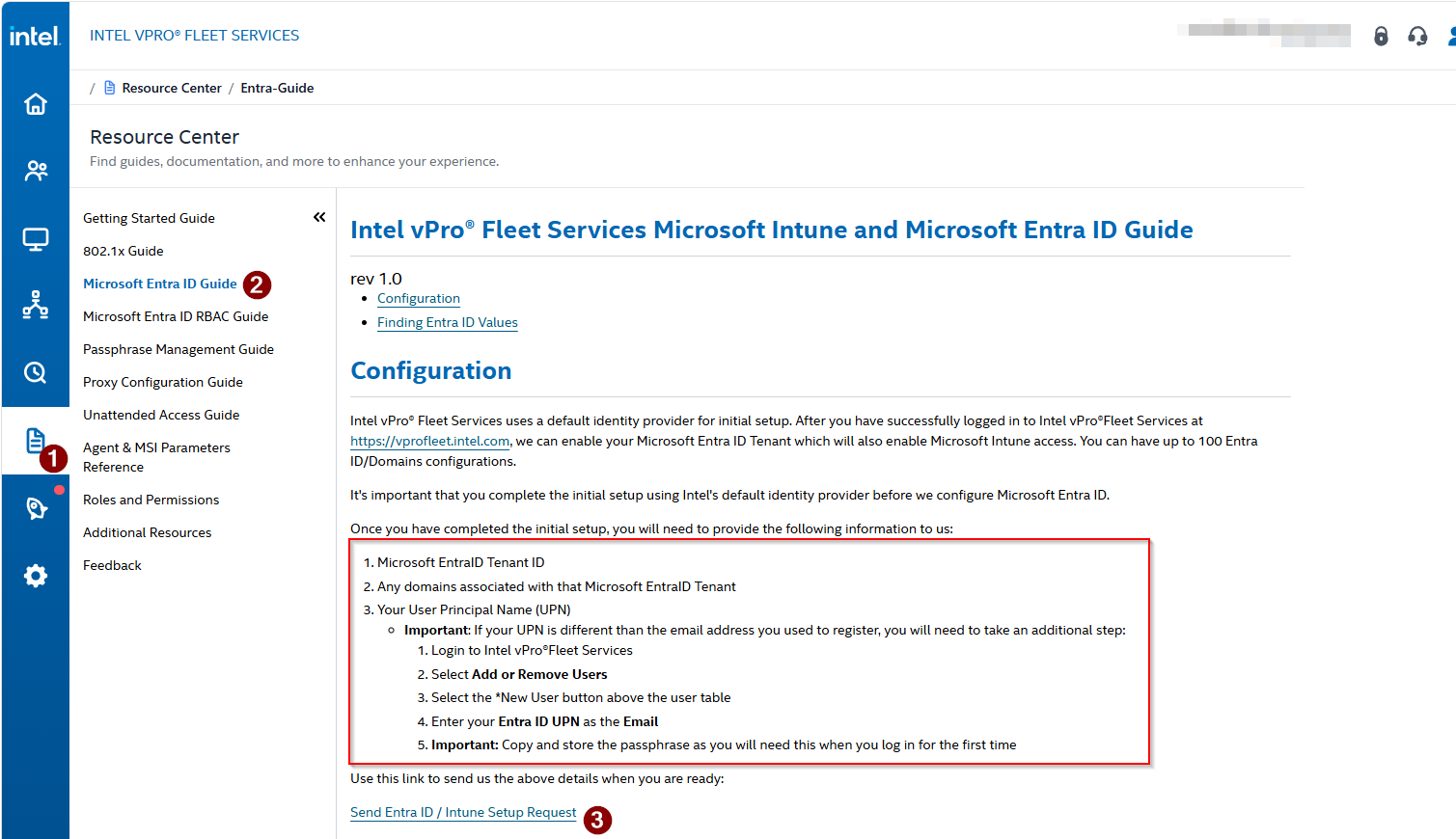
The guide asks for three things:
- Your Microsoft Entra tenant ID
- All domains associated with that tenant
- Your user principal name (UPN)
A single Fleet Services tenant supports up to 100 Entra ID tenant or domain configurations, which matters if you run more than one Entra tenant or a lot of verified domains.
Add Your Entra UPN as a Fleet Services User First
This is the step that is easy to miss. If the UPN you sign in with in Entra ID is not the same as the email address you registered with in Step 1, you have to add your UPN as a separate user before Entra sign-in is enabled. Otherwise, after the switch, you sign in with Entra, and Fleet Services does not know who you are.
In my case, the registration address was a mailbox on a custom domain, and the admin account I wanted to use was a cloud-only onmicrosoft.com account, so I needed this step.
Go to Users (1), select New User (2), enter the Entra UPN as the email address, pick the role and select Next (3).
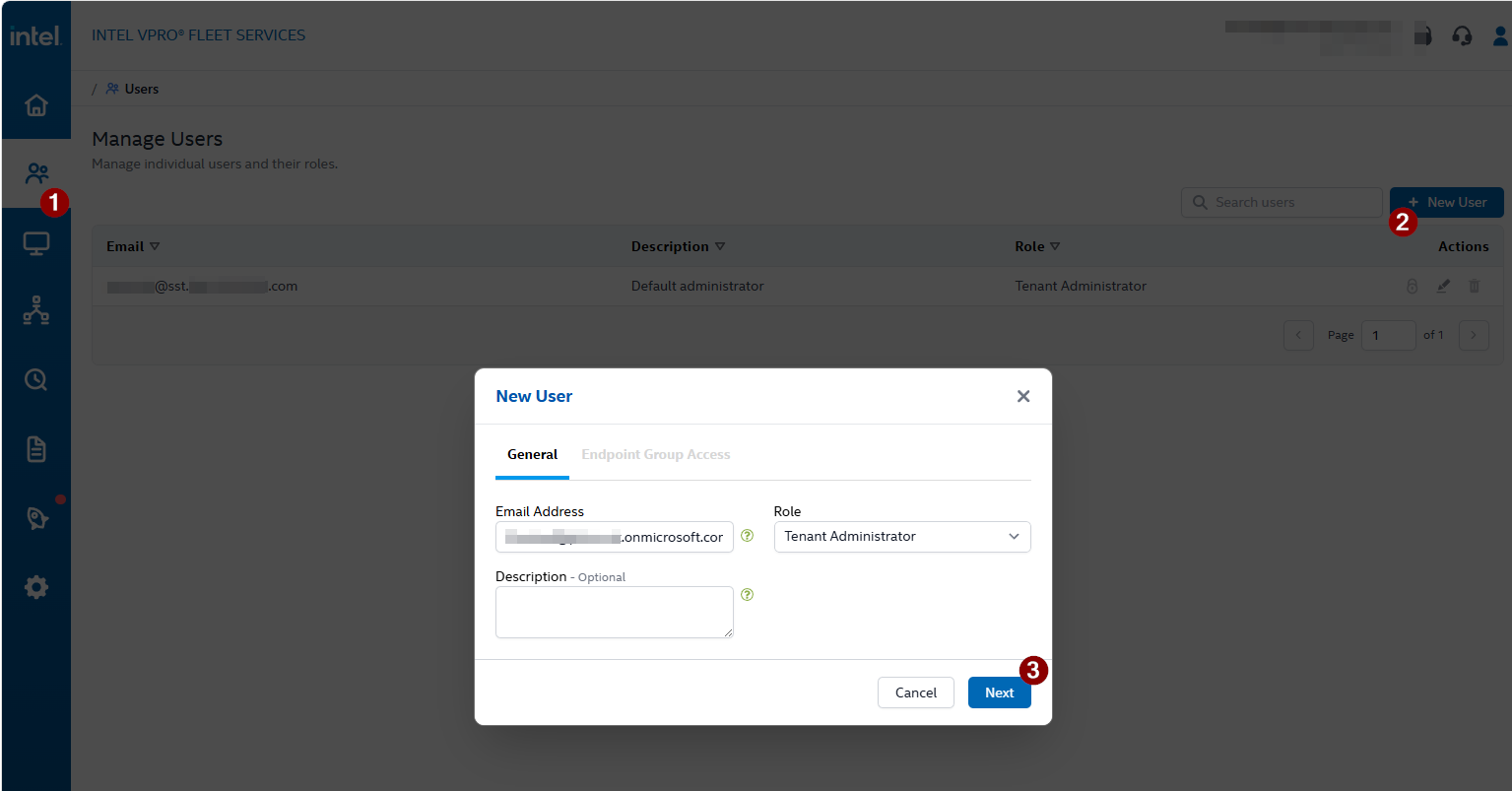
The Endpoint Group Access tab lets you scope the user to specific endpoint groups. For the first administrator, leave it unrestricted.
When you finish the wizard, the portal generates a passphrase for the new user and shows it once. The new user needs it for their first sign-in and has to change it there, exactly like in Step 2.
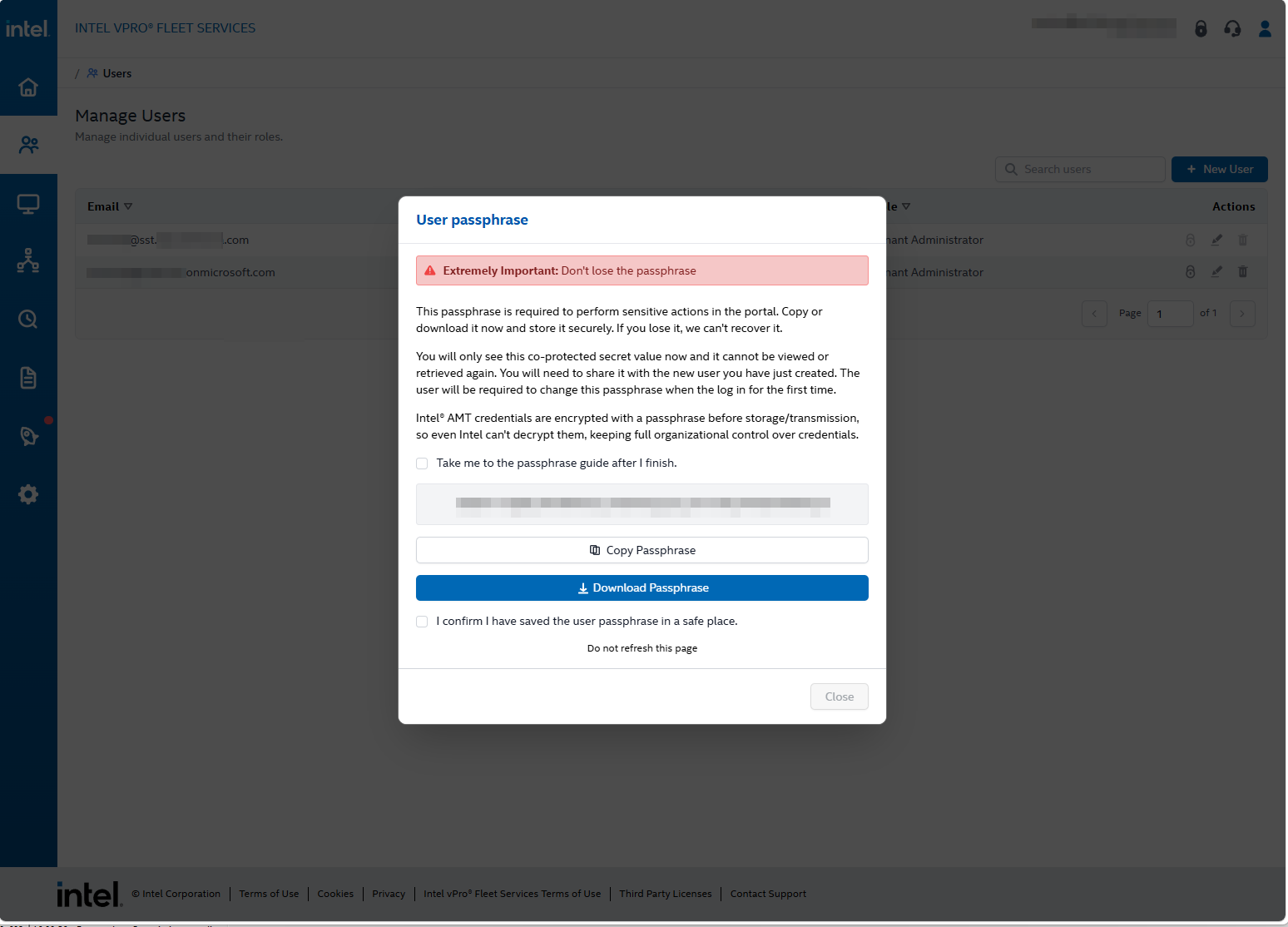
Every user has their own passphrase. When you add colleagues later, you have to hand over the initial passphrase over a secure channel. The portal cannot show it again.
Send the Request
Back in the Entra ID guide, the Send Entra ID / Intune Setup Request link opens a pre-filled email to Intel. Fill in the tenant ID, the domains and the UPN and send it. Despite the name, this part only covers Entra ID. The Intune integration follows in Part 2.
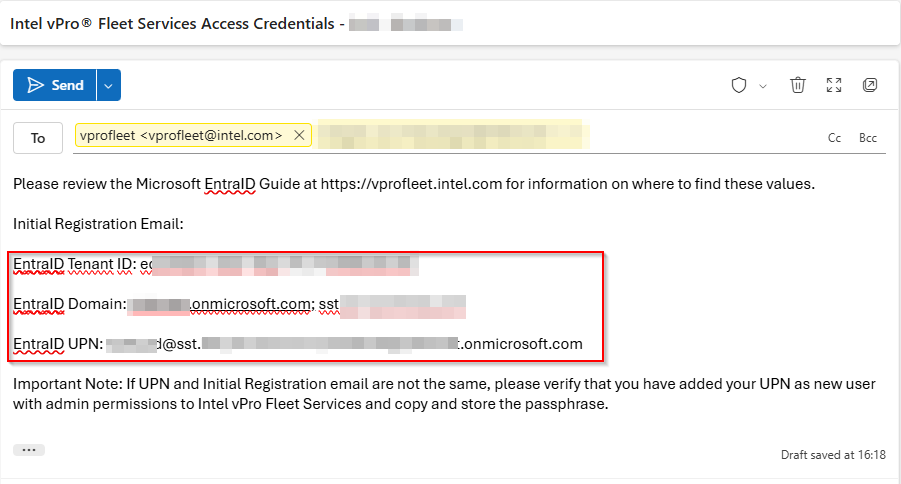
You find the tenant ID and the verified domains in the Entra admin center under Entra ID > Overview and Entra ID > Domain names.
Step 4: Sign In with Entra ID
When Intel confirms that Entra ID is enabled for your tenant, sign in at vprofleet.intel.com with your Entra UPN. Fleet Services decides by the domain of the address you enter: domains you registered in Step 3 are sent to Microsoft Entra ID, all other addresses go to the Intel account sign-in from Step 1.
On the first Entra sign-in, Entra ID asks for consent to the Intel vPro Fleet Services app. In my lab, the Entra screens show up in German, so here is the translation: the app only asks to view your basic profile and to maintain access to data you have given it access to.
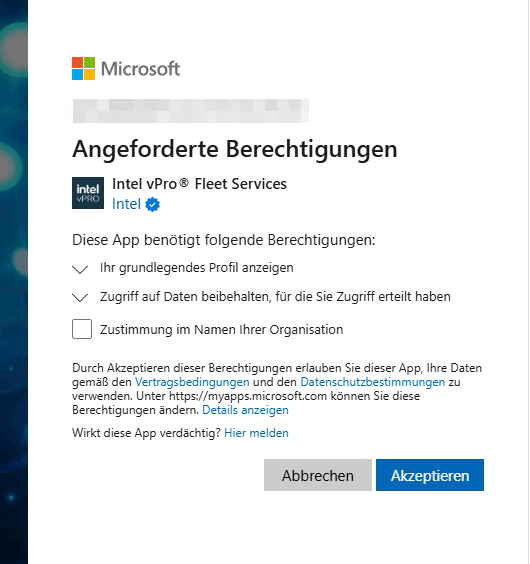
Do this first sign-in with an account that may grant tenant-wide consent, such as a Global Administrator, Cloud Application Administrator or Application Administrator, and select Consent on behalf of your organization before you accept. Otherwise, every user is asked again at their first sign-in, and in tenants where users are not allowed to consent to apps, which is the recommended setting, they cannot sign in at all.
After that, an enterprise application named Intel vPro Fleet Services shows up in your tenant under Entra ID > Enterprise apps. At this point it only has the delegated sign-in permissions openid, profile and email. In Step 5, the same application gets the additional permissions it needs for RBAC, so you end up with one application for both.
Entra ID replaces the Intel account password, not the passphrase. As long as the passphrase is required (Step 6), the portal still asks for it after the Entra sign-in.
Local Sign-In with SSO Enabled
Your default administrator from Step 1 is still a local Intel account, and you want to keep it as a break-glass account in case the Entra ID sign-in ever breaks. The catch: if that account uses an address in a domain you registered for Entra ID, as it does in my lab, typing it on the sign-in page now sends you to Entra ID, where that local account does not exist.
I found the workaround while troubleshooting the Entra setup. Because the sign-in page only looks at the domain, enter any address in a domain that is not registered for Entra ID, for example breakglass@example.com. Fleet Services forwards you to the Intel account sign-in, and there you sign in with the real email address and password of your local account.
Keep one local Tenant Administrator and protect it accordingly. Local accounts are not covered by your Entra ID Conditional Access policies. A strong, unique password stored in your vault is the minimum.
Step 5: Entra ID Role-Based Access Control
Without RBAC, every user has to be created in the portal by hand, with a role and endpoint group access, the way we did in Step 3. With Entra ID RBAC enabled, you map Entra ID groups to Fleet Services roles instead. Users are created automatically when they sign in for the first time, and their role comes from their group membership. If a user has both, the role from the Entra ID group mapping takes precedence over the role assigned directly in the portal.
The Roles
Fleet Services has two roles, and both can be used in group mappings. Intel documents them in Resource Center > Roles and Permissions.
- Tenant Administrator (
tenant.administrator) has full access: users, endpoint groups, endpoints and tenant settings. - Endpoint Operator (
endpoint.operator) does the day-to-day work on the endpoints in its assigned endpoint groups, including power actions and KVM. It cannot manage users, create or change endpoint groups or access tenant settings.
| Permission | What it allows | Tenant Administrator | Endpoint Operator |
|---|---|---|---|
tenant.read |
Read tenant details | ✓ | ✓ |
settings.read / settings.write |
View and change tenant settings (Entra ID, passphrase, RBAC) | ✓ | |
user.read / user.write / user.delete |
View, create, edit and delete users | ✓ | |
audit_logs.read |
View the audit log | ✓ | |
endpoint_group.read |
View endpoint groups | ✓ | ✓ |
endpoint_group.write / endpoint_group.delete |
Create, edit and delete endpoint groups, including proxy profiles and Entra ID group assignments | ✓ | |
endpoint.read |
View endpoints, their status and hardware details | ✓ | ✓ |
endpoint.write |
Rename endpoints and assign them to an endpoint group | ✓ | ✓ |
endpoint.delete |
Stop managing (unregister) endpoints | ✓ | ✓ |
endpoint.power_actions |
Run power actions | ✓ | ✓ |
endpoint.kvm |
Start KVM remote control sessions | ✓ | ✓ |
Endpoint Operator is not a read-only helpdesk role. Besides power actions and KVM, it includes
endpoint.writeandendpoint.delete, so an operator can also move endpoints between endpoint groups and stop managing them. There is no narrower role today, which makes the endpoint group scope of each mapping your most important control. Which power actions need the user’s consent on the device is covered in Part 3.
Each group mapping gets one of these roles and, for Endpoint Operators, the endpoint groups it applies to.
Create the Groups
For my lab, I created three security groups in Entra ID:
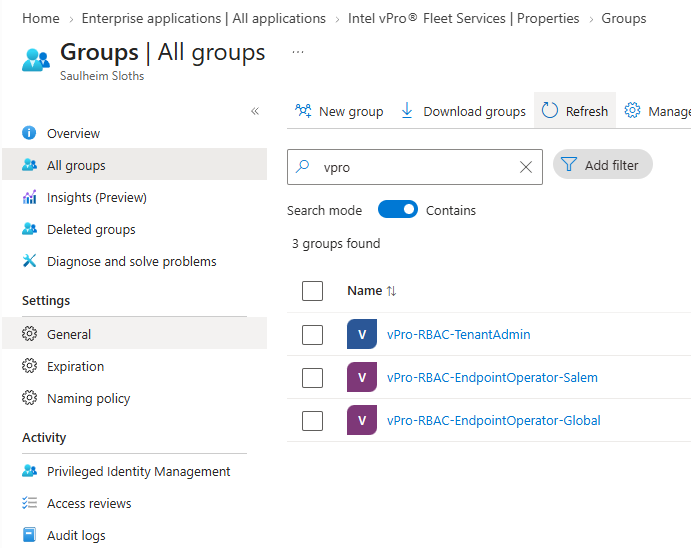
| Entra ID group | Fleet Services role | Endpoint group access |
|---|---|---|
vPro-RBAC-TenantAdmin |
Tenant Administrator | All |
vPro-RBAC-EndpointOperator-Global |
Endpoint Operator | All endpoint groups |
vPro-RBAC-EndpointOperator-Salem |
Endpoint Operator | Only the endpoint group Salem |
The endpoint groups Default, Salem and Saulheim already exist in my tenant. Creating endpoint groups is part of Part 2.
Grant Admin Consent
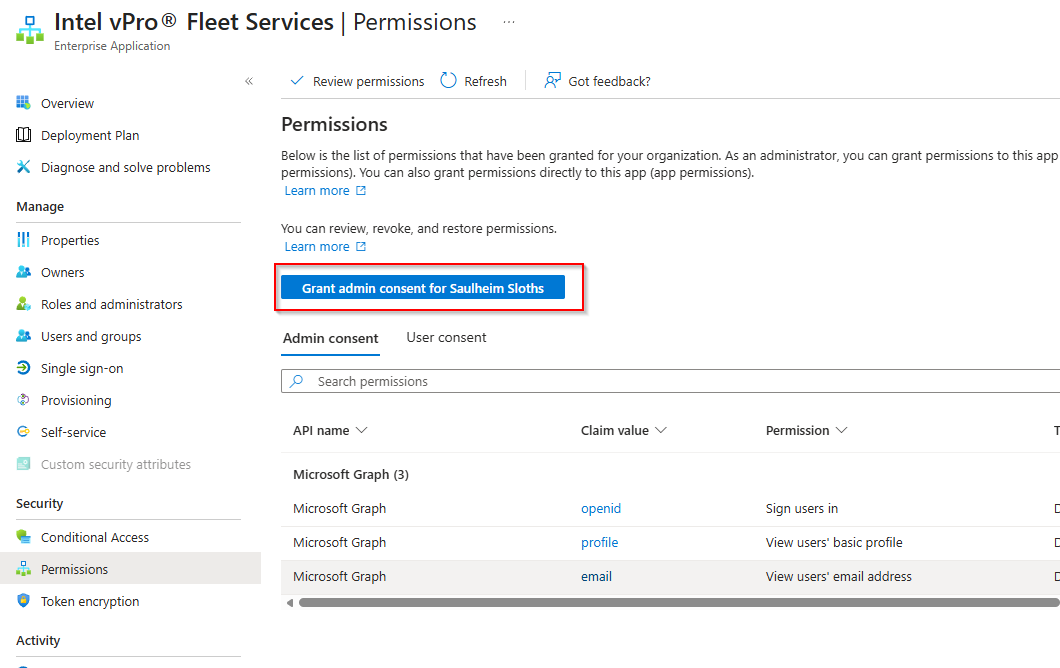
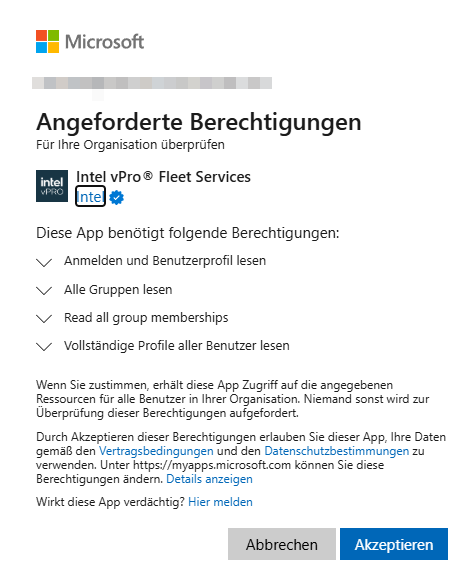
To look up groups and group memberships, Fleet Services needs more than the sign-in permissions from Step 4. Open the enterprise application Intel vPro Fleet Services in the Entra admin center, go to Permissions and select Grant admin consent for <your tenant>.
The consent dialog lists the permissions Fleet Services requests (again in German, the English names are in the table below).
After you accept, the permissions page shows the result.
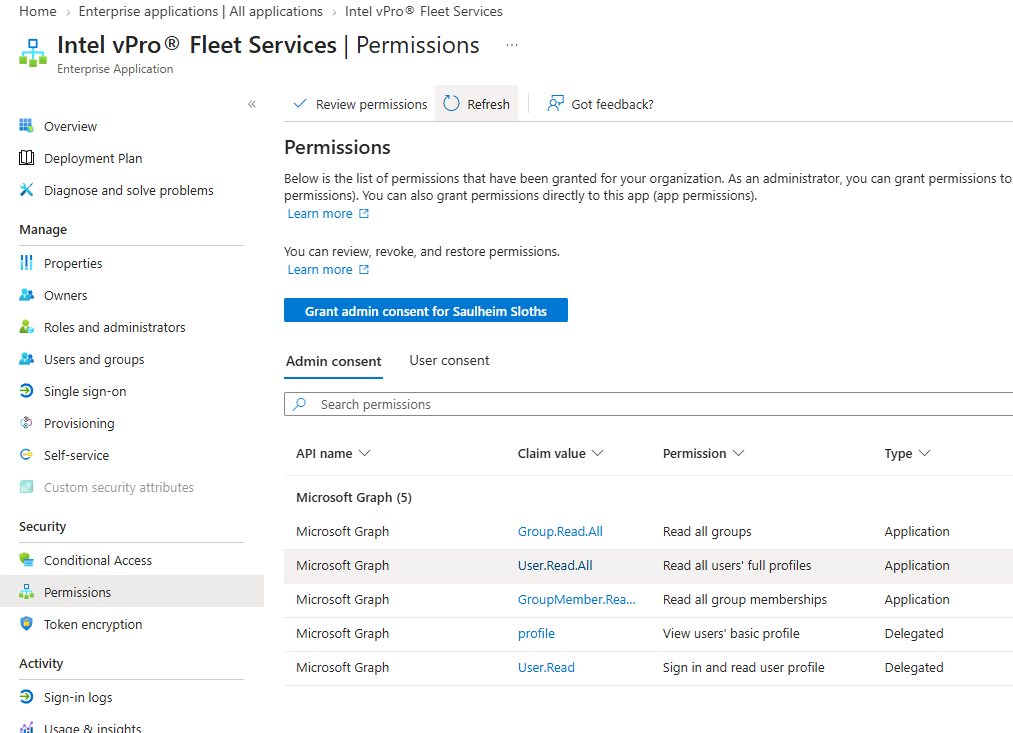
| Permission | Type | Description |
|---|---|---|
Group.Read.All |
Application | Read all groups |
User.Read.All |
Application | Read all users’ full profiles |
GroupMember.Read.All |
Application | Read all group memberships |
profile |
Delegated | View users’ basic profile |
User.Read |
Delegated | Sign in and read user profile |
These are application permissions. The Fleet Services backend can read all users, groups and group memberships of your tenant without a signed-in user. That is what makes the group lookup in the portal work, and it is also something your security team wants to know before anyone clicks Accept, together with the data processing note from Step 1.
Restrict Who Can Sign In
By default, any user in your tenant can sign in to an enterprise application. Limit it to the people who actually need Fleet Services: under Users and groups, assign the three RBAC groups to the application.
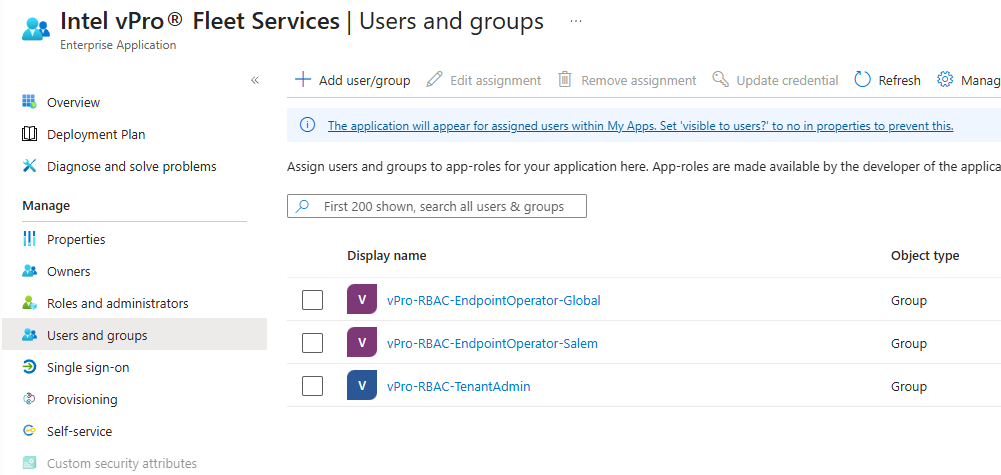
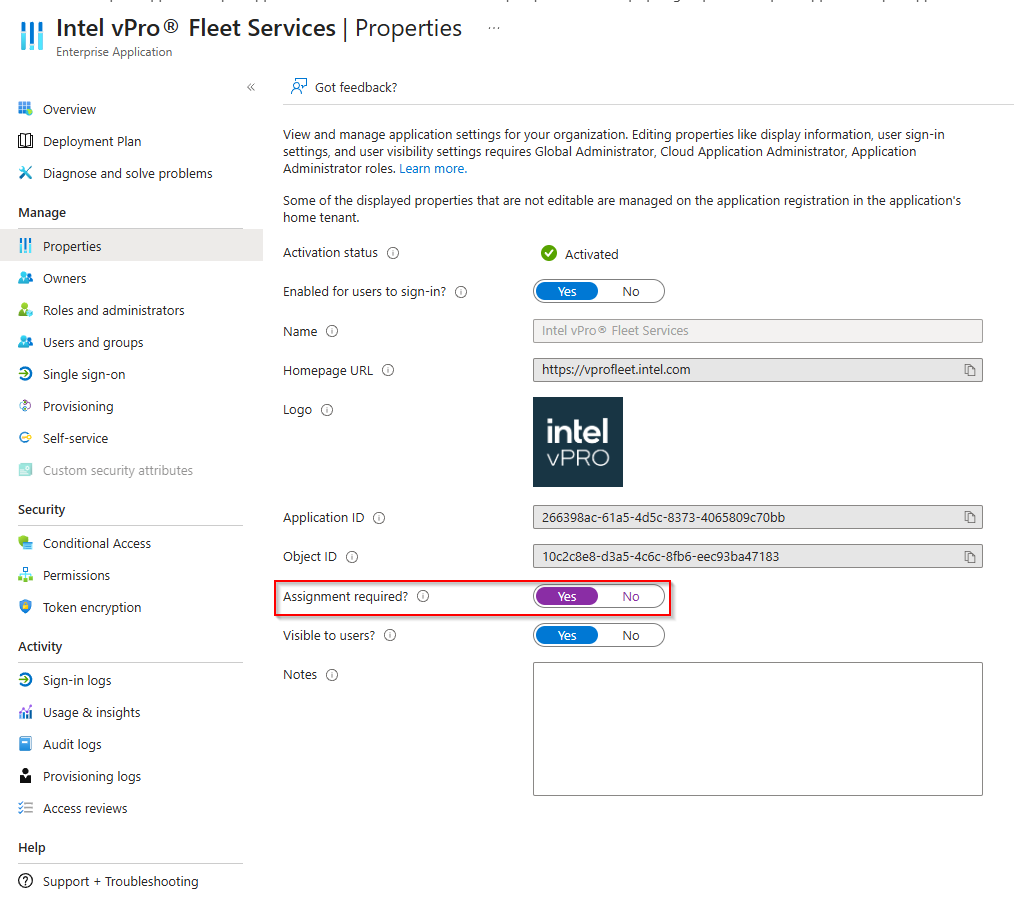
Then set Assignment required? to Yes under Properties. Everyone who is not in one of the assigned groups is now blocked by Entra ID before they ever reach the Intel portal. That includes you: before you switch this on, make sure the UPN you added in Step 3 is a member of vPro-RBAC-TenantAdmin, or only the local break-glass account from Step 4 still gets in. Assigning groups to enterprise applications requires Microsoft Entra ID P1, which most Intune customers have anyway.
Enable RBAC in Fleet Services
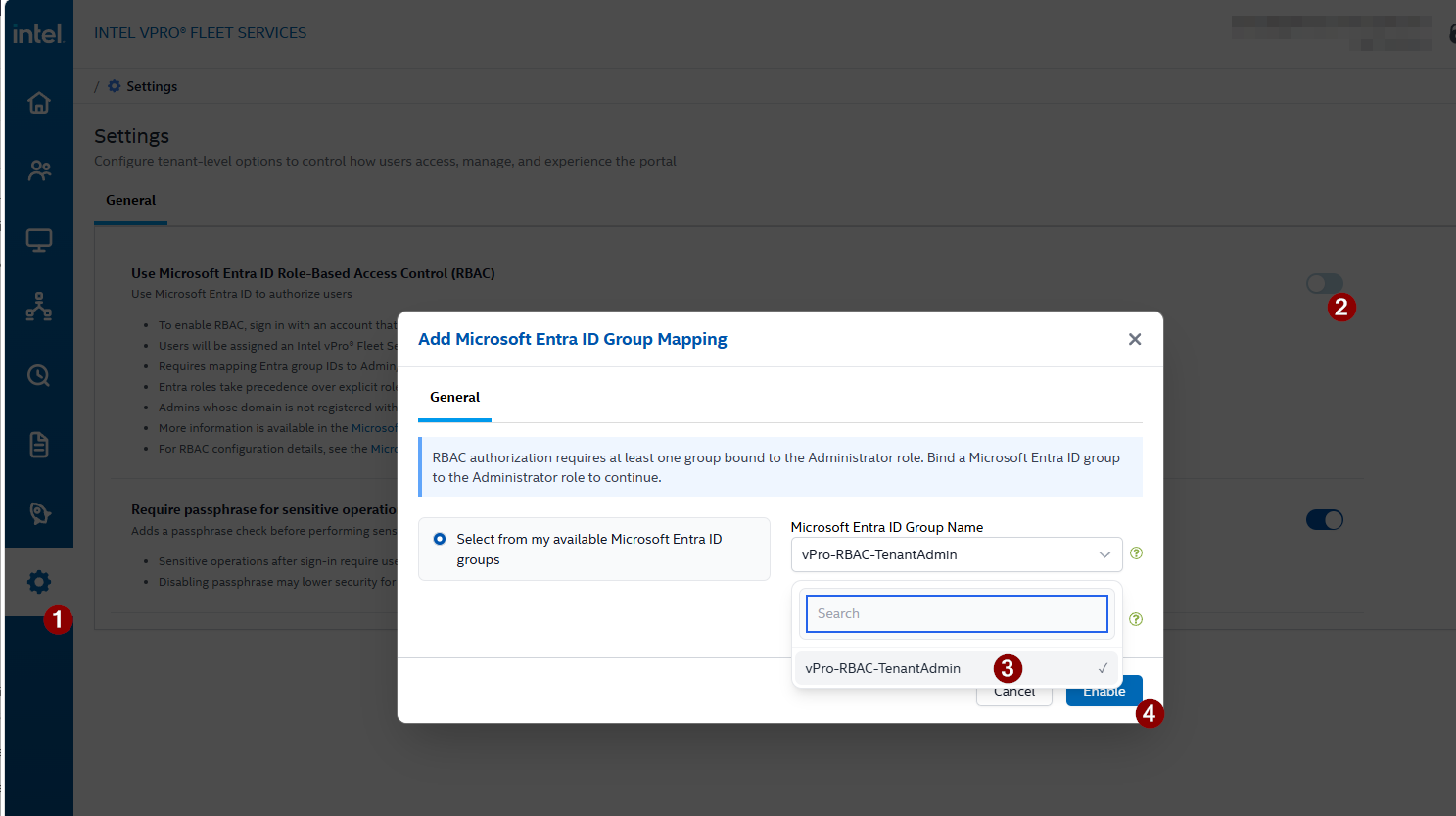
Back in the Fleet Services portal, go to Settings (1) and turn on Use Microsoft Entra ID Role-Based Access Control (RBAC) (2). You have to be signed in as a Tenant Administrator through Entra ID for this, the local account from Step 1 does not work. Fleet Services does not let you enable RBAC without at least one group bound to the Administrator role, so the dialog asks for that group first. Select your admin group (3) and select Enable (4).
Add the Other Group Mappings
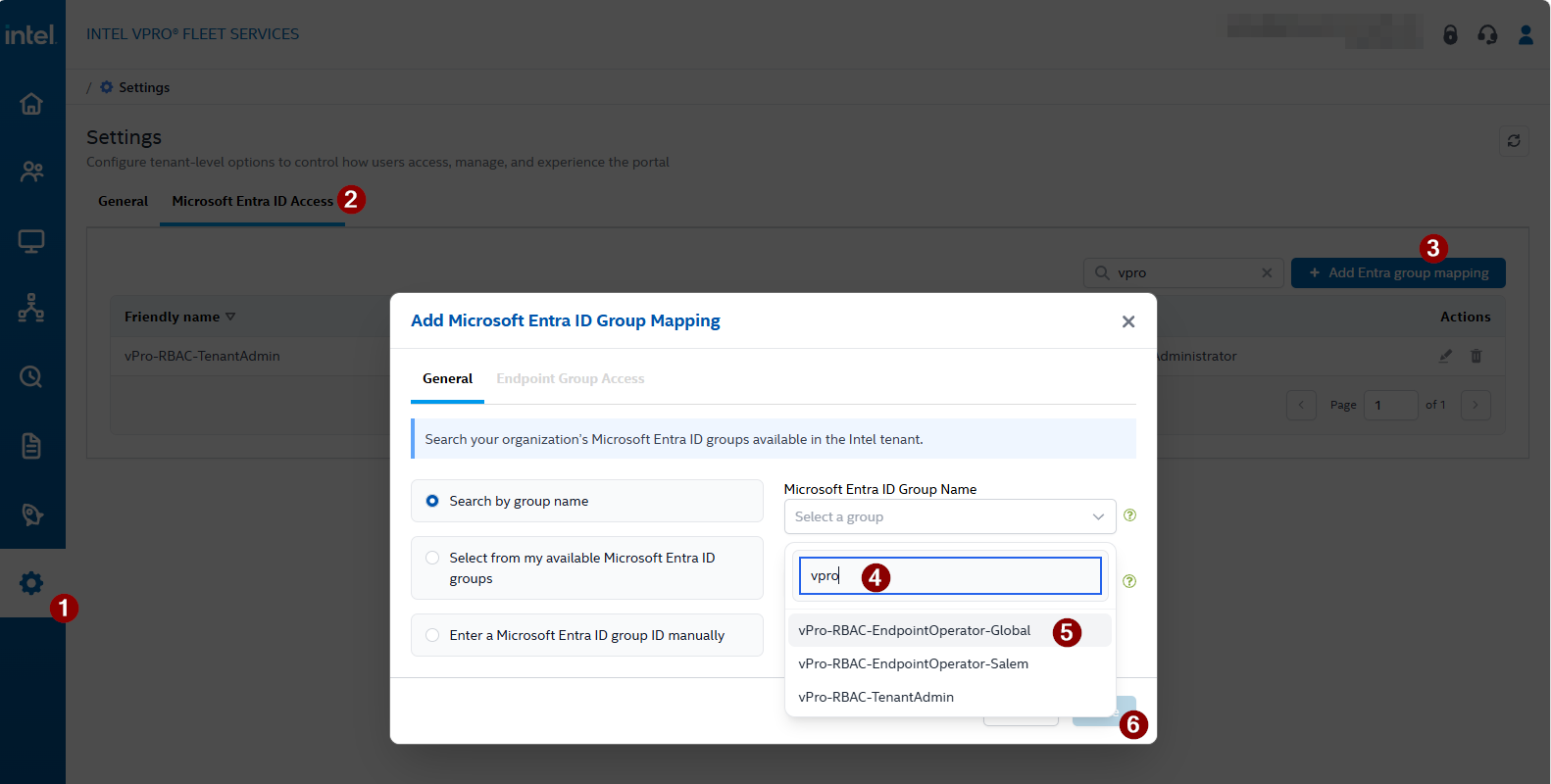
The remaining mappings live in Settings (1) on the new Microsoft Entra ID Access tab (2). Select Add Entra group mapping (3), search for the group (4), select it (5) and continue (6). You can also pick from the groups available to you or enter a group object ID manually.
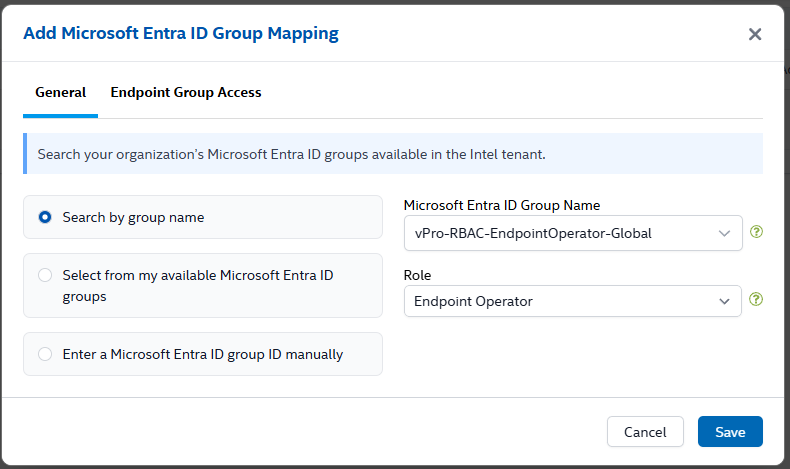
On the General tab, select the role. For vPro-RBAC-EndpointOperator-Global, that is Endpoint Operator.
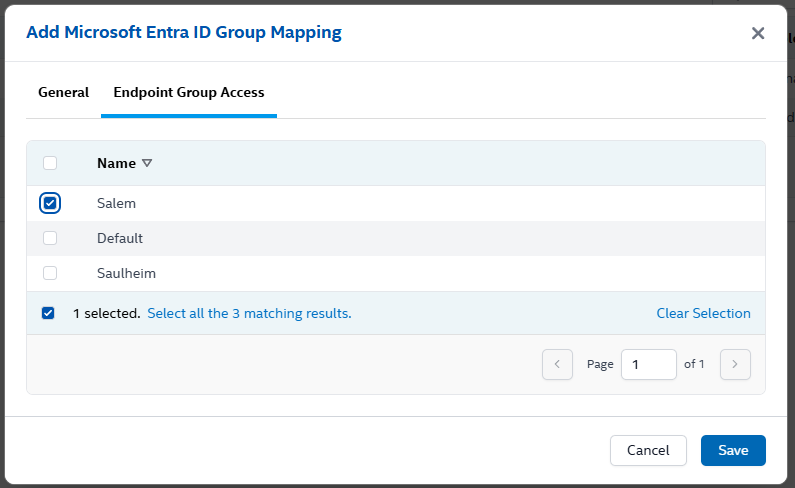
On the Endpoint Group Access tab, select all endpoint groups.
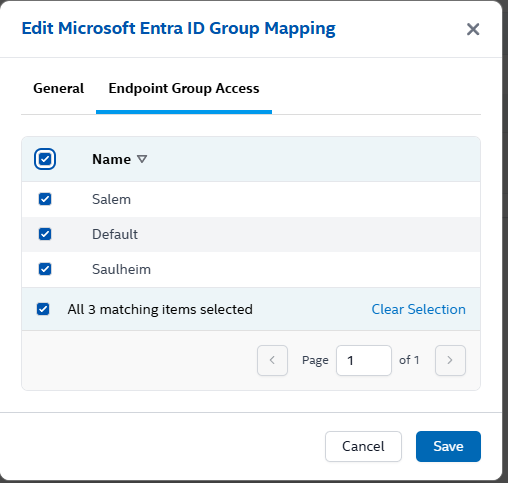
The selection is a list of the endpoint groups that exist right now, so check your mappings whenever you add a new endpoint group in Part 2.
vPro-RBAC-EndpointOperator-Salem gets the same role,
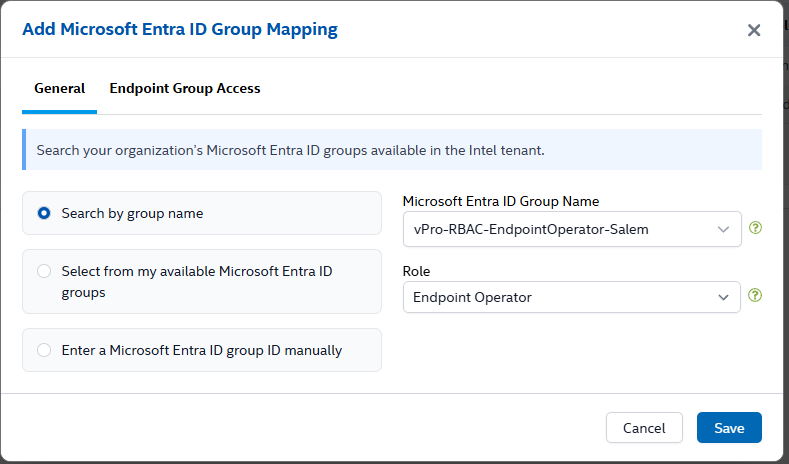
but access to the Salem endpoint group only.
The Result
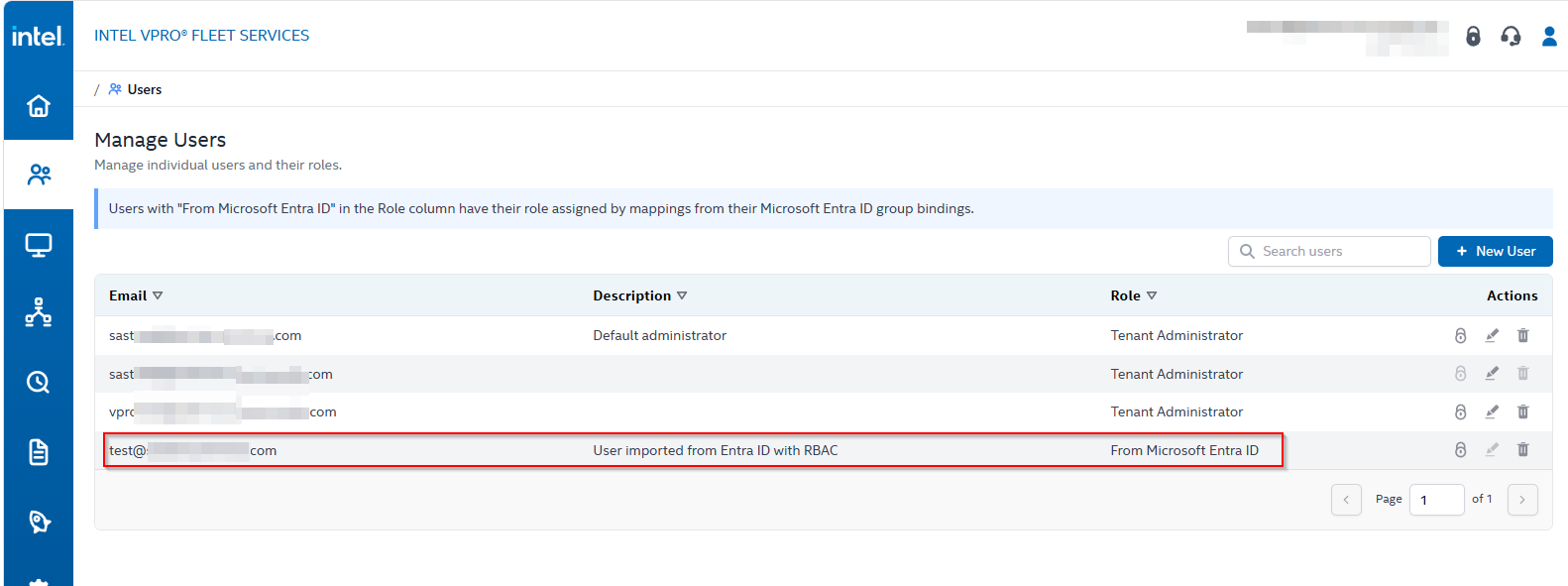
When a member of one of the groups signs in for the first time, Fleet Services creates the user automatically. In Users, the account shows up with the description User imported from Entra ID with RBAC and the role From Microsoft Entra ID. Its role cannot be edited in the portal, because it comes from the group mapping.
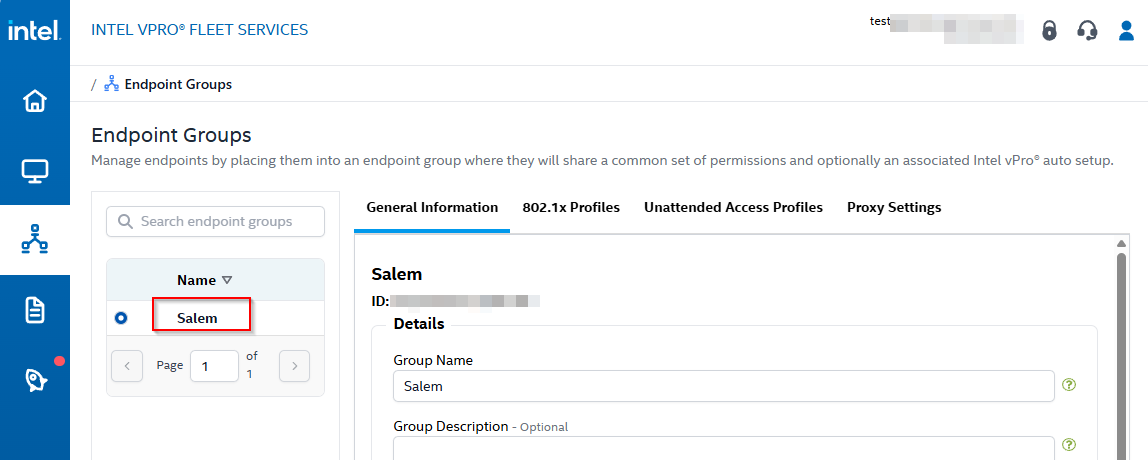
My test user is a member of vPro-RBAC-EndpointOperator-Salem. After signing in, the navigation has no Users, audit log or Settings, and Endpoint Groups only shows Salem.
The Catch: Every RBAC User Needs a Passphrase
There is one manual step left, and it defeats much of the purpose. With the passphrase required, an imported user cannot perform any device operation until a Tenant Administrator resets their passphrase in Users (1) with the lock icon (2) and Reset (3), and then hands the temporary passphrase over through a secure channel. The user has to change it at the next sign-in, like in Step 2.
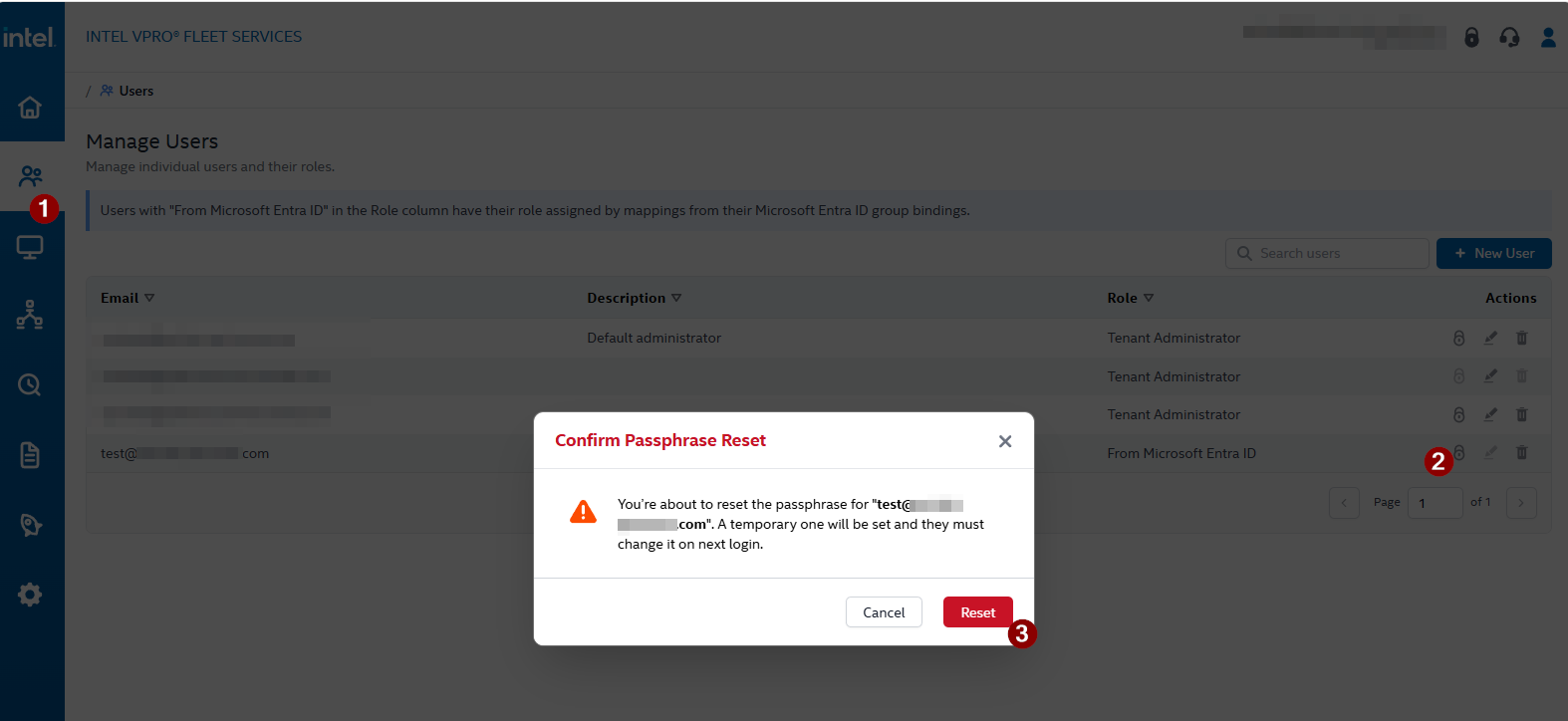
For a handful of administrators that is acceptable. For a helpdesk team managed through group membership, it turns every new team member into a ticket for a Tenant Administrator. That is why I disabled the passphrase in my tenant, which brings us to the last step.
Step 6: Keep or Disable the Passphrase
The passphrase is independent of sign-in and authorization. A user can be fully signed in and hold the right role, and still be unable to work with devices without it. Intel documents the details in Resource Center > Passphrase Management. These are the operations that need the passphrase:
- Provisioning a device for management by Fleet Services
- Power actions such as power on, power off and restart
- KVM remote control
What Disabling Changes
When you disable the passphrase, Fleet Services generates a single system passphrase for the tenant, stores it in its backend and uses it transparently for all device operations. Nobody is prompted anymore.
| Passphrase required (default) | Passphrase disabled | |
|---|---|---|
| Key for the AMT credentials | Each user’s own passphrase | One system passphrase per tenant |
| Where the key lives | Only with your users | In the Intel backend |
| Prompt for provisioning, power actions, KVM | Yes, can be remembered for the session | No |
| New RBAC user | Administrator has to reset and hand over a passphrase | Can work right after the first sign-in |
| Pairing tokens | Generated with the user’s passphrase | Generated with the system passphrase |
| What protects device operations | Sign-in, role and passphrase | Sign-in and role |
The second row is the one to think about. In Step 2, I called the passphrase the part that makes this service trustworthy, because only your people hold the key. With the passphrase disabled, that promise no longer holds in the same strict form: the key now lives with Intel. What is left between an attacker and KVM access to your fleet is the sign-in. For Entra ID users, that means your Conditional Access policies. For local accounts, it means the Intel account password.
Disable It
Like enabling RBAC, this requires a Tenant Administrator signed in through Entra ID, the local account from Step 1 does not work. Go to Settings (1), turn off Require passphrase for sensitive operations (2) and confirm with Disable (3).
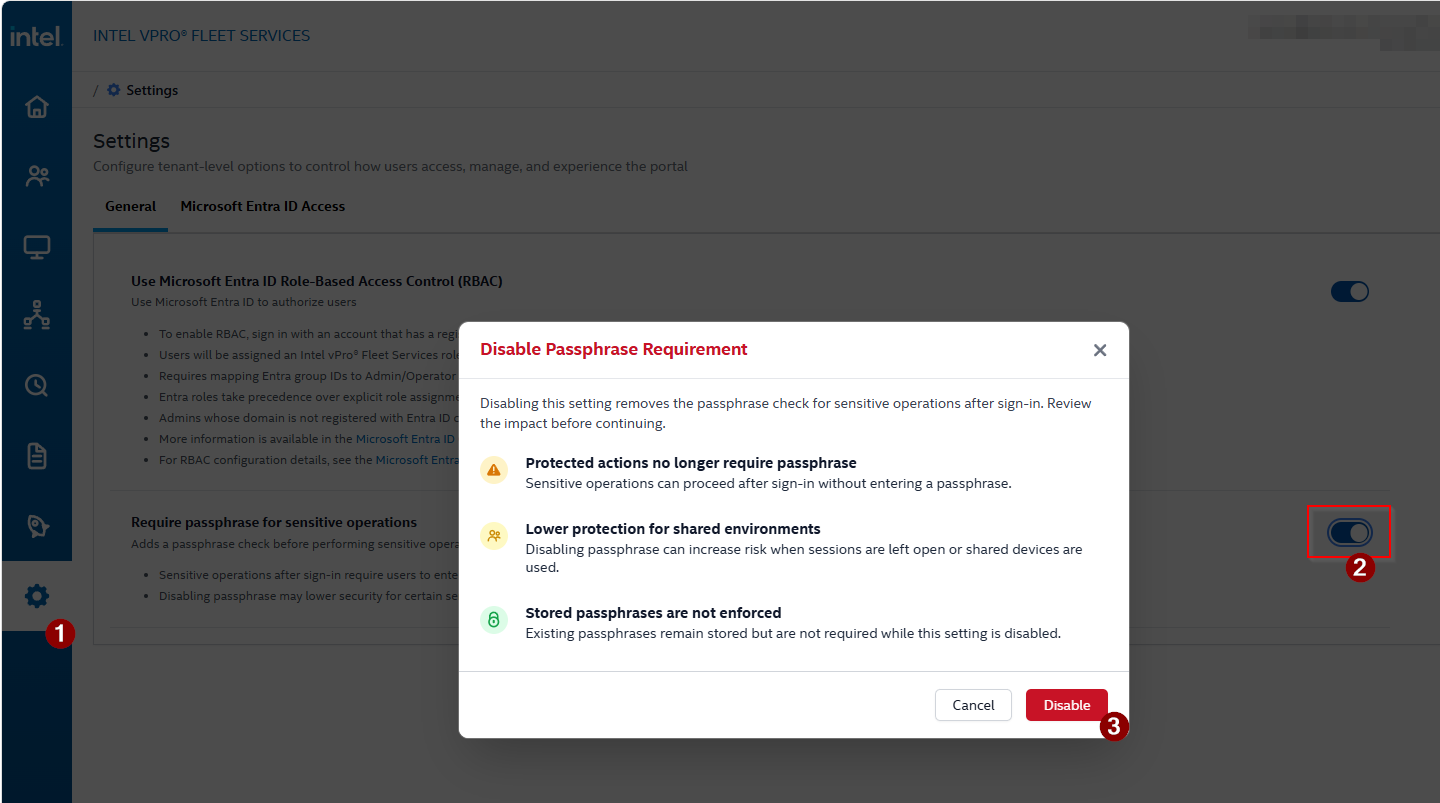
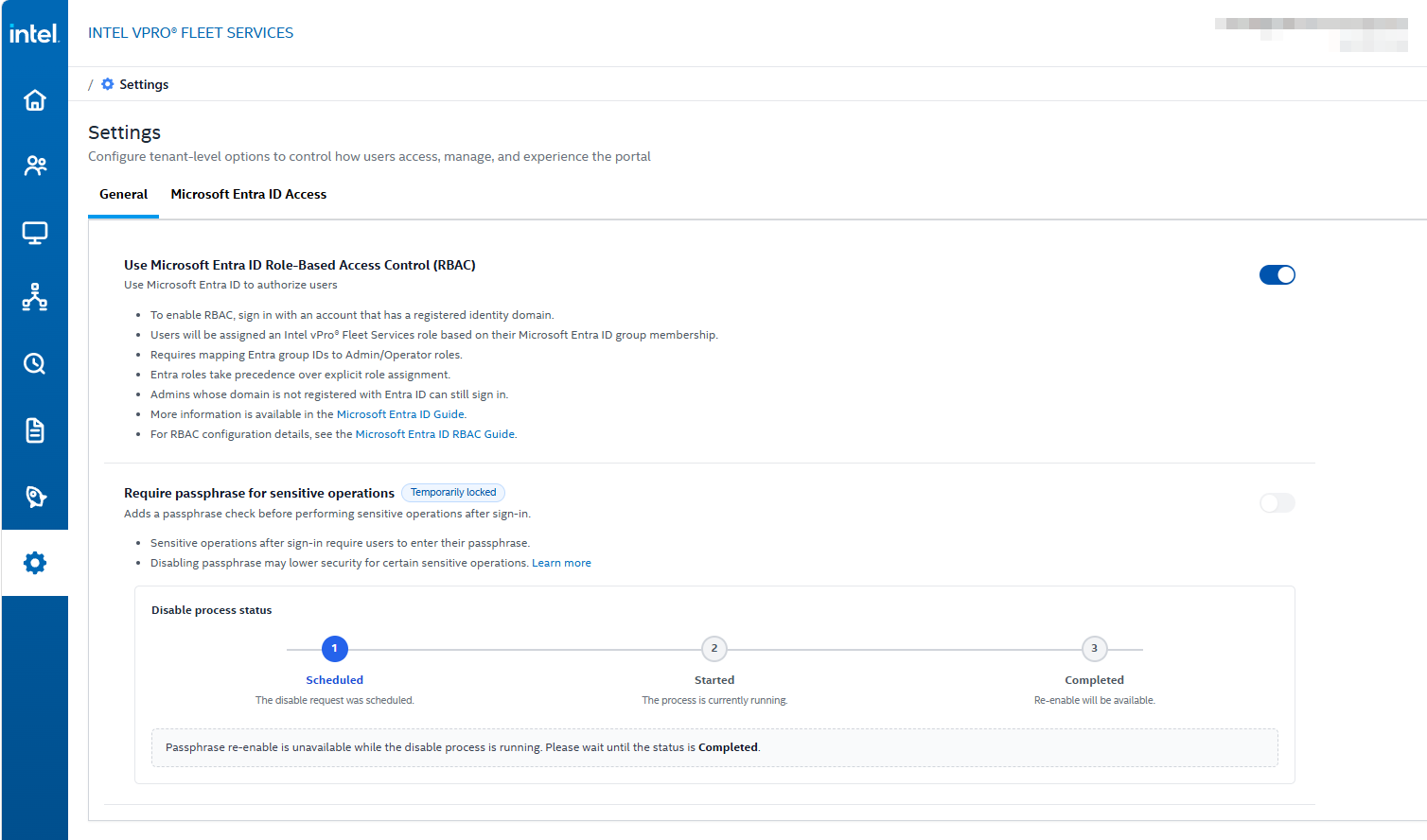
Do not let the dialog mislead you: it says that existing passphrases remain stored, but they do not. The system passphrase is active immediately, and a background job deletes the individual user passphrases as part of the disable process. The setting shows Temporarily locked with the progress of that job. Once it has finished, the old passphrases are gone for good, which is why re-enabling means handing out new ones (see below).
Things to Know Before You Switch
- Pairing tokens stop working. Tokens generated with the old mode can no longer register endpoints. You need pairing tokens for the agent deployment in Part 2, so make the decision before you build the Intune package, not after you have rolled it out.
- Re-enabling is possible, but not cheap. You can only switch back after the cleanup job has finished. The administrator who re-enables it sets a new passphrase for themselves, and every other user is blocked from device operations until an administrator regenerates a passphrase for them. Pairing tokens have to be generated again as well.
- Harden the sign-in instead. Target the Intel vPro Fleet Services enterprise application with Conditional Access: phishing-resistant MFA and, ideally, a compliant or privileged access device. Treat
vPro-RBAC-TenantAdminlike any other privileged role group, with few members and access reviews or PIM for Groups. - Keep local accounts to a minimum. They bypass Conditional Access, and without the passphrase, their password is the only thing that protects them.
My take: if you only have two or three administrators who work with Fleet Services, keep the passphrase. As soon as you use Entra ID RBAC to give a helpdesk team access through group membership, disabling it and putting the effort into Conditional Access is the more practical setup.
Wrap-Up
At this point you have:
- An Intel vPro Fleet Services tenant with a default administrator that stays available as a local break-glass account
- Entra ID sign-in, limited to the members of your RBAC groups
- Entra ID groups mapped to the Tenant Administrator and Endpoint Operator roles, scoped to endpoint groups
- A deliberate decision about the passphrase, made before the first pairing token
If you are in the EU, make sure your data protection officer has signed off on the hosting and GDPR points before the agent goes out in Part 2.
What you do not have yet is a single managed device. In Part 2, we find the vPro devices in your fleet with a remediation, package the Fleet Services agent as an Intune app, deploy it to a pilot group and watch the devices show up in the portal.
If you are reading this because you just found out that half your fleet has vPro and nobody ever provisioned it: either claim it or disable it. After 2018, those are the only two acceptable states, and with Fleet Services, claiming it is finally the easier option.