In Part 1, we onboarded the Fleet Services tenant, connected Entra ID for sign-in and RBAC, and made a decision about the passphrase. The portal is ready, but it does not know a single device yet. This part changes that. We package the Fleet Services agent with PSAppDeployToolkit, create the Win32 app, find out which devices can actually do vPro, fix broken Management Engine drivers with a second app, and deploy both to a pilot group until the first endpoint shows up in the portal.
Everything I use in this part is on GitHub:
- IntelvProFleetServicesAgent - the PSADT deployment script, the Intune requirement script and a README with all Win32 app settings
- Test-vProCapabilities - a detect-only remediation that reports the vPro state of your Windows devices
- IntelManagementEngineDriver - a PSADT package for the Intel MEI driver, LMS, the ME WMI provider and the SOL driver, with requirement and detection scripts
The Series
| Part | Topic |
|---|---|
| Part 1 | Onboarding the tenant, passphrase handling, connecting Entra ID SSO and RBAC |
| Part 2 (this article) | Identifying vPro devices with a remediation, fixing the MEI driver, and onboarding clients by building and deploying the agent as an Intune app package |
| Part 3 | Managing endpoints with vPro: power actions, KVM, remote recovery |
Table of Contents
- Thanks
- Step 1: Create an Endpoint Group and Download the Agent
- Step 2: Build the Package with PSAppDeployToolkit
- Step 3: Create the Win32 App
- Step 4: Find Out Which Devices Can Do vPro
- Step 5: Fix the MEI Driver with a Second App
- Step 6: Assign the Apps to a Pilot Group
- Step 7: Watch the Device Show Up
- Things to Know Before You Roll Out
- Wrap-Up
Thanks
Lots of thanks to the Intel vPro Fleet Services team.
In my lab, I worked with a test tenant they provided.
So many questions, all patiently answered.
All opinions and any mistakes here are my own.
Step 1: Create an Endpoint Group and Download the Agent
Endpoint groups are where your devices end up in Fleet Services, and they are the scope of the RBAC mappings from Part 1. A device does not pick its group. It joins the group whose pairing token it was installed with.
Go to Endpoint Groups > New Endpoint Group and create a group per site, team or whatever scope you want to delegate. In my tenant, Salem and Saulheim sit next to the Default group. Select a group, and the General Information tab shows what you need for the deployment.
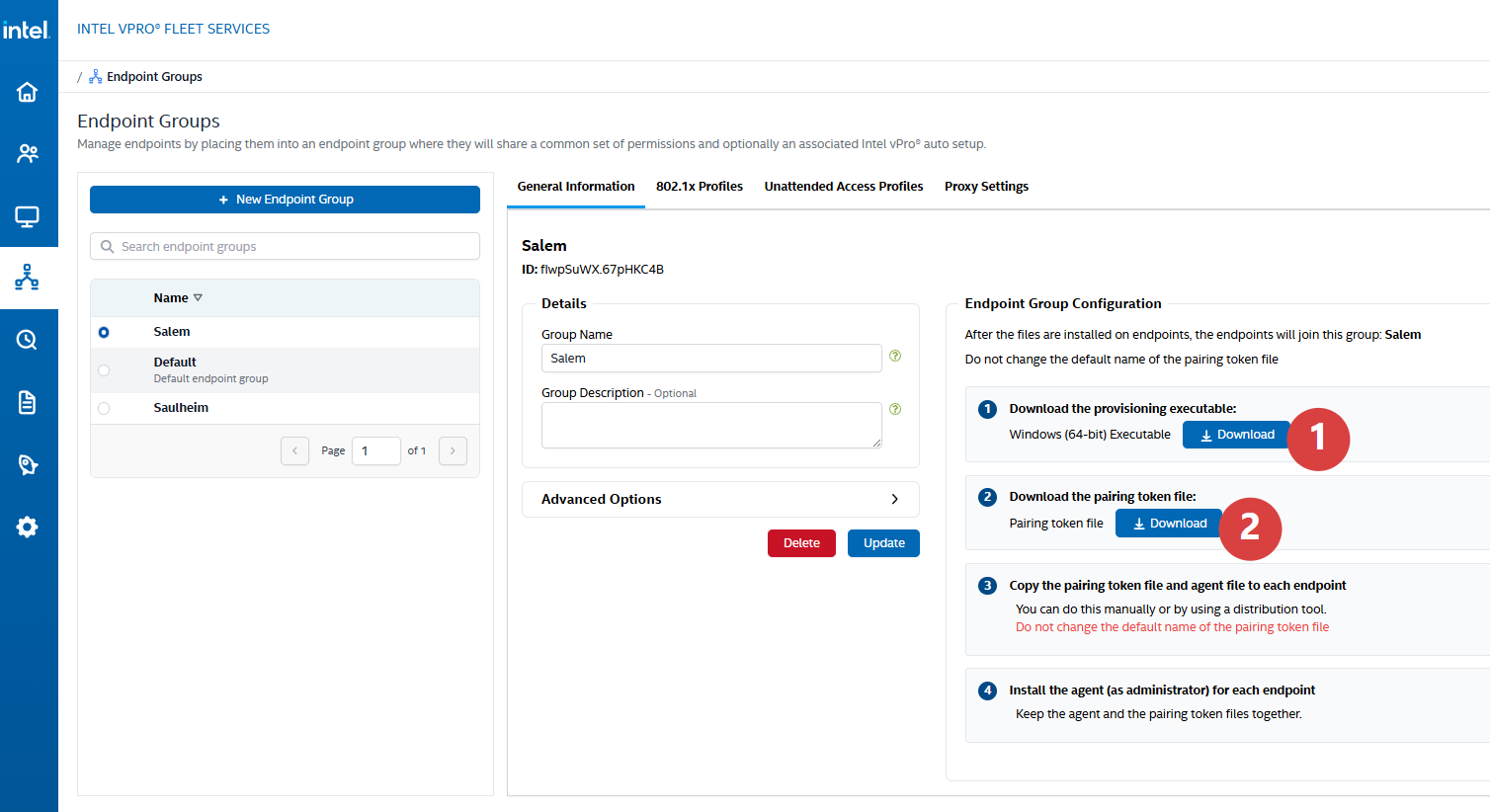
Download the agent installer (1) and the pairing token file (2). In my tenant, the installer was vProFleetAgent.Installer.msi, version 1.2.7, and the token is a file named PairingToken. Steps 3 and 4 in the portal tell you the rest: both files have to be on the device, side by side, the token keeps its name, and the agent is installed as administrator. The MSI picks up the token from its own directory.
That has a few consequences:
| What | Why it matters |
|---|---|
| The token decides the endpoint group | You need one package per endpoint group, each with its own token |
| The token is a secret | Anyone who has it can pair a device with your tenant |
| Tokens depend on the passphrase mode | Switching the passphrase on or off invalidates them (Part 1, Step 6), so the package has to be rebuilt |
| New endpoint groups are not in your RBAC mappings | Add them to the scoped Endpoint Operator mappings (Part 1, Step 5) before the first device joins |
The other tabs, 802.1x Profiles, Unattended Access Profiles and Proxy Settings, are optional. The package below installs the agent with INSTALLATION_TYPE=STANDARD, which covers devices without 802.1X and devices with 802.1X and Windows Integrated authentication, without a proxy.
Unattended Access decides whether someone has to sit in front of the device. Without it, AMT runs in Client Control Mode: before a KVM session starts, the user has to read a consent code from the screen to the admin. That is fine for a supported user, but useless for a device in an empty office or one that hangs before Windows starts. Unattended access needs Admin Control Mode, and Admin Control Mode needs a provisioning certificate. It has to come from a CA whose root is built into the AMT firmware, and it has to be issued for the DNS suffix of your devices. I do not have such a certificate in my lab yet. Once I do, I may cover unattended access in a follow-up. Until then, this series works with user consent, and Part 3 shows what that looks like for the user.
Step 2: Build the Package with PSAppDeployToolkit
You could deploy the MSI with a plain msiexec command line, because Intune extracts the whole package into one folder and the token would be next to the MSI. I still wrap it in PSAppDeployToolkit 4.1, for three reasons:
- A package without a token fails. Without
PairingToken, the agent installs fine and never pairs, and Intune happily reports Installed. The script checks both files first and exits with69001if one is missing or empty. - Uninstall un-pairs first. Before the MSI is removed, the script runs
IntelvProFleetServicesAgent.exe un-pair. - Logs. You get a PSADT log and an msiexec log in a known place.
| Deployment type | What happens |
|---|---|
| Install | Checks that Files\vProFleetAgent.Installer.msi and Files\PairingToken exist and are not empty (else exit 69001), then installs the MSI with INSTALLATION_TYPE=STANDARD |
| Uninstall | Runs IntelvProFleetServicesAgent.exe un-pair (best effort, 5 minute timeout, failures are only logged as warnings), then uninstalls the MSI |
| Repair | Same file checks as Install, then repairs the MSI |
If you need a proxy, add it to $msiProperties in the script, for example 'INSTALLATION_TYPE=STANDARD', 'CONFIGURE_PROXY=YES', 'PROXY_URL=http://proxy:8080'.
What un-pair Does and What It Does Not
un-pair only cleans up the device side. It removes the pairing data from the OS and the install location, and that is all it does:
- The device stays in Fleet Services. The endpoint keeps the configuration it had when it was paired, and Intel AMT stays connected to Fleet Services.
- The AMT admin password is not touched. It is neither reset nor removed. Intel AMT stays provisioned with the same password.
- Pairing the agent again creates a duplicate. If you install the agent again, the device shows up in Fleet Services a second time, next to the old endpoint.
To take a device out of management, stop managing it in the Fleet Services portal. The portal shows you the admin password and unconfigures Intel AMT automatically if the device is connected. Save that password anyway. If the device is not connected at that moment, Intel AMT stays configured, and the password is what you need to unconfigure it later.
The repository only contains the deployment script, the requirement script and the README. The PSADT framework comes from the module, and the MSI and the token are copied into Files\ at build time:
Install-Module PSAppDeployToolkit -RequiredVersion 4.1.8 -Scope CurrentUser
New-ADTTemplate -Destination C:\Build -Name IntelvProFleetServicesAgent -Version 4

$pkg = 'C:\Build\IntelvProFleetServicesAgent'
Copy-Item .\Invoke-AppDeployToolkit.ps1 $pkg -Force
Copy-Item <download folder>\vProFleetAgent.Installer.msi, <download folder>\PairingToken "$pkg\Files\"

# ProductCode for the Intune detection rule
Import-Module PSAppDeployToolkit
Get-ADTMsiTableProperty -LiteralPath "$pkg\Files\vProFleetAgent.Installer.msi" -Table Property |
    Select-Object ProductName, ProductVersion, ProductCode

IntuneWinAppUtil.exe -c $pkg -s Invoke-AppDeployToolkit.exe -o C:\Build\Out
For version 1.2.7 of the agent, the MSI properties are:
| Property | Value |
|---|---|
| ProductName | Intel vPro(R) Fleet Services Agent 1.2.7 (the version is part of the name, so do not detect by name) |
| ProductCode | {091A3171-34D0-444F-8826-C72E7CECDDC1} |
| UpgradeCode | {5D76BF8E-50C1-4716-A85A-B2B9CDBD9EEC} |
| ALLUSERS | 1 (per-machine) |
| CLEANAGENTDATA | TRUE (agent data is removed on uninstall) |
Keep AppVersion in the script in sync with the MSI version, it is part of the log file name.
The
.intunewincontains the pairing token. Treat the build folder and the package like a secret: do not put them on a file share everyone can read, and never commit the token. The.gitignorein the repository only lets the scripts and the README through.
Step 3: Create the Win32 App
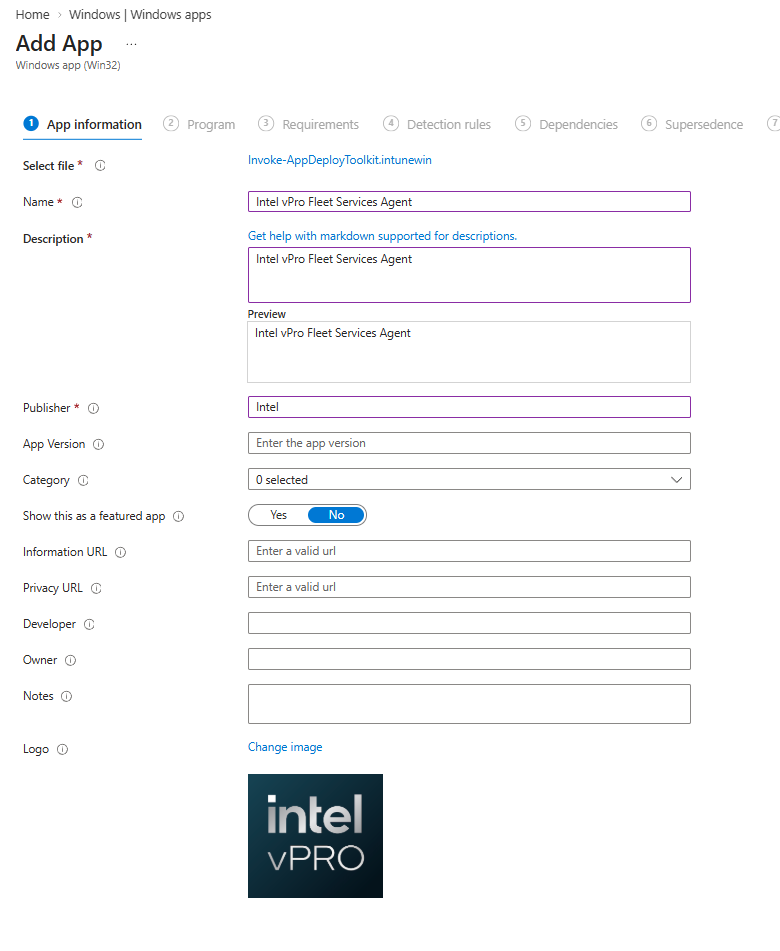
Go to Apps > Windows > Create > Windows app (Win32) and upload the .intunewin. Name, description and publisher are up to you. Since every package belongs to one endpoint group, I recommend putting the group in the name once you have more than one, for example Intel vPro Fleet Services Agent - Salem.
Program
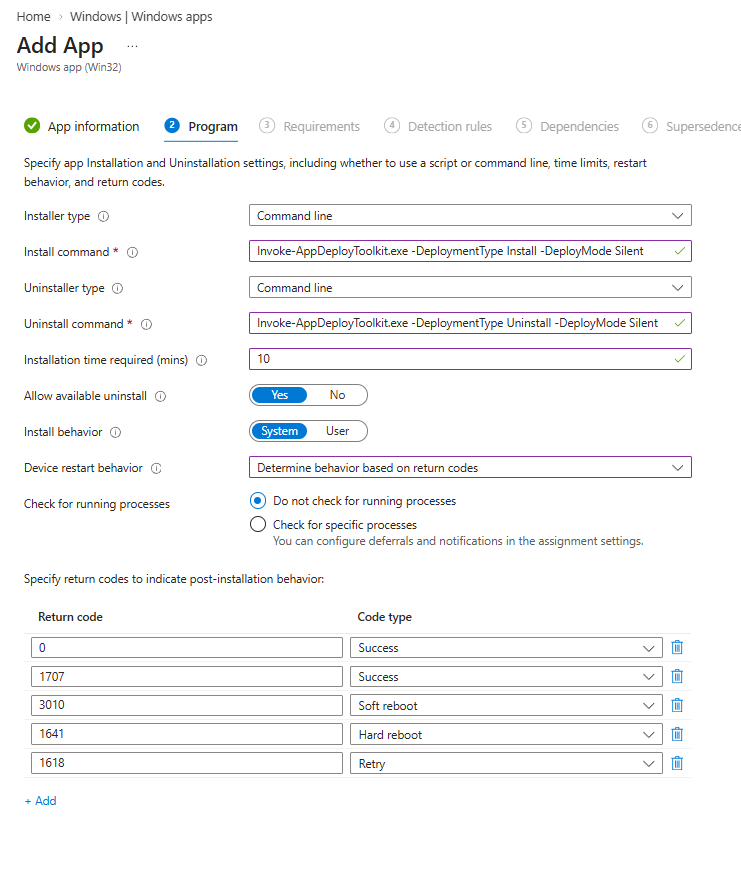
| Setting | Value |
|---|---|
| Install command | Invoke-AppDeployToolkit.exe -DeploymentType Install -DeployMode Silent |
| Uninstall command | Invoke-AppDeployToolkit.exe -DeploymentType Uninstall -DeployMode Silent |
| Installation time required | 10 minutes |
| Install behavior | System |
| Device restart behavior | Determine behavior based on return codes |
| Return codes | Defaults, optionally 69001 as Failed |
Intune treats any return code that is not in the list as a failure, so 69001 works without an entry. Adding it documents the code in the app itself.
Requirements
The agent should only land on devices that can be provisioned. One way to make sure of that is a requirement script. It reuses the hardware logic of the remediation from Step 4 and adds one more check: the MEI driver has to work, because the agent talks to AMT through it. The AMT provisioning state and LMS are ignored on purpose, since provisioning is the agent’s job.
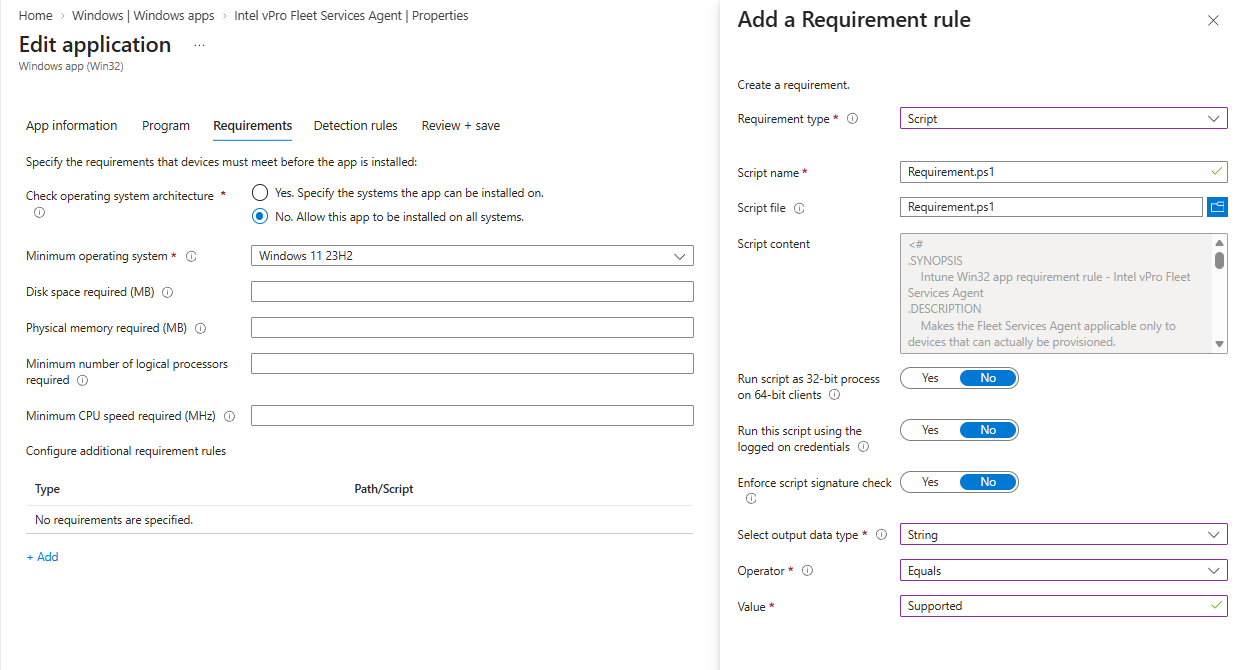
| Setting | Value |
|---|---|
| Minimum operating system | Windows 11 23H2 |
| Requirement type | Script, Requirement.ps1 |
| Run script as 32-bit process on 64-bit clients | No |
| Run this script using the logged on credentials | No |
| Enforce script signature check | No |
| Select output data type | String |
| Operator | Equals |
| Value | Supported (case-sensitive) |
The script writes exactly one line, Supported or NotSupported, and always exits with 0. Every other device shows up as Not applicable instead of failed. The reason for a NotSupported would break the string comparison, so it goes to a log instead: C:\ProgramData\Microsoft\IntuneManagementExtension\Logs\vProFleetAgent-Requirement.log. That folder is part of Collect diagnostics, and the log is capped at 1 MB because requirement scripts run on every evaluation.
This is also why you can assign the app broadly. Intune evaluates requirements on every check-in, so a device becomes applicable on its own as soon as its MEI driver is fixed. Step 5 takes care of that.
The remediation and the requirement script share the SMBIOS check and the match for the Management Engine device. If you ever change one of them, change it in both scripts.
Detection
The detection rule is the MSI product code.
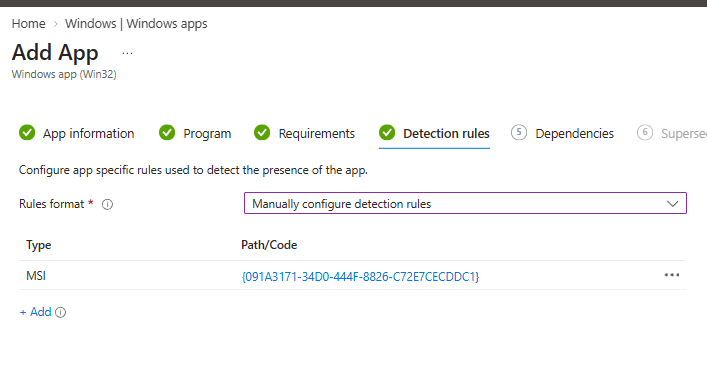
Be aware of what it proves: the agent is installed, not that pairing worked. Whether the device has paired, you see in the portal (Step 7).
I do not use dependencies or supersedence for the first version. Step 5 explains why a dependency on the driver app would not help.
Step 4: Find Out Which Devices Can Do vPro
The app is ready, but before you assign it, you want a list. Which devices have vPro hardware, which of them have a broken Intel Management Engine driver, and which only look like vPro because they have an Intel CPU? The Fleet Services portal cannot answer that, because it only sees devices after the agent is installed. Intune cannot answer it either: there is no vPro property in the device inventory, and filters cannot see it.
I use a detect-only remediation for this. The script reads the Intel $AMT structure from SMBIOS, which contains the actual ME firmware SKU. That is the only reliable way to tell a vPro platform from a consumer platform that also has Management Engine hardware in Device Manager. Only when SMBIOS cannot be read does it fall back to the CPU brand string and the AMT WMI provider.
| ME SKU in SMBIOS | vPro capable |
|---|---|
| Full AMT Manageability | Yes, vPro Enterprise |
| Standard Manageability on ME 16 or newer | Yes, vPro Essentials |
| Standard Manageability below ME 16, Small Business Advantage, Consumer | No |
After the hardware, the script checks the software side. It looks for the Management Engine in Device Manager by name and by hardware ID, an Intel PCI device with class code 07 80. Without a driver, Windows names it PCI Simple Communications Controller, and a name match alone would report a device with a missing driver as a device without a Management Engine. Then the script checks the Intel MEI driver, the Intel Local Manageability Service (LMS), the AMT WMI provider and the AMT provisioning state. The provisioning state comes from the firmware itself, through GetProvisioningState() of the OOB_Service class in the AMT WMI provider. That makes it correct no matter which tool provisioned the device: Fleet Services, Intel EMA, Intel SCS or a manual setup in MEBX. The registry keys under HKLM:\SOFTWARE\Intel are only a fallback, because Intel SCS is the only tool that writes them. The result is one of three statuses:
| Status | Exit code | Intune shows | Meaning |
|---|---|---|---|
FullyReady |
0 | Without issues | vPro hardware, working MEI driver, LMS running, AMT WMI available, AMT provisioned |
SoftwareActionNeeded |
1 | With issues | The hardware supports vPro, but the driver, LMS, WMI provider or provisioning is missing |
HardwareNotCapable |
1 | With issues | No vPro SKU, no ME hardware or not an Intel CPU |
GetProvisioningState()only works as a static call. The Intel ME WMI provider lists the methods ofOOB_Service, but calling them on an instance fails withProvider failure (0x80041004). OnlyInvoke-CimMethod -ClassName OOB_Service -MethodName GetProvisioningStatereturns the state. Keep that in mind if you adapt the script.
Create the Remediation
Go to Devices > Scripts and remediations > Create. I named it Remediation-Win-IntelvProState.
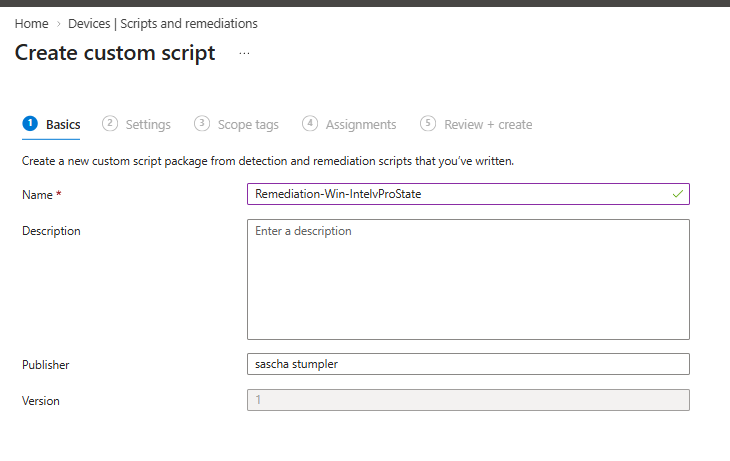
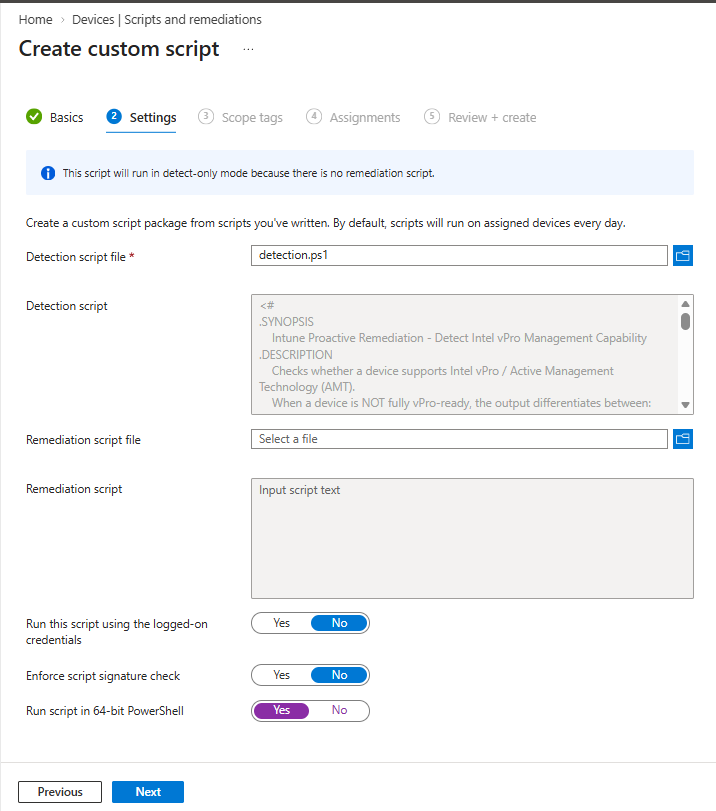
Upload detection.ps1 as the detection script and leave the remediation script empty. Intune tells you that the script runs in detect-only mode, which is exactly what we want. It runs as System, without signature check, in 64-bit PowerShell.
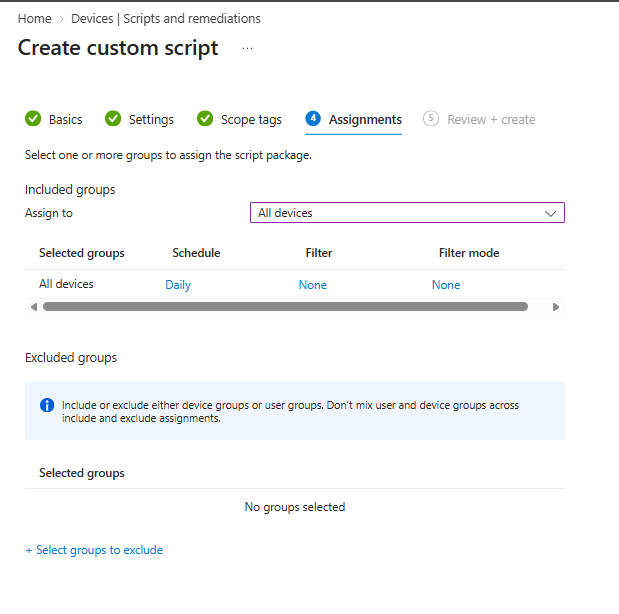
Assign it to All devices with the daily schedule. It does not change anything on the device, so there is no reason to scope it down.
Read the Results
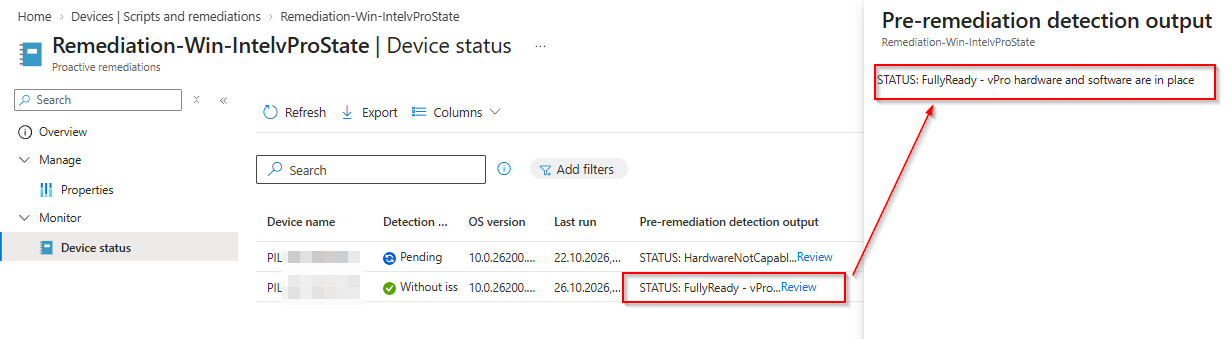
After the first run, open Monitor > Device status and look at Pre-remediation detection output. The script writes a JSON line with every single check first and the STATUS line last. Intune only shows the last line, so the status is what you see in the portal, and the full JSON is there when you run the script locally.
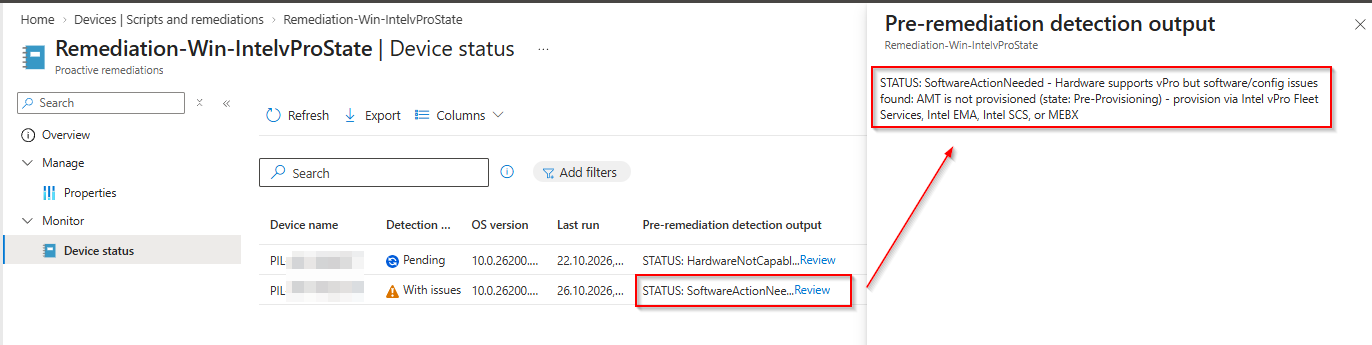
This is my pilot device before the agent: vPro hardware, but AMT is still in Pre-Provisioning. If you have read the history in Part 1, you recognize that state. It is vPro hardware that nobody has claimed yet, and the export of all SoftwareActionNeeded devices is your rollout scope.
Keep in mind that HardwareNotCapable also shows up as With issues, so filter on the output, not on the detection status. And take the devices with MEI driver is not functional seriously. The access credentials email from Part 1 already reminded you to update the Management Engine drivers and firmware, and the agent must not land on those devices until the driver works. That is what the next step is for.
If the output says state: Unknown, the AMT WMI provider answered, but the provisioning state query failed and there are no SCS registry keys to fall back on. Run the script locally on that device and look at the full JSON.
Step 5: Fix the MEI Driver with a Second App
The devices with MEI driver is not functional have vPro hardware, but the agent’s requirement script rejects them, because the agent talks to AMT through the MEI driver. Windows Update or the OEM tools may deliver a driver at some point, but that is not a rollout plan. So I package the driver myself, from Intel’s Management Engine Drivers for Windows 10 and Windows 11 download.
The package installs these components of the download with pnputil, using the DCH INF files. DAL is left out.
| Folder | Component | Why |
|---|---|---|
Files\MEI |
Intel Management Engine Interface (MEI) driver | The agent and everything else talk to the ME through it |
Files\LMS |
Intel Local Manageability Service (LMS) | Local AMT access |
Files\WMIProvider |
Intel ME WMI provider (root\Intel_ME) |
The remediation from Step 4 needs it for FullyReady and to read the AMT provisioning state |
Files\SOL, Files\SOL_LMS_Extension |
Intel AMT Serial Over LAN driver and its LMS extension | Driver for the AMT serial port on vPro devices, otherwise an unknown “PCI Serial Port” shows up in Device Manager |
| Deployment type | What happens |
|---|---|
| Install | Checks that each driver folder contains INF files (else exit 69001) and that the DriverVer of the MEI INF matches AppVersion (else exit 69002). Then runs pnputil /add-driver <inf> /install for every INF, folder by folder in the order of the table above. INFs below legacy OS folders such as MEI\win8 are skipped |
| Uninstall | Finds the driver store packages that came from the package INFs and removes them with pnputil /delete-driver /uninstall, in reverse order. The devices fall back to the next best driver in the store |
| Repair | Same as Install |
The script calls pnputil once per INF instead of using /subdirs. Intel ships legacy drivers for Windows 7 and 8 next to the Windows 10/11 ones, and those must not end up in the driver store.
pnputil returns 259 when it added the driver to the store but no device needed it, because the same or a newer driver is already installed, or because there is no matching device, for example the SOL driver on a platform without vPro. The package treats that as success.
Build the Package
The build works like the agent package. The driver folders come from the extracted download and keep the names they have in Intel’s Drivers\ folder. Intel(R)_CSME_SW_Installation_Guide.pdf in the zip lists which folder holds which component:
Install-Module PSAppDeployToolkit -RequiredVersion 4.1.8 -Scope CurrentUser
New-ADTTemplate -Destination C:\Build -Name IntelManagementEngineDriver -Version 4

$pkg = 'C:\Build\IntelManagementEngineDriver'
Copy-Item .\Invoke-AppDeployToolkit.ps1 $pkg -Force

$src = '<download folder>\intel_security_engine_software_ME_2618.9.30.0\Drivers'
'MEI', 'LMS', 'WMIProvider', 'SOL', 'SOL_LMS_Extension' |
    ForEach-Object { Copy-Item "$src\$_" "$pkg\Files\$_" -Recurse }

# DriverVer of the INFs: the MEI version goes into AppVersion and Detection.ps1
Get-ChildItem "$pkg\Files" -Filter *.inf -Recurse |
    Select-String -Pattern '^\s*DriverVer' | Select-Object Path, Line

IntuneWinAppUtil.exe -c $pkg -s Invoke-AppDeployToolkit.exe -o C:\Build\Out
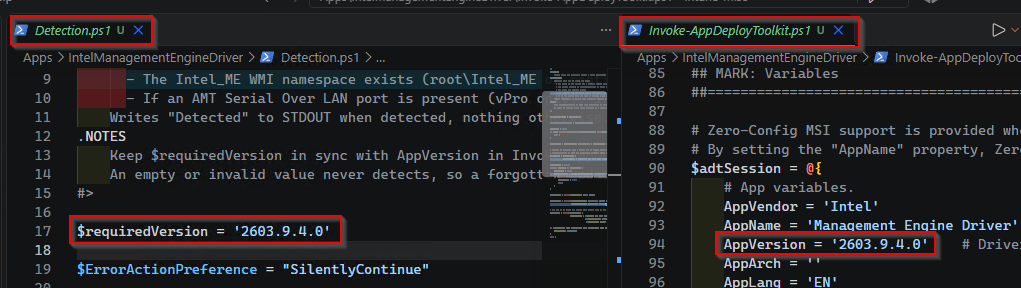
For the bundle ME_2618.9.30.0, the MEI driver heci.inf has version 2603.9.4.0 and LMS LMS.inf has 2613.9.7.0. The MEI version goes into two places: AppVersion in Invoke-AppDeployToolkit.ps1 and $requiredVersion in Detection.ps1. If you forget the first, the install fails with 69002. If you forget the second, the app is never detected. Both mistakes show up in the first test, not in production.
Create the Win32 App
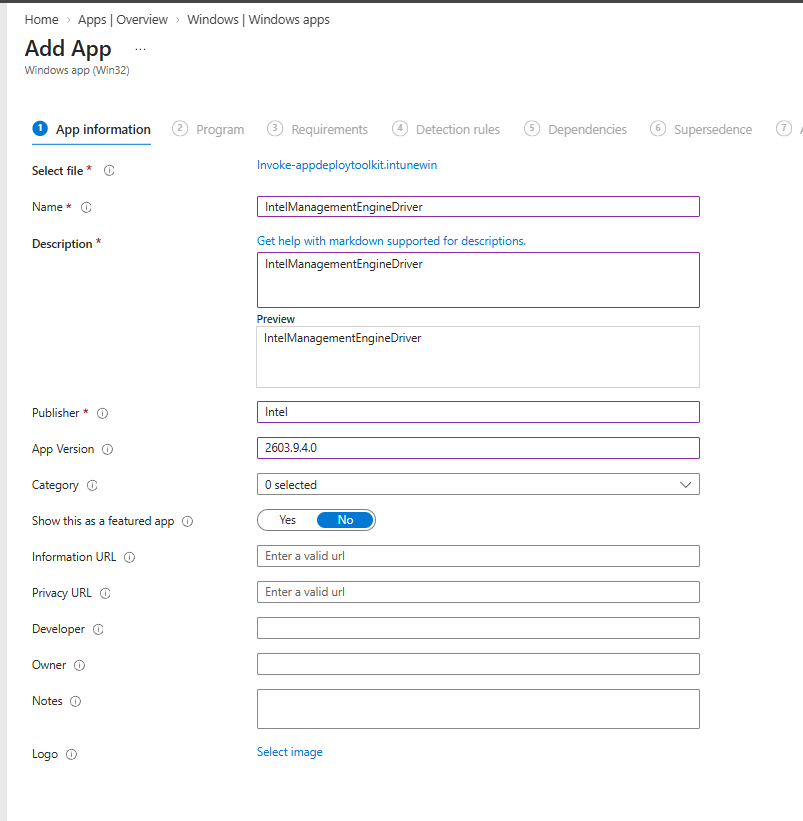
Upload the .intunewin as a second Win32 app. I use the MEI driver version as the app version.
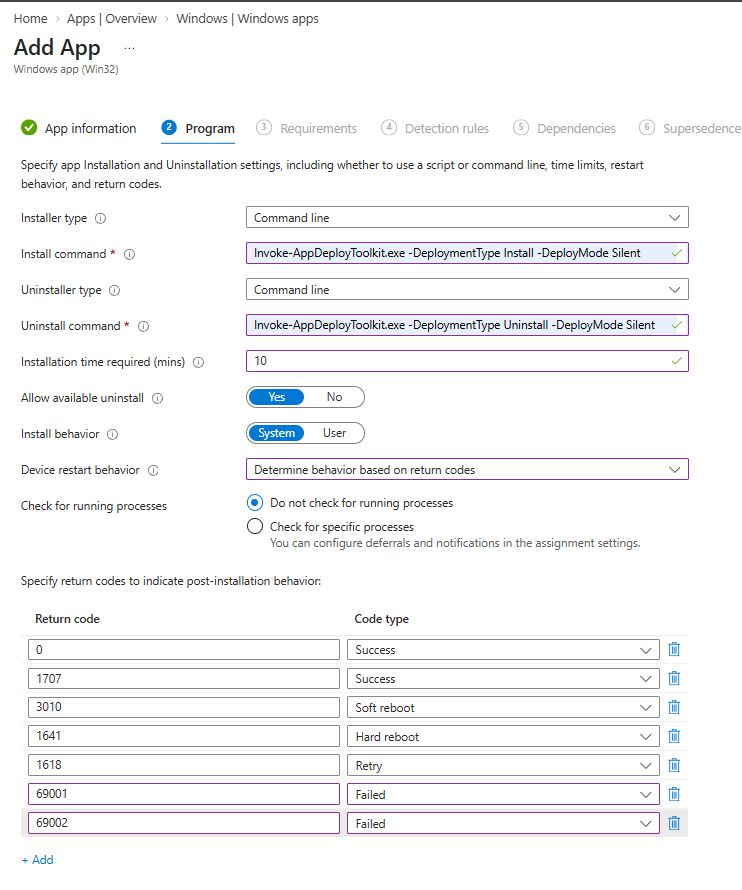
The program settings are the same as for the agent, plus 69002 as a second failure code.
| Setting | Value |
|---|---|
| Install command | Invoke-AppDeployToolkit.exe -DeploymentType Install -DeployMode Silent |
| Uninstall command | Invoke-AppDeployToolkit.exe -DeploymentType Uninstall -DeployMode Silent |
| Installation time required | 10 minutes |
| Install behavior | System |
| Device restart behavior | Determine behavior based on return codes |
| Return codes | Defaults, plus 69001 and 69002 as Failed |
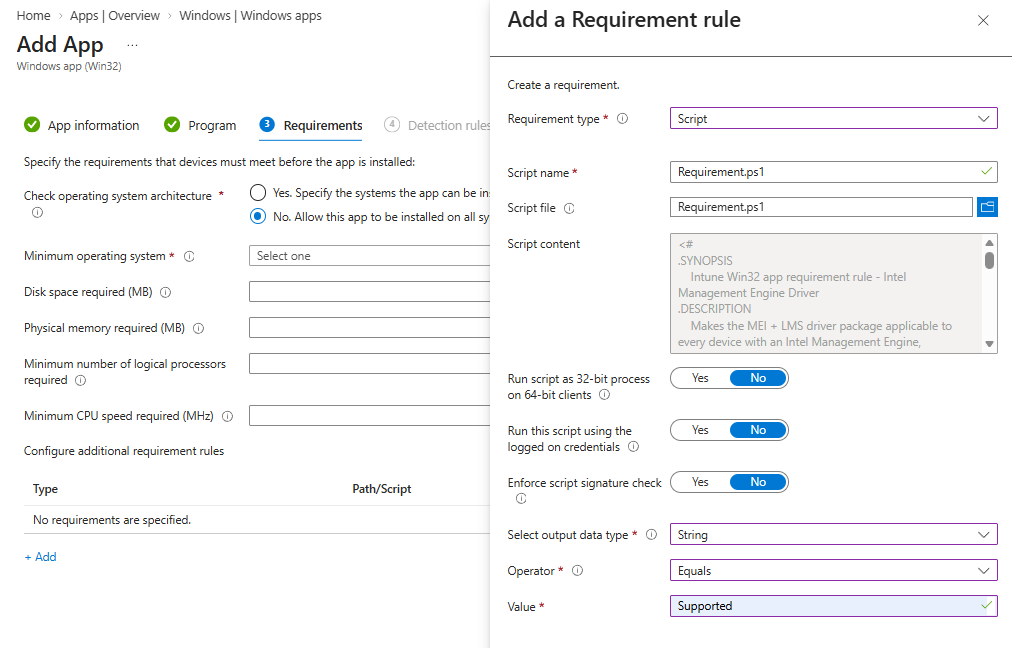
On the Requirements tab, set the minimum operating system to Windows 11 24H2. The requirement script makes the app applicable to every device with an Intel Management Engine, in any driver state. It uses the same device match as the remediation, so a device without any driver is found as well. It has the same settings as the agent’s requirement: String, Equals, Supported. It logs the devices it found to C:\ProgramData\Microsoft\IntuneManagementExtension\Logs\IntelMEDriver-Requirement.log.
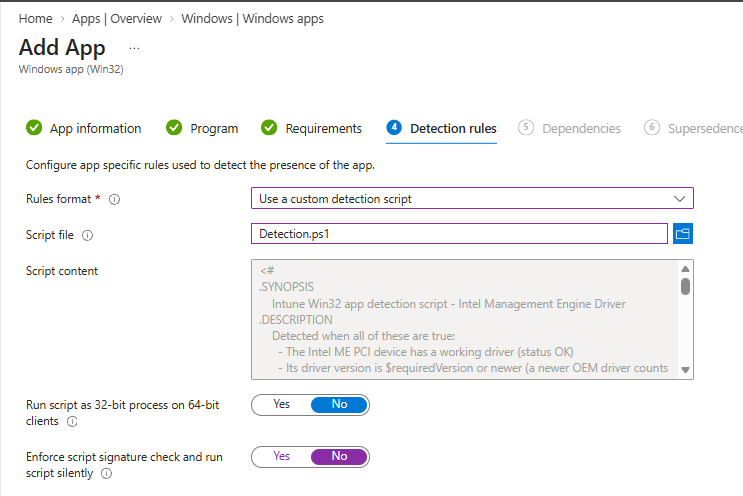
The detection script reports the app as installed when the Management Engine has a working driver with the packaged version or newer, the LMS service exists, the Intel_ME WMI namespace exists, and there is no AMT Serial Over LAN port without a working driver. A newer driver from the OEM or Windows Update counts as installed, so the app does not fight them and does not downgrade anything. LMS, WMI and SOL are only checked for presence, not for their version.
A dependency does not help here. It is tempting to make the driver app a dependency of the agent. But Intune checks the agent’s requirement first. On a device with a broken MEI driver, the agent is Not applicable, and Intune never gets to its dependencies. Assign both apps to the same group instead. Once the driver app has fixed the driver, the agent’s requirement passes on the next evaluation and the agent installs.
Step 6: Assign the Apps to a Pilot Group
Assign both apps as Required to the same device group. In my tenant, the group for Salem is MDM-Win-APP_vProFleetAgent_Salem-D-Assigned. For the pilot, take a handful of devices and cover each hardware model you have, because the ME firmware and driver versions differ between models.
The requirement script from Step 3 is not the only way to keep the agent away from devices that cannot be provisioned. The remediation from Step 4 already knows which devices are vPro capable, so you can also turn its output into an Entra ID group and assign the app to that group. Damien Van Robaeys published an Azure Automation runbook that fills a group from the output of a remediation: Automatically populate a devices group based on a registry key on your Intune devices. It needs a few changes to work with the vPro remediation, and I may show that in a separate post.
Keep the assignment groups of the different endpoint groups mutually exclusive. All packages contain the same MSI with the same product code. If a device is in two groups, the second app finds the agent already installed, reports success and never runs. The device stays in whichever endpoint group it paired with first.
Step 7: Watch the Device Show Up
After the install, the device registers with the endpoint group from its token. In my test, the pilot device showed up in Salem a few minutes after the app was installed.

Note the text under Endpoints: These endpoints have Intel vPro configured and can be managed independent of the operating system. The device is not only paired, AMT is provisioned and the device is claimed by your tenant. That is the state from Part 1 that nobody had for years.
Intune sees it as well. On the next run of the remediation from Step 4, the firmware reports Post-Provisioning, and the device flips from SoftwareActionNeeded to FullyReady, and from With issues to Without issues. That is your check from the Intune side, and it scales better than clicking through endpoint groups in the portal.
If a device does not show up, these are the places to look:
| What | Where |
|---|---|
| Agent install log | C:\Windows\Logs\Software\Intel_vProFleetServicesAgent_1.2.7_EN_01_PSAppDeployToolkit_Install.log |
| msiexec log | Next to the agent install log |
| Driver install log | C:\Windows\Logs\Software\Intel_ManagementEngineDriver_2603.9.4.0_EN_01_PSAppDeployToolkit_Install.log, including the pnputil output |
| Requirement results | vProFleetAgent-Requirement.log and IntelMEDriver-Requirement.log in C:\ProgramData\Microsoft\IntuneManagementExtension\Logs |
| Intune app processing | AppWorkload.log in the same Intune Management Extension log folder |
| Pairing state on the device | IntelvProFleetServicesAgent.exe endpoint-info in the agent’s install folder |
Exit code 69001 |
Agent package built without the MSI or the token, or driver package built without INF files |
Exit code 69002 |
Driver package: AppVersion does not match the MEI driver version |
| LMS or WMI missing after the driver install | LMS and the Intel_ME WMI namespace only appear once the MEI driver is active, sometimes only after a reboot. The driver install log has a warning if they are missing |
Things to Know Before You Roll Out
- Rotating the token means rebuilding the package. That applies to a token you regenerate in the portal, and to every token after a change of the passphrase mode.
- New agent versions usually come with a new product code. Update the detection rule and use supersedence. Do not set supersedence to uninstall the previous version: the uninstall command un-pairs the device, and the new version pairs it again as a duplicate endpoint.
- Uninstalling does not remove the device from Fleet Services. The script un-pairs the device and the MSI deletes the agent data (
CLEANAGENTDATA=TRUE), but the endpoint and Intel AMT stay in Fleet Services. Use Stop managing in the portal for that, and save the admin password it shows you. - A new Intel driver release means a new driver package. Replace the driver folders, update
AppVersionand$requiredVersion, rebuild, and use supersedence. - Watch consumer ME platforms. On devices with a Management Engine but without AMT, Intel may not create the LMS and WMI components. If such devices keep failing detection and reinstalling the driver app, restrict its requirement to vPro capable devices with the SMBIOS check from the agent’s
Requirement.ps1. - Keep the remediation running. It shows both ends of the rollout: the devices you still have to onboard (
SoftwareActionNeeded) and the devices that are provisioned (FullyReady). New devices, replaced mainboards and broken MEI drivers after a driver update show up there before anyone notices in Fleet Services.
Wrap-Up
At this point you have:
- An endpoint group per scope, covered by your RBAC mappings
- A PSADT package that refuses to install without a pairing token and un-pairs before uninstall
- A detect-only remediation that tells you which devices have vPro, what is missing on each of them and which ones are already provisioned
- A driver app that fixes missing or broken MEI drivers, LMS, the ME WMI provider and the SOL driver on every device with a Management Engine
- A Win32 app that only lands on devices that can be provisioned
- The first endpoints in Fleet Services, provisioned and claimed by your tenant
What we have not done yet is use any of it. In Part 3, we open the endpoint, look at power actions and KVM, and see what the user on the other side of the screen gets to say about it.
Intel, the Intel logo, Intel vPro and Intel Active Management Technology are trademarks of Intel Corporation or its subsidiaries. Other names and brands may be claimed as the property of others.