Remediations are the single most useful thing in Intune that most small businesses are not allowed to use. Detect a condition, fix it, repeat on a schedule - that pattern solves half of the day-to-day tickets in a managed fleet. And it is licensed out of reach of exactly the tenants that need it most.
Microsoft 365 Business Premium includes Intune Plan 1 and Windows 11 Business. Remediations, under Devices > Scripts and remediations, need one of the entitlements Microsoft lists on the Remediations documentation - Windows 10/11 Enterprise E3 or E5 (via Microsoft 365 F3, E3, E5), Windows 10/11 Education A3 or A5, or Windows VDA per user. Windows 11 Business is not on that list. You can see the blade, you can even build the package, but you are not licensed to run it against your devices.
The workaround is almost embarrassingly simple: a Win32 app is already a detect-and-fix loop. It runs a detection rule, and if the detection says “not there”, it runs an installer. Point the detection rule at your condition instead of at a product, point the installer at your fix instead of at an MSI, and you have a remediation in everything but name - licensed under Intune Plan 1, which Business Premium includes.
This article covers how to build one, what you have to change when you convert an existing remediation script pair, and where the trick genuinely falls short.
Why This Works
Strip a Win32 app down to its mechanics and you get this loop, running on every device the app is assigned to:
- Evaluate the requirement rules. If they don’t match, stop, report “Not applicable”.
- Run the detection rule. If it reports detected, stop, report “Installed”.
- Run the install command. Then run the detection rule again to confirm.
- Report the result.
That is a remediation. The vocabulary is different - detection instead of detection, install instead of remediate, “Installed” instead of “Compliant” - but the control flow is identical. The only thing missing from the picture is the schedule, and Intune supplies one of its own whether you like it or not.
Since Intune added the PowerShell script installer type for Win32 apps, you don’t even have to package anything. The install and uninstall scripts are uploaded in the portal, and the .intunewin content file is a mandatory placeholder you create once and reuse for every app you ever build this way.
Anatomy of a Remediation-App
| Remediation concept | Win32 app equivalent |
|---|---|
| Detection script | Custom detection rule, script type |
| Remediation script | Install script (PowerShell script installer type) |
| Run as logged-on user | Install behavior User plus a user-targeted assignment |
| Run in system context | Install behavior System plus a device-targeted assignment |
| Schedule (hourly / daily / once) | The Intune app check-in cycle, not configurable |
| Assigned to a group | Assigned to a group, intent Required |
| Pre/post remediation output in the console | Your own log file, plus the install status report |
| Nothing comparable | Requirement rules, ESP blocking app, uninstall as rollback |
The Dummy Package
Every Win32 app needs an .intunewin file, even when the installer type is a script. You only ever need one, and you can reuse it for every app you build this way. Mine is in my Intune-Misc repository on GitHub - dummy.intunewin, a packaged empty text file.
If you would rather build your own, it takes one run of the Microsoft Win32 Content Prep Tool:
mkdir C:\Temp\Dummy
echo. > C:\Temp\Dummy\dummy.txt
IntuneWinAppUtil.exe -c C:\Temp\Dummy -s dummy.txt -o C:\Temp\Output
The result contains one empty text file, is never used at runtime, and satisfies the wizard.
Converting an Existing Remediation Script
This is where the trick bites people. Detection and remediation scripts look portable, and they are not. The exit code and output rules are different enough that a script pair which worked perfectly as a remediation can produce an app that reinstalls itself forever, or one that reports success while doing nothing.
Detection Script: The Rules Change Completely
| Remediation detection script | Win32 detection script | |
|---|---|---|
| “Everything is fine” | exit 0 |
exit 0 and at least one line on STDOUT |
| “Needs fixing” | exit 1 (any non-zero) |
Any non-zero exit code, or exit 0 with empty STDOUT |
| STDOUT | Captured for reporting, ignored for the verdict | Part of the verdict |
| No explicit exit | Treated as 0 | Treated as 0 |
The one line to remember: in a Win32 detection script, silence means “not detected”. A remediation detection script that quietly exits 0 when everything is in order becomes a Win32 app that never detects itself - so the installer runs on every single check-in, forever.
Concrete changes to make:
- Add output to the compliant path. Every
exit 0in the detection script needs aWrite-Outputin front of it. One short line is enough. - Be careful with output on the non-compliant path. A remediation script that writes
"NonCompliant: value is 0"and then exits 1 is still safe, because a non-zero exit wins regardless of output. But if that same branch ever falls through without an explicitexit, PowerShell returns 0, the leftover output is read as proof of detection, and the app reports Installed while the problem is untouched. Put an explicitexiton every path. - Watch for accidental STDOUT. Cmdlets that return objects write to STDOUT whether you meant it or not.
New-Item,New-ItemProperty, an unassigned variable on the last line - all of them can turn a “not detected” branch into a false positive. Pipe them toOut-Null. - Use
Write-Output, notWrite-Host. They are different streams.Write-Verbose,Write-WarningandWrite-Errorare different streams too - none of them count as STDOUT, so a script that only writes verbose output is a silent script as far as Intune is concerned. - Use
exit, notreturn.returnleaves the function or the scope, it does not set the process exit code. - Keep it to one short line. Intune truncates detection output, and the value only ever shows up in the IME logs anyway. Keep it ASCII while you’re at it.
- Keep it fast and side-effect free. This script runs on every evaluation cycle on every assigned device, in SYSTEM context. It is a test, not a fix.
Remediation Script: Mind the Exit Codes
The remediation script becomes the install script, and non-zero exit codes stop meaning “failed” and start meaning something specific:
| Exit code | Win32 interpretation |
|---|---|
0 |
Success |
1707 |
Success |
3010 |
Success, soft reboot |
1641 |
Success, hard reboot |
1618 |
Retry |
| anything else | Failed |
Changes to make:
- Audit every non-zero exit. If your remediation used exit codes to signal states -
exit 2for “partially fixed”,exit 3010for “needs a reboot” - those now mean “failed” and “reboot this device right now”. Normalise to 0 for success and 1 for failure, or map the codes deliberately on the Return codes tab of the app. - Set the restart behavior explicitly. The default is Determine behavior based on return codes, which will act on a 3010. For a script-based remediation set No specific action.
- Success is decided by detection, not by your exit code. After the install script finishes, Intune runs the detection rule again. Exit 0 from an install script whose detection still fails produces a failed app with error
0x87D1041C- “application was not detected after installation completed successfully”. That is not a bug, it is the loop working. It does mean your detection logic and your fix have to agree on what “done” means. - Keep it idempotent. It may run again before the next detection sees the result, and it will certainly run again if the condition drifts back.
- Log it yourself. There is no post-remediation output column here. Write to
%ProgramData%\Microsoft\IntuneManagementExtension\Logs\so the log lands in the same diagnostics collection as everything else. - Wrap everything in try/catch with an explicit exit. An unhandled terminating error gives you an exit code you did not choose.
- Check the bitness. A remediation had a Run script in 64-bit PowerShell toggle. The Win32 detection script has its own Run script as 32-bit process on 64-bit clients option - leave it on No for anything touching the 64-bit registry or
Program Files. - You need an uninstall script. Remediations have no such concept, and Intune will not let you save the app without one. It does not have to do anything - a single
exit 0is enough - see below.
A Worked Example
The Set-AutoAcceptSsoPermission folder in my Intune-Misc repository carries both halves of exactly this conversion: the original remediation pair (detection.ps1 and remediation.ps1) and, in the Win32App subfolder next to it, the same fix rebuilt as a Win32 app. It writes a single registry value - HKLM\SOFTWARE\Policies\Microsoft\Windows\AAD\AutoAcceptSsoPermission = 1 - which auto-accepts the “Continue to sign in” SSO prompt on managed devices. Why that policy is worth deploying at all is its own article; here it is simply a small, real remediation to convert.
The Detection Script, Before and After
The remediation version reports on both paths, because remediation output is what shows up in the console:
$ErrorActionPreference = "SilentlyContinue"

$RegPath   = "HKLM:\SOFTWARE\Policies\Microsoft\Windows\AAD"
$ValueName = "AutoAcceptSsoPermission"
$Expected  = 1

try {
    $current = Get-ItemProperty -Path $RegPath -Name $ValueName -ErrorAction Stop |
               Select-Object -ExpandProperty $ValueName

    if ($current -eq $Expected) {
        Write-Output "Compliant: $ValueName = $current"
        exit 0
    }

    Write-Output "NonCompliant: $ValueName = $current (expected $Expected)"
    exit 1
} catch {
    Write-Output "NonCompliant: $ValueName not configured under $RegPath"
    exit 1
}
This one is close to safe already - it writes to STDOUT on the compliant path, and both non-compliant paths exit 1, so their output can’t be mistaken for a detection hit. That is luck, not design. Drop the exit 1 from either branch and the leftover "NonCompliant: ..." line becomes proof that the app is installed.
The Win32 version says nothing at all when the value is missing:
$ErrorActionPreference = "SilentlyContinue"

$RegPath   = "HKLM:\SOFTWARE\Policies\Microsoft\Windows\AAD"
$ValueName = "AutoAcceptSsoPermission"
$Expected  = 1

$current = (Get-ItemProperty -Path $RegPath -Name $ValueName -ErrorAction SilentlyContinue).$ValueName

if ($current -eq $Expected) {
    Write-Output "Installed: $ValueName = $current"
    exit 0
}

# Not detected - no output, non-zero exit
exit 1
Same check, three differences: the reporting output on the failure path is gone, the property access replaces the try/catch (a missing key simply yields $null), and the wording changed from “Compliant” to “Installed” because that is the vocabulary of the report you will be reading.
The Remediation Script Becomes the Install Script
The remediation script wrote the value, verified it, and exited 0 or 1. The install script does the same thing, plus a log file - because the console column that used to show you the remediation output no longer exists:
$ErrorActionPreference = "Stop"

$RegPath   = "HKLM:\SOFTWARE\Policies\Microsoft\Windows\AAD"
$ValueName = "AutoAcceptSsoPermission"
$Value     = 1

$LogDir = "$env:ProgramData\Microsoft\IntuneManagementExtension\Logs"
$Log    = Join-Path $LogDir "Set-AutoAcceptSsoPermission-Install.log"

function Write-Log ($Message) {
    $line = "{0} - {1}" -f (Get-Date -Format "yyyy-MM-dd HH:mm:ss"), $Message
    Add-Content -Path $Log -Value $line -ErrorAction SilentlyContinue
    Write-Output $line
}

try {
    if (-not (Test-Path $LogDir)) { New-Item -Path $LogDir -ItemType Directory -Force | Out-Null }

    if (-not (Test-Path $RegPath)) {
        New-Item -Path $RegPath -Force | Out-Null
        Write-Log "Created registry key $RegPath"
    }

    New-ItemProperty -Path $RegPath -Name $ValueName -Value $Value -PropertyType DWord -Force | Out-Null
    Write-Log "Set $ValueName = $Value"

    $current = (Get-ItemProperty -Path $RegPath -Name $ValueName).$ValueName
    if ($current -eq $Value) {
        Write-Log "Install successful - value verified"
        exit 0
    }

    Write-Log "Install failed - value is $current after write"
    exit 1
} catch {
    Write-Log "Install failed - $($_.Exception.Message)"
    exit 1
}
Note the two | Out-Null pipes. In a remediation script they are tidiness; New-Item and New-ItemProperty both return the object they just created, and in a detection script that stray object on STDOUT is enough to fake a detection hit. Get into the habit in both scripts and you never have to remember which one it mattered in.
The Uninstall Script Can Do Nothing
Intune requires an uninstall command. It does not require it to do anything, and for most remediation-apps it shouldn’t - uninstalling a fix should stop the enforcement, not undo it. One line is a complete, valid uninstall script:
# Win32 app uninstall - Intune requires an uninstall command, this one does nothing by design.
exit 0
Write a real rollback only when reverting is genuinely what you want. This example happens to be one of those cases - removing the value restores the default prompt behavior, so Win32App\Uninstall.ps1 in the repository does exactly that - but the no-op is the sensible default for anything you deployed as hardening.
Building the App
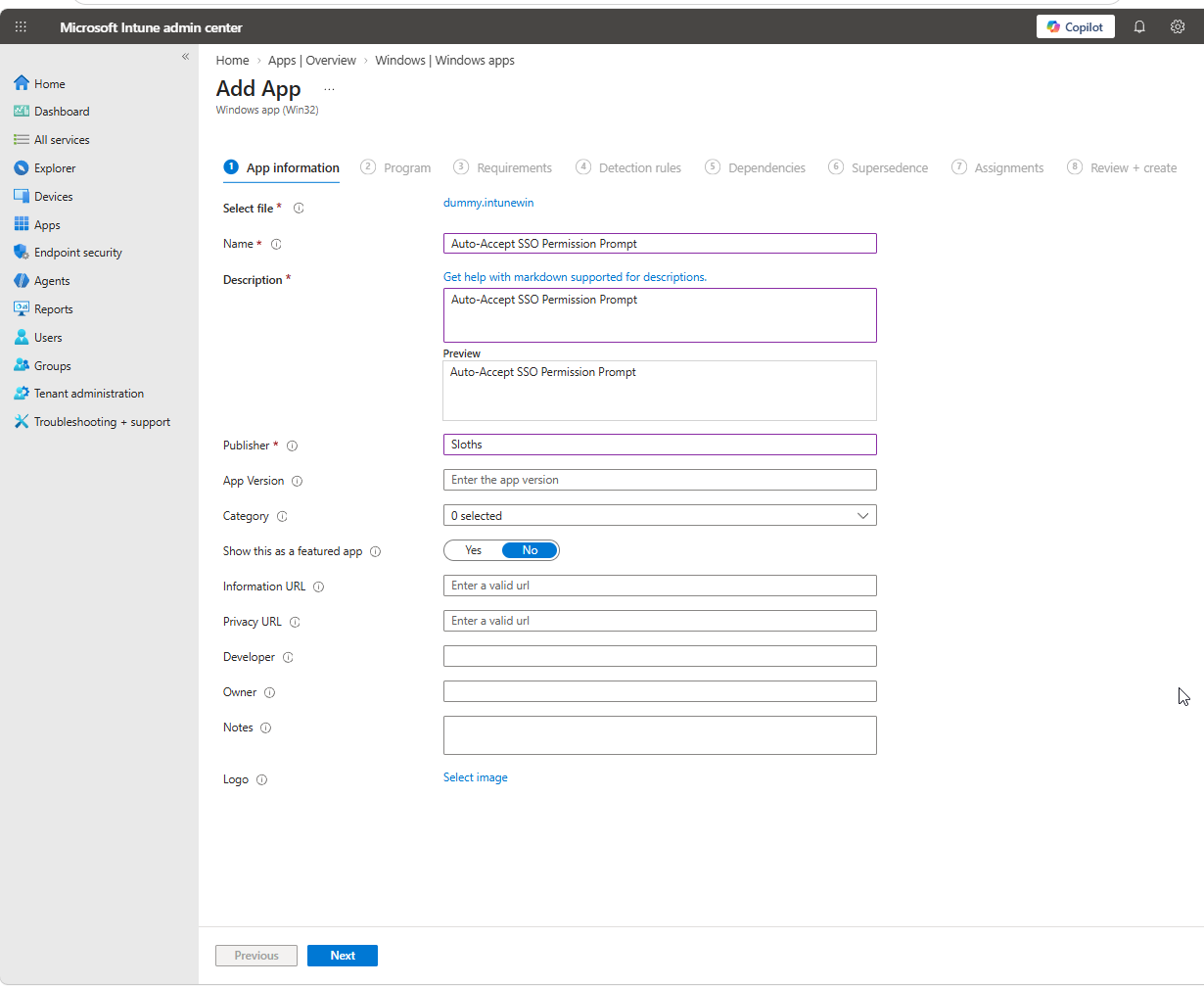
Add a new Windows app (Win32) under Apps > Windows and select dummy.intunewin as the content file.
On the Program tab, start typing in the installer type field and select PowerShell script. The install and uninstall scripts are then uploaded right there in the wizard - no need to create the app with a command line first and edit it afterwards.
One exception: with Multi-Admin Approval enabled, Microsoft documents that scripts cannot be uploaded during app creation at all. On those tenants you do have to create the app first and add the scripts afterwards.
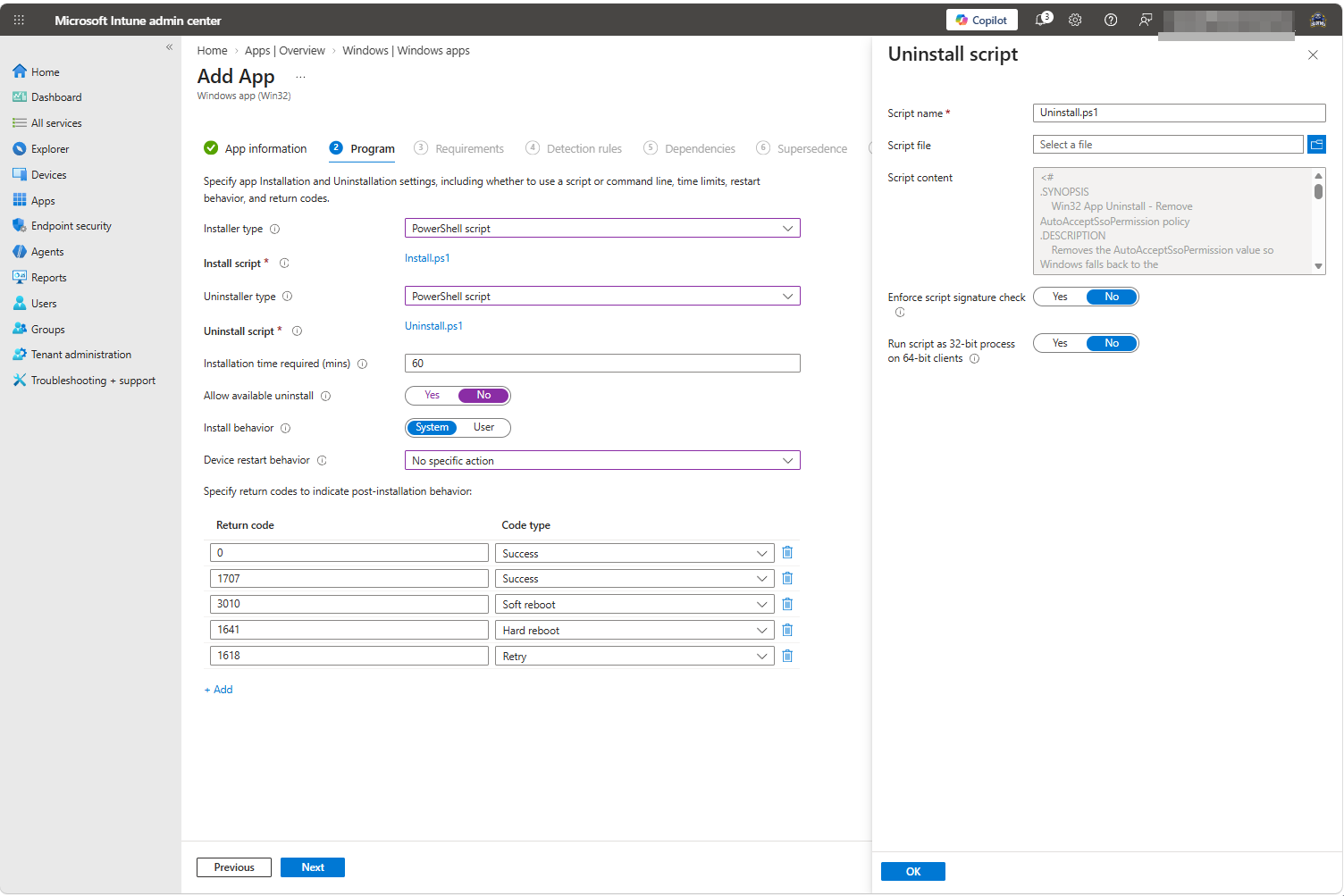
| Tab | Setting | Value |
|---|---|---|
| Program | Installer type | PowerShell script |
| Program | Install script | Install.ps1 |
| Program | Uninstall script | Uninstall.ps1 |
| Program | Install behavior | System (or User for a user-context remediation) |
| Program | Device restart behavior | No specific action |
| Requirements | Operating system architecture | 64-bit |
| Requirements | Minimum operating system | Whatever your fix actually needs |
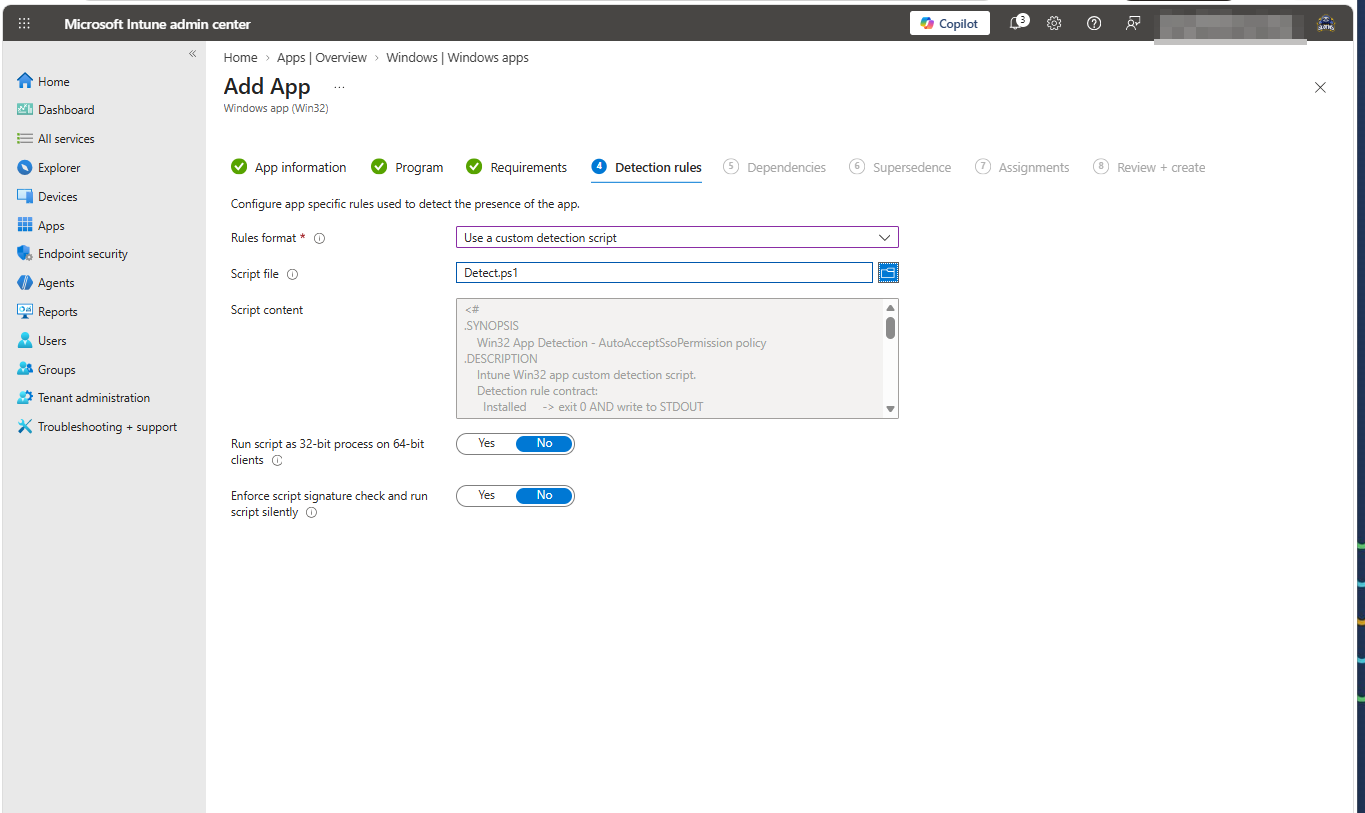
| Detection rules | Rules format | Use a custom detection script |
| Detection rules | Script file | Detect.ps1 |
| Detection rules | Run script as 32-bit process on 64-bit clients | No |
| Detection rules | Enforce script signature check | No |
Requirement rules deserve a second look. They are the closest thing to a scope filter you get inside the object itself, and a remediation has nothing comparable. A custom requirement script - same STDOUT rules as detection, plus a declared output data type - can gate the whole app on a condition that has nothing to do with whether the fix has been applied yet.
Assignment
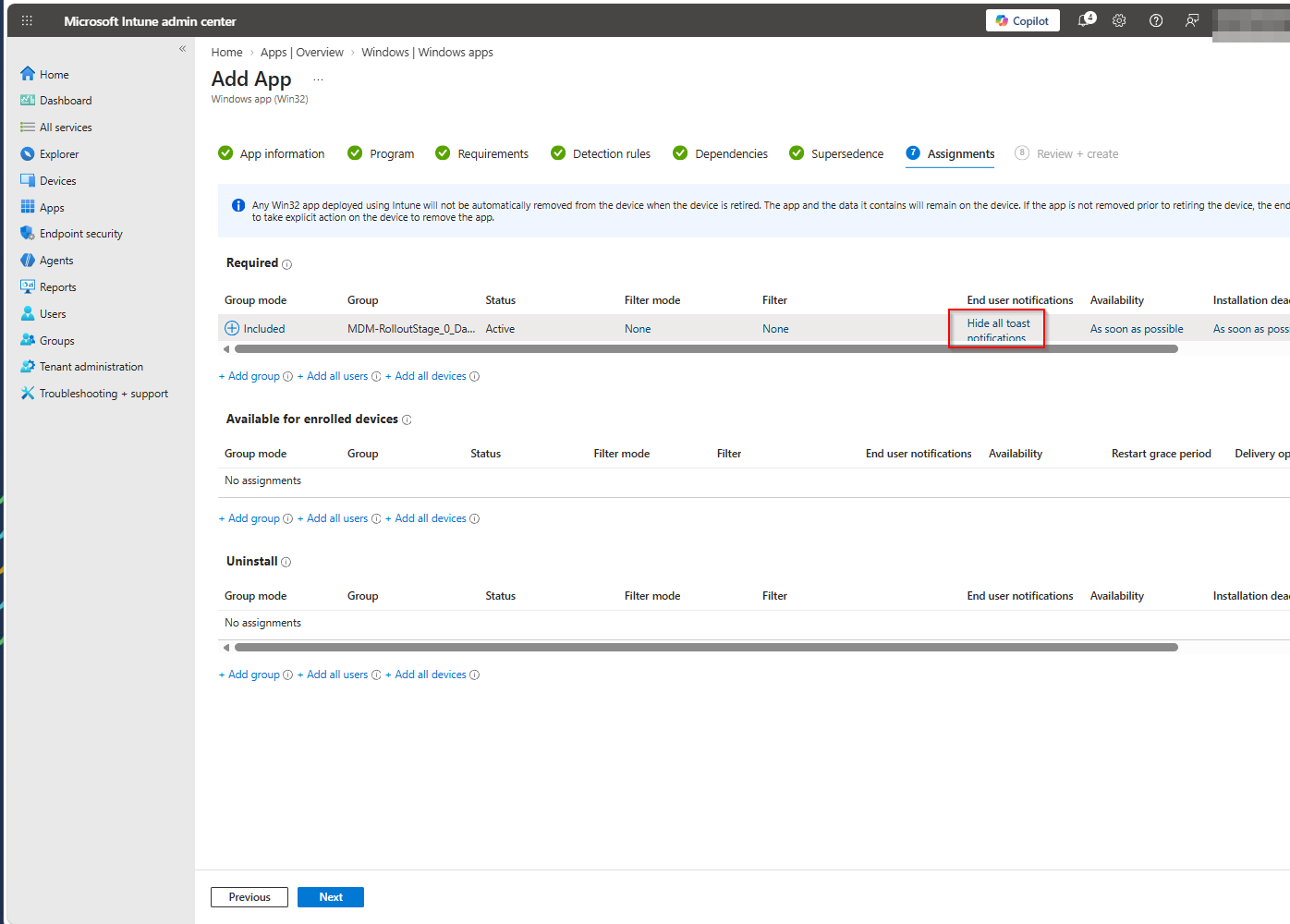
Assign the app as Required. Nothing else produces the loop - Available waits for a user to click Install in the Company Portal, and Uninstall runs the rollback.
- System-context fixes go to a device group.
- User-context fixes need install behavior User and a user-targeted assignment.
- Set End user notifications to Hide all toast notifications in the assignment settings. Nobody needs a toast announcing that “Auto-Accept SSO Permission Prompt” finished installing.
- If the fix has to be in place before the first sign-in on a new device, add the app to the Enrollment Status Page as a blocking app. A remediation could never do this, and it is one of the genuine advantages of the trick. It is also why the SSO example exists as an app at all: the SSO prompt article walks through that scenario end to end.
What You Give Up
Be honest about this before you build twenty of them.
No schedule. Remediations let you choose hourly, daily, or once, with an interval. Here you get Intune’s own app evaluation cycle: at device restart, at IME check-in, and otherwise on the 24-hour re-evaluation cadence - Microsoft’s wording is that a required app detected as not present is offered again “within approximately 24 hours”. You cannot make it run every hour, and you cannot make it run at 03:00. For drift correction that is usually fine. For anything time-sensitive it is not.
No run on demand. Remediations can be fired at a single device from the device blade. A Win32 app cannot. The closest you get is a Sync from the device blade or the Company Portal, which triggers a check-in and re-evaluates the app. It works, but it is a device-wide sync, not a targeted “run this one now”.
No output in the console. Remediations show pre- and post-remediation output per device, which makes them a decent lightweight inventory tool - detect something, write the answer to STDOUT, read it in the report. A Win32 app reports install status and nothing else. If you want data back, write it to a log and collect it another way.
One state, forever. Once detection succeeds, the app is Installed and stays quiet - which is correct behavior, but it also means a changed script does not re-run on devices that already report Installed. If you change the logic, change what detection looks for as well. Writing a version stamp alongside the fix and detecting on that version is the clean way to do it: bump the stamp, and every device re-evaluates.
Failure retries on a 24-hour cadence. A remediation simply tries again on its next scheduled run. A failing Win32 app is retried three times, five minutes apart, and then enters the global re-evaluation schedule - a 24-hour cooldown, after which the cycle starts over. So it does heal itself, just slowly. The trap is that the cooldown lives on the device, not in the service: editing the app in the portal does not reset it. Testing a fix on a device that has already failed means waiting the 24 hours out, or clearing that app’s state under HKLM\SOFTWARE\Microsoft\IntuneManagementExtension\Win32Apps and restarting the Intune Management Extension service.
It clutters the Apps blade. These are apps now. They appear in app reports, in the app list, and in every export, sitting between Adobe Reader and the Company Portal. Give them names that make it obvious at a glance that they are not software - six months later, nobody remembers which is which.
What You Get Back
| Platform script | Remediation | Win32 app | |
|---|---|---|---|
| Licensed with Business Premium | Yes | No | Yes |
| Runs more than once | No | Yes | Yes, while detection fails |
| Detection logic | No | Yes | Yes |
| Custom schedule | No | Yes | No |
| Run on demand | No | Yes | Sync only |
| Requirement rules inside the object | No | No | Yes |
| Can block the Enrollment Status Page | No | No | Yes |
| Script output visible in the console | No | Yes | No |
| Rollback path | No | No | Yes, the uninstall intent |
| Generous run time | Limited | Limited | Install timeout, up to 1440 minutes |
The last row matters more than it looks. Anything long-running - a large file operation, a slow inventory pass - is a much better fit for a Win32 app than for a script that has to finish inside a tight window.
Summary
Remediations are licensed behind Windows Enterprise, and Business Premium does not include it. A Win32 app with a PowerShell script installer and a custom detection script reproduces the detect-and-fix loop under Intune Plan 1, using a single dummy .intunewin you build once.
The conversion is not copy-paste. A Win32 detection script needs STDOUT and exit code 0 to count as detected, so every silent exit 0 in an old remediation detection script has to grow a Write-Output - otherwise the app reinstalls itself forever. On the install side, non-zero exit codes now carry meaning, and 3010 reboots the device.
You lose the schedule, the on-demand run, and the output reporting. You gain requirement rules, ESP blocking, an uninstall path, and a long execution window. For a tenant that is not licensed for remediations at all, that is a very good trade.