Part 3 of 3 in the Drive and printer mappings for Entra-joined devices series. Part 1 - reading AD group data from a cloud-only device and acting on it. Part 2 - running the job only when on-prem AD is actually reachable. Part 3 (this article) - packaging and deploying it with PSAppDeployToolkit and Intune.
By the end of Part 1 we had a script that discovers a user’s AD group memberships from a cloud-only device and maps their drives and printers. By the end of Part 2 we had a scheduled task that runs it at the moment on-prem AD actually becomes reachable, driven by the Domain firewall profile that the NetworkListManager CSP grants.
Two artefacts, then, that need to land on every device - the script and the task definition. Plus one thing users will ask for the moment they understand what this does: a way to re-run it now, without waiting for a logon or a network change. Group membership changes mid-morning; the user should not have to reboot to see the new drive.
This part wraps all three into a PSAppDeployToolkit package, pushes it through Intune as a Win32 app, and covers where to look when one device is not behaving.
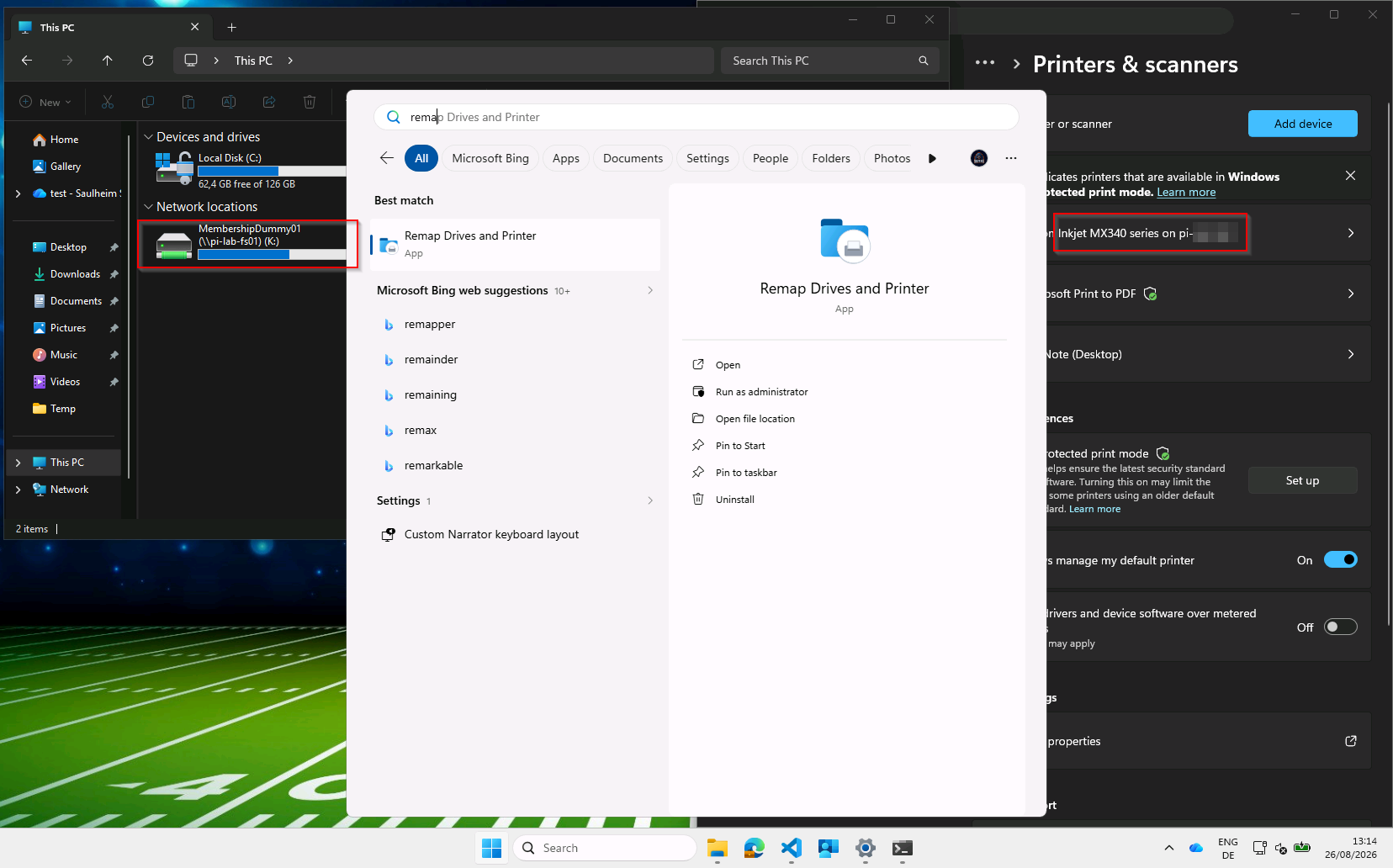
Table of Contents
- The Concept
- How the Package Works
- Prerequisites
- Deployment
- When a Device Misbehaves
- The Complete Package
- Things to Keep in Mind
- Wrapping Up
The Concept
One package installs three things, and nothing else:
| Artefact | Destination | Purpose |
|---|---|---|
MapDrivesAndPrinter.ps1 |
C:\Program Files\MapDrivesAndPrinter\ |
The script from Part 1 |
SMBShares.xml |
Registered with Task Scheduler | The task from Part 2, imported verbatim |
Remap Drives and Printer.lnk |
Common Start Menu | On-demand re-run |
The design rule that keeps this simple: the task XML is imported exactly as Task Scheduler exported
it. Register-ScheduledTask -Xml takes the definition as-is. The alternative - rebuilding the task from
New-ScheduledTaskTrigger and friends - means re-expressing the event subscription XPath, the principal
SID, and every setting from Part 2 in a second, subtly different dialect. One source of truth is
better than two that agree on a good day.
How the Package Works
flowchart TD
    A[Intune deploys Win32 app in System context] --> B[PSADT Invoke-AppDeployToolkit.exe -DeploymentType Install]
    B --> C[Copy script and icon to Program Files]
    B --> D[Register-ScheduledTask -Xml, reading SMBShares.xml as Unicode]
    B --> E[Create Start Menu shortcut]
    C --> F[Detection rule satisfied]
    D --> F
    E --> F
    F --> G{Trigger}
    G -- Logon or Domain profile --> H[Task runs as the signed-in user]
    G -- User clicks shortcut --> H
    H --> I[Drives and printers appear]
- Intune installs the Win32 app in System context - required, because the install writes to
Program Filesand registers a scheduled task. - PSADT runs the Install phase, which copies the script and its icon into the install directory.
- The task XML is read as Unicode and registered with
-Force, so a reinstall replaces cleanly. - The Start Menu shortcut is created, pointing at the same command the task itself runs.
- Intune’s detection rule confirms the install.
- From then on the task drives itself - the triggers from Part 2, or the user clicking the shortcut.
Note what step 6 does not include: the installer never runs the script. Intune installs run as SYSTEM, frequently between user sessions, and the script is explicitly a per-user operation binding as the signed-in user. Running it as SYSTEM would resolve no UPN and map nothing.
Prerequisites
| Requirement | Notes |
|---|---|
| PSAppDeployToolkit v4 template | PSAppDeployToolkit_Template_v4.zip from the releases page. This package was authored against 4.1.8. |
| Microsoft Win32 Content Prep Tool | IntuneWinAppUtil, to produce the .intunewin |
| Everything from Parts 1 and 2 | Hybrid identity, a user who can authenticate to on-prem AD, and the NetworkListManager CSP policy |
Why PSADT at all? You could do this with a bare PowerShell script wrapped as a Win32 app, and for something this small that is defensible. I used PSAppDeployToolkit v4 for boring reasons that pay off in month six rather than on day one: consistent logging in a known location and format, a real uninstall path rather than an afterthought, structured install/uninstall/repair phases, and the same shape as every other package in the estate. When a device misbehaves at 4pm on a Friday, “the logs are where the logs always are” is worth more than the elegance of any individual package. If your fleet does not already use PSADT, weigh it - the toolkit is a ~9 MB dependency to carry for a single script.
Assign this package to the same devices that receive the NetworkListManager policy. A device with the package and without that policy installs perfectly and then does nothing on any schedule but logon.
Deployment
Step 1 - Assemble the package
A v4 template with the two artefacts dropped in:
Install\
├── Invoke-AppDeployToolkit.ps1     ← our deployment logic
├── Invoke-AppDeployToolkit.exe     ← PSADT launcher, from the template
├── SMBShares.xml                   ← the scheduled task definition from Part 2
├── PSAppDeployToolkit\             ← the PSADT module, from the template
└── Files\
    ├── MapDrivesAndPrinter.ps1     ← the script from Part 1
    └── mapshares-printer.ico       ← icon for the Start Menu shortcut
Step 2 - Write the install logic
All of it, in one function:
function Install-MapDrivesAndPrinterTask
{
    $installDir = "$envProgramFiles\MapDrivesAndPrinter"
    New-ADTFolder -LiteralPath $installDir
    Copy-ADTFile -Path "$($adtSession.DirFiles)\MapDrivesAndPrinter.ps1" -Destination "$installDir\MapDrivesAndPrinter.ps1"
    Copy-ADTFile -Path "$($adtSession.DirFiles)\mapshares-printer.ico" -Destination "$installDir\mapshares-printer.ico"

    $taskXml = Get-Content -LiteralPath "$PSScriptRoot\SMBShares.xml" -Raw -Encoding Unicode
    Register-ScheduledTask -TaskName 'MapDrivesAndPrinter' -Xml $taskXml -Force | Out-Null

    New-ADTShortcut -LiteralPath "$envCommonStartMenuPrograms\Remap Drives and Printer.lnk" `
        -TargetPath "$envWinDir\System32\conhost.exe" `
        -Arguments "--headless powershell.exe -ex bypass -File `"$installDir\MapDrivesAndPrinter.ps1`"" `
        -IconLocation "$installDir\mapshares-printer.ico" `
        -Description 'Re-run the drive and printer mapping task now, without waiting for logon or a network change.' `
        -WorkingDirectory "$envWinDir\System32"
}
Three details that are easy to get wrong:
| Detail | Why it matters |
|---|---|
-Encoding Unicode on the XML read |
The Task Scheduler export is UTF-16. Reading it as UTF-8 produces garbage that Register-ScheduledTask rejects. |
Icon copied to the install directory, not referenced in Files\ |
A shortcut’s icon path is evaluated whenever the shortcut is drawn - long after Intune’s temp folder is gone. Point it at Files\ and you get a working shortcut with a blank icon a few minutes later. |
| Every step idempotent | Copy-ADTFile overwrites, Register-ScheduledTask -Force replaces, New-ADTShortcut recreates. That makes the Repair phase a straight re-run of Install. |
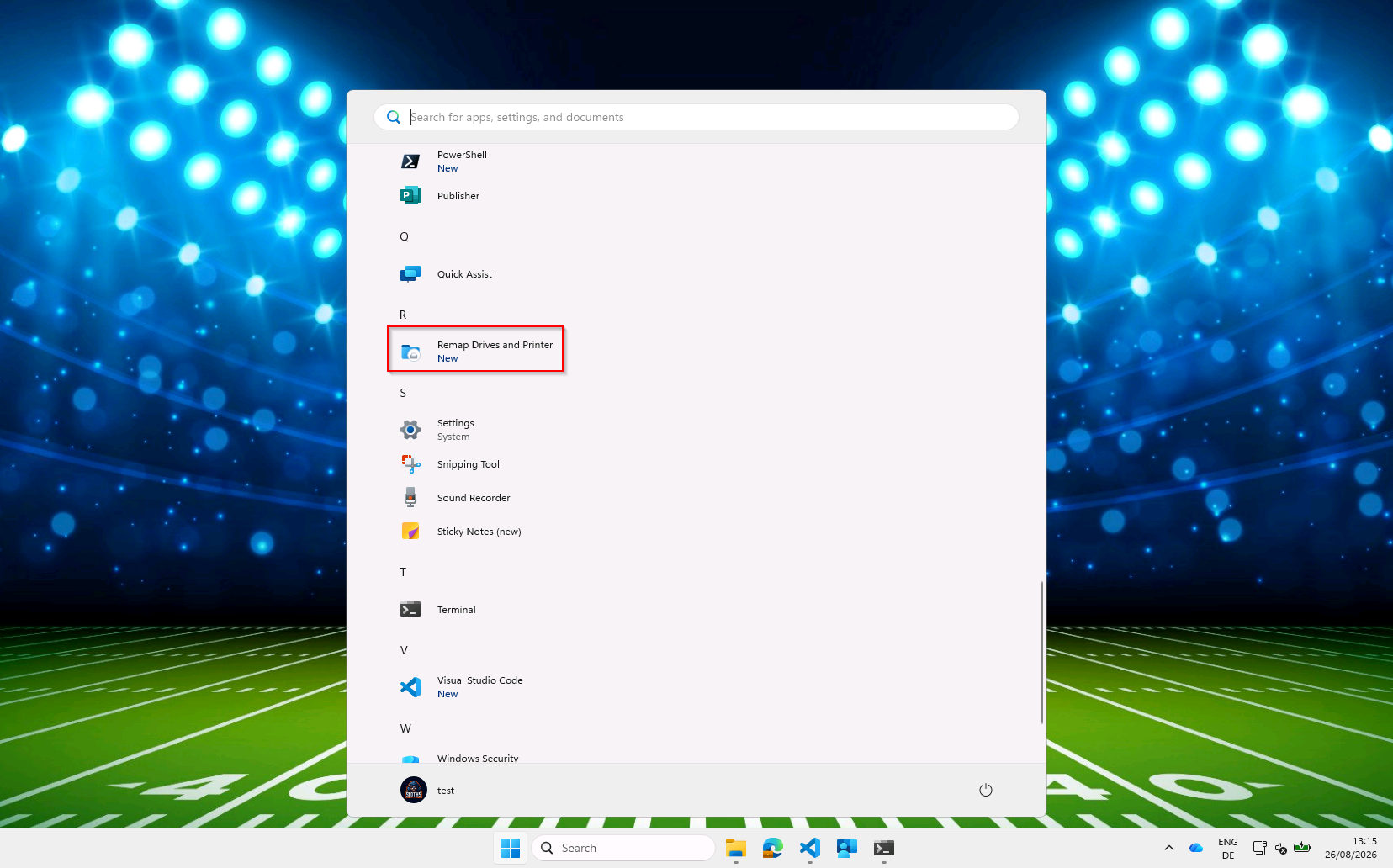
Step 3 - Write the uninstall logic
function Uninstall-MapDrivesAndPrinterTask
{
    Unregister-ScheduledTask -TaskName 'MapDrivesAndPrinter' -Confirm:$false -ErrorAction SilentlyContinue
    Remove-ADTFile -Path "$envCommonStartMenuPrograms\Remap Drives and Printer.lnk"
    Remove-ADTFolder -Path "$envProgramFiles\MapDrivesAndPrinter"
}
The task, the shortcut, the install folder. Not the mappings - see Things to Keep in Mind.
Step 4 - Wrap it for Intune
IntuneWinAppUtil.exe -c .\Install -s Invoke-AppDeployToolkit.exe -o .\Output
Step 5 - Create the Win32 app
| Field | Value |
|---|---|
| Install command | Invoke-AppDeployToolkit.exe -DeploymentType Install -DeployMode Silent |
| Uninstall command | Invoke-AppDeployToolkit.exe -DeploymentType Uninstall -DeployMode Silent |
| Install behaviour | System |
| Device restart behaviour | No specific action |
System context is required for the install. That the task subsequently runs as the signed-in user is unrelated - that is the task’s own principal, set in the XML from Part 2.
For detection, the simplest reliable option is file-based: rule type File, path
C:\Program Files\MapDrivesAndPrinter, file MapDrivesAndPrinter.ps1, method File or folder exists.
If you version the script, switch to version-based detection so upgrades are detected properly. A tidier
alternative checks the state you actually care about:
if (Get-ScheduledTask -TaskName 'MapDrivesAndPrinter' -ErrorAction SilentlyContinue) {
    Write-Output 'Installed'
    exit 0
}
exit 1
Step 6 - Expect nothing to happen immediately
There is no first-run handling, and that is deliberate rather than missing. After install, mappings appear at the next logon or the next transition to the Domain profile. On a device already sitting on the corporate network that is typically minutes away - or immediately, if the user clicks the Start Menu shortcut. Put this in your deployment notes so nobody reports it as a bug.
When a Device Misbehaves
Four places, in order:
- The script’s transcript -
%LOCALAPPDATA%\MapPrinterAndShares\MapFromMWP.log. Per-user, verbose, rotated three generations deep. This is the first place to look and usually the last: it names the resolved UPN, every group matched, every mapping request, and every skipped mapping with a reason. Note it is per user - if you are in the wrong profile you will find nothing. - The PSADT install log -
C:\Windows\Logs\Software\. Install-time problems only: file copy failures, task registration failures. - The task’s History tab. This tells you whether the task fired, which is a different question from whether the script worked. Empty history after a network change means the problem is upstream.
- The firewall event log - Event ID 2010. No 2010 with
NewProfile=1means the device never reached the Domain profile, so the NetworkListManager policy or its endpoint is what to investigate. See Part 2.
| Symptom | Cause |
|---|---|
| Task never fires on network change | NetworkListManager policy not applied, endpoint unreachable, or its certificate does not validate. Get-NetConnectionProfile will not say DomainAuthenticated. |
| Task fires, log says “not reachable”, exits 0 | Working as designed. Domain profile arrived but no DC answered on 389 or 636 - VPN split-tunnel, firewall, or DC genuinely down. |
| Log says “UserUPN not found” | Registry identity caches absent or belong to a different account, and whoami /upn also failed. Check dsregcmd /status. |
| Runs cleanly, maps nothing | The user’s groups do not match your prefixes, or the user cannot read the mapping attribute. Test with a genuinely unprivileged account - see Part 1. |
| One share missing, others fine | Malformed value in that group’s attribute. The log names the group’s cn. |
| Drive lands on the wrong letter | Requested letter already in use on the device. By design - it cycles forward rather than failing. |
The Complete Package
The script, the Pester test suite covering its logic, the task definition, and the PSADT package are on SasStu/MapPrinterAndSharesCloudOnlyFromAD.
Things to Keep in Mind
Verify the two invisible prerequisites first, on one device, by hand. Both are invisible to the code and neither produces a useful error when missing. Almost every “it does not work” report on this design is one of these two:
- The user can authenticate to on-prem AD.
klistshowing akrbtgt/<your domain>ticket is the check that works regardless of how they signed in. (dsregcmd /status→OnPremTgt : YESalso confirms it, but only on the Windows Hello / cloud Kerberos trust path - on password sign-in it readsNOon a perfectly working device. See Part 1.) - The device is on the Domain profile.
Get-NetConnectionProfileshowingDomainAuthenticated.
Uninstall deliberately leaves the mappings behind. That follows directly from the additive design in Part 1: this tool never removes a mapping, and uninstalling it is not a special case. The mappings it created are ordinary persistent drive mappings and printer connections that now belong to the user. Removing them at uninstall would mean the tool does track provenance after all, and would make an uninstall/reinstall cycle destructive for anyone whose drives are currently working. If you want them gone, that is a separate, deliberate cleanup action.
Test with an unprivileged account. The whole design binds as the user. Your admin account is not representative of anything.
Accept that mappings are additive, or plan for the alternative deliberately. Stale drive letters accumulate. The ACLs still hold, so it is untidiness rather than exposure - but untidiness that compounds over years.
Keep the config in the directory. The moment you start putting share paths in the script, you have recreated the GPO or logon script you were replacing, with worse deployment ergonomics. If a new share means editing a repository, something has gone wrong.
Wrapping Up
Three parts, and the shape of the thing is: the directory still holds the truth, the device just needs a way to ask that does not depend on a domain logon, and a way to know when asking is worth the attempt.
Neither prerequisite ships in the repository, because neither is code - identity is an identity decision and the NetworkListManager CSP is a network one. What is in the repository is the part that sits between them.